Category: Accounts & Access

Learn how to register and share access to all accounts required for your app

  • Register Google Developer account | vendrux Docs

    Register Google Developer account | vendrux Docs

    In this guide, we will walk you through the process of creating and verifying your Google Developer Account. This is a required step if you want to publish your app on the Play Store for Android users.

    What You Need Before Starting

    Before beginning, ensure you have the following:

    All of these are mandatory, and you will be asked to provide them during registration.

    If you don’t have a DUNS number yet, request one as soon as possible. Keep in mind that while the process is free, it can take a few days or weeks to complete.

    Important Notice: Organizational Accounts Only

    We only work with organizational Google Play Developer accounts, not personal accounts. This is because an organizational account ensures that the app belongs to your business rather than an individual. It also provides better long-term management, allowing multiple team members to access and maintain the account as needed.

    Using a personal account can lead to ownership complications, especially if the individual who created the account leaves your company. To avoid these issues, always register your Google Play Developer account under your business entity.

    Step 1: Sign in to Google

    Go to https://play.google.com/console/signup and sign in with your Google account. If you don’t have one, create a new account at https://accounts.google.com/signup.

    If you are not the owner of the company, we strongly recommend using a general company email (e.g., contact@company.com) rather than a personal one. This ensures the Developer Account remains accessible to the organization and prevents potential ownership issues in the future.

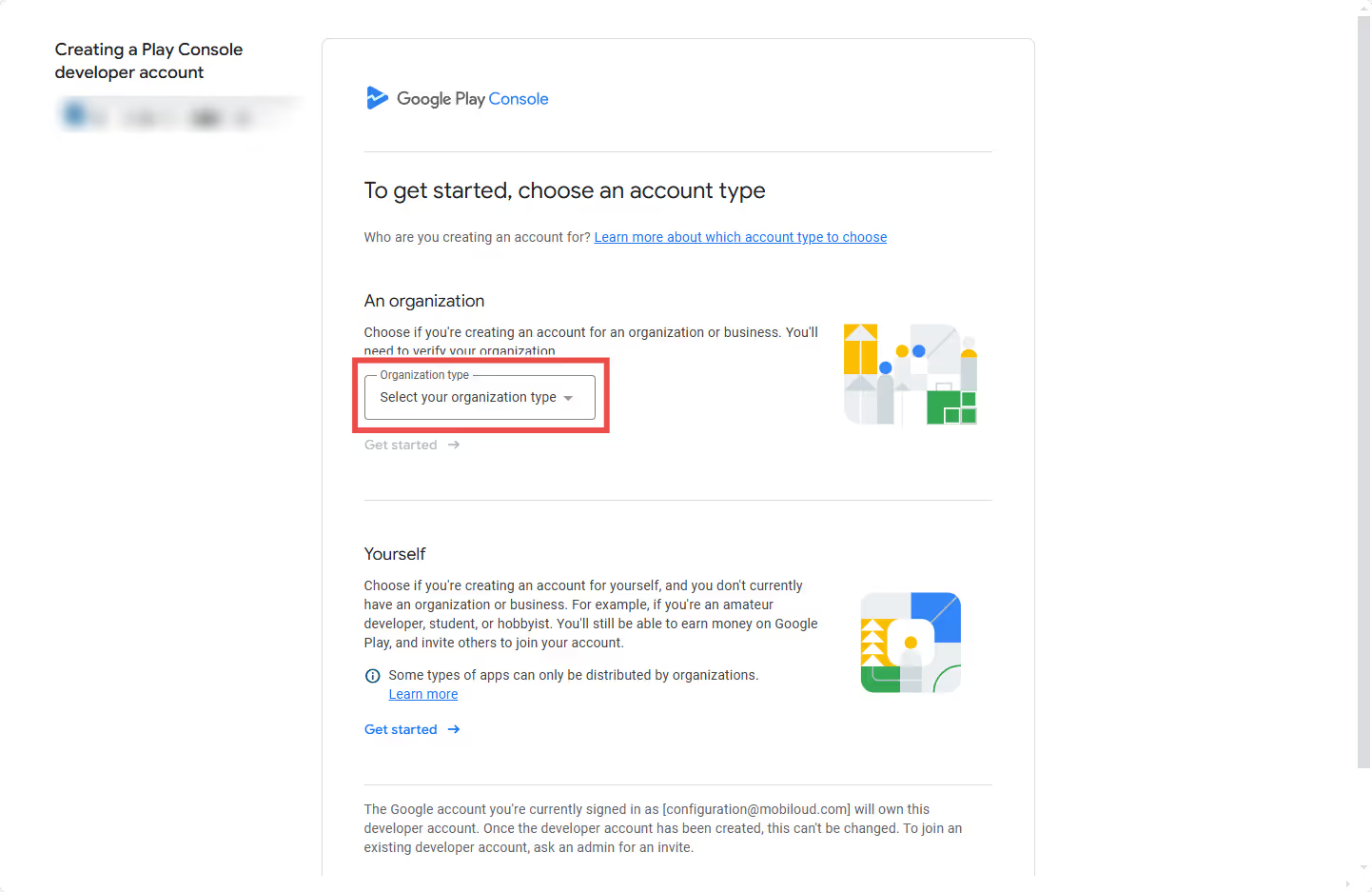
    Step 2: Select “An Organization”

    • Choose “An organization” as your account type.
    • Click Get started and review the required information before proceeding.

    Step 3: Enter Your Developer Name

    • Enter your company name as your developer name, exactly as you want it to appear on the Play Store. This name will be publicly displayed, so make sure to use the correct spelling and capitalization. For example, if your company is called “Tech Solutions Inc.”, entering “tech solutions inc” or “TECH SOLUTIONS INC” may not look as professional as “Tech Solutions Inc.”.
    • Next, you’ll need to link a payments profile to verify your organization

    Payments Profile Setup

    • If your Google account is already linked to a payment method, select it from the options available.
    • If not, click “Create or select payments profile” and follow the instructions to add your business details.

    Enter Your D-U-N-S Number

    Step 4: Complete Your Public Developer Profile

    • Enter your developer phone number and email address.
    • Click Verify phone number and Verify email address to complete verification.
    • This information will be displayed on your app’s Google Play Store listing after your app is published.

    Step 5: Add Developer Experience

    • If you are new to Android development, select “No experience” and continue.

    Step 6: Provide App Information

    • Number of apps: Select 1 or 2-5.
    • Earning money on Google Play: Select No (unless you plan to monetize).
    • App categories: Select None of the above if unsure.

    Step 7: Provide Contact Information

    • Enter your contact name, email, preferred language, and phone number.
    • Click Next to proceed.

    Step 8: Accept the Terms

    • Review the Google Play Developer Terms of Service.
    • Check both agreement boxes and click Create account and pay.

    Step 9: Pay the Registration Fee

    • Enter your payment details to pay the $25 USD one-time registration fee.
    • Click Save card and complete the purchase.

    Step 10: Verify Your Account

    After registration, visit the Google Play Console (https://play.google.com/console) to check if additional verification is required.

    IMPORTANT! We can only publish apps to your account after it has been verified.

    Possible Verification Steps:

    If you have any questions regarding the verification steps, refer to Google’s documentation, here: https://support.google.com/googleplay/android-developer/answer/9198012

    1. Identity Verification
      • Confirm that the name and address match your identity document.
      • Any discrepancies may require re-submission and delay your ability to publish apps.
    2. Website Verification
      • Google may ask you to verify your website.
      • Follow the instructions under View details to complete this step.
    3. Android Device Verification
      • If required, verify using an Android device (Android 10 or later).
      • Click View details and follow the instructions provided.
  • Register for OneSignal | vendrux Docs

    Register for OneSignal | vendrux Docs

    OneSignal is the world’s leading Mobile and Web Push Notification service, we use it to deliver push notifications to your app users.

    You will be required to register for your own OneSignal account, but our team will take care of everything else for you.

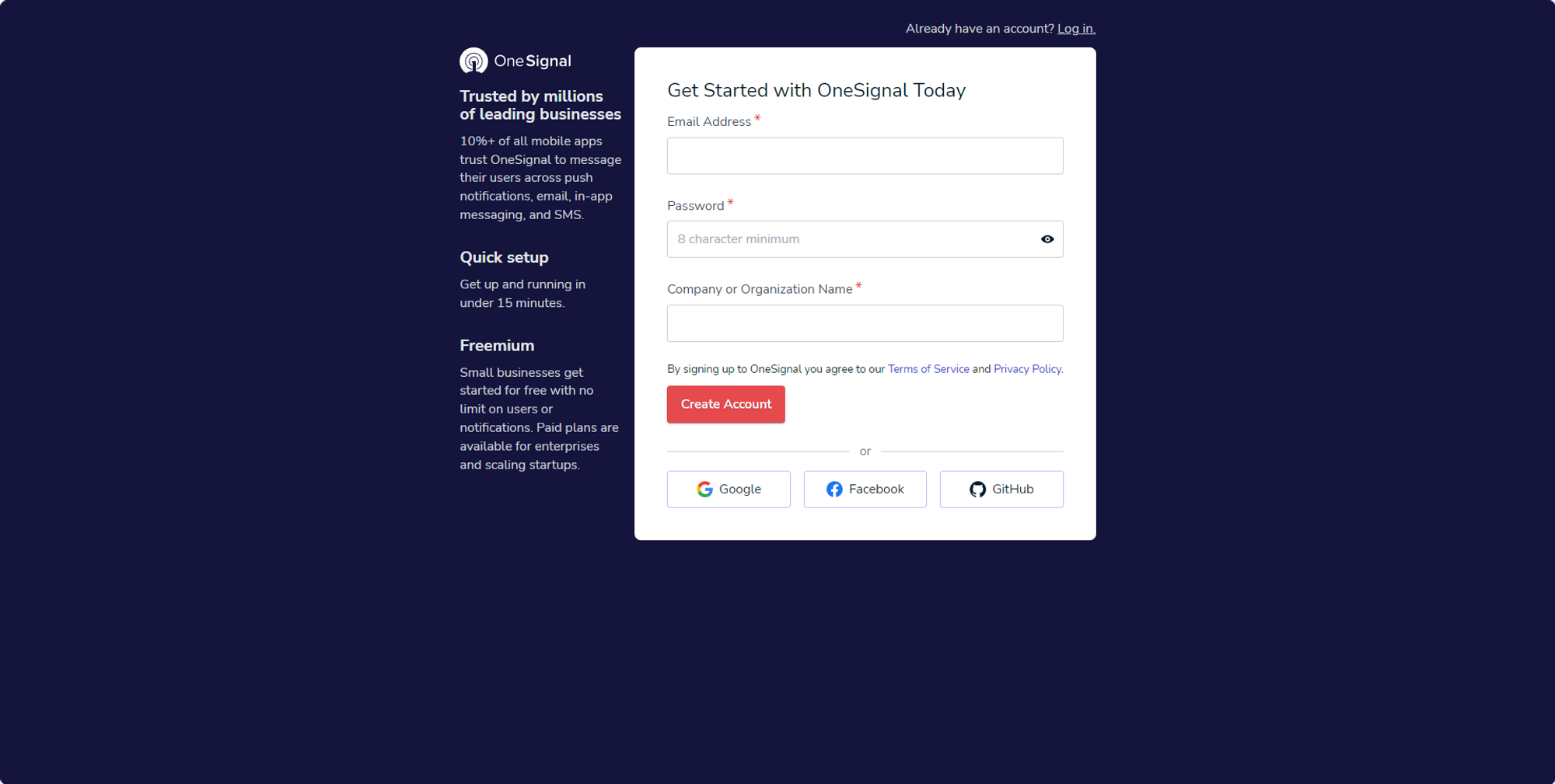
    You can easily register from the link: https://dashboard.onesignal.com/signup

    1 – Create your account

    Fill in all the details:

    Notion Image

    2 – Select your plan

    Note that for basic usage of push notifications in your app, the Free plan should be enough. If you have any specific requirements such as DPA and more sophisticated analytics data you might want to choose one of their paid plans.

    Notion Image

    3 – Activate your email

    You will then receive a confirmation link in your email, make sure to check it and start the activation process.

    Notion Image

    4 – Answer questions

    After clicking the activation email OneSignal will require you to answer a few quick questions:

    Notion Image

    5 – Create your first app

    You will now be required to create your first OneSignal app, by choosing a name. Make sure to use the same name that you will use for your mobile app, this will avoid a lot of confusion.

    Notion Image

    6 – Skip the quick start guide

    This is not a required step, as our team will configure everything for you. Make sure to skip this step:

    Notion Image

    That’s it! You now have your OneSignal account, make sure to check our guide on how to invite users to your account:

    • How to invite users to OneSignal
  • Register for Firebase | vendrux Docs

    Register for Firebase | vendrux Docs

    Google’s Firebase is an app development platform that gives you control over several parts of your app, with it you will be able to track analytics data, crashes, user behavior, ads, and much more.

    Create your Firebase account

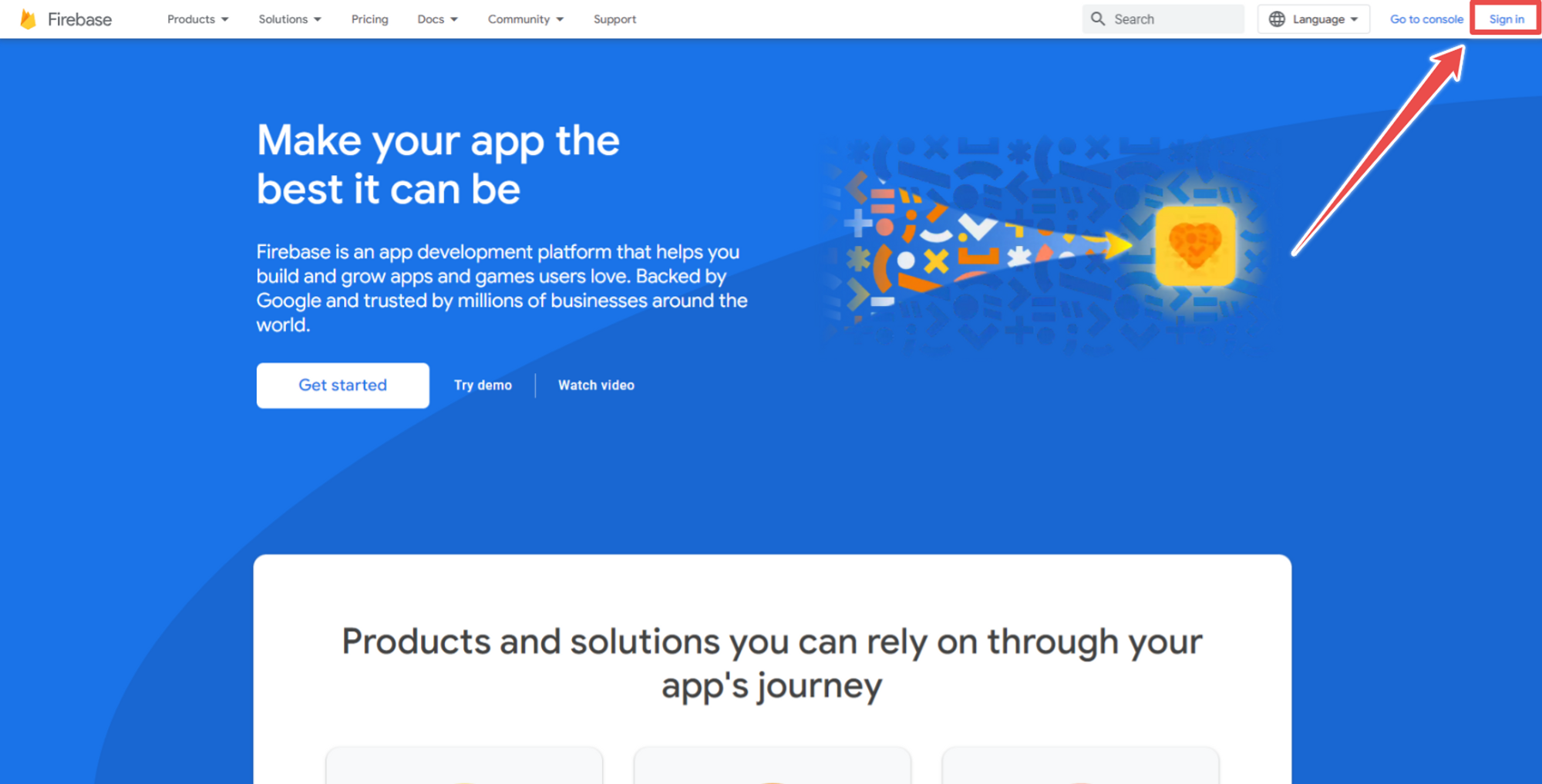
    Just like other Google services, in order to have a Firebase account, you will need to sign in with your own Google Account login details here: https://firebase.google.com/

    Notion Image

    In case you don’t have a Google Account yet, you can register one here: https://accounts.google.com/signup

    Create your Firebase project

    Now that you have your Firebase account, you will need to create a Firebase project. You can do so by following these steps:

    1 – Open your Firebase Console

    You can open your Firebase Console using this link: https://console.firebase.google.com/

    2 – Create a new project

    Click the “Create new project” button:

    Notion Image

    3 – Choose the project name

    Make sure to use the same name that you will use in your mobile app, to avoid confusion.

    Notion Image

    4 – Setup Google Analytics (optional)

    If you’d like to be able to track your app data via Google Analytics, later on, make sure to enable Google Analytics:

    Notion Image

    That’s it, your project is now created and you can now invite our team to it:

    • How to invite users to Firebase
  • Register for an Apple Developer account

    Register for an Apple Developer account

    To publish your app on the App Store for iOS devices, you must have an Apple Developer Account. Below are the steps required to register for your own Apple Developer Account.

    Requirements

    Before enrolling, ensure you have the following:

    1. Apple Account

    If you use an iOS device, you likely already have an Apple Account. If not, you can create one quickly here: Create an Apple Account

    2. Enable Two-Factor Authentication

    Apple requires two-factor authentication (2FA) to be enabled on your Apple Account for security purposes. You can find instructions on enabling 2FA here.

    3. DUNS Number (For Organizations)

    If you are enrolling as a company, Apple requires a DUNS number. You can check if you have one or request a free DUNS number here: DUNS Number Lookup

    Why Should I Enroll as a Company?

    You must enroll as an organization if your company is a registered business entity such as:

    • Corporation (Corp., Inc.)
    • Limited Liability Company (LLC, LC, Ltd. Co.)
    • Legal entity (GmbH, AG, KG, oHg, etc.)

    If you are a sole proprietor, you must register as an individual. Apple does not accept DBAs, fictitious businesses, trade names, or branches for company enrollment.

    Benefits of an Organization Account:

    • Invite developers to collaborate on your account.
    • Display your company name as the Developer on the App Store (e.g., Business Inc. instead of an individual name).
    • Apple recognizes you as an authorized representative, avoiding brand or content disputes.

    Next Steps: Registering for an Apple Developer Account

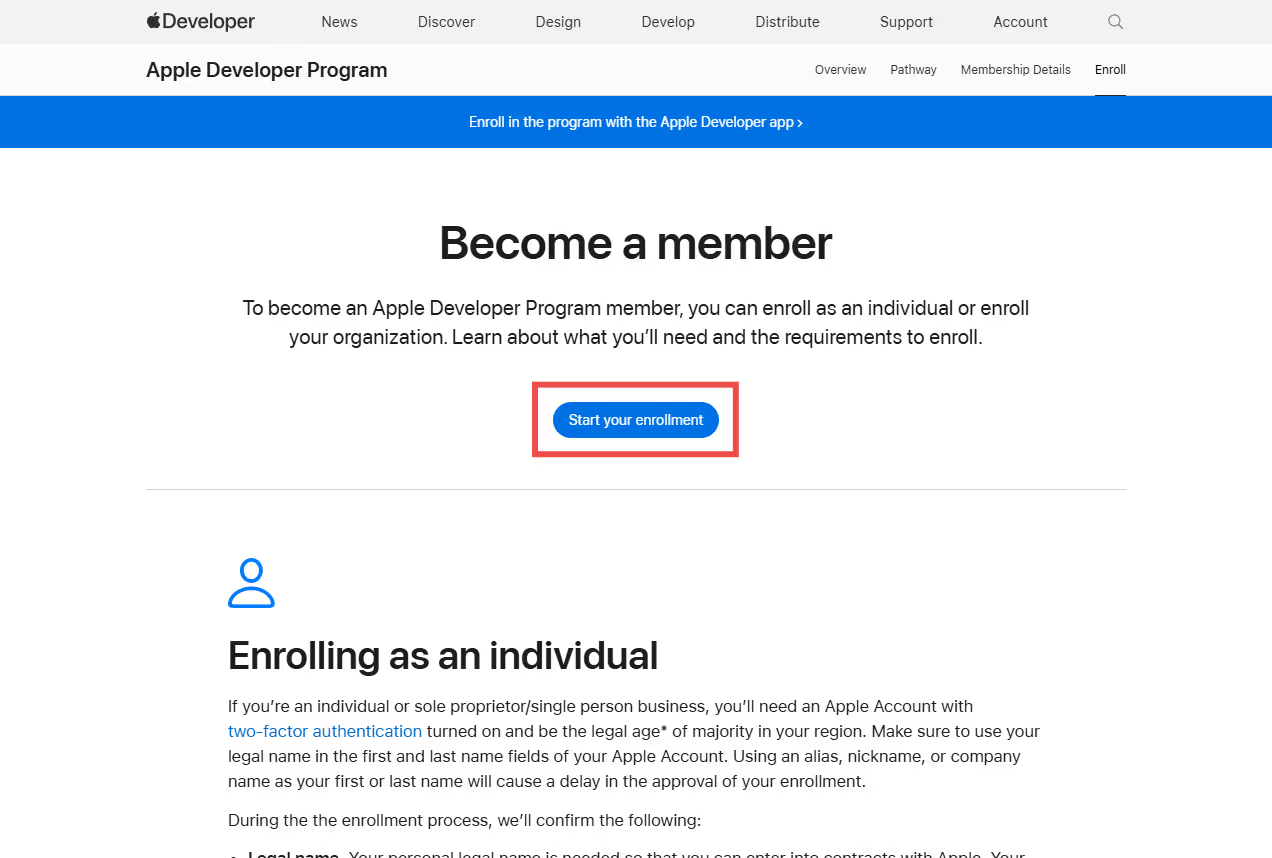
    Once you have your Apple Account and (if applicable) your DUNS Number, go to https://developer.apple.com/programs/enroll/ and click the “Start your enrollment” button.

    Fill out the required forms with accurate information. Once completed, you should receive an email confirming your enrollment. Apple will then review your submission, which may take up to 3 business days.

    The Apple Developer Program costs $99 per year and must remain active to keep your app available on the App Store. At the end of the enrollment process, you will be prompted to complete the payment—be sure to finalize the payment to complete your registration.

    If necessary you can follow-up with Apple about your enrollment from this page: https://developer.apple.com/contact/

    Final Step: Inviting Our Team

    Once Apple approves your account, you can invite our team to your App Store Connect account so we can begin working on your iOS app.

    How to Invite Users to App Store Connect

  • Invite users to OneSignal | vendrux Docs

    Invite users to OneSignal | vendrux Docs

    Now that you have registered for your OneSignal account and created your OneSignal app, you will want to invite Vendrux to your account so we can configure your app accordingly.

    Access https://dashboard.onesignal.com/apps and select the OneSignal app to which you would like to invite us to.

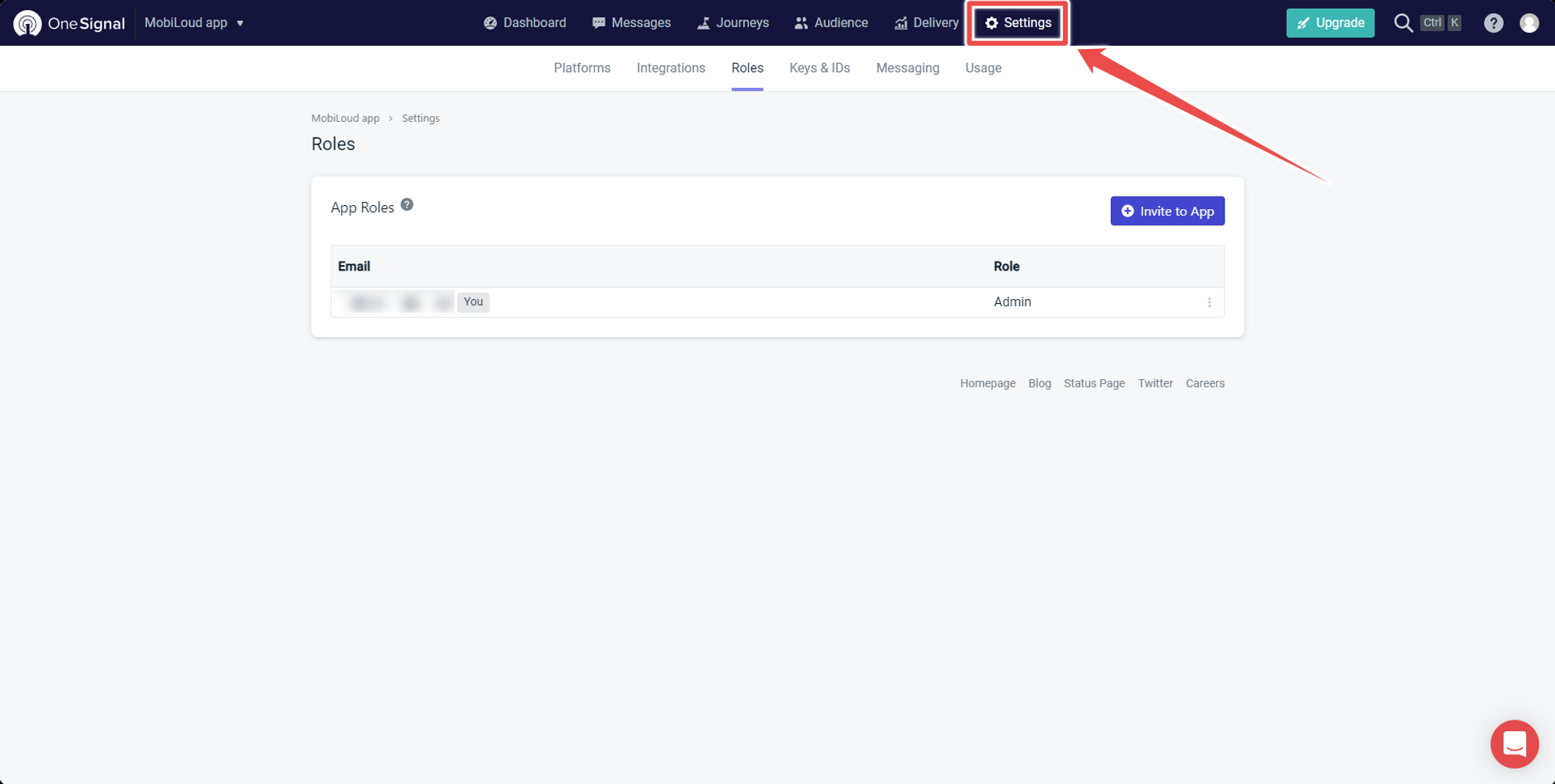
    1 – Go to “Settings”

    On the top menu select “Settings”:

    Notion Image

    2 – Select “Roles”

    Now on the submenu below “Settings” click on “Roles”:

    Notion Image

    3 – Click “Invite to App”

    To add a new user click “Invite to App” on the right side of the screen:

    Notion Image

    4 – Fill in the user details and click “Invite”

    Notion Image
  • Invite users to Google Developer account

    Invite users to Google Developer account

    In order for our team to be able to configure and submit your Android apps we will need an invitation to your Google Developer Console.

    Here you can find a step-by-step guide on how to invite users as an admin to your account:

    Step 1: Login to your Google Developer Account

    You can log in via the following link: https://developer.android.com

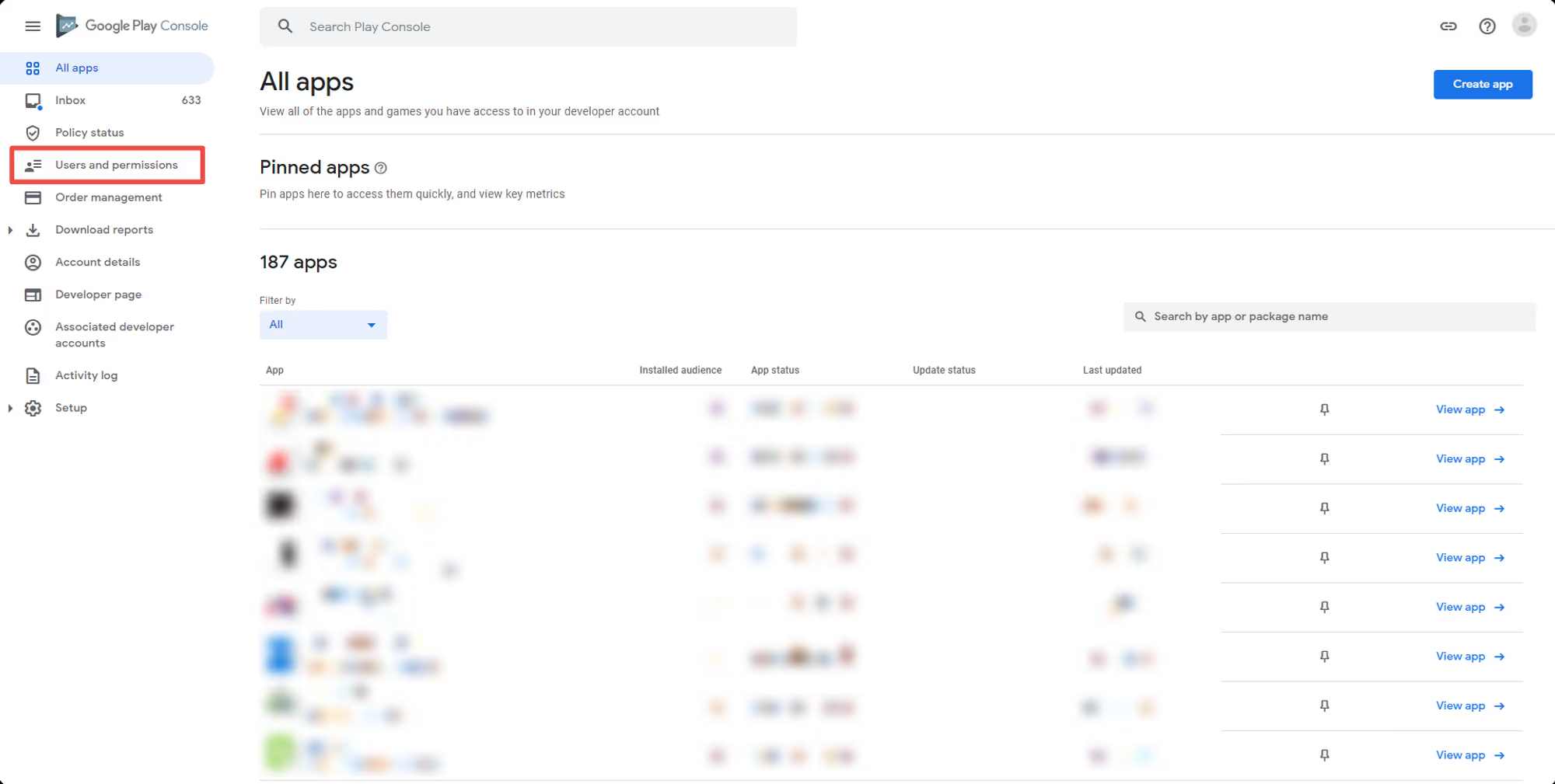
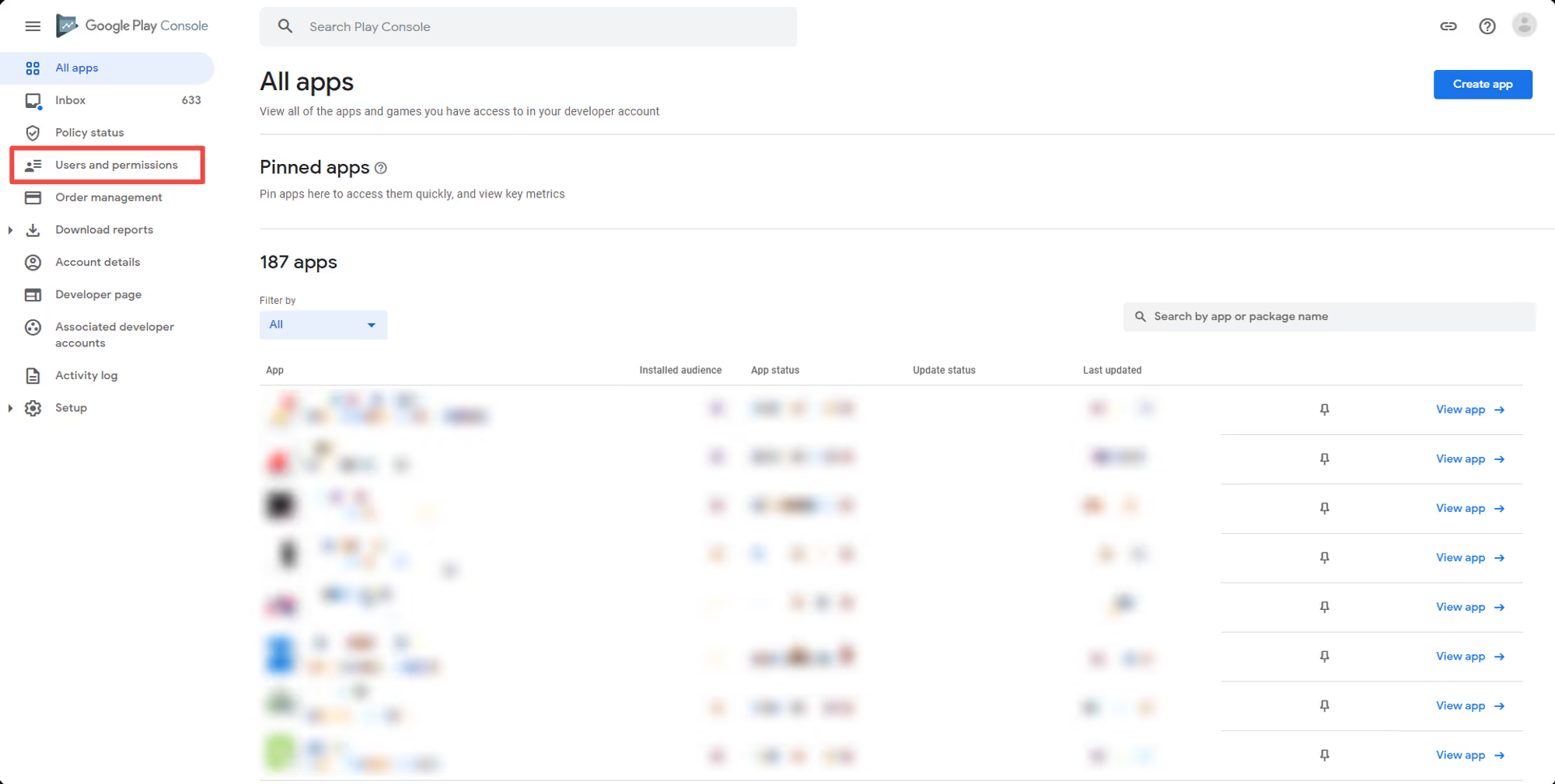
    Step 2: Go to “Users and permissions”

    In your Google Developer Console, look for “Users and permissions” on the left sidebar:

    Notion Image

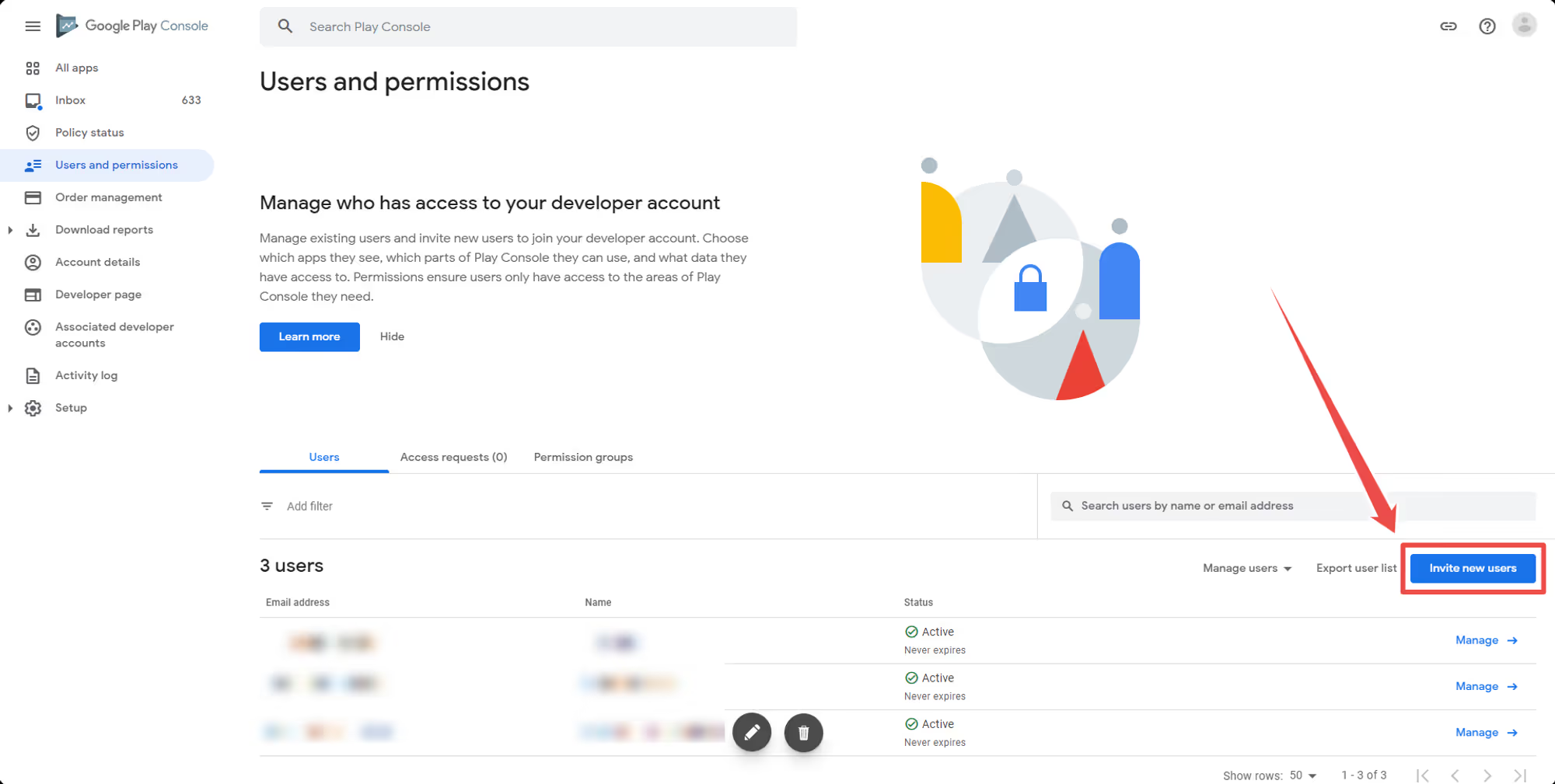
    Step 3: Click “Invite new users”

    On the right area of the screen, you will find a button that says “Invite new users”, click it:

    Notion Image

    Step 4: Add the user email address

    Add the user email address that should be invited to your account:

    Notion Image

    Step 5: Click “Account permissions”

    This is an important step to make sure the invited user will have access to create and upload your app:

    Notion Image

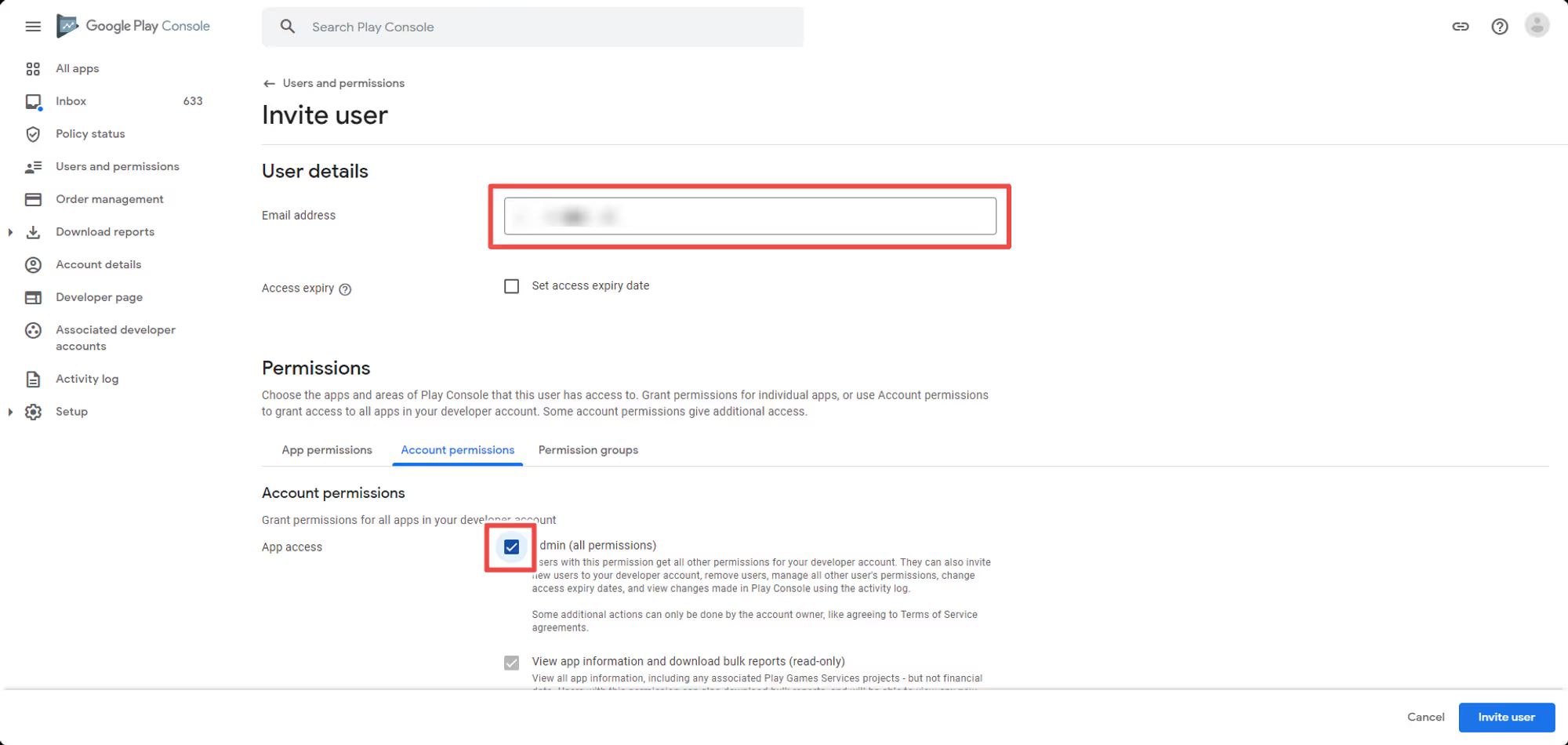
    Step 6: Provide “Admin” permission

    On the “Account permissions” page make sure to check the “Admin” box. The “Admin” role is required in order for Vendrux to be able to create, upload and submit your app to the Play Store:

    Notion Image

    Step 7: Click “Invite user”

    Once you are done, click the “Invite user” button on the bottom right area:

    Notion Image

    That’s it! The invited user will now be requested to accept the invitation, once accepted he will be able to create, upload and submit your app to the Play Store.

  • Invite users to Google Developer account

    Invite users to Google Developer account

    In order for our team to be able to configure and submit your Android apps we will need an invitation to your Google Developer Console.

    Here you can find a step-by-step guide on how to invite users as an admin to your account:

    Step 1: Login to your Google Developer Account

    You can log in via the following link: https://developer.android.com

    Step 2: Go to “Users and permissions”

    In your Google Developer Console, look for “Users and permissions” on the left sidebar:

    Notion Image

    Step 3: Click “Invite new users”

    On the right area of the screen, you will find a button that says “Invite new users”, click it:

    Notion Image

    Step 4: Add the user email address

    Add the user email address that should be invited to your account:

    Notion Image

    Step 5: Click “Account permissions”

    This is an important step to make sure the invited user will have access to create and upload your app:

    Notion Image

    Step 6: Provide “Admin” permission

    On the “Account permissions” page make sure to check the “Admin” box. The “Admin” role is required in order for Vendrux to be able to create, upload and submit your app to the Play Store:

    Notion Image

    Step 7: Click “Invite user”

    Once you are done, click the “Invite user” button on the bottom right area:

    Notion Image

    That’s it! The invited user will now be requested to accept the invitation, once accepted he will be able to create, upload and submit your app to the Play Store.

  • Invite users to Firebase | vendrux Docs

    Invite users to Firebase | vendrux Docs

    After registering for your Firebase account and creating your first project you will want to invite users to your account.

    Open your Firebase Console here: https://console.firebase.google.com/

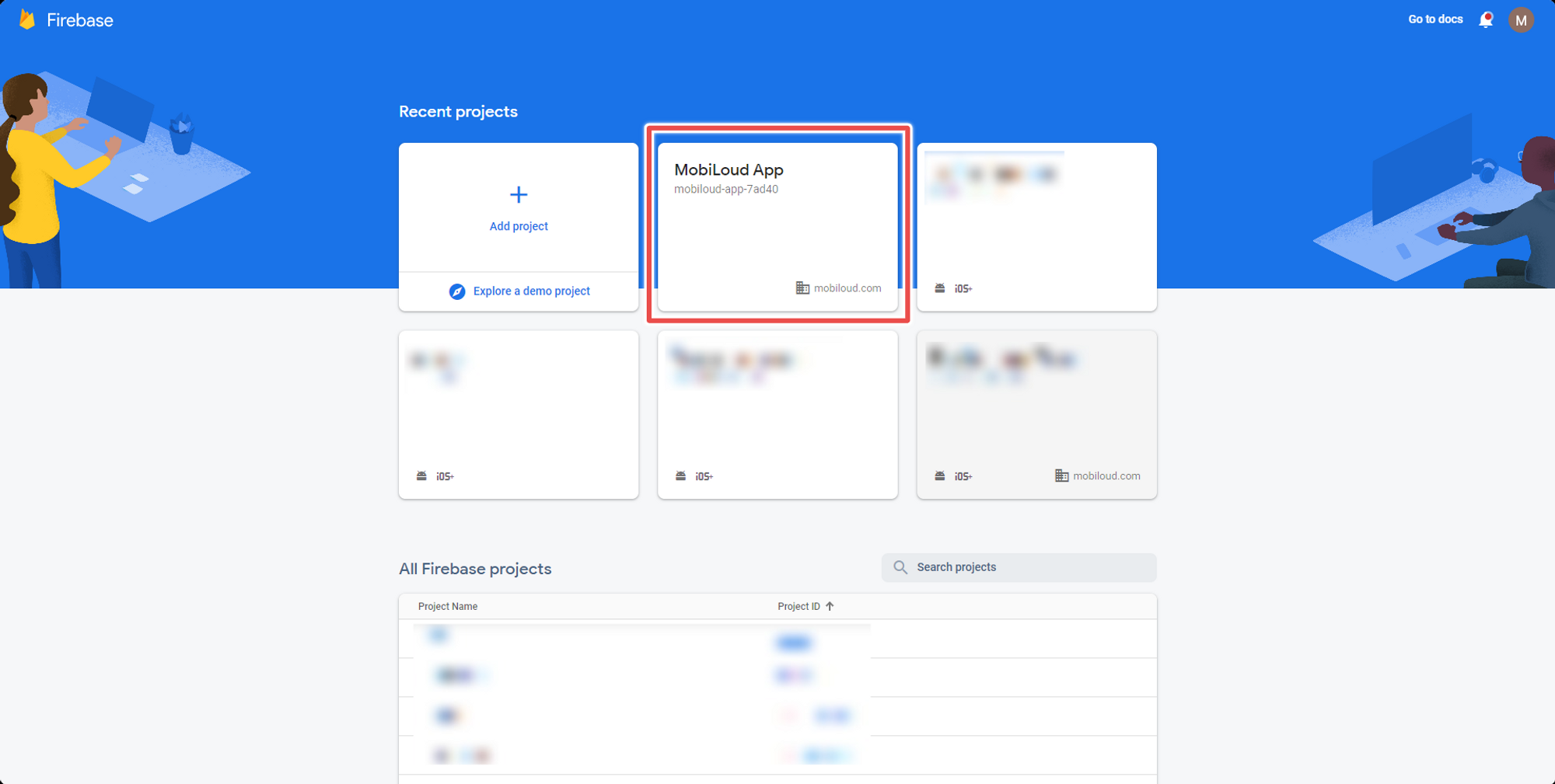
    1 – Select your app from the list

    Click on the project to which you would like to invite users for:

    Notion Image

    2 – Click the “gear” icon and then “Users and permissions”

    On the left sidebar you will see a gear icon, click on it and then select “Users and permissions”:

    Notion Image

    3 – Click “Add member”

    You can now click on the “Add member” button on the right side of the screen:

    Notion Image

    4 – Fill in the user details and invite

    Fill in the user email and the role (you will want to use owner for Vendrux). Once you are done, click “Add member”.

    Notion Image

    Done! The user will receive an invitation via email.

  • Invite users to Apple Developer account

    Invite users to Apple Developer account

    You can invite someone as an admin to your Apple Developer account by following these steps:

    1 – Access your App Store Connect account

    The first step is to login to your App Store Connect account and login using your Apple credentials: https://appstoreconnect.apple.com/login

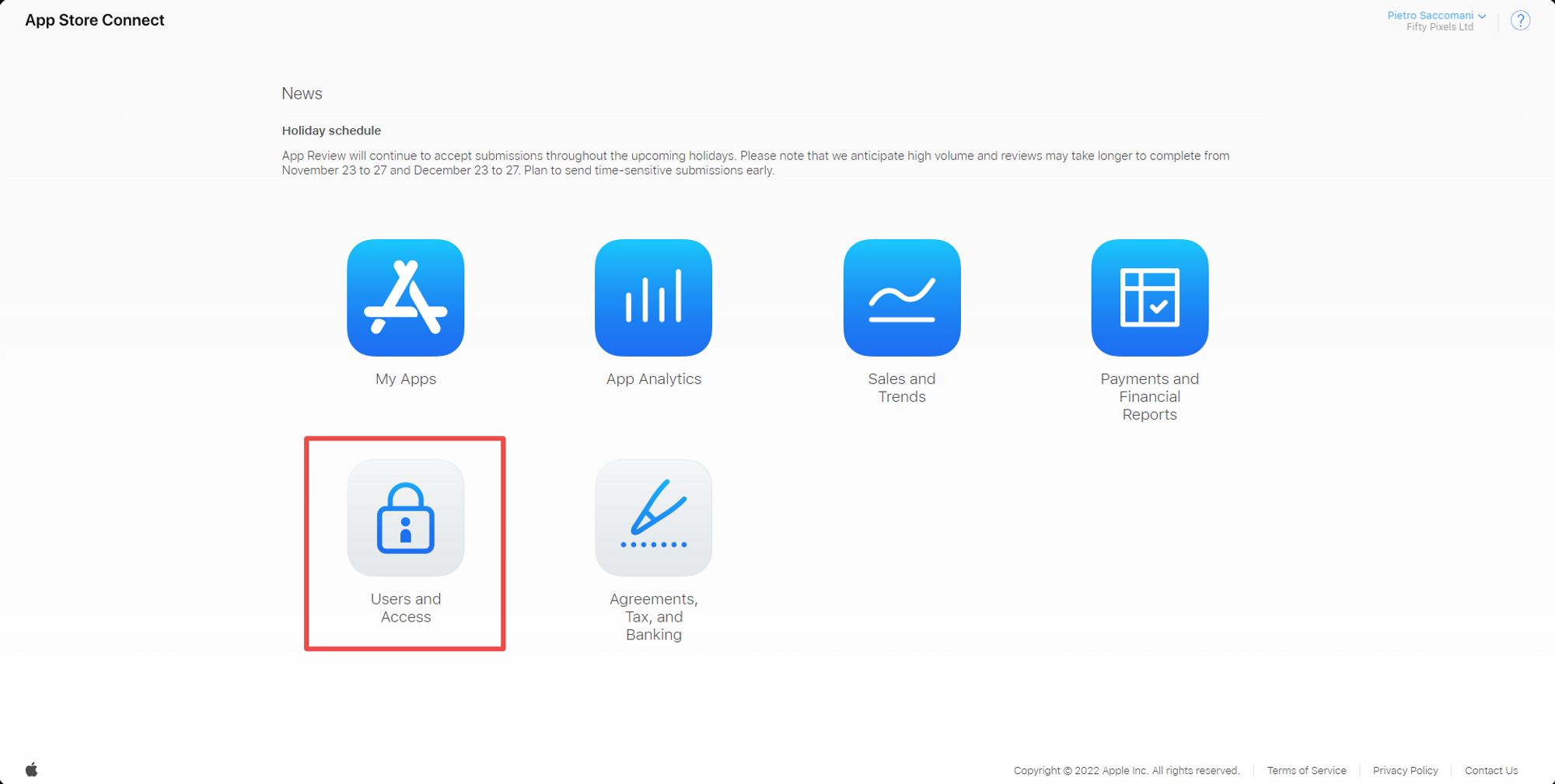
    2 – Go to “Users and Access”

    After logging in, you will see a list with several options, click “Users and Access”

    Notion Image

    3 – Click the “+” icon

    You will see a list with all users that have access to your Apple Developer account, click the “+” icon to add a new user

    Notion Image

    4 – Fill in the user information

    You will be requested to fill in all the user information in order to send the invite, make sure to fill in all the necessary details including the role, additional resources, and the apps that the user should have access to

    Notion Image

    That’s it! Your user has been invited and will now receive a link via email that needs to be clicked in order for the invitation to be confirmed. Note that the invitation link will expire after 48 hours, and if that happens you will need to login to your App Store Connect account and re-send the invitation.

  • Convert individual Apple Developer account to Organizational

    Convert individual Apple Developer account to Organizational

    If your business is incorporated, Apple requires you to register as a Corporation to publish your app on the App Store. If you submit your app under an Individual account, it will be rejected.

    Who Needs to Enroll as an Organization?

    You must enroll as an Organization if your company is a registered business, such as:

    • Corporation (Corp., Inc.)
    • Limited Liability Company (LLC, LC, Ltd. Co.)
    • Legal entities (GmbH, AG, KG, oHg, etc.)

    If you are a sole proprietor, you must register as an Individual.

    Apple does not accept:

    • DBAs (Doing Business As), fictitious businesses, trade names, or branches for enrollment as an organization.

    Benefits of an Organization Account

    • Invite developers to access your account.
    • Use your company name as the Developer Name on the App Store (e.g., “Business Inc.” instead of your personal name).
    • Easier brand verification—Apple recognizes you as an authorized representative of your company.

    Converting Your Account from Individual to Organization

    To switch from an Individual to an Organization account you will need to contact Apple.

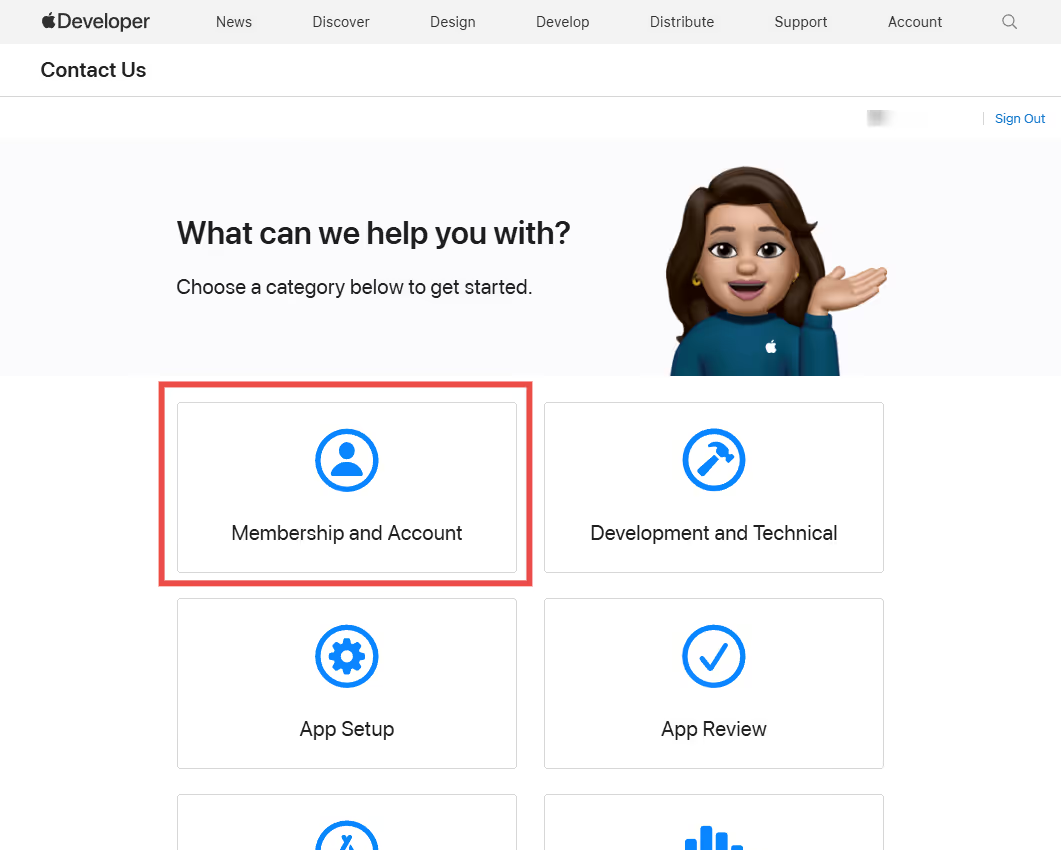
    Go to the Contact Us area on Apple’s website: https://developer.apple.com/contact/topic/select

    Select “Membership and Account”, then “Account Information Update”.

    You will then have two options, to contact Apple via phone (if available) or email.

    We recommend using email.

    You can then use the following details:

    I’d like to convert my Apple Developer account from Individual to Organization. This will be our only Organization account.

    Here is the required company information:

    • CEO/Director Name: [First and Last Name]
    • Company Name: [Your Company Name, including Ltd. or Inc.]
    • Account Type: Organization
    • D-U-N-S Number: [Your Company’s DUNS number]
    • Address: [Your Company’s Legal Address]
    • Phone Number: [A number where you can be reached]

    You will then need to wait for Apple’s response.

    Requirements for an Apple Developer Organization Account

    To successfully enroll as an Organization, your business must meet the following criteria:

    1. Legal Entity Status

    Your business must be a legally recognized entity (e.g., corporation, limited partnership, or LLC). The legal entity name will appear on the App Store as the developer of your apps.

    • Example: Seller: ABC Company, Inc.

    2. D-U-N-S Number

    A D-U-N-S Number is required for Apple to verify your business’s identity and legal status.

    • Learn more about what a D-U-N-S number is and how to obtain one here.

    3. Legal Binding Authority

    You must have the authority to enter into legal agreements on behalf of your organization. This means you must be:

    • The business owner/founder
    • A member of the executive team
    • A senior project lead
    • An individual with legal authorization from a senior employee

    4. Company Website

    Your business must have a public website that is owned by your company. Your domain name should match your company name.