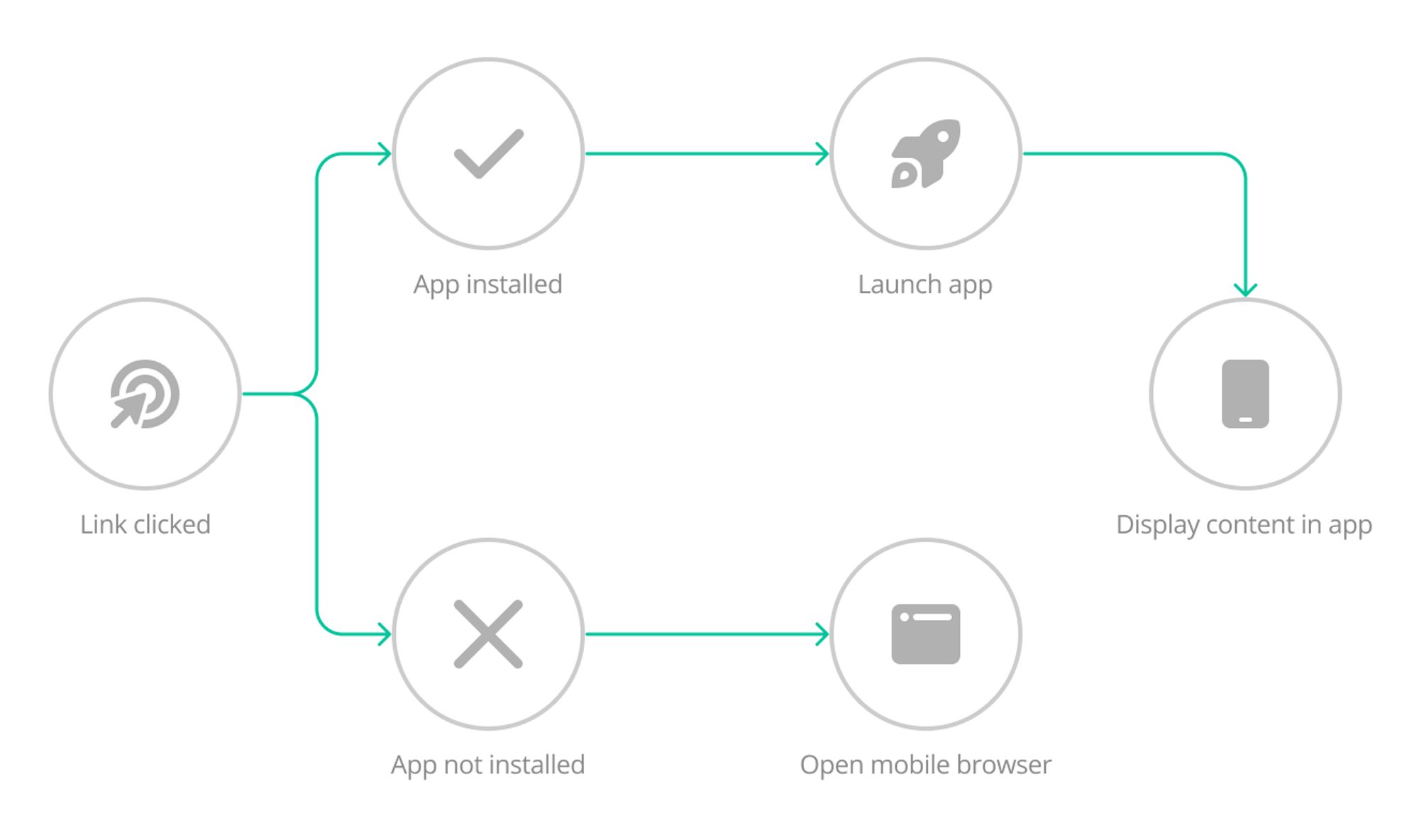
App Links and Universal Links are features that have the exact same purpose: allow links to be opened inside apps when the app is already installed on the device.
So why do they have different names? Since these are system-specific features, one for Android and the other for iOS, their developers (Apple and Google) decided to give their own names.
How do they work?
When someone shares a link to your website, via Telegram, WhatsApp, or any other messaging app, clicking on that link will take the user to Safari or Chrome, where the content will be loaded. This is the default behavior in any mobile device.
With App Links and Universal Links that behavior will be different. If the user who clicked on the link has your app installed, that link will be opened inside your app instead.
What if my app is not installed?
Due to limitations on how App Links and Universal Links work if the user doesn’t have your app installed the default behavior will apply, meaning that the link will be opened in Safari or Chrome.

How to set it up
Vendrux will take care of all configuration and development required to get App Links and Universal Links implemented into your Vendrux App.
By the end of the process, you will receive the following files:
- apple-app-site-association for iOS
- assetlinks.json for Android
Both files must be placed inside a folder called /.well-known in your website’s root directory. They must be accessible when you open them directly using a link like this: https://yourwebsite.com/.well-known/apple-app-site-association or https://yourwebsite.com/.well-known/assetlinks.json
To do this, you will need FTP or SSH access to your server, and if you are not familiar with those, you will want to ask your website developer or hosting provider to assist.