Category: MobiLoud Dashboard

Learn how to use the MobiLoud Dashboard

  • Notifications | vendrux Docs

    Notifications | vendrux Docs

    If you would like app users to be able to select from which categories they will receive notifications for, notification tags are the solution you are looking for.

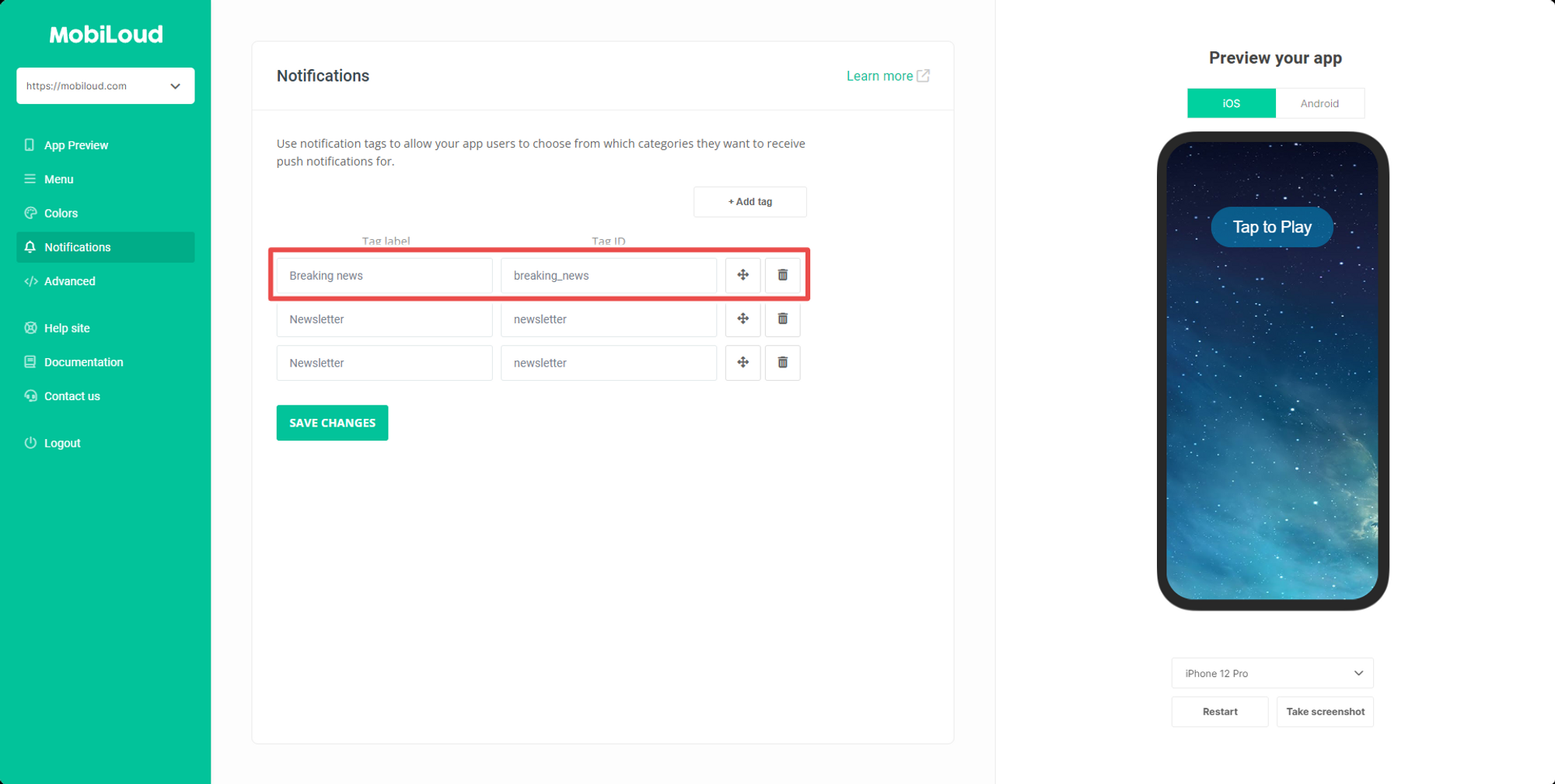
    In your Vendrux Dashboard, under “Notifications” you can manage and create notification tags. For each tag, you will be able to define a label and an ID. The label will be displayed to users and can contain any sort of special characters, while the ID will be used to match the tags that are added to your push notifications and should not contain any special characters.

    For the purpose of this guide let’s create a new tag for “Breaking News” push notifications, in this case, we would have something like this:

    When sending your notifications you will now need to include the “breaking_news” tag into your notification payload. Our plugin allows you to do that in a few different ways for manual and automatic notifications.

    Notion Image

    Manual Notifications

    When sending a manual notification from the plugin you will need to add your created tag into the “Manual notification tags” field, as you can see below:

    Automatic notifications

    For automatic notifications you have two settings that can be used to add tags to your notifications, see below:

    If you use category names as tags, notifications will include the “slug” of your categories as tags. In this example, you will need to have a category called “Breaking News” with a slug that looks exactly like the ID you created “breaking_news”

    You can also add specific tags to always be included in your notifications, you just need to make sure they match the tags you created in your Vendrux Dashboard.
  • Configuring the tab menu | vendrux Docs

    Configuring the tab menu | vendrux Docs

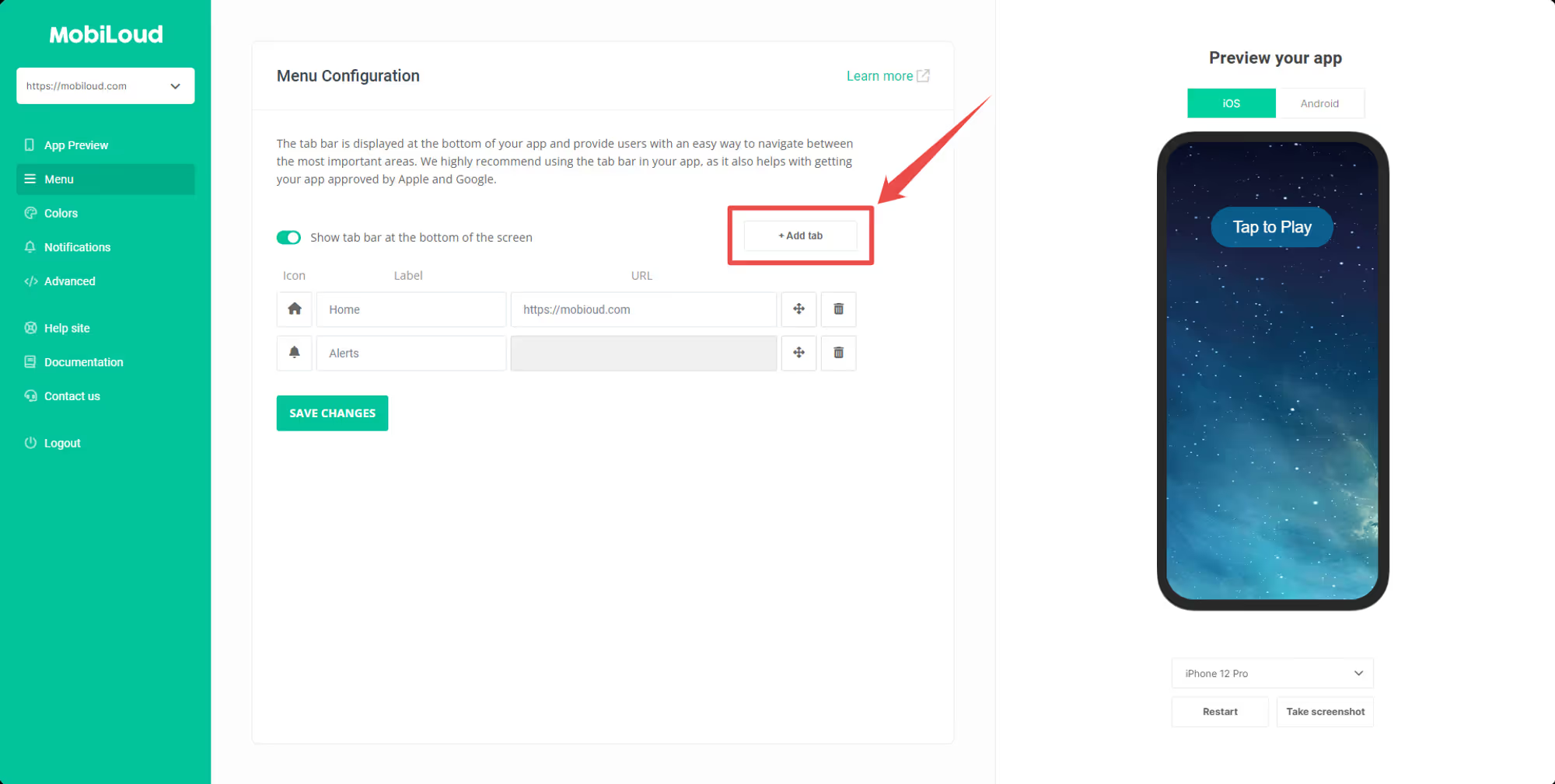
    Under the “Menu” area you will be able to configure your app’s tab navigation.

    The tab navigation is an important aspect of your app as it:

    1. Improves the user experience by providing quick access to the most important areas of your app
    1. Improves the overall app design, helping with making your app look better
    1. Helps with getting the app approved by Apple and Google, by providing a native element

    Configuring your tab navigation is simple, here you can find details on how it works:

    Adding a new tab

    To add a new tab to your navigation click the “+ Add tab” button:

    Notion Image

    Moving tabs around

    You can easily move your tabs around to change their order by clicking on the handle icon and dragging the tabs around:

    Notion Image

    Picking an icon

    Use our icon picker tool to choose the most appropriate icon for your tabs:

    Notion Image

    If you prefer, you can also upload your own icons:

    Notion Image

    Keep in mind that only single and solid-colored icons are supported, we also recommend using a .PNG file with at max 200x200px in size for your icons, to make sure your app loads quickly and the icon displays correctly.

    Adding a URL

    In the URL field, you will want to add the link to the page that should be displayed in the app. Make sure to use the final URL, as redirects might create problems in the app.

    Notion Image

    The “Settings” tab

    The “Settings” tab allows you to provide app users easy access to important options and links. We highly recommend that you keep it enabled.

    Notion Image

  • Colors | vendrux Docs

    Colors | vendrux Docs

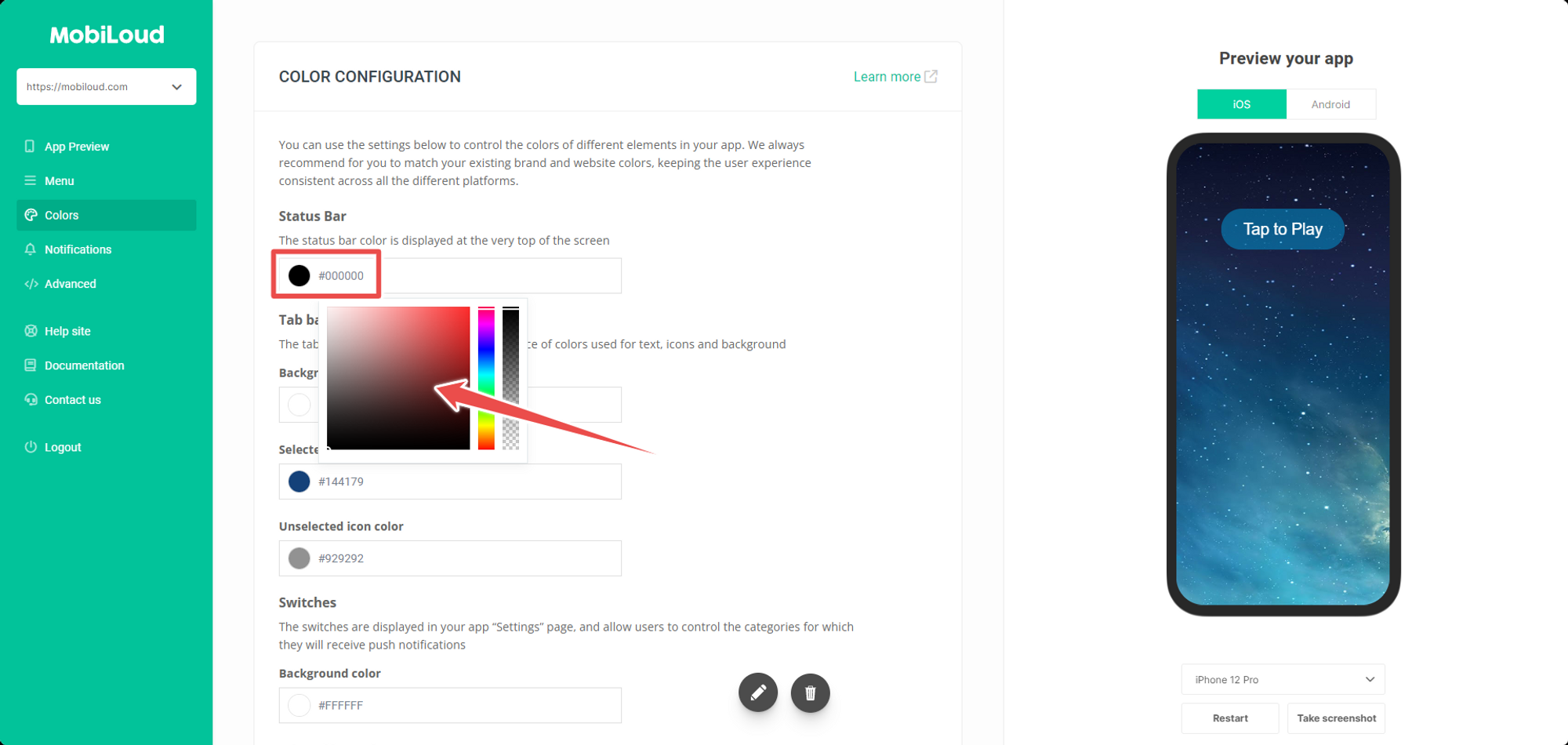
    Under the “Colors” area of your Vendrux Dashboard you will be able to customize the color of certain elements in your app, including:

    Changing colors is extremely simple, for each element you just need to click on the corresponding circle and pick the color you want to use:

    Notion Image

    Make sure to pick colors that match your branding and the colors of your website, this helps with keeping the app interface consistent and pleasant to the eyes of your users.

  • Advanced Configuration | vendrux Docs

    The basic configuration of Vendrux will give you control over the tabbed menu and its colors, but in order to make further changes to the design and even behaviors of your app, you will need to use the advanced configuration.

    Below you will find a detailed explanation for each one of the available settings for the advanced configuration:

    General Configuration