If you would like to see the analytics information tracked by Firebase directly in your Google Analytics Dashboard, follow the steps below:
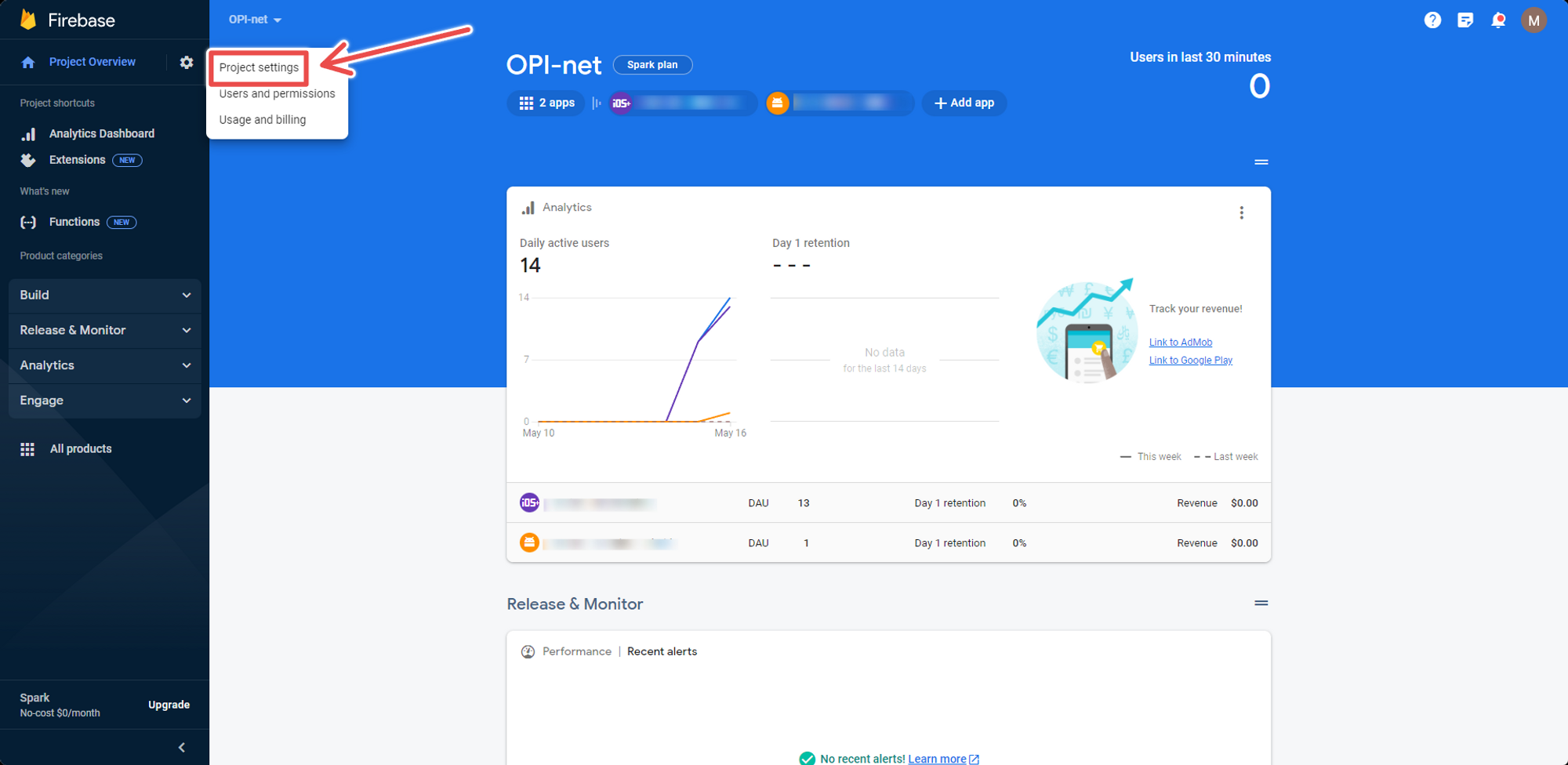
1 – Go to the Project Settings
Open your Firebase console and selected your app, then click on the gear icon next to the “Project Overview”:
.png)
2 – Enable the Google Analytics Integration
Click on the “Integrations” tab and then “Enable” on your Google Analytics Integration:
.png)
3 – Select your Google Analytics Account
You will then be prompted to pick the Google Analytics account in which the data should be displayed
.png)
Note that by default Firebase will create a new property on the selected account, but you can connect Firebase to an existing property if you’d like, just click the edit button as you can see below:
.png)
Once all steps have been completed the connected data streams should start feeding the data within 48 hours.
Leave a Reply