Author: Vendrux

  • PeepSo Push Notifications | vendrux

    PeepSo Push Notifications | vendrux

    If you are converting your PeepSo website into an app using Canvas you will definitely want to enable our integration with PeepSo for push notifications.

    Canvas offers support for the following PeepSo notification types:

    • Mentions in comments
    • Mentions in posts
    • Private messages
    • Friend requests

    The first step would be to install the Canvas plugin on your WordPress website, you can find the plugin here: https://wordpress.org/plugins/mobile-app/

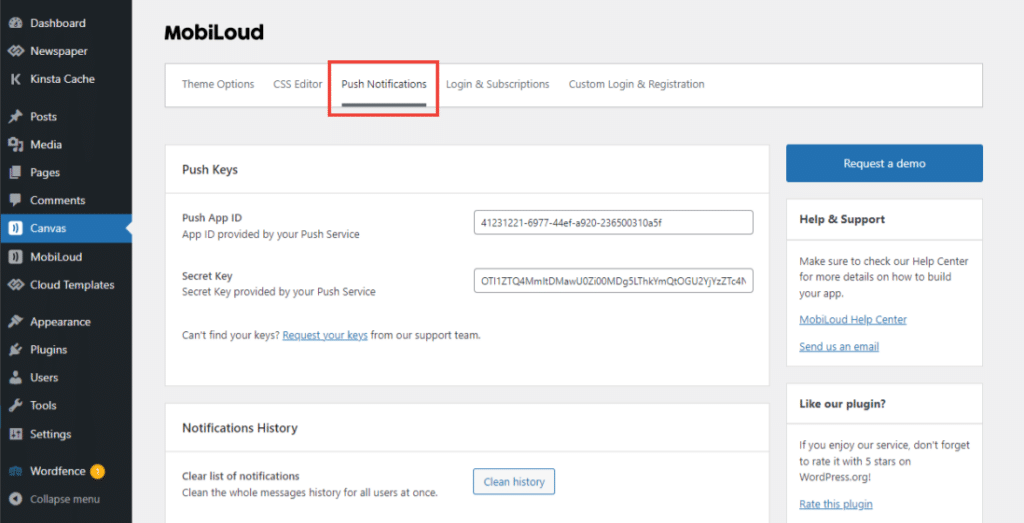
    With the Canvas plugin installed go to “Canvas > Configuration > Push Notifications”:

    Make sure your push keys are properly configured into the settings.

    Scroll down a bit and if you have PeepSo and its modules installed you will then be able to enable the push notifications:

    That’s it! Your users will now start receiving push notifications in the app whenever they are mentioned, receive a friend request or message.

  • How to register for a OneSignal account

    How to register for a OneSignal account

    OneSignal is world’s leading Mobile and Web Push Notification service, we use it to deliver push notifications to your app users.You will be required to register for your own OneSignal account, but our team will take care of everything else for you.Here you can find more details on how to register for an OneSignal account:

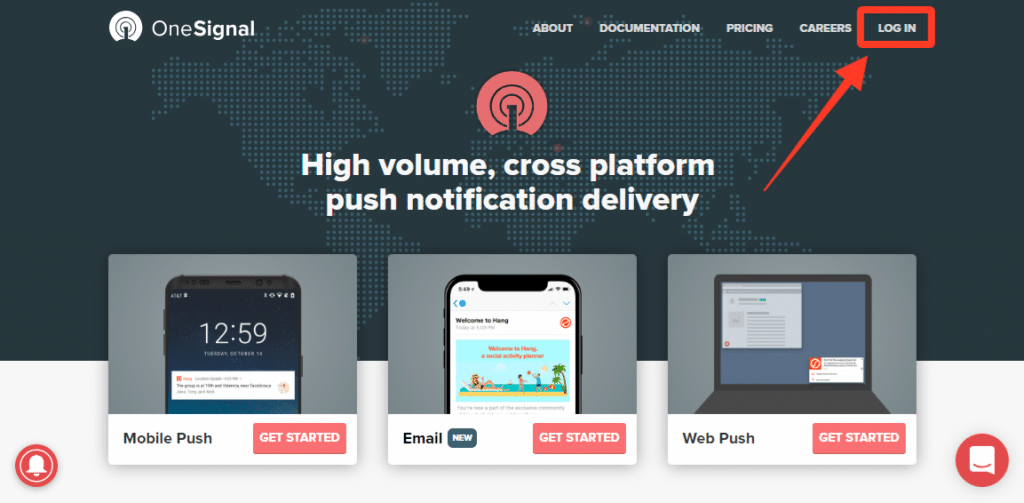
    1. Access www.onesignal.com and click the login button on the top right
    1. A new dialog window will be displayed, at the very end you will see a sign-up link, click on it
    1. You will then be requested to either sign-up with an existing account or provide details to create your account with OneSignal directly, chose the best option for you and proceed with creating your account
    1. You will then receive a confirmation link in your email, make sure to check and activate your account so we can use it to configure your apps.
  • How to Register for an Apple Developer Account

    In order to be able to publish your app to the App Store, for iOS devices, you will need to have an Apple Developer Account.Below we will list all the steps that you need to take in order to register for your own Apple Developer Account.Keep in mind that you will need a few things in order to be able to enroll in the Apple Developer Program, these are the requirements:Apple IDIf you have an iOS device, you probably already have an Apple ID, if for some reason you don’t have one yet, you can quickly register here: https://appleid.apple.com/accountEnable Two-Factor AuthenticationAs a security measure, Apple will require you to have two-factor authentication enabled in your Apple ID before you can proceed with the enrollment. You can find more details on how to enable the two-factor authentication clicking hereDUNS NumberApple will also require you to have a DUNS number if you are a Company. If you are not sure if you have a DUNS number or if you’d like to request one (totally free), you can do so in this page: https://developer.apple.com/enroll/duns-lookup/Why should I enroll as a Company?You must enroll as an organization if your company is a registered company such as Corporation (Corp., Inc.), Limited Liability Company (LLC, LC, Ltd. Co.), or a legal entity (GmbH, AG, KG, oHg, etc.).If you are a sole proprietorship you must register as an Individual. Apple does not accept DBAs, fictitious businesses, trade names, or branches for enrollment as a company/organizationBenefits of an Organization account:

    • You can invite developers to access your account
    • You can choose the name that will be displayed on the stores as the Developer of the app – this will match your company name e.g. Business Inc.
    • Apple will know you’re authorized to act for the company and will not challenge your use of your own brand name and content

    Next StepsOnce you have your Apple ID and DUNS Number in hands, you can then proceed with the next steps:

    1. Register as a Developer, you just need to read and accept the agreement here: https://developer.apple.com/account
    2. Start the Apple Developer Program enrollment as an Organization here: https://developer.apple.com/programs/enroll/After filling in the form, make sure to check your email for the enrollment confirmation.Note that Apple will verify the provided information and that the internal review process might take up to 3 days.
    3. The Apple Developer Program has a recurring cost of $99 per year, and you will need to maintain the payments up to date in order for your app to be available in the App Store. At the end of the enrollment, you will be requested to proceed with the payment, click Purchase and make the payment to complete the enrollment.

    That’s it! The enrollment process is now completed, as soon as you receive a confirmation from Apple saying that your account has been approved you can then invite our team to your account so we can start working on your iOS app.

  • How to Register for a Google Developer Account

    How to Register for a Google Developer Account

    If you’d like to have your Android app available in the Play Store, so users can easily download and install it, you will need a Google Developer Account.The only thing you will need, is a Google Account. If you don’t have one yet you can register here: https://accounts.google.com/signupNext Steps

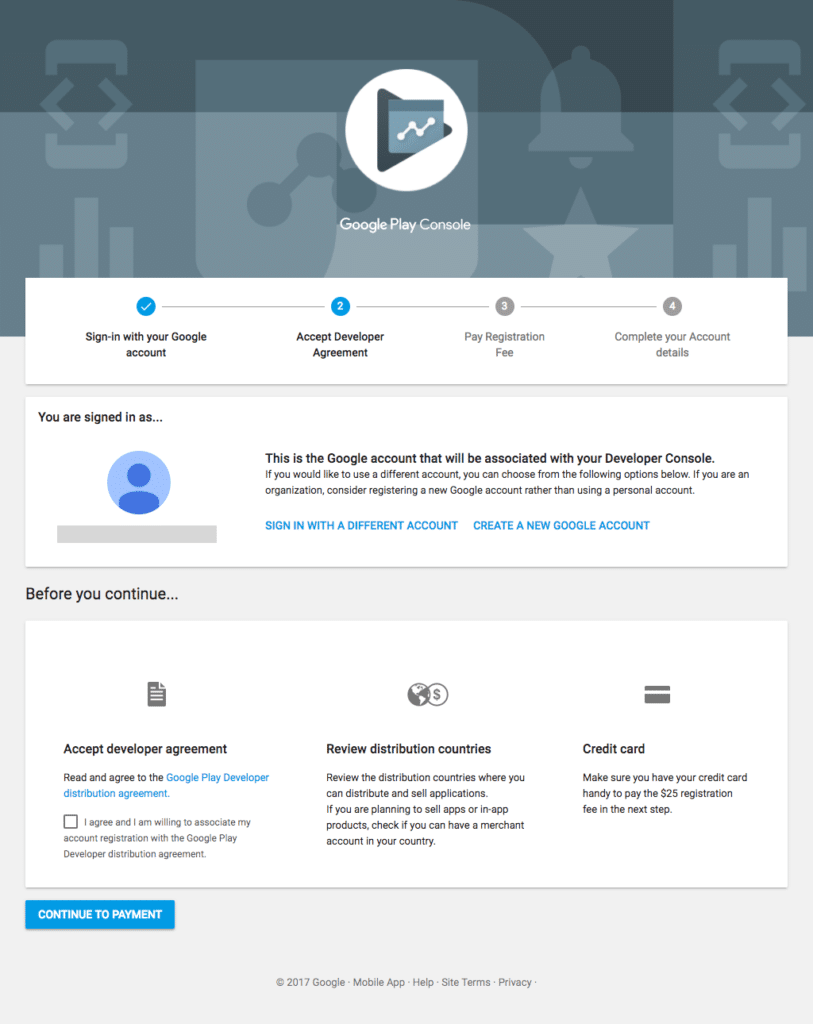
    1. You can start the registration process for the Google Developer Account here: https://play.google.com/apps/publish/signup
    1. The Google Developer Account costs $25 once off, you will be asked to pay during the registration process.

    That’s it! You will be good to go right after the payment. You can invite our team as an admin to your account so we can start building and publishing your Android app.

  • How to prepare graphics for Canvas

    In this guide you will find more details on how to prepare the following graphics:

    • Splash screen
    • App icon
    • Notification icon
    • Featured image

    The app icon and splash screen are important aspects of apps, they are the first two things a user will see after installing your app.

    Below you will find instructions and tips on how to prepare the graphics for your Canvas app.

    Before you start, make sure you have a good quality version of your logo to work with, this will drastically improve the final graphics for your app.

    What is a high-quality version of my logo?

    A high-quality version of your logo means that it allows it to be resized without losing quality, below you will find the two most common cases:

    Source files as vector

    If you have the source file for your logo in .ai, .svg, .cdr, .pdf, it means that you can easily increase its size without losing any quality, this is the ideal scenario

    Good quality and big size

    Alternatively, you might only have your logo in .png or .jpeg, which is fine, but in these cases, your logo will need to be at least 1000x1000px in size, so we can resize it with minimal quality loss.

    I don’t have any of these 🙁

    In this case, our recommendation would be for you to have a designer assist with preparing a vectorized version of your logo, which will allow you to apply your brand in different scenarios with a more professional and better quality look.

    If your logo consists of a simple font, you can then provide the font files to our team and we will try to work with it to prepare the graphics.

    Below you can see the difference that a high-quality graphic can make in your app:

    Splash screen background

    The splash screen for your app consists of two graphics, the logo, and the background, which will be placed one over the other in the final version, as you can see below:

    It is important to keep in mind that your background will get cropped depending on the device size in which your app is installed, so you definitely don’t want to use text or anything that can’t be cropped in your background.

    The background image must be 2048x2048px in size, no transparencies, in .png or .jpeg format.

    Splash screen logo

    Your logo will be placed over the background, it must be 1000x1000px in size, with a transparent background, in .png format.

    Note that although the file size is required to be 1000x1000px in size, your logo should be centered and have some bleeding on the sides, to make sure your logo won’t touch the edges of the device.

    See the images below for reference:

    App icon Android

    When preparing the icons for your apps you need to keep in mind that the app icon will be displayed in a small size, so depending on how your logo looks like you will want to use a reduced or minimalistic version of your logo, which will fit much better into the icon, see below:

    SAMPLE ICONS

    For Android specifically, you will need to provide 2 different files for the app icon, similarly to what you did for the splash screen.

    App icon logo

    The app icon logo must be 512x512px in size with a transparent background, in .png format, with some padding on the sides.

    You can see an example below:

    App icon background

    The app icon background must also be 512x512px in size, with no transparencies, in .png format, you can see an example below:

    App icon for the Play Store

    You will also need to provide a separate version of your app icon, with your background and logo merged into a single file, this graphic will be used in the Play Store.

    The Play Store app icon must be 512x512px in size, no transparencies, in .png format, here is an example:

    App icon iOS

    The iOS app icon consists of a single file, with 1024x1024px in size, no transparencies, in .png format.

    For iOS keep in mind that the icon will be automatically rounded by Apple, so you will want to make sure that you have some padding on the sides to avoid having elements getting cropped.

    Here you can see an example:

    Push notification icon for Android

    Android allows you to customize the icon that is displayed on the user’s device when a notification is received.

    Just like with the app icon you will want to use a minimalistic version of your logo, since the push icon is displayed in very small sizes.

    The file must be at least 200x200px in size, with a transparent background, in .png format.

    You will then need to upload your file to the Android Asset Studio tool, which you can find clicking here.

    Here you can see a quick video of how that process looks like:
  • How to keep users logged-in in WordPress

    Keeping users logged-in is extremely important, so they don’t have to login everytime they open their app.

    In some cases the user login time might be affected by your server configuration or even third-party plugins installed on your website.

    Below you can see a function that will help with adjusting the login duration in WordPress, the code must be placed in your theme’s functions.php file:

    // keep users logged in for longer in wordpress
    function keep_users_logged_in_longer( $expirein ) {
    // 1 month in seconds
    return 2628000;
    }
    add_filter( ‘auth_cookie_expiration’, ‘keep_users_logged_in_longer’ );

  • How to keep users logged-in in WordPress

    Keeping users logged-in is extremely important, so they don’t have to login everytime they open their app.

    In some cases the user login time might be affected by your server configuration or even third-party plugins installed on your website.

    Below you can see a function that will help with adjusting the login duration in WordPress, the code must be placed in your theme’s functions.php file:

    // keep users logged in for longer in wordpress
    function keep_users_logged_in_longer( $expirein ) {
    // 1 month in seconds
    return 2628000;
    }
    add_filter( ‘auth_cookie_expiration’, ‘keep_users_logged_in_longer’ );

  • How to invite users to your Apple Developer Account

    How to invite users to your Apple Developer Account

    In order to be able to build and submit your iOS app an invitation to your Apple Developer Account is required.Note that this will only work if you have an Organization Account.Below you can find more details on how to invite users to it.

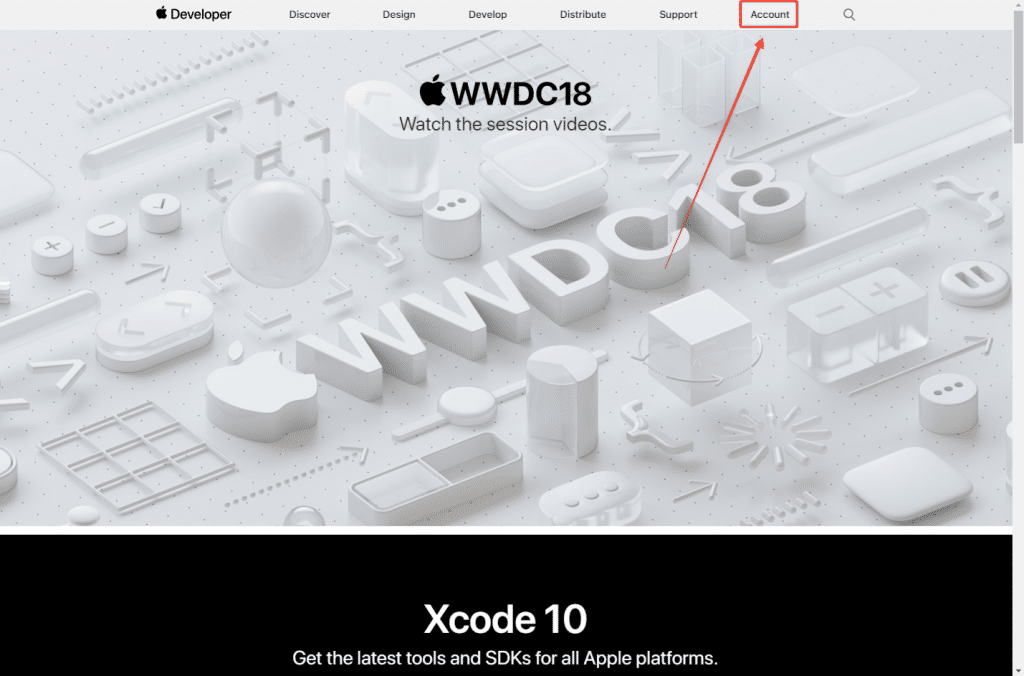
    1. Access the Apple Developer website clicking here. On the top right section, you can click on “Account” to be redirected to the login form.
    Apple Developer website
    1. You can then insert your login credentials to sign-in into your Apple Developer Account
    1. Once logged in you will see your Apple Developer Account Dashboard. There you can click on “People” in the left sidebar.
    1. You will then be requested to access your App Store Connect account to invite users, you can click the button that takes you there
    1. Now on your App Store Connect dashboard, click the “+” icon to add users to your account:
    1. Add the details for the user that you want to invite and click “Invite”
    1. That’s it! The user will receive an invitation his email, and he will need to accept it in order to become a member in your Apple Developer account
  • How to invite users to your Apple Developer Account

    How to invite users to your Apple Developer Account

    In order to be able to build and submit your iOS app an invitation to your Apple Developer Account is required.Note that this will only work if you have an Organization Account.Below you can find more details on how to invite users to it.

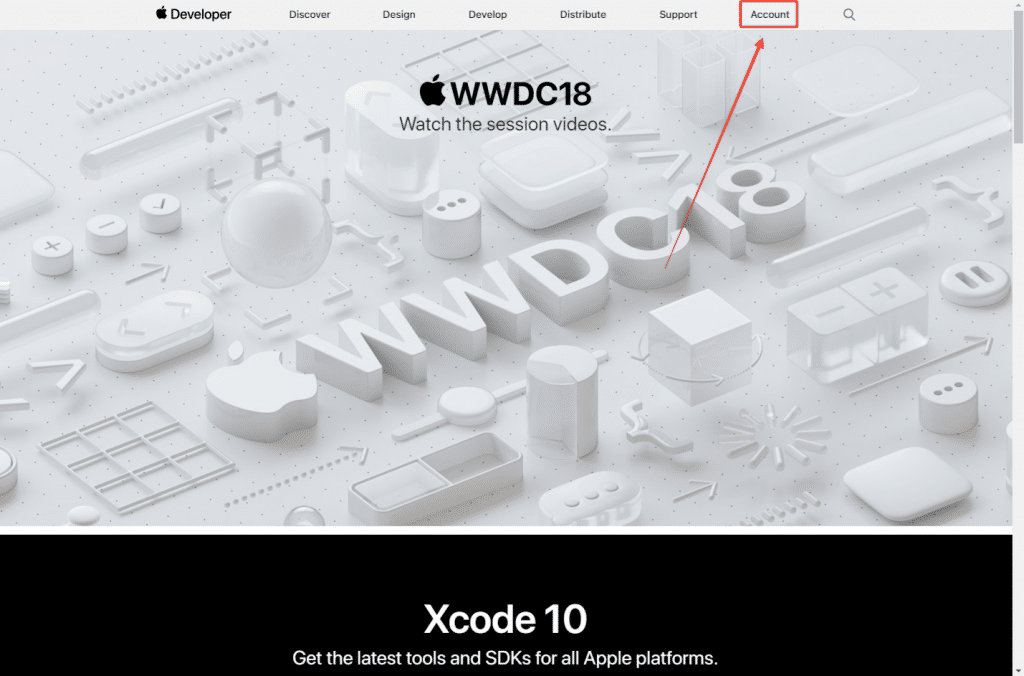
    1. Access the Apple Developer website clicking here. On the top right section, you can click on “Account” to be redirected to the login form.
    Apple Developer website
    1. You can then insert your login credentials to sign-in into your Apple Developer Account
    1. Once logged in you will see your Apple Developer Account Dashboard. There you can click on “People” in the left sidebar.
    1. You will then be requested to access your App Store Connect account to invite users, you can click the button that takes you there
    1. Now on your App Store Connect dashboard, click the “+” icon to add users to your account:
    1. Add the details for the user that you want to invite and click “Invite”
    1. That’s it! The user will receive an invitation his email, and he will need to accept it in order to become a member in your Apple Developer account
  • Invite users to TestFlight | vendrux Docs

    TestFlight is an app provided by Apple to allow users to test apps before making them publicly available in the App Store.

    In order to be able to invite users as testers to TestFlight you first need to make sure the user is added to your App Store Connect account. You can find a complete guide on how to invite users to your account by clicking here.

    Below you can find a step-by-step guide on how to invite users to test your app using TestFlight.

    1. On App Store Connect, open your list of apps then select the app to which you would like to invite your users as testers, you can use this link: https://appstoreconnect.apple.com/apps
    1. On the app details page, click “TestFlight”
    1. You will need to create a new Internal Testing group, you can do so by clicking on the “+” icon:
    1. Type in the name of your Internal Testing group, the name will be visible to invited testers
    1. With your Internal Testing group created, you can now invite users by clicking on the “+” icon
    1. Select the users that you would like to add as testers to the app and click “Add”
    1. That’s it! The selected users will receive an invitation in their emails, the invitation will include a “Redeem code” which can be used in TestFlight to redeem and install your app for testing purposes.