Category: FAQs

Find responses for the frequently asked questions

  • Why you don’t need In-app Purchases in your vendrux app

    For many years now Apple and Google have both imposed the use of in-app purchases for apps available in their app stores. This means that app developers, startups, and site publishers with a mobile app must use in-app purchases as a way to charge for in-app content or functionality.

    This has been met with lots of criticism, especially in recent years, from small developers and large web companies alike. Both complain it is too difficult to use in-app purchases alongside other payment methods and that it limits how they can monetize their apps. On top of that, clearly, everyone is tired of paying Apple and Google 15-30% of their revenue – for companies that have an existing web presence, it’s hard to argue in-app purchase is a better user experience. It’s usually a hassle for the companies and the users!

    If you’re selling digital content or functionality in your app e.g. unlocking premium articles, courses, or parts of your app, there’s no way around it. To sell in your app, you must use in-app purchase.

    You can’t use Paypal, Stripe or any other payment processor to directly sell access to your app’s content. Even if that’s what you’re doing on your website and the only method your website or platform supports.

    If you’re using our News platform for WordPress content sites and digital magazines, we do support in-app purchase and can make it part of your app’s experience. Consider this though as a way to unlock premium content for mobile app users, and not a way to sell them access to the website and other membership benefits. If you accept the downside of having two types of subscribers – app subscribers and site subscribers – then this can work quite simply and provide additional revenue directly generated by the app.

    In the context of a Vendrux mobile app, so a mobile app that leverages your website or web app for its content and functionality, there’s a few solutions or workarounds in this situation, though none allows you to sell content within your mobile app:

    1. Offer users only the option to log in to access an existing content and what they’ve purchased. All purchases will need to happen outside the app.
    1. Allow free user registrations and offer free content and functionality. Lock down premium features and content without the ability to purchase in the app. Contact users outside of the app to upsell them to a subscription. This has only recently been allowed by Apple.
    1. Don’t sell inside the app, sell the app. That means making your app a paid application, with a one-time fee, offering access to all (or a subset) of your premium features or content. This is straightforward on the app-side of things and is much simpler to manage compared to subscriptions. It’s not recurring, but one-time app sales could be a nice addition to your revenue streams, if compatible with your business model. The only difficulty might be for you to create an alternative view for app users that gives users access to premium content – this is something you should build on your site, we can provide more guidance if needed.

    For Apple to accept the solution 1 and 2 above, your app needs to be considered a “reader” app. That’s an app that displays outside content on iOS devices, like videos, music, magazines, newspapers, and books that have been previously purchased.

    If you have already subscribed to a service like Netflix or Spotify, then you can use their app on your iPhone and enjoy your premium content. But you won’t be able to subscribe to either service directly from the app.

    This might sound very inconvenient, and it is. You might think you’d want to find a solution allowing you to sell content or functionality in your app using in-app purchase alongside direct sales on your website, but here’s a few reasons why we think you really shouldn’t.

    Why you don’t want to sell on your website AND with in-app purchase in your app

    1. If you have both a site and a mobile app (like all Vendrux customers), selling on the web and in the app using in-app purchases would create a lot of extra complexity you don’t want. It’s not just the app that should integrate with Apple and Google, your website platform should integrate with Google and Apple to validate subscriptions and handle cancellations correctly (e.g. what happens when an Apple subscriber cancels your subscription with Apple? The information needs to be updated on your site’s database…) – this means a lot of additional investment for almost no return.
    1. In addition to what it would cost to integrate Apple and Google in-app purchases, you’ll also pay a 15-30% fee to Apple and Google for the privilege. So the economics will always be better on the web. It keeps getting harder and harder to justify investing in supporting in-app purchase payment methods on top of what you’re already using on the web.
    1. This is not something specific to Vendrux or Vendrux. It would be the same with any other platform or service you’d use or if you built an app with an agency.
    1. Even if a competing app platform offers in-app purchase and it works out of the box with your back-end (unlikely), using in-app purchases would still be a lot of extra complexity your business really doesn’t need. Think about having to deal with subscribers on three different platforms (Web e.g. Stripe, Google, Apple…). That alone sounds like a situation a small business should avoid.
    1. Adding to that, you’ll have zero visibility into customer data and subscriptions with Apple and Google, making supporting your users with billing issues a real nightmare. It doesn’t look like Stripe. Apple doesn’t let you search by customer name and handle a customer’s subscription. The only information they share is a token (imagine a number) representing a transaction. Your systems need to tie that information to your user and subscription records.

    Your app is about engagement and retention

    This is not necessarily as bad as it sounds. Your mobile app could help with user/customer acquisition, but the main function it serves is to provide convenience to your users/students/readers when consuming your content or making use of what you’ve built – ideally after they’ve purchased with you.

    Your mobile app will keep people engaged, returning to the content, and getting value from it and so helps you improve retention, course completion rates, engagement rates, return traffic, etc.

    Ultimately, you’ll have a simpler, better business if you focus on selling on the web and use your mobile app as an additional benefit for users/subscribers and a tool to grow engagement and retention.

    Things might change in the future

    Things will change in coming years, mostly through litigation and pressure from large web companies like Netflix and Spotify and gamig companies. It’s possible Apple will eventually be forced to allow payment systems different from their in-app purchase system. They might still impose a fee, but at least on the technical front it might soon be possible to charge users using the same payment methods and user flows you’re using on the web.

    Overall, in most cases, a mobile app is valuable even without the ability to sell subscriptions and content within the application. After all, the workarounds listed above are the same used by Netflix, Spotify, Kindle and hundreds of other big web brands. The app provides a reader or companion experience to the site, gives access to the content and convenience, but it’s not a storefront.
  • Why my users are not receiving notifications on Android devices?

    Notifications may not be showing up or behaving as expected on some devices for multiple reasons.

    Below we will go through the most common situations that could cause some sort of issue with notifications on Android devices.

    Note that each device and operating system will have its own interface and design, but in general, the settings mentioned below are present in all devices even if using a different name or design.

    The app is configured to not receive push notifications

    This is definitely the first thing you will want to check as this setting must be enabled in order for a device to be able to receive push notifications at all.

    In order to find it go to:

    1. Settings
    1. Apps or Applications
    1. Manage apps
    1. Find your app in the list

    You will then see a few settings for your app, look for the “Notifications” one and make sure it is enabled.

    Battery saver is enabled

    One of the most common ways of saving battery is to disable push notifications, for this reason, you will want to check if any battery saver options or apps are running on your device.

    There are two places where you must look, the app settings and the device settings.

    For the app settings go to:

    • Find your app in the list

    Make sure the following option is set to “No restrictions” so the notifications are not blocked.

    For the device settings just pull down the top of your screen to show device settings, then look for the Battery Saver option and make sure that is disabled, as you can see below:

    Background data is disabled

    In order for your app to be able to receive push notifications, it needs to be connected to the internet, either through a wi-fi network or mobile data.

    Under the app settings, make sure that your app has permissions to use Wi-fi and mobile data while in the background, as you can see here:

    Still not receiving notifications?

    If even after confirming that all the settings are properly configured your user is not receiving push notifications, our recommendation is to ask the user to reinstall the app.

    It is possible that the user device didn’t get properly configured into the push notifications provider when the app was first installed, reinstalling it might help with resolving such a situation.

  • Why is my app no longer in the App Store?

    If all of sudden your app no longer shows in the App Store, chances are that your Apple Developer Subscription has expired and needs to be renewed.

    Apple charges a $99 annual fee for the Apple Developer Program, which is required in order for the apps you have on your account to remain accessible through the App Store.

    In order to have your app reinstated all you need to do is renew your Apple Developer Membership.

    To confirm that this is really the problem you can log in to your Apple Developer Account here: https://developer.apple.com/account/

    If your membership is expired you will see a red alert displayed at the top:

    To resolve the problem make sure you are logged in as the account owner, you will then see a button that says “Renew Membership”.

    If you are not seeing the “Renew Membership” button it is likely that you are not logged in as the owner of the account, in that case, you will need to contact the owner and ask him to renew the membership for you.

    If you are still having problems contact the Apple Developer support team through this link: https://developer.apple.com/contact/topic/select

  • What percentage does Apple take from in app purchases?

    Every App Store, including Apple App Store and Google Play Store charge a fee on in-app purchases. They take a significant cut of your revenue on any one time and subscription charge in your app, that’s how they make money.

    Subscription billing is particularly popular these days and both Apple and Google have tried enticing developers with a revenue structure that reduces their commission over time.

    What percentage does Apple take from in app purchases?

    For one-time purchases Apple charges a 30% fee.

    Since 2016, Apple has reduced the fees they charge for subscriptions, but only after 12 months of service.

    In the first year of a subscription, Apple takes a 30% cut of your revenue, so you receive 70% of the subscription price at each billing cycle, monthly or annual, minus applicable taxes.

    After a year of service, your revenue share increases to 85% of the subscription price, minus applicable taxes, so Apple takes 15% of your revenue.

    Update: Want to avoid Apple’s 30% App Store fee? Apple is changing their rules about what’s allowed and what not. It’s now allowed for you to contact app users about payment options outside of the app. You can’t link to other payment options yet, but you might be able soon.

    All subscriptions on all Apple platforms are eligible, including paid introductory periods (pay as you go, pay up front). The period calculation excludes free trials and bonus periods. Upgrades, downgrades, or crossgrades between subscriptions in the same group don’t affect the one year calculation. A move to a subscription in a different group resets the count of days.

    What percentage does Google take from in app purchases?

    Like for one-time purchases, Google’s revenue share on subscriptions is 30% of the price. You receive 70% of the payment.

    Like for Apple, Google’s cut on your revenue for subscriptions decreases to 15% after a year, so you’ll retain 85% of the revenue after 12 months.

    Subscribers within a grace period, or that recover from an account hold, grace period, pause, or subscription restore still count. Same for people that sign up at introductory pricing, those that upgrade or downgrade or re-sign up within two months of cancelling. What doesn’t count towards the 12 months are free trials, refunded purchases and any time while the account is on hold.

    Payout schedules

    You don’t get your money immediately when you sell a subscription. Google pays out just a few days after the end of the month, with no minimum.

    Apple makes payments 30 days following the end of each monthly period. To receive payment, you must have provided all required banking and tax information and meet a minimum threshold, ranging from 10USD to 150USD.

  • What is a DUNs number and where to find it?

    A D-U-N-S Number is a number that is used to identify your business. D-U-N-S stands for Data Universal Numbering System, a system developed in the 60s by the Dun & Bradstreet (D&B) company for their own business. It has become a standard to identify a business and Apple uses it to verify the identity of your company.

    A DUNS number is a unique nine-character identification number Dun & Bradstreet provides free of charge.

    The ‘DUNS’ system was quickly adopted worldwide and it’s used by Apple to verify you’re a registered business and the identity of your Company.

    Where do I register a DUNS number?

    Before you start, use the DUNS Number look up tool to check if you already have one. If your company is not in the database, you can submit your information and get your DUNS number.

    How long does it take?

    Obtaining a DUNS Number for your business is quite straightforward. The process usually takes about five working days.

    Once you receive your number, please allow up to 2 business days for Apple to receive your information from D&B. After this, you can apply for the Apple Developer Program as a company.

    What information will I need to provide?

    To apply for a DUNS Number if your business, you will need to supply the following information:

    • Your work contact information
    • Legal structure or type of business (corporation, partnership, proprietorship, etc.)
    • Year the entity was created
    • The primary line of business
    • Total number of employees (full-time and part-time)

    How much does it cost?

    The service from D&B is free for normal registration. You shouldn’t pay anything for requesting a DUNS number. You are also not obligated to purchase any of D&B’s products.

  • Can I Publish My App on My Own App Store or Google Play Accounts?

    Yes! Note Apple’s and Google’s fees are not included in our pricing. The Apple App Store charges a US$99 annual developer fee and Google Play charges a one-time fee of US$25.

    Apple Developer Programhttps://developer.apple.com/programs/ios/ ($99 a year)

    Google Play Developer registrationhttps://support.google.com/googleplay/android-developer/answer/113468?hl=en ($25 one-time fee)

    Will you publish the apps for me?

    Yes, Vendrux can take care of the submission process for you.

    Can I publish the apps on my own using the binaries?

    Yes, we can send you binaries for your app and have you publish it, if you know what you’re doing. Just request so when completing Vendrux’s submission form.

    You will still need to provide us with your Apple’s account credentials or add us as an Admin team member to your team (for Organisation accounts only). This is because we’ll need your account to sign the app for publishing.

  • How to test my app using TestFlight?

    In this guide, we will go through some of the frequently asked questions about testing iOS apps.

    Unfortunately, Apple doesn’t provide users with an easy way to test iOS apps before they are available in the App Store, they require you to use TestFlight, an app that is maintained by Apple itself. Although the app is easy enough to use, it will require you to take some extra steps before your users can test it.

    Different testing methods using TestFlight

    Invitation

    This is the quickest method to get users to start testing your app.

    You will be required to add your testers to your Apple Developer Account, and then, once they have accepted the invitation, add them as testers to TestFlight.

    Here is a breakdown of the steps for your reference:

    1. Invite a user by his Apple ID email, to your Apple Developer Account. You can find a guide on how to do so, clicking here
    1. Once the user has accepted the invitation, you will need to add him as a tester to your app in the TestFlight area. You can find a guide on how to do so, clicking here

    Public link

    If instead of adding users to your Apple Developer account and then inviting them to TestFlight you prefer to simply send a link to the users that you would like to test the app you can use the Public Link alternative.

    To generate your public link you will need to submit your app for review and wait until it gets approved by Apple, which usually takes about 48 hours. Once your app is approved you will be able to generate a link that can be shared with users so they get access to a test version of your app.

    You can find a complete guide on how to generate the public link for your app by clicking here.

    Redeem Code

    The redeem code is required in order for users to be able to download the app in TestFlight.

    Below you will find answers to the most common questions about the redeem code.

    How do I get a redeem code?

    The redeem code is sent to your email once you are added as a tester to TestFlight.

    Where do I use the redeem code?

    The redeem code is used inside the TestFlight app, when you open TestFlight you should see a “redeem code” link on the top right:

    Can other users use my redeem code?

    No, each user will need to be invited separately in order for a unique redeem code to be generated.

    I didn’t get my redeem code, what do I do?

    Before anything make sure to check your email SPAM box, if you still can’t find your code we recommend resending the invitation to your email.

  • How to Find Your App Store Download Links

    This guide explains how to locate and use the official download links for your mobile app on both the Apple App Store and Google Play Store. Having these links readily available is essential for marketing your app, sharing it with users, and integrating app download buttons on your website.

    Apple App Store Links

    Finding Your App Store Link

    1. Log in to App Store Connect
    2. Navigate to “My Apps” and select your application
    3. Click on the “App Store” tab
    4. Under “App Store Information,” locate your app’s URL

    Your App Store URL will follow this format:

    Copy

    https://apps.apple.com/app/id[YOUR_APP_ID]

    Additional App Store URL Formats

    • Country-specific link: https://apps.apple.com/[COUNTRY_CODE]/app/[APP_NAME]/id[APP_ID]
    • Short format: https://apps.apple.com/app/id[APP_ID]

    Tips for App Store Links

    • The App ID is a unique number assigned to your app
    • Links are case-sensitive
    • Country codes are optional (e.g., ‘us’ for United States)
    • Links will automatically redirect to the user’s local App Store

    Google Play Store Links

    Finding Your Play Store Link

    1. Sign in to Google Play Console
    2. Select your app from the dashboard
    3. Go to “Release” → “Setup” → “Store listing”
    4. Find your app’s public URL

    Your Play Store URL will follow this format:

    Copy

    https://play.google.com/store/apps/details?id=[YOUR_PACKAGE_NAME]

    Additional Play Store URL Formats

    • Short format: https://play.google.com/store/apps/details?id=[PACKAGE_NAME]
    • Web listing: https://play.google.com/store/apps/details?id=[PACKAGE_NAME]&hl=[LANGUAGE_CODE]

    Tips for Play Store Links

    • The package name is your app’s unique identifier (e.g., com.company.appname)
    • Links are case-sensitive
    • Language codes are optional (e.g., ‘en’ for English)
    • Links will automatically show in the user’s preferred language

    Best Practices for Using App Store Links

    Website Integration

    • Keep links up-to-date
    • Test links regularly to ensure they work across different devices and regions
    • Consider using smart banners to promote your app on your website
    • Consider using QR codes for offline marketing and our QR download widget for your desktop site

    Troubleshooting Common Issues

    • If links aren’t working, verify the App ID or package name
    • Ensure your app is published, released and available in the target region
    • Check that the app hasn’t been removed or suspended
    • Verify URL formatting and special characters

    Additional Resources

    Remember to regularly verify your app store links as part of your maintenance routine, especially after updates or changes to your app’s listing.

  • How do I delete my app from Google Play?

    How do I delete my app from Google Play?

    You can unpublish an app, when you do, it will no longer appear in the store.

    To unpublish your app on the Google Play store:

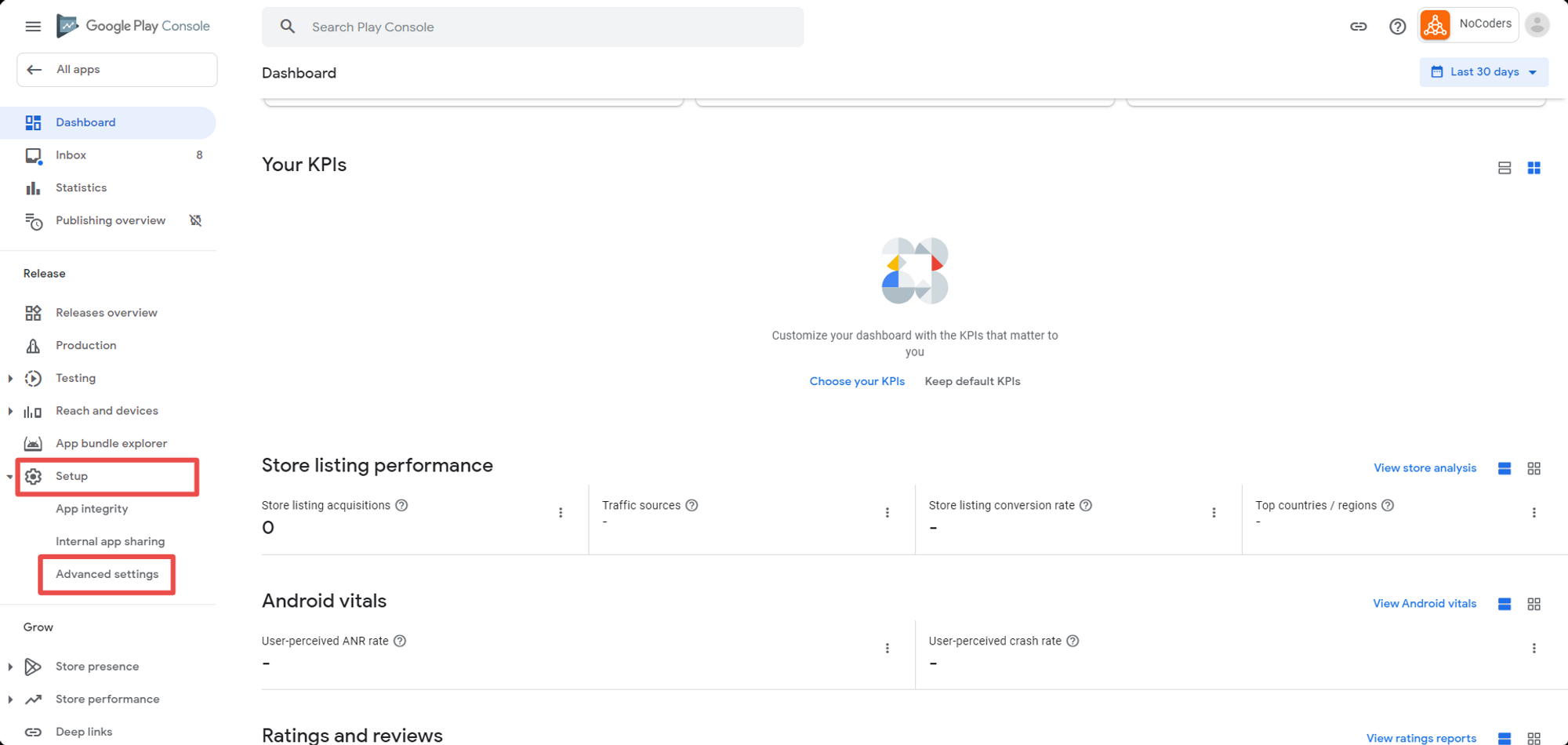
    1. Go to https://developer.android.com/distribute/console/index.html and log in to your Google Play account.
    1. Click on the application you want to remove
    1. Click on the “Setup” menu, and then on the “Advanced settings” item.
    Notion Image
    1. Click Unpublish and then save your changes
    Notion Image

    Now that you’re done with that… if you’d like to build a fast, native mobile app for your content site, check out Vendrux, and if you think we could help, get in touch at support@vendrux.com or request a demo.

    We focus on native apps for content sites, and news sites but also information-rich sites, directories, and corporate websites. Our service is fully featured and includes a customized app, push notifications, maintenance, and ongoing updates.

  • How to find your Apple Team ID and agent Apple ID

    1. Log in to Apple’s Developer Center
    1. Once you are logged in, click on Account
    1. Then Membership
    1. Under Membership Information, please copy the Team Name and Team ID fields

    We will require the following information when you request for an iOS app transfer:

    1. Team Agent Apple ID (email)
    1. Team ID

    To complete the transfer, email us at support@vendrux.com or follow the instructions provided.

    Please note that once an app transfer has been requested, you will be given by Apple 60 days from the day initiated to accept the request. Contracts that have not been accepted within 60 days will be canceled. App transfers can take up to two business days to complete, depending on an export compliance review.