Category: How-To’s

General tips on how to perform actions on your device

  • Add Test Subscribers to OneSignal

    • Delete the app from you device, re-add and opt into notifications
    • Login to OneSignal, go to Audience > Subscriptions
    • Your device will be at the top (check)
    • Click the three dots to the left, assign it as a Test Subscription
    • Your device will be be available when sending test notifications
  • Secure Your Website in the App

    When your website is accessed through a WebView, it’s crucial to make sure that good security practices are in place to avoid potential risks. Even with a secure WebView, weaknesses in your website could expose users to attacks. This guide outlines essential security practices website owners should follow to create a safe browsing environment in the app.

    1. Use HTTPS Everywhere

    Why it matters:

    • HTTPS encrypts data exchanged between the client (WebView) and server, ensuring confidentiality and integrity of user data. This prevents attackers from intercepting or altering the data.

    How to implement:

    • Obtain an SSL certificate and configure your server to redirect all traffic from HTTP to HTTPS.
    • Enforce HTTPS on all connections.

    2. Implement Content Security Policy (CSP)

    Why it matters:

    • CSP protects against cross-site scripting (XSS) attacks by controlling which resources are allowed to load on your site. This is particularly important for WebView, where the app’s security may rely on your website’s content security.

    How to implement:

    Define a strict CSP header in your server configuration or HTML using the following meta tag:

    "Content-Security-Policy" content="default-src 'self'; script-src 'self' https://trusted-scripts.com">

    You can learn more about CSP here: https://developer.mozilla.org/en-US/docs/Web/HTTP/CSP

    Tip: Test your CSP in a staging environment to ensure no legitimate functionality is blocked.

    3. Sanitize and Validate User Inputs

    Why it matters:

    • Input validation prevents attackers from injecting malicious scripts or SQL commands. In a WebView environment, improper validation could allow attackers to manipulate website behavior through user inputs.

    How to implement:

    • Validate all user inputs server-side, even if you’ve done client-side validation.
    • Use libraries such as OWASP Validator to clean and sanitize inputs.
    • Escape special characters to prevent XSS and SQL injection.

    Tip: Never rely solely on client-side validation, as it can be bypassed easily.

    4. Leverage Secure Cookies with HTTPOnly and SameSite Flags

    Why it matters:

    • Secure cookies protect user sessions from being hijacked, especially in WebView, where cookies may store sensitive information like login credentials.

    How to implement:

    Set cookies with the Secure, HttpOnly, and SameSite attributes to ensure they are only accessible over HTTPS and are restricted from being accessed by JavaScript.

    You can find more details here: https://developer.mozilla.org/en-US/docs/Web/HTTP/Headers/Set-Cookie

    Tip: Always use SameSite=Strict for highly sensitive cookies, such as those used for authentication.

    5. Avoid Inline Scripts and External Resources from Untrusted Sources

    Why it matters:

    • Inline scripts or resources from untrusted sources could introduce vulnerabilities or allow third-party content to run malicious code. In WebView, these scripts may exploit the in-app browser environment.

    How to implement:

    • Avoid using inline JavaScript in your HTML.
    • Host your scripts and styles on your domain or trusted CDNs.
    • Ensure third-party resources like analytics or ad scripts are from verified, secure providers.
  • Reset Keystore Details for Android App

    Reset Keystore Details for Android App

    When You Might Need to Reset the Android App Signing Key

    1. Lost or Forgotten Keystore Details
    The most common reason for resetting the signing key is if the keystore file or its credentials (password, alias) have been lost or forgotten. Without this file, updates to the app cannot be published, as Google Play requires it to authenticate app updates as coming from the same developer.

    2. Changing Development Teams
    If the app is being transferred to a new development team, and the original team cannot provide the keystore file, resetting the signing key might be necessary to maintain control over future updates.

    3. Security Concerns
    If there’s reason to believe the keystore has been compromised or accessed by unauthorized parties, resetting the key helps secure future versions of the app and maintain user trust.

    How to Reset the Android App Signing Key

    1. Sign In to Google Play Console

    Go to the Google Play Console and sign in with the email that created the Google Developer account.

    2. Navigate to Your App

    From the dashboard, select the app for which you want to reset the signing key.

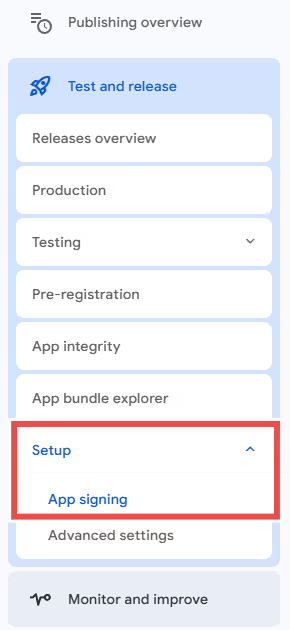
    3. Go to Setup > App Integrity

    In the left-hand menu, navigate to Setup > App integrity. This section includes app signing details, as you can see below:

    4. Request a Key Reset

    In the App signing section, find the Reset key option (may be called “Request key upgrade” depending on your Play Console version).

    Click Request key upgrade and follow the prompts to initiate the process.

    5. Provide Any Required Information

    Google may require details about why the reset is necessary. If the keystore was lost or compromised, mention this to streamline the request.

    6. Wait for Google to Process the Request

    Google will review and approve the key reset, which may take several days (often up to a week).

    Once approved, Google will replace your app’s signing key with a new one.

  • Reset Android app keystore file and password

    Reset Android app keystore file and password

    Google now allows you to safely update your app’s .jks file in case you have lost it.

    In order to be able to do this, you must be enrolled for Google App Signing or give Google the necessary permissions to manage your app signing.

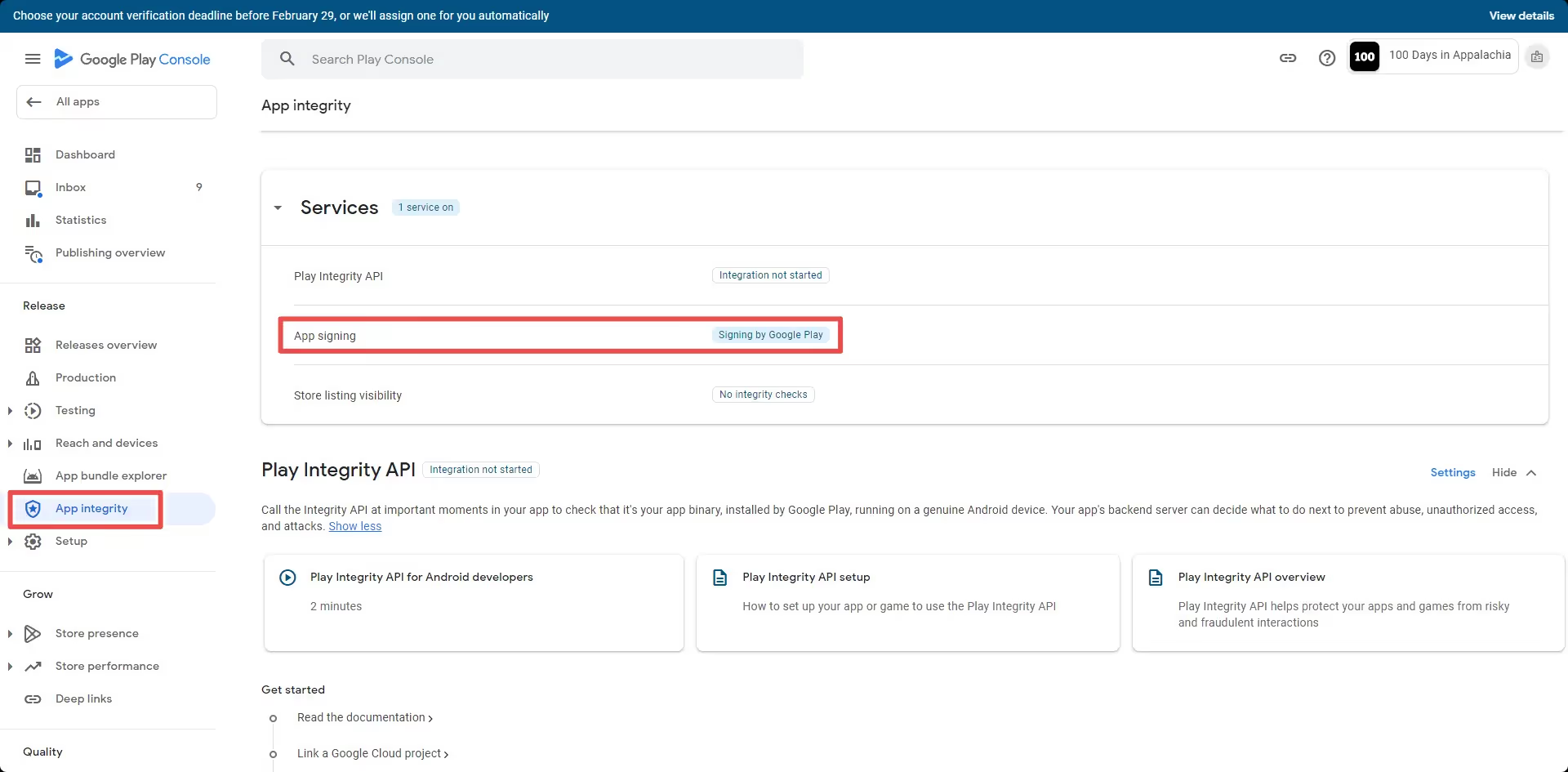
    To confirm that you are eligible for this, go to your Google Developer Console then “Release > App Integrity”. Just make sure that you have “App Signing” showing “Signing by Google” in place:

    After confirming that you are eligible, you can follow the steps from this page to reset your key: https://support.google.com/googleplay/android-developer/answer/9842756#lost

  • Record device screen on iOS

    Record device screen on iOS

    Recording your screen can be useful when you want to be able to capture a specific behavior on an app.

    Recording your screen 🎥

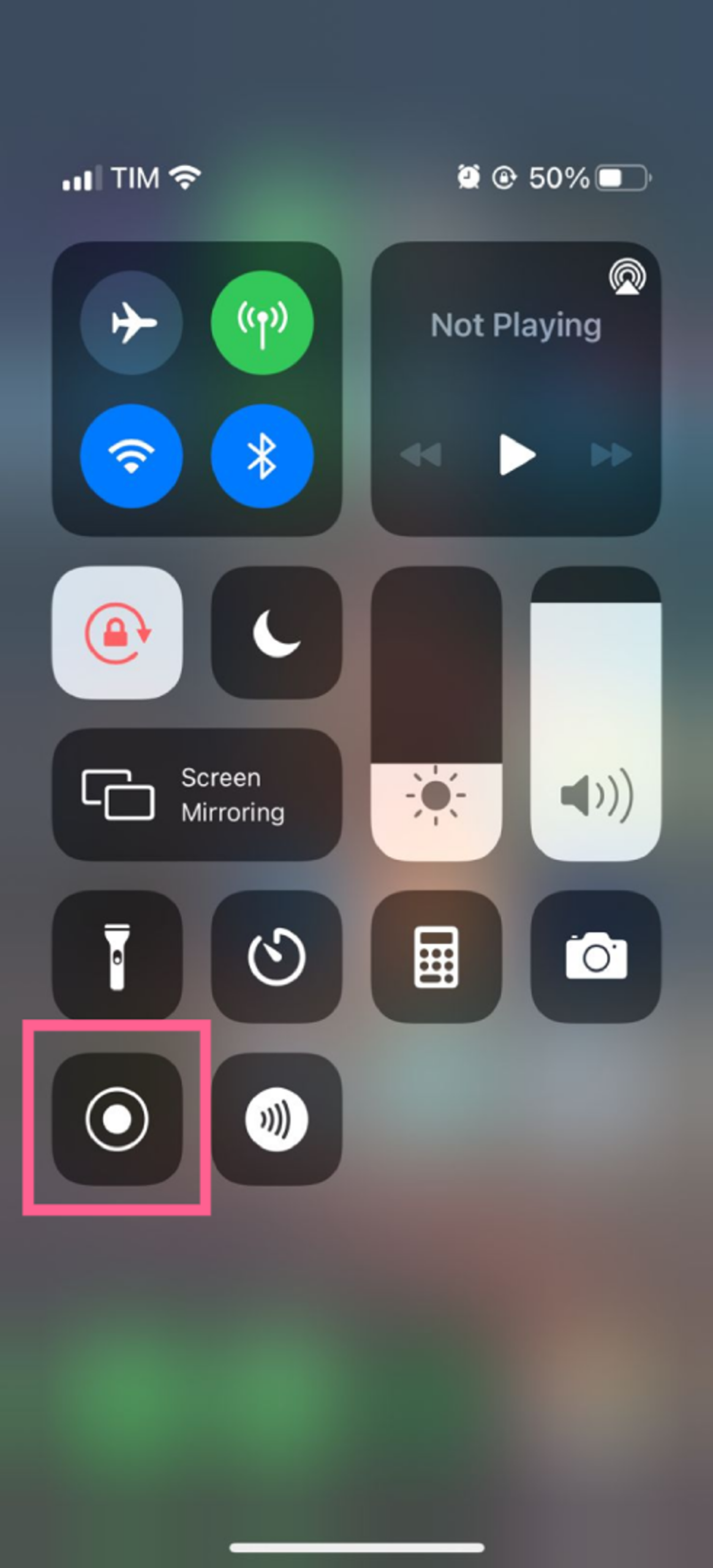
    The screen recording feature can be found in your control center, you can follow these steps to use it:

    1. Open the “Control Center” by swiping down from the top-right corner of your screen
    1. Tap the gray Record button 🔘, then wait for the three-second countdown
    1. Once you are done, just press the red button to stop recording

    You will find your screen recording stored in your “Gallery”.

    Notion Image

    Enabling screen recording ⚙️

    More recent versions of iOS will come with this feature already enabled on your control center.

    But in case you are unable to find the “Record” button, follow these steps to enable it:

    1. Go to “Settings > Control Center”
    1. Find “Screen recording” in the options
    1. Tap the “+” icon next to it
    Notion Image
    Notion Image

  • Record device screen on Android

    Record device screen on Android

    Record your phone screen

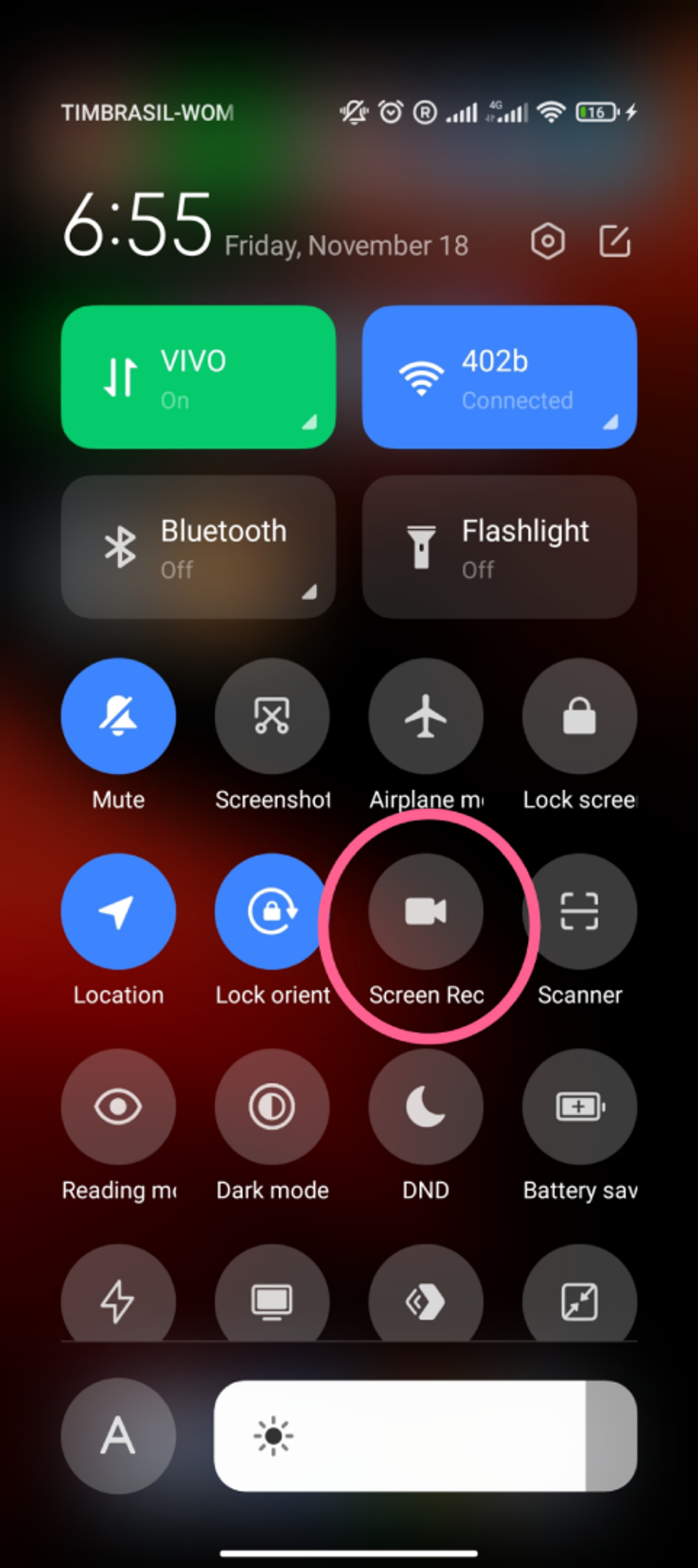
    1. Swipe down from the top of your screen.2. Tap the “Screen record” icon    ◦ You might need to swipe right to find it    ◦ If it’s not there, tap Edit and drag Screen record to your Quick Settings3. Choose what you want to record and tap Start. The recording begins after the countdown4. To stop recording, swipe down from the top of the screen and tap the Screen recorder notification

    Notion Image

  • Print pages in the app

    In order to enable the print functionality in your app you will need to add the following parameters to your advanced configuration:

    "Printing": {
        "Enable_Printing": true,
        "Regex": ".*print.*"
      }

    The “Regex” parameter determines which URLs will trigger the printing. You will need to make sure that the URLs that should trigger the print feature match the regex code used.

    If your URL looks like this: https://website.com/document?print=true

    You can use the value displayed in our example, it will be a match because the URL contains “print” in it.

  • Invite users to TestFlight | vendrux Docs

    TestFlight is an app provided by Apple to allow users to test apps before making them publicly available in the App Store.

    In order to be able to invite users as testers to TestFlight you first need to make sure the user is added to your App Store Connect account. You can find a complete guide on how to invite users to your account by clicking here.

    Below you can find a step-by-step guide on how to invite users to test your app using TestFlight.

    1. On App Store Connect, open your list of apps then select the app to which you would like to invite your users as testers, you can use this link: https://appstoreconnect.apple.com/apps
    1. On the app details page, click “TestFlight”
    1. You will need to create a new Internal Testing group, you can do so by clicking on the “+” icon:
    1. Type in the name of your Internal Testing group, the name will be visible to invited testers
    1. With your Internal Testing group created, you can now invite users by clicking on the “+” icon
    1. Select the users that you would like to add as testers to the app and click “Add”
    1. That’s it! The selected users will receive an invitation in their emails, the invitation will include a “Redeem code” which can be used in TestFlight to redeem and install your app for testing purposes.
  • Invite users to Google Tag Manager container

    Google Tag Manager (GTM) allows you to grant access to other users so they can manage tags, triggers, and variables within a container. Follow these steps to invite users to a GTM container.

    Step 1: Sign in to Google Tag Manager

    1. Go to Google Tag Manager.
    2. Sign in with your Google account that has administrator access.

    Step 2: Open the Account and Container

    Click on the Container you want to share access to.

    Step 3: Open User Management Settings

    1. In the Admin panel (located in the top left-hand menu), select User Management under the Container level.
    2. Select Container Settings > User Management.

    Step 4: Add a New User

    1. Click the + (plus) button in the top-right corner.
    2. Select Add users from the dropdown menu.

    Step 5: Enter User Details

    1. Enter the email address of the user you want to invite.
    2. Choose the user’s permissions:
      • Read – Can view container settings but cannot make changes.
      • Edit – Can create and edit tags but cannot publish changes.
      • Approve – Can create, edit, and approve changes but cannot publish them.
      • Publish – Can create, edit, approve, and publish changes.
    3. Check Notify new users by email to send an invitation email.

    Step 6: Save and Confirm

    1. Click Invite to send the user an invitation.
    2. The invited user will receive an email with access to the container.

  • Invite users to Google Tag Manager container

    Google Tag Manager (GTM) allows you to grant access to other users so they can manage tags, triggers, and variables within a container. Follow these steps to invite users to a GTM container.

    Step 1: Sign in to Google Tag Manager

    1. Go to Google Tag Manager.
    2. Sign in with your Google account that has administrator access.

    Step 2: Open the Account and Container

    Click on the Container you want to share access to.

    Step 3: Open User Management Settings

    1. In the Admin panel (located in the top left-hand menu), select User Management under the Container level.
    2. Select Container Settings > User Management.

    Step 4: Add a New User

    1. Click the + (plus) button in the top-right corner.
    2. Select Add users from the dropdown menu.

    Step 5: Enter User Details

    1. Enter the email address of the user you want to invite.
    2. Choose the user’s permissions:
      • Read – Can view container settings but cannot make changes.
      • Edit – Can create and edit tags but cannot publish changes.
      • Approve – Can create, edit, and approve changes but cannot publish them.
      • Publish – Can create, edit, approve, and publish changes.
    3. Check Notify new users by email to send an invitation email.

    Step 6: Save and Confirm

    1. Click Invite to send the user an invitation.
    2. The invited user will receive an email with access to the container.