Category: Docs

  • Integrate Klaviyo with your website

    There are many situations in which you will want to trigger push notifications to your users, here are some examples:

    • A private message has been received
    • An order has been delivered
    • A new file has been added to the account
    • A subscription is about to expire

    For all of these examples, the notification will need to target a specific user when a specific event happens on your website. In order to be able to send these notifications you will need the following implemented into your website’s code:

    • Vendrux native functions

    Keep in mind that this is not an implementation guide for the Klaviyo Open API, each server and website is different and will require a developer to find the best approach for integrating the Klaviyo Open API. The purpose of this guide is to give you a better understanding of how to integrate your website with the Vendrux platform for sending targeted, or transactional push notifications.

    Let’s go through each one of the requirements:

    Klaviyo Open API

    Since Vendrux uses Klaviyo for push notifications, you will need to use the Klaviyo REST API to trigger the notifications.

    Whenever a push notification is expected to be sent, you will need to make a call to the Klaviyo Open API with the notification details (title, text, link, image, tags, etc), this call must be implemented on your website.

    Here you can find the complete documentation for the Klaviyo REST API: https://developers.klaviyo.com/en/reference/api_overview#openapi-and-postman

    Vendrux native functions

    Implementing the Klaviyo Open API should be straightforward, but at some point, you will ask yourself “How do I target a specific user?”, and that’s where the Vendrux native functions come into play.

    On your website, you are probably using a unique ID or even an email to identify your users, but in Klaviyo that unique identifier is not available out of the box, so the idea here is to tell Klaviyo to store the same unique user ID from your website into the Klaviyo profile of that user.

    To do this, we are going to trigger the following Javascript function as soon as the user has logged in.

    We highly recommend using emails to identify users, so the user profile in Klaviyo automatically merges all the existing data for matching profiles.

    Here is an example of how that piece of code would look like:

        // Check the user agent for the "canvas" string
        const isApp = navigator.userAgent.toLowerCase().indexOf('canvas') > -1;
        
        // Check if we are in the app
        if (isApp) {
        
          try {
    
              // Set the user email
              let userEmail = "john@example.com";
    
              // Trigger the native function to save to Klaviyo
              nativeFunctions.klaviyoSetEmail(userEmail);
    
              // Log the event in the console
              console.log("Email has been set");
    
    
          } catch (ex) {
    
              console.log(ex.message);
    
          }
          
      	}
    

    Alternatively, if you prefer to use an ID instead, you can use the following version:

        // Check the user agent for the "canvas" string
        const isApp = navigator.userAgent.toLowerCase().indexOf('canvas') > -1;
        
        // Check if we are in the app
        if (isApp) {
        
          try {
    
              // Set the external ID
              let userExternalId = 1;
    
              // Trigger the native function to save to Klaviyo
              nativeFunctions.klaviyoSetExternalUserId(userExternalId);
    
              // Log the event in the console
              console.log("External ID has been set");
    
    
          } catch (ex) {
    
              console.log(ex.message);
    
          }
          
      	}
    

    For more details on how to target users using the External User ID and Emails, you can refer to the Klaviyo documentation here: https://help.klaviyo.com/hc/en-us/articles/115005247088
  • Install APKs on Android devices

    Installing an APK file on an Android device is a relatively simple process. An APK is an installation file used Android operating system for distributing and installing apps. Here’s a step-by-step guide to installing an APK on your Android device:

    1. Download the APK file provided by Vendrux directly on your device.

    2. Locate the APK file on your device. It will probably be in your Downloads folder

    3. Open the APK file. You will probably be asked to allow the installation from unknown sources, simply follow the instructions provided on your device to enable that option. This is expected, since the APK is not being downloaded directly from the Play Store.

    4. Follow any on-screen instructions to complete the installation process.

    5. Once the installation is finished, you’ll be able to open and use the app.

    That’s it! Installing an APK on your Android device is a quick and easy process!

  • Improve app performance | vendrux Docs

    Website Optimization

    Vendrux relies on your website’s design and content, therefore the time your app takes to fully load is directly related to your website loading speed, plus the time that it takes to load the app’s own assets.

    If you are not satisfied with the time that your app takes to load, we suggest that you perform some tests on your website, to make sure it is fully optimized to provide the best possible performance.

    The best way to start would be to use a website speed test tool like Pingdom, which provides some in-depth information about your website performance along with some insights on how you can improve it.

    Make sure to go through all the optimization tips provided under the Performance Insights section of Pingdom and you should be able to see some nice improvements in your app loading speed.

    App Optimization

    Vendrux allows you to use any pages from your website inside your app, so you might want to take advantage of this and create specific pages for it, with an app-optimized page structure and content.

    Synthesizing the content of your app might not only improve the overall user experience but also help with reducing the loading times of your app as there will be less text, images, and code being loaded.

  • Identify BigCommerce users in Klaviyo

    This guide will walk you through the process of adding our custom JavaScript code to your BigCommerce store’s theme. The code detects if the user is in the app, then if the user is logged in, and if so, it sends the user email to Klaviyo to consolidate the Web and Mobile App profiles.

    The Code Snippet

    The code we’ll be implementing is:

    	if (navigator.userAgent.toLowerCase().indexOf('canvas') !== -1) {
          {{#if customer}}
          	nativeFunctions.klaviyoSetEmail('{{customer.email}}');
          {{else}}
          	nativeFunctions.klaviyoSetEmail('');
          {{/if}}
        }
    

    Step 1: Check if Your Theme Has Been Duplicated

    Before making any changes to your theme, you need to determine if you're working with a duplicated theme:

    1. Log in to your BigCommerce admin panel
    2. Navigate to Storefront → My Themes
    3. Click the "Advanced" dropdown next to your current theme
      • If you see the "Edit Theme Files" option, your theme has already been duplicated
      • If you don't see this option, or it's grayed out, you need to duplicate your theme first

    Step 2: Duplicate Your Theme (If Needed)

    If your theme hasn't been duplicated yet, follow these steps:

    1. Navigate to Storefront → My Themes
    2. In the "Current Theme" section, click on the dropdown menu (three dots) next to your active theme
    3. Select "Make a Copy"
    4. In the pop-up dialog, enter a name for your duplicate theme (e.g., "My Store Custom Theme")
    5. Click "Copy Theme"
    6. Wait for the duplication process to complete (this may take several minutes)

    Important: Duplicating your theme creates a backup of your current design. This allows you to revert to the original version if needed and prevents theme updates from overwriting your customizations.

    Step 3: Apply the Duplicated Theme (If You Created a New Copy)

    If you just created a duplicate theme:

    1. Find your newly created theme in the "Available Themes" section
    2. Click "Apply" to make it your active theme
    3. Review your storefront to ensure everything looks correct

    Step 4: Add the Code Snippet to Your Theme

    Now that you're working with a duplicated theme, you can safely add the custom code:

    1. Navigate to Storefront → My Themes
    2. Click the "Advanced" dropdown next to your active theme
    3. Select "Edit Theme Files"
    4. In the theme editor, locate the base.html file
      • Navigate to templates/layout/base.html
    5. Add the code snippet before the footer content
      • Look for the footer section in the base.html file
      • This is typically indicated by comments like or code that includes {{> components/common/footer}}
      • Place the code snippet right before this section
    6. Save your changes
      • Click the "Save" button in the top right corner
      • You'll see a confirmation message when the save is successful

    Next Steps

    After successful implementation, upon logging in to an account while in the app, you should be able to see the email being added to the Klaviyo profile, and subsequently getting merged with the existing web profile.

  • How to test my app using TestFlight?

    In this guide, we will go through some of the frequently asked questions about testing iOS apps.

    Unfortunately, Apple doesn’t provide users with an easy way to test iOS apps before they are available in the App Store, they require you to use TestFlight, an app that is maintained by Apple itself. Although the app is easy enough to use, it will require you to take some extra steps before your users can test it.

    Different testing methods using TestFlight

    Invitation

    This is the quickest method to get users to start testing your app.

    You will be required to add your testers to your Apple Developer Account, and then, once they have accepted the invitation, add them as testers to TestFlight.

    Here is a breakdown of the steps for your reference:

    1. Invite a user by his Apple ID email, to your Apple Developer Account. You can find a guide on how to do so, clicking here
    1. Once the user has accepted the invitation, you will need to add him as a tester to your app in the TestFlight area. You can find a guide on how to do so, clicking here

    Public link

    If instead of adding users to your Apple Developer account and then inviting them to TestFlight you prefer to simply send a link to the users that you would like to test the app you can use the Public Link alternative.

    To generate your public link you will need to submit your app for review and wait until it gets approved by Apple, which usually takes about 48 hours. Once your app is approved you will be able to generate a link that can be shared with users so they get access to a test version of your app.

    You can find a complete guide on how to generate the public link for your app by clicking here.

    Redeem Code

    The redeem code is required in order for users to be able to download the app in TestFlight.

    Below you will find answers to the most common questions about the redeem code.

    How do I get a redeem code?

    The redeem code is sent to your email once you are added as a tester to TestFlight.

    Where do I use the redeem code?

    The redeem code is used inside the TestFlight app, when you open TestFlight you should see a “redeem code” link on the top right:

    Can other users use my redeem code?

    No, each user will need to be invited separately in order for a unique redeem code to be generated.

    I didn’t get my redeem code, what do I do?

    Before anything make sure to check your email SPAM box, if you still can’t find your code we recommend resending the invitation to your email.

  • How to test apps | vendrux Docs

    Before submitting your apps to the stores, we will be providing you with a test version so you can check the app on your own devices, for iOS and Android.

    While we do perform an initial round of tests on our end, to make sure the basic functionality is working as expected, you know your website better than anyone else, and you should be the one making sure all the internal features of your app are working as expected.

    Testing your apps 🤳

    iOS

    Apple doesn’t allow a simple installation file to be generated for testing, instead, you will need to use their own testing environment for apps, called “TestFlight”.

    There are a few steps you need to take in order to be able to use TestFlight to test your app:

    1. Download the TestFlight app on your device
    2. Make sure you and anyone who will be testing the app are invited to the Apple Developer Account
    3. Add all users who will be testing the app as testers to TestFlight

    Once you add a user as a tester to TestFlight, an email containing a redemption code will be sent to the user.

    You must then open the TestFlight app, and click “Redeem” on the top right area of the screen.

    Type in your code and click “Redeem”.

    Your app will now be displayed inside TestFlight, and you can open it to start testing.

    Android

    For Android things are slightly easier.

    Our team will share a link to an .APK file with you, which you can then download directly on your Android device and open.

    Upon opening the file, the installation process will begin.

    Note that you might see some alerts regarding security, that’s because you are installing an app from an external source, outside of the Google Play Store.

    Just make sure that you always select the option to continue with the installation.

    Once installed you will be able to find the app on your device and start using it like any other app you have.

    Sharing your feedback 🧐

    Note that the test version of the app looks and works exactly like the final version will, so this is your chance to confirm that everything works as expected before making your app available to the public.

    While testing your app we recommend that you create a list, you can do that in a simple text file, a spreadsheet, or even in your email.

    For each item in the list, you will want to provide the following information:

    • Title: in a few words describe the issue
    • Description: summarize the problem so our team can have a better understanding of what you are seeing and what the expected behavior is
    • Steps to reproduce: list all the steps you’ve taken until you were able to see the issue
    • Operating system version: since some issues are specific to certain versions of the operating systems, we need to know which version is currently installed on the device used for the tests
    • Device model: the same applies to the device model, in some cases, an issue will only happen on specific device models

    You will also want to include a video or screenshots to show exactly where the problem occurs, below you can find guide on how to record your screen on iOS and Android:

    Here is an example of what optimal feedback looks like:

    Title: Contact form doesn’t work

    Description: When trying to submit our contact form nothing happens, the page seems to load forever and the form never gets submitted

    Steps to reproduce: 1) On the home screen, click the green button 2) On the new page, click the “Contact us” link 3) Fill all fields in the form and click “Submit”

    Operating system version: iOS 16

    Device model: iPhone 13 Pro

    Attachments: video-issue.mp4

    With all the details about the problem, it becomes much easier for our team to investigate and come up with solutions.

  • How to send push notifications with Klaviyo

    How to send push notifications with Klaviyo

    Sending push notifications with Klaviyo is easy, in this guide we will go through each step of the process.

    The first step is to login to your Klaviyo account, here: https://www.klaviyo.com/login

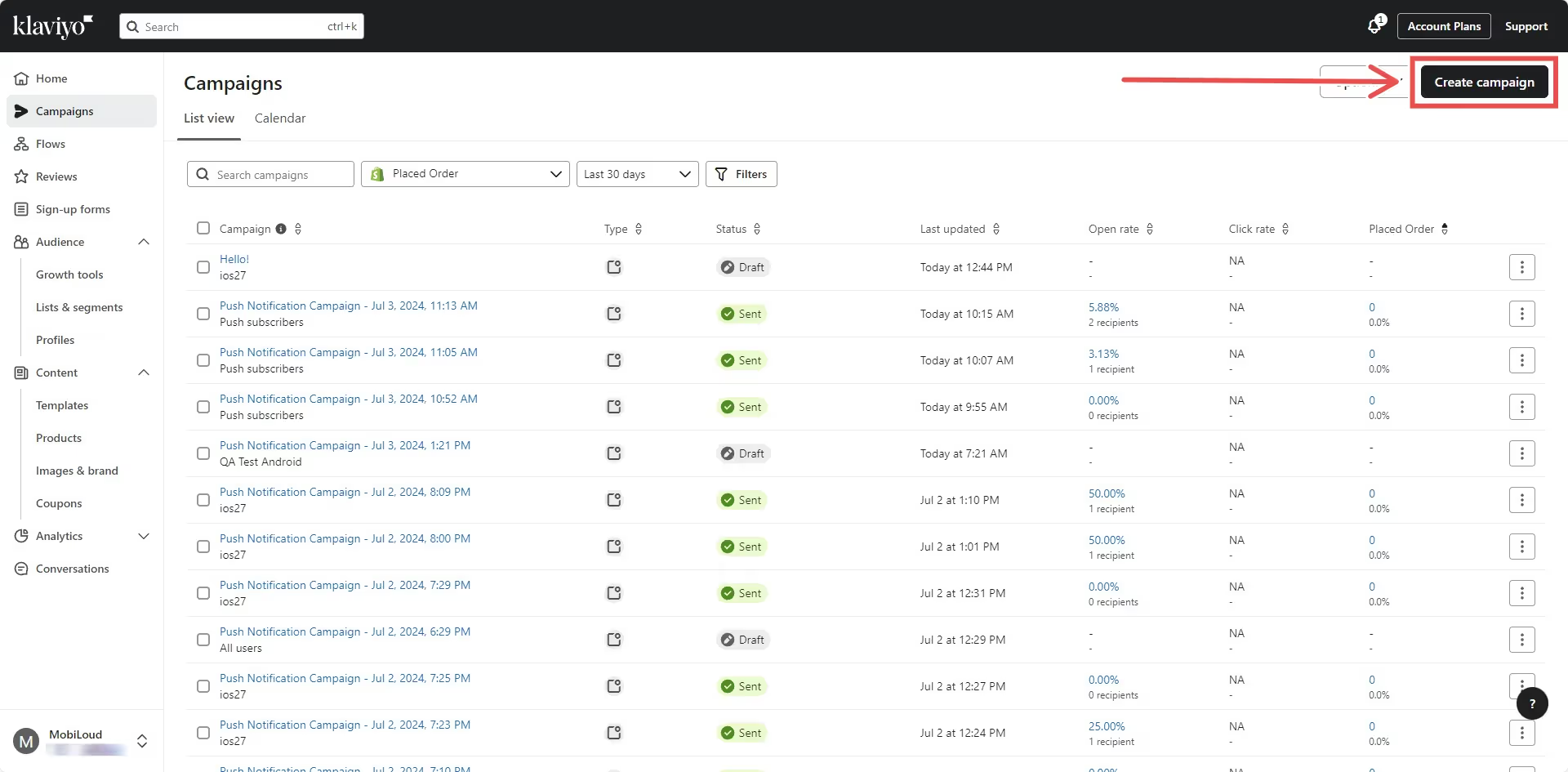
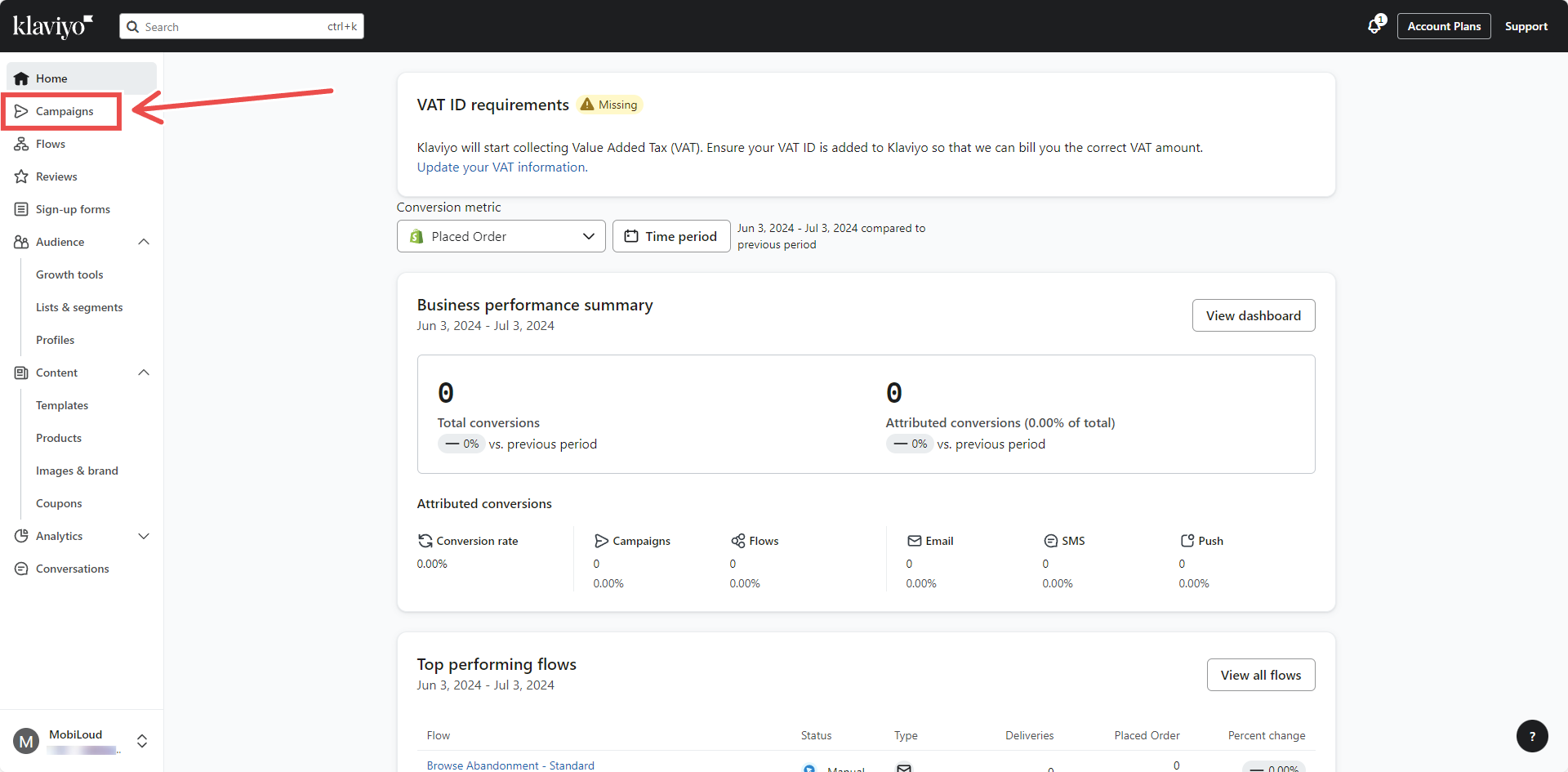
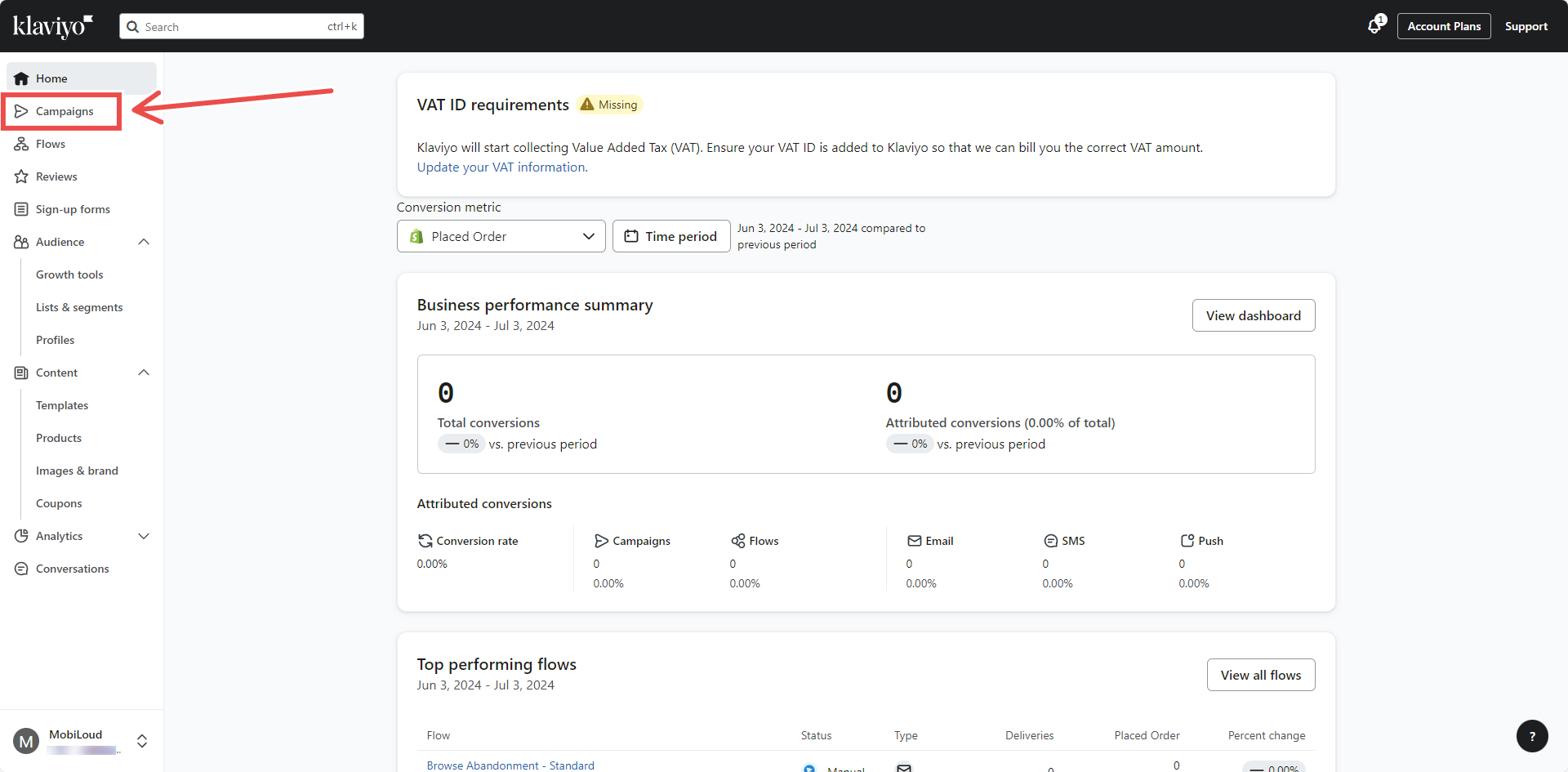
    In your account dashboard, click on “Campaigns” in the left sidebar:

    Click on “Create Campaign” on the top right area:

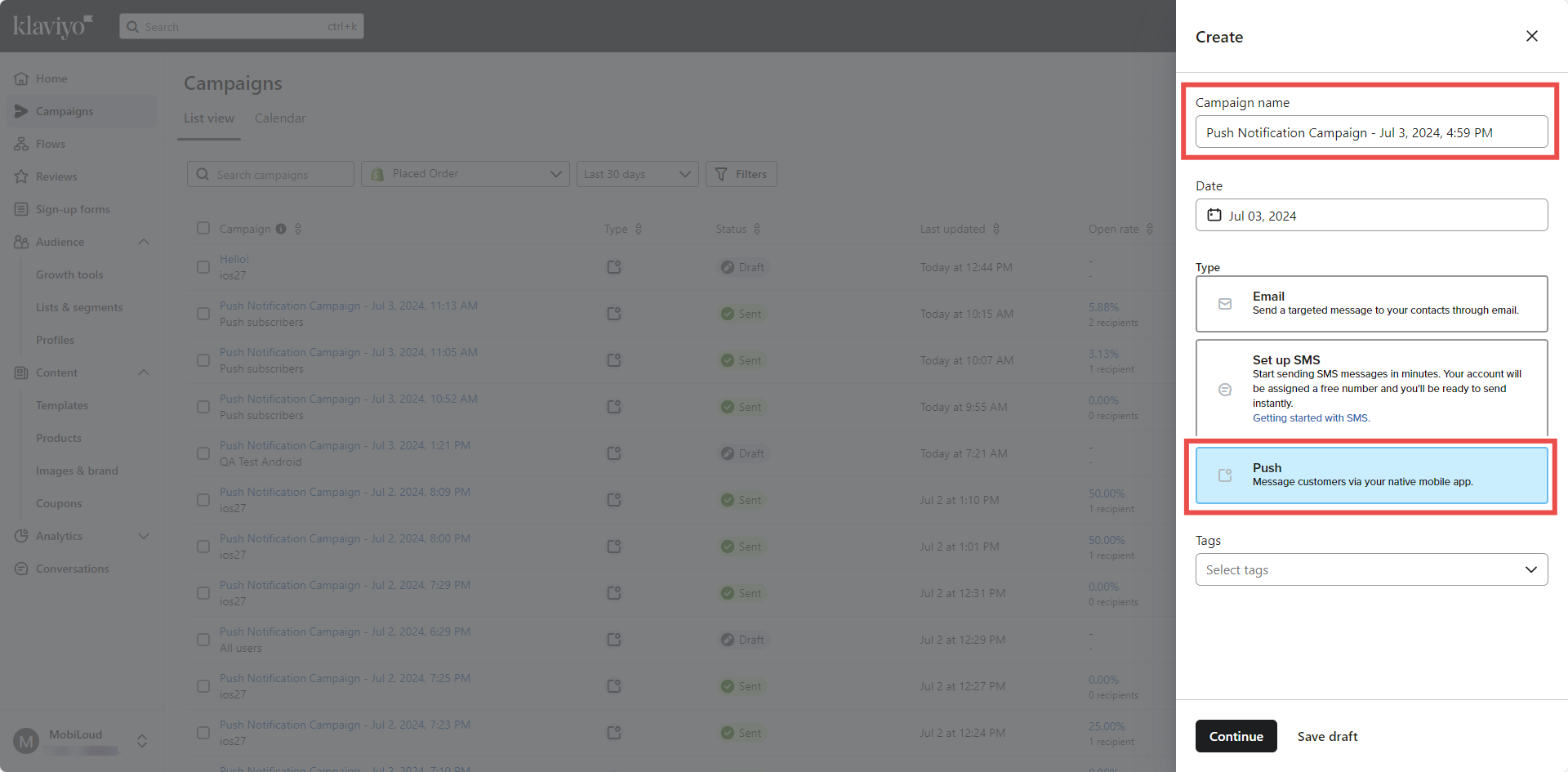
    Add a name for your campaign, select “Push” as the campaign type, and click “Continue”:

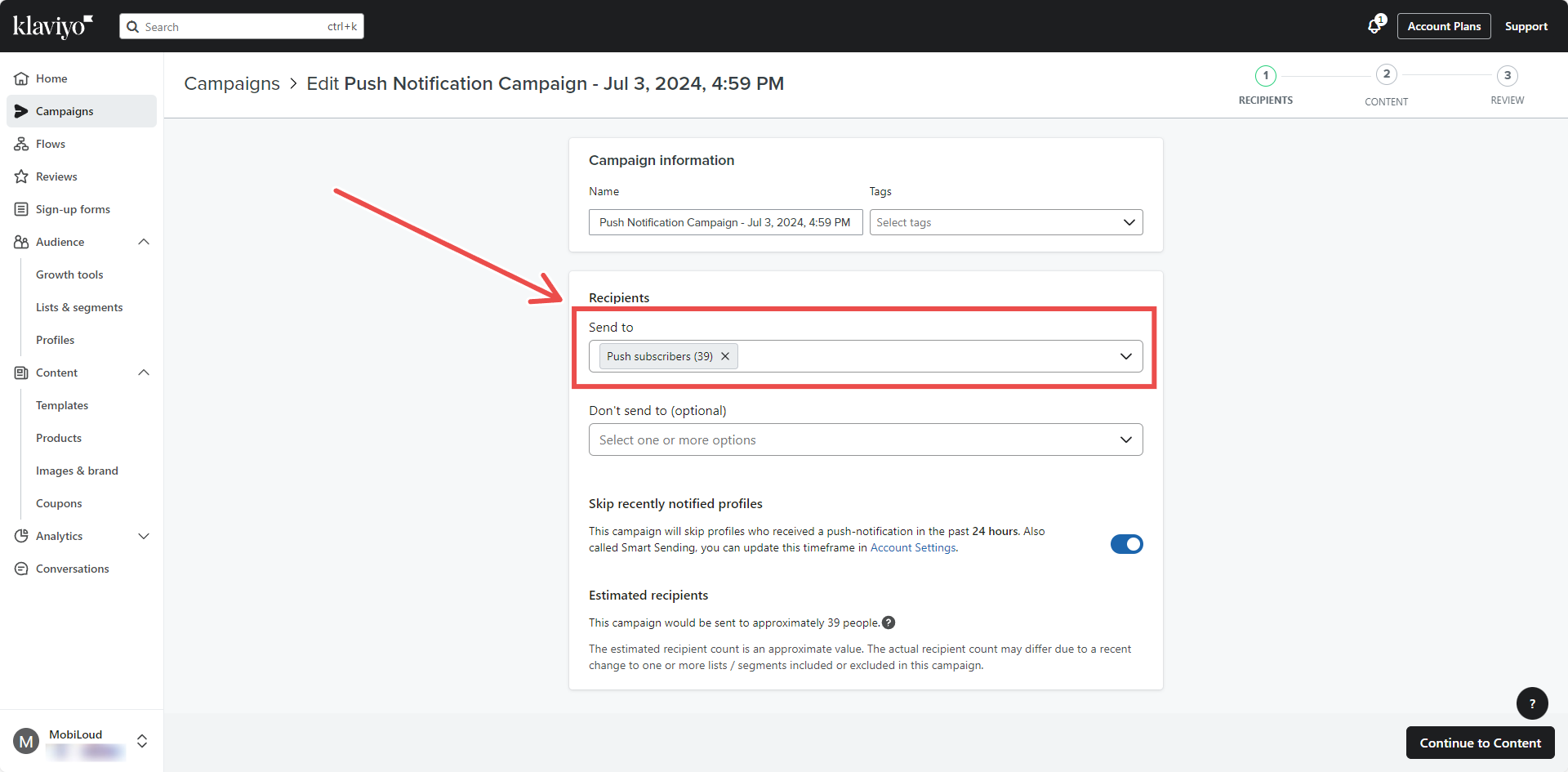
    Select a list or segment who should receive your notification and press “Continue to content”:

    Customize your notification title and content on the left sidebar:

    Click on “Behaviors” on the top left:

    Make sure “Open App” is selected as the “Open Action” for your notification then make sure that:

    1. “Show badge count” is enabled and set to “Add 1 to current count”
    2. “Play sound” is enabled

    Now enable the “Custom data” option, and two new fields will appear, fill them as follows:

    1. “Key” should be filled with “url”
    2. “Value” should be filled with the URL that should be opened when the notification is clicked

    Here is an example:

    This step is very important to make sure a specific URL opens when the notification is clicked.

    Make sure to use “url” all lower case for the “Key” field, otherwise this won’t work.

    Click on “Next” on the top right area:

    Make sure that all details are correct, and click “Schedule or send”:

    Select “Send now” to send the notification immediately:

    You are done! Note that even when using “Send now” Klaviyo might take a few minutes to deliver your notifications.

  • How to Find Your App Store Download Links

    This guide explains how to locate and use the official download links for your mobile app on both the Apple App Store and Google Play Store. Having these links readily available is essential for marketing your app, sharing it with users, and integrating app download buttons on your website.

    Apple App Store Links

    Finding Your App Store Link

    1. Log in to App Store Connect
    2. Navigate to “My Apps” and select your application
    3. Click on the “App Store” tab
    4. Under “App Store Information,” locate your app’s URL

    Your App Store URL will follow this format:

    Copy

    https://apps.apple.com/app/id[YOUR_APP_ID]

    Additional App Store URL Formats

    • Country-specific link: https://apps.apple.com/[COUNTRY_CODE]/app/[APP_NAME]/id[APP_ID]
    • Short format: https://apps.apple.com/app/id[APP_ID]

    Tips for App Store Links

    • The App ID is a unique number assigned to your app
    • Links are case-sensitive
    • Country codes are optional (e.g., ‘us’ for United States)
    • Links will automatically redirect to the user’s local App Store

    Google Play Store Links

    Finding Your Play Store Link

    1. Sign in to Google Play Console
    2. Select your app from the dashboard
    3. Go to “Release” → “Setup” → “Store listing”
    4. Find your app’s public URL

    Your Play Store URL will follow this format:

    Copy

    https://play.google.com/store/apps/details?id=[YOUR_PACKAGE_NAME]

    Additional Play Store URL Formats

    • Short format: https://play.google.com/store/apps/details?id=[PACKAGE_NAME]
    • Web listing: https://play.google.com/store/apps/details?id=[PACKAGE_NAME]&hl=[LANGUAGE_CODE]

    Tips for Play Store Links

    • The package name is your app’s unique identifier (e.g., com.company.appname)
    • Links are case-sensitive
    • Language codes are optional (e.g., ‘en’ for English)
    • Links will automatically show in the user’s preferred language

    Best Practices for Using App Store Links

    Website Integration

    • Keep links up-to-date
    • Test links regularly to ensure they work across different devices and regions
    • Consider using smart banners to promote your app on your website
    • Consider using QR codes for offline marketing and our QR download widget for your desktop site

    Troubleshooting Common Issues

    • If links aren’t working, verify the App ID or package name
    • Ensure your app is published, released and available in the target region
    • Check that the app hasn’t been removed or suspended
    • Verify URL formatting and special characters

    Additional Resources

    Remember to regularly verify your app store links as part of your maintenance routine, especially after updates or changes to your app’s listing.

  • How to find a login cookie name

    How to find a login cookie name

    Identifying your login cookie name is easy, you will only need to use the developer tools that are built into your browser.

    In this guide, we will be using Chrome, but most browsers nowadays will allow you to use developer tools, just keep in mind that the name and position of some elements might be slightly different.

    1 – Open your login screen

    Type in your website’s login screen on your browser’s address bar and hit enter.

    2 – Open the developer tools

    You can right-click on your screen (on any element) and find the “Inspect” option or simply press F12 to open the developer tools. It will look as follows:

    Notion Image

    3 – Go to the “Network” tab

    With the developer tools open, you should be able to see a tab called “Network”

    Notion Image

    4 – Reload your page

    In order to load your website information into the Network tab reload your page by clicking the “Reload” button on your browser, or simply press F5.

    5 – Find the main HTTPS request

    As the page loads, you will start to see a whole bunch of data being displayed on the developer tool, you will want to scroll to the very top of the list and click on the first item of the list:

    Notion Image

    6 – Find the cookies

    You will see a few new options on the right side, find the tab that says “Cookies” and click on it. This area will display all cookies that are set by your website when the page is loaded. We’d recommend taking a screenshot or just looking into the list carefully, as you will need to compare it with the list that will show once you are logged in.

    Notion Image

    6 – Login

    Now that you are seeing the cookies, with your developer tool opened, log in to your website.

    7 – Review your cookie list

    After the login, you will need to find the final destination URL in the list of requests, in our example, it was the second item on the list, as you can see below:

    Notion Image

    Under the cookies area, you will now need to look for a cookie that refers to the user login. This will usually be a new cookie, that was not in the last prior to the login, and its name will usually contain some reference to the login functionality, as you can see below:

    Notion Image

    In this case, you can see that the cookie name is “wordpress_logged_in_3fe39b…”

    The numbers at the end will always be different, every time a user logs in, but the first part is always the same.

    That’s it! You should have been able to find your login cookie name by following the instructions above, if you are still unsure about your login cookie name, our team will be happy to assist while building your app.

  • How to configure Google Pay

    Google Pay does not work directly inside WebViews due to security restrictions. This guide will help you configure your app to properly handle Google Pay payments.

    Prerequisites

    1. Access to your app’s advanced configuration
    2. Basic understanding of JSON configuration
    3. Familiarity with regex (regular expressions)

    Step-by-Step Configuration

    Step 1: Enable Special Pop-up for Payment Handling

    First, add the following configuration to enable a special pop-up mechanism:

    {
      "Regex_Social_Login": {
        "Regex_Social_Login_Opening_Method": "popup",
        "Regex_Social_Login_Rules": [
          {
            "Regex": ""
          }
        ]
      }
    }

    Step 2: Configure Pop-up for Google Pay Links

    Update the configuration to specifically target Google Pay URLs:

    {
      "Regex_Social_Login": {
        "Regex_Social_Login_Opening_Method": "popup",
        "Regex_Social_Login_Rules": [
          {
            "Regex": ".*pay\\.google.*"
          }
        ]
      }
    }

    Step 3: Extend Configuration for Multiple Payment Methods

    You can expand the configuration to support multiple payment platforms:

    {
      "Regex_Social_Login": {
        "Regex_Social_Login_Opening_Method": "popup",
        "Regex_Social_Login_Rules": [
          {
            "Regex": ".*pay\\.google.*"
          },
          {
            "Regex": ".*paypal.*"
          },
          {
            "Regex": ".*venmo.*"
          }
        ]
      }
    }

    Step 4: Configure External Link Handling

    Ensure that payment URLs are opened outside the app:

    {
      "Regex_Internal_External": {
        "Internal_External_Rules": [
          {
            "Regex": ".*pay\\.google.*",
            "Internal": false
          },
          {
            "Regex": ".*venmo.*",
            "Internal": false
          },
          {
            "Regex": ".*paypal.*",
            "Internal": false
          }
        ]
      }
    }

    Important Notes

    • The `.*` in the regex means “match any characters before or after”
    • `pay\\.google` specifically targets Google Pay URLs

    Troubleshooting

    • If payments still don’t work, double-check your regex patterns
    • Ensure your configuration is correctly applied
    • Verify that the pop-up mechanism is enabled

    Best Practices

    • Always test payment flows thoroughly after configuration
    • Keep your app’s configuration up to date
    • Consult with Vendrux for specific implementation details