Category: Analytics

Learn how to track your app usage

  • Apple Developer Analytics | vendrux Docs

    Apple Developer Analytics | vendrux Docs

    Through your Apple Developer Account, you will be able to track iOS-specific usage of your app.

    1 – Log in to your Apple Developer Account

    You can log in from this URL: https://developer.apple.com/account/

    2 – Select the “App Analytics” tab

    Notion Image

    3 – Select the app you want to see analytics for

    Notion Image

    4 – Analytics Information

    On the “Overview” tab you will be able to see details about your app usage within a given period:

    Notion Image

  • App deletions on iOS Analytics

    App deletions on iOS Analytics

    You can now see how many users remove your app from devices running iOS 12.3 or later.

    Login to your Apple Developer account here: https://developer.apple.com/

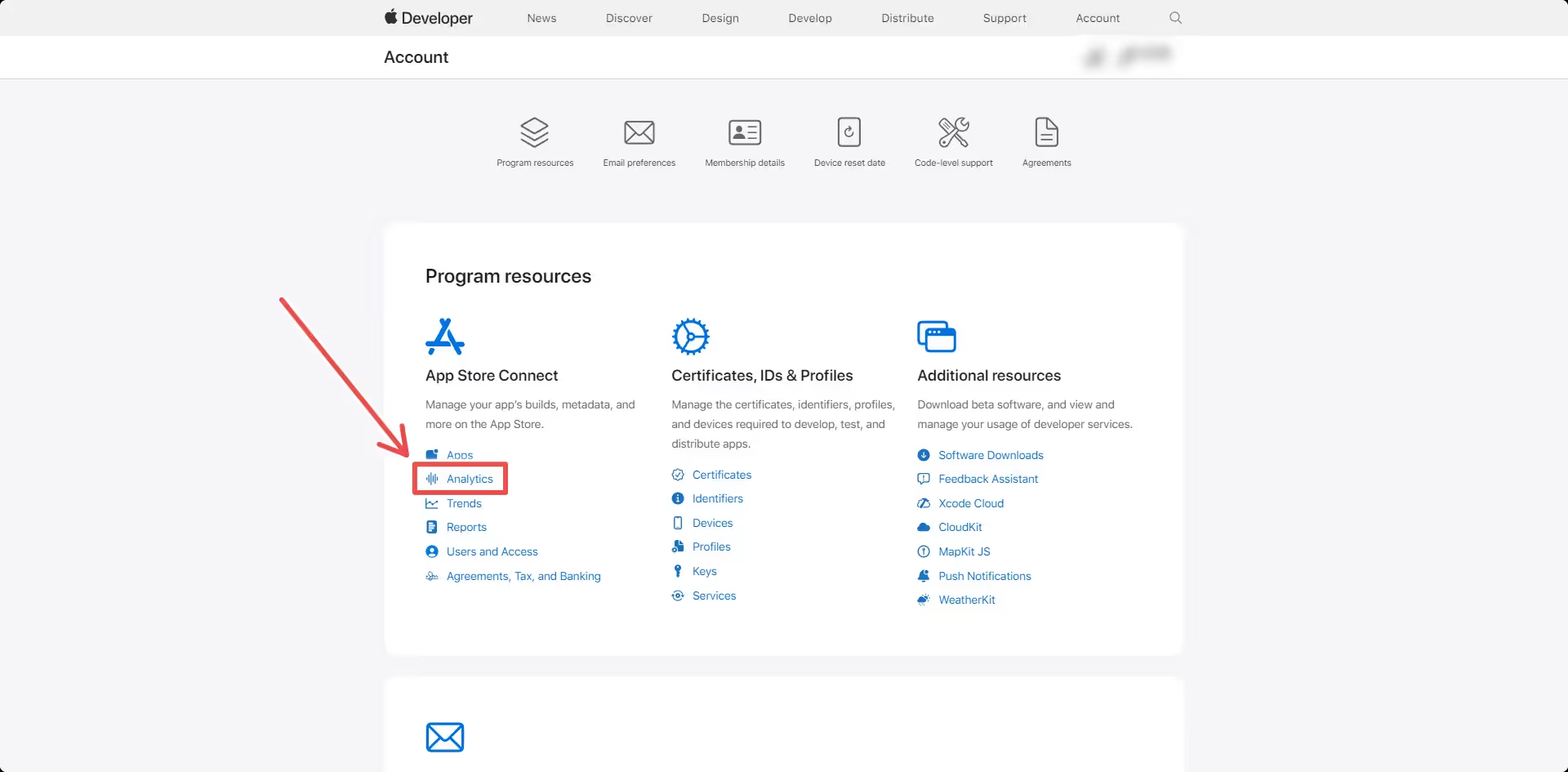
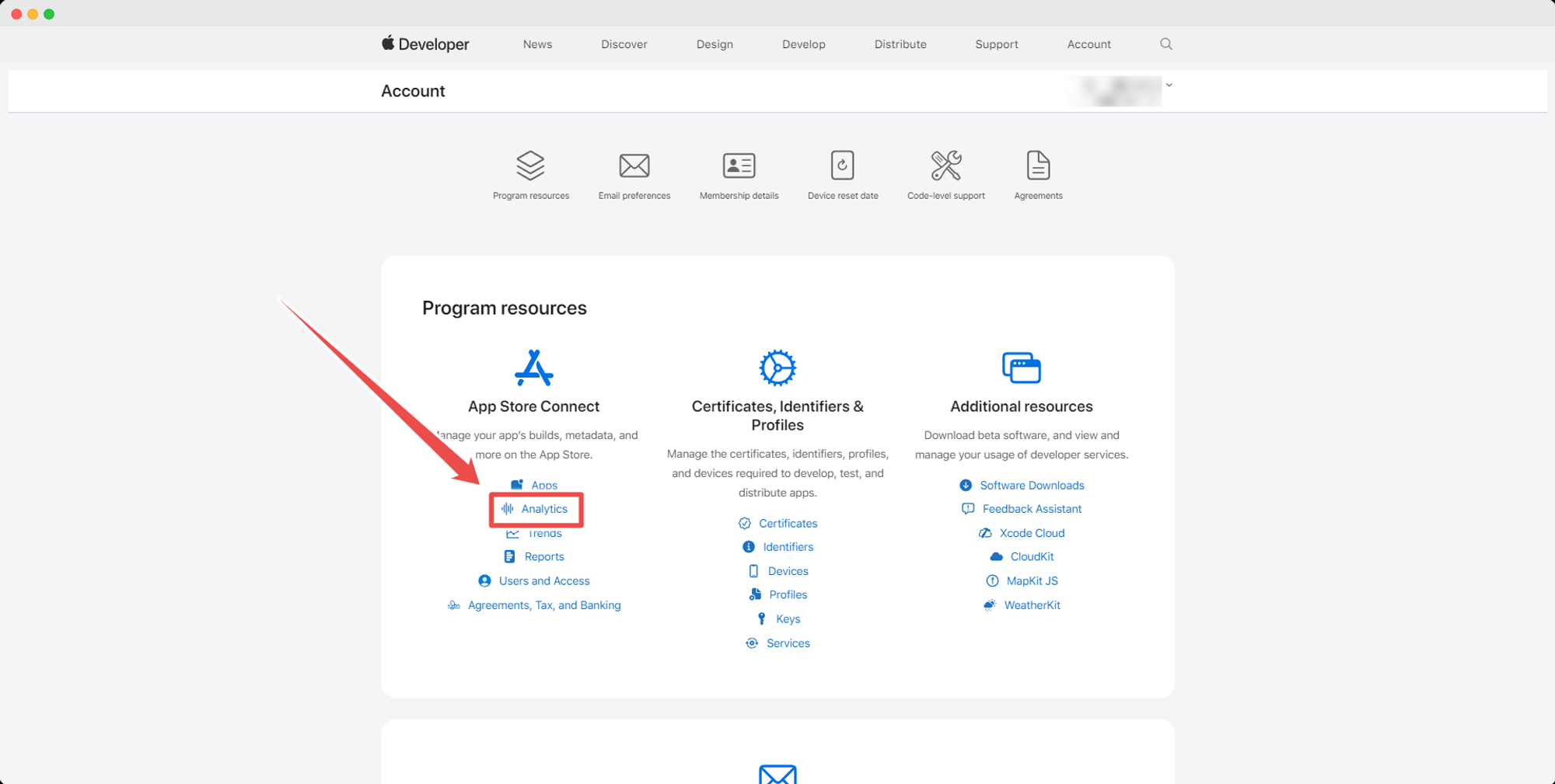
    Click the “Analytics” link:

    Select the app that you want to see Analytics information for.

    Under the “Overview” area, scroll all the way to the bottom, where you will be able to see the metrics for “Total Downloads by Device”:

    Click the down arrow close to the title, and select “Usage” then “Deletions” as you can see here: 

    Done! You can now see how many users uninstalled the app on iPhones, iPads and Macs.

  • App deletions on Android Firebase Analytics

    App deletions on Android Firebase Analytics

    Android app deletions can be tracked in Firebase Analytics.

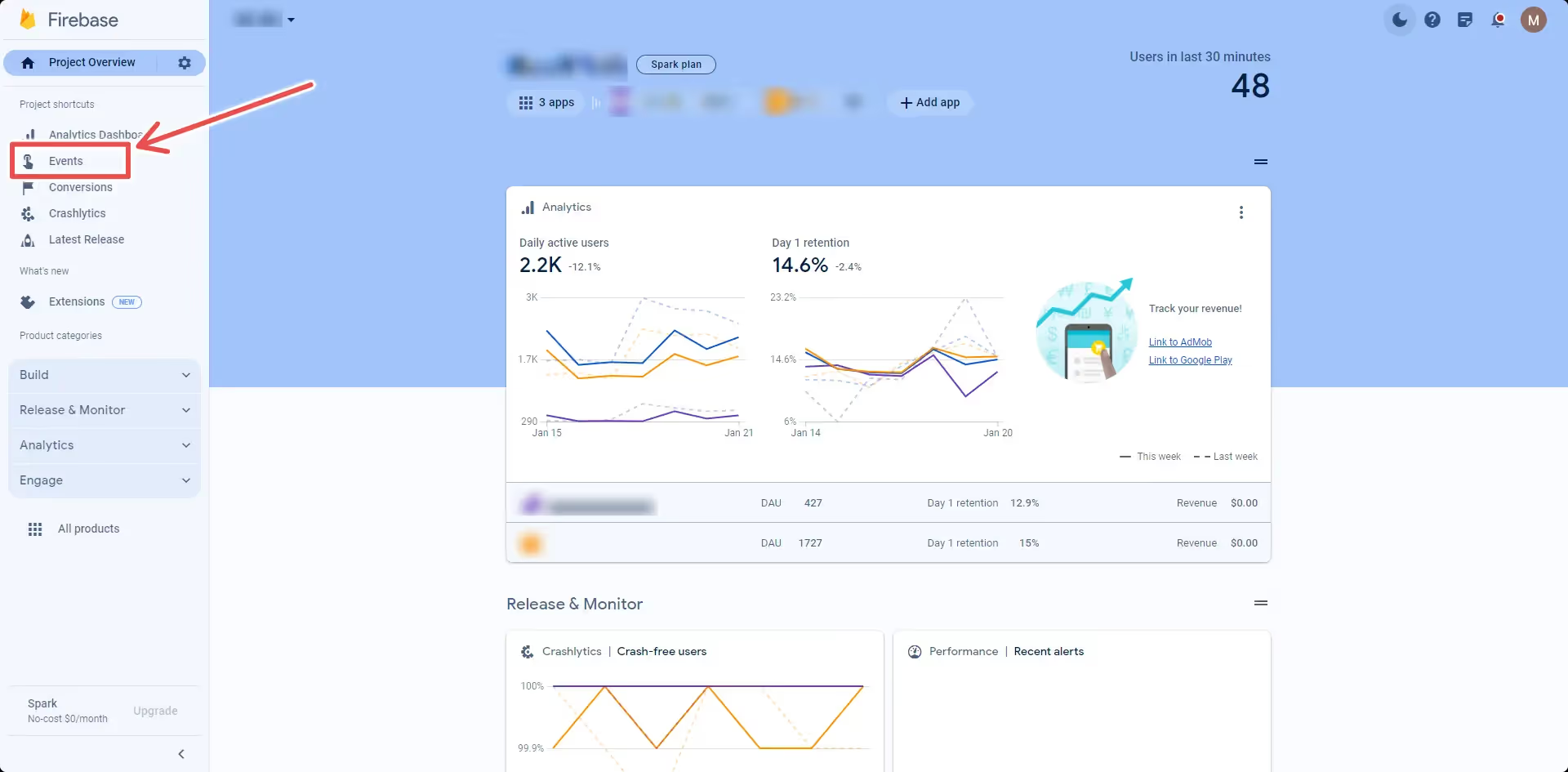
    The first step is to open your Firebase account and then click “Events” on the left sidebar:

    Now look for the “app_remove” event and click on it:

    You can now see details about all users who deleted the app on Android devices: