Category: Docs

  • How can I change the splash screen and icon?

    Your app’s icon and launch screen are integral part of the final app that will be submitted for you to Apple and Google Play.To provide your app icon and launch screen images you’ll use our submission form after purchasing your app or signing up for a plan.

    Icon files required

    For iOS, the required image resolution is 1024×1024. Your icon file should be squared i.e. not include any rounded borders. Apple will apply rounded corners to your icon for you. iOS icons cannot include any transparency.For Android, a second icon file is required at 512×512. You can include rounded corners and transparency.

    Launch image specifications

    For your splash screen (launch image) you will upload a 2208×2208 PNG where the logo or other important artwork is placed within the center 1000×1000 pixels or so. We’ll be cropping this image into the many different resolutions required for each different device and orientation, so we need your logo or artwork to be at the center, where no cropping will occur.
  • Can I require users to login to enter the app?

    Can I require users to login to enter the app?

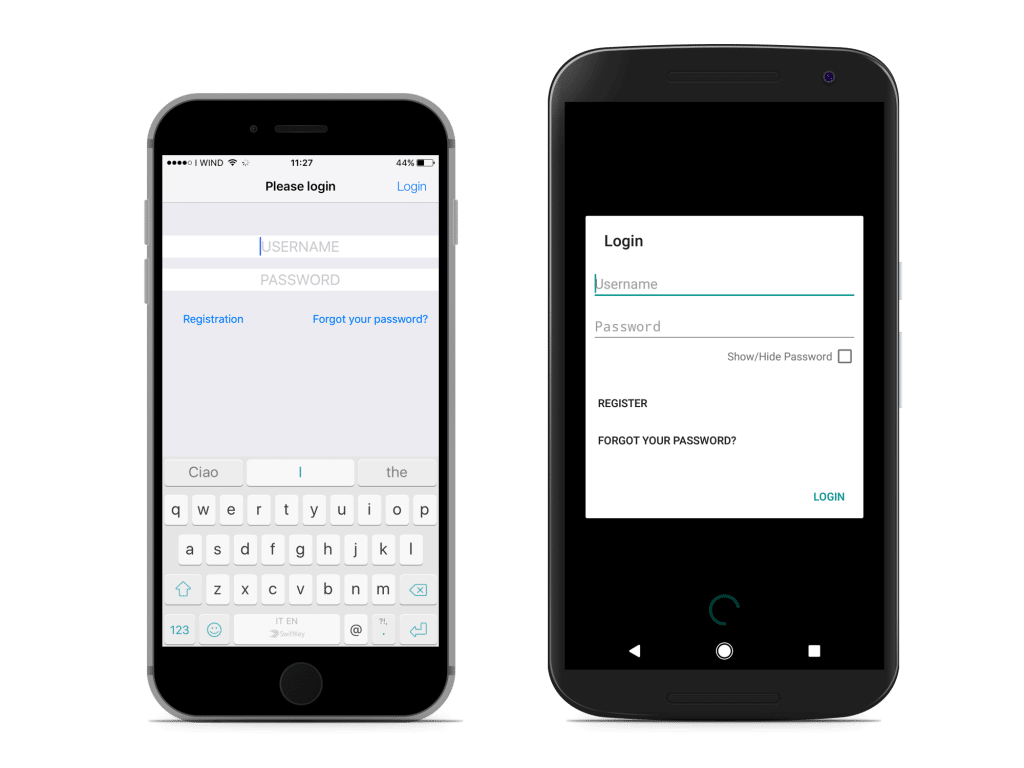
    Yes, you can require users to login before they can access your app and content. Here’s how the login screen will look like:

    What membership plugins are compatible with Vendrux?Most of the plugins work well with Vendrux. If there’s anything in particular you need help with, send us a message using the form below.WP Groups integrationAll you need to do is to install the WP Groups plugin and we’ll take care of setting up the login screen for you when building your app.With the Groups plugin, you can (but you don’t have to) define different access privileges for different user groups.When the app will loads, a login screen will ask the users to enter a username and password. Users will also have an option to visit your site to register or reset their password.Note the login functionality cannot be tested in the demo apps or online preview.

  • Can vendrux design my icon and splash screen?

    Yes, our designers can create a custom design for your app incorporating your brand guidelines, logo, colours and style.

    Pricing starts at $439 for a custom design package including icon and splash screen. A professional designer will work with you and deliver up to 3 revisions to have you completely satisfied with the outcome. If required we can also create “designed” splash screens, incorporating text, backgrounds and real-life scenarios to better promote your app on the stores.

    Just get in touch with us at support@vendrux.com and ask for a quote.

  • Can I Publish My App on My Own App Store or Google Play Accounts?

    Yes! Note Apple’s and Google’s fees are not included in our pricing. The Apple App Store charges a US$99 annual developer fee and Google Play charges a one-time fee of US$25.Apple Developer Programhttps://developer.apple.com/programs/ios/ ($99 a year)Google Play Developer registrationhttps://support.google.com/googleplay/android-developer/answer/113468?hl=en ($25 one-time fee)Will you publish the apps for me?Yes, Vendrux can take care of the submission process for you.Can I publish the apps on my own using the binaries?Yes, we can send you binaries for your app and have you publish it, if you know what you’re doing. Just request so when completing Vendrux’s submission form.You will still need to provide us with your Apple’s account credentials or add us as an Admin team member to your team (for Organisation accounts only). This is because we’ll need your account to sign the app for publishing.

  • Showing videos in your News app

    Showing videos in your News app

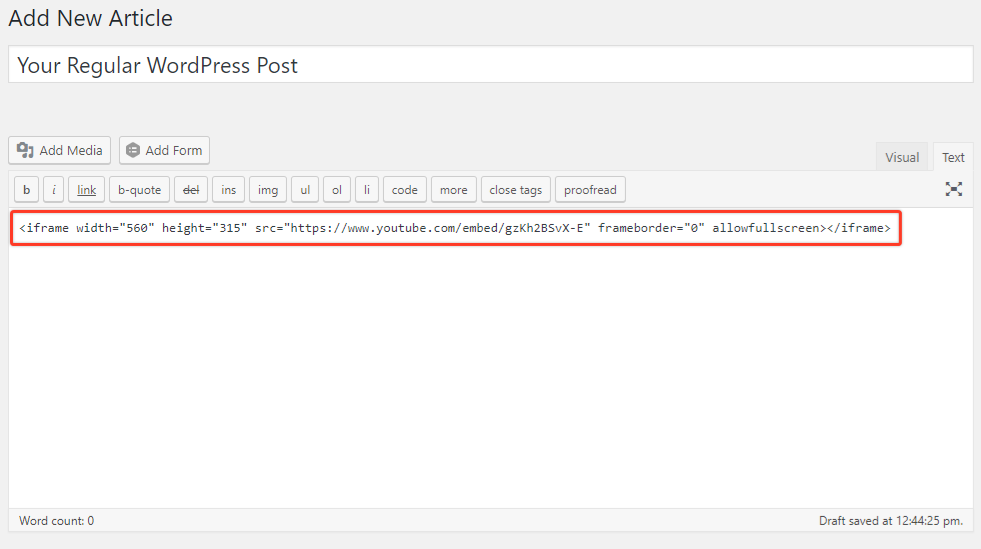
    Yes, you can definitely have video players working in your app. Chances are your videos are currently added to your content in one of these two ways:1) Videos added directly into your content If you manually add videos to your posts or pages using embed codes from sites like Youtube or Vimeo, then these will be available in your app out of the box. If you’re using a plugin that allows you to add videos using shortcodes, these will be interpreted by Vendrux and shown in your app. No work on your end will be required.

    2) Videos added using custom fields or through a theme If you add your videos by copy-pasting a URL in a special section of your post “Edit” screen, created by your theme, or in a custom field that your template then reads and presents on your website, then some work will be required to get the videos to show in your app.No worries, nothing complicated if you have some experience coding a WordPress template. You’ll just need some PHP code to read the contents of your custom fields and add the appropriate embed code to your article screen. You can add this code to your app using our editor.

    From the “Settings” / “Editor” page in the plugin, choose an appropriate location for your videos (generally “PHP above the contents” works well), then add the code required to pull the video ID from the custom field used by your template (you can generally find this by inspecting your theme’s code for single pages, at single.php within your template folder) and embed the video with the appropriate player (Youtube, Vimeo, etc.).

  • Can I change the icon and splash screen of my app?

    Yes, it is important to keep in mind that in order to change the graphics used in your app, our team needs to rebuild and resubmit them to the stores. For that reason, you are limited to one free rebuild to change the graphics per month, if for some reason you decide to update the graphics more than once in the same month, there will be a small fee to cover the work.

  • Adding Pages and Categories to your native app menu

    Adding Pages and Categories to your native app menu

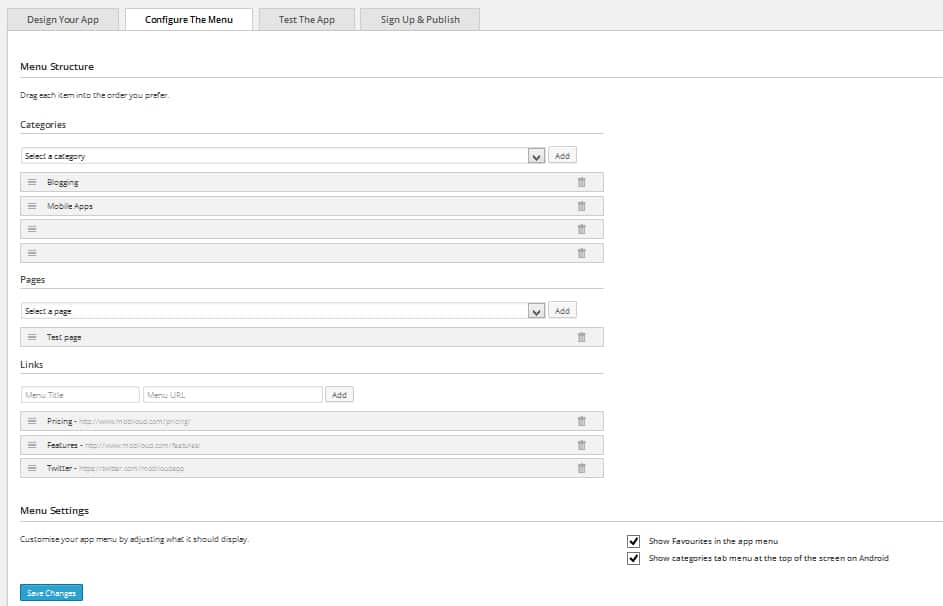
    On the sidebar of your WordPress admin pages, Click on the Vendrux plugin.

    1. Click on the Menu Configuration tab.
    2. You will be given the option to add a Categories, Pages and Links.
    3. You can easily remove items from the menu and reorder them by dragging each item.
    4. Don’t forget to hit Save Changes!

    You might need to force close the app and reopen it to see changes taking effect, as the menu configuration is cached.

    configure
  • App specific issues when using Canvas

    Even though Canvas relies on your website for all the design and content often times you will find specific features or elements that do not work exactly as you would expect.

    There are two possible reasons for this:

    WebView limitations

    Canvas makes use of WebViews to display your website within the app.

    WebViews have their own limitations, which sometimes are not present on regular mobile browsers like Safari and Chrome.

    Here are some examples of things that might work differently on a WebView when compared to a mobile browser:

    • Fixed positioning on CSS
    • Username and password autofill
    • Relative paths
    • Specific extensions in the URL (e.g. aspx)

    The list goes on, but in most cases, the issues can be addressed by performing adjustments to the website or looking for alternatives to the app behavior.

    You will also find specific platforms that do not offer support for WebViews, and in this case, they will usually throw an error. A good example is SoundCloud, which displays a message instead of the HTML embeds, telling the user that he should go to the SoundCloud website to listen to the embedded audio.

    Platform limitations

    When developing Canvas we tried to cover as many use cases as possible, making it flexible enough to be used with different websites, platforms, and environments, but there are certain situations where Canvas might not behave like a mobile browser.

    Websites that make heavy usage of Javascript, or that are hosted on cheaper shared hosting plans might perform poorly.

    How to solve those issues?

    If you face any issues with how Canvas is behaving, let us know.

    Our team will investigate the problem and let you know whether it is something that can be fixed or not, and if the answer is no, we will be happy to assist with suggestions and alternatives.

  • App rejected because it violates Google’s impersonation policy

    Google has recently started to reject, with a higher frequency, apps that are submitted under third-party accounts without providing any documentation proving that you have the necessary permissions to use the intellectual property in your app or store listing (e.g. Brand names and logos, graphic assets, audio).If your app has been rejected for that reason, here are the steps that should be taken in order to resolve the problem:

    1. Download our Intellectual Property Authorization template, clicking here
    2. Replace all the strings between brackets with your account information. Where [Content Owner] is the person or company that owns the intellectual property being used in your app, [Name on Account] is the developer name assigned to your Google account, and [App Name] is the name of your app
    3. Access HelloSign.com and use their free trial to sign the document you just modified
    4. With the signed .pdf document in hands, proceed with submitting it to Google by clicking here, so they can review the information and provide more details on how to proceed with resubmitting your app to the Play Store.
  • How can I find My Google Wallet Transaction ID?

    How can I find My Google Wallet Transaction ID?

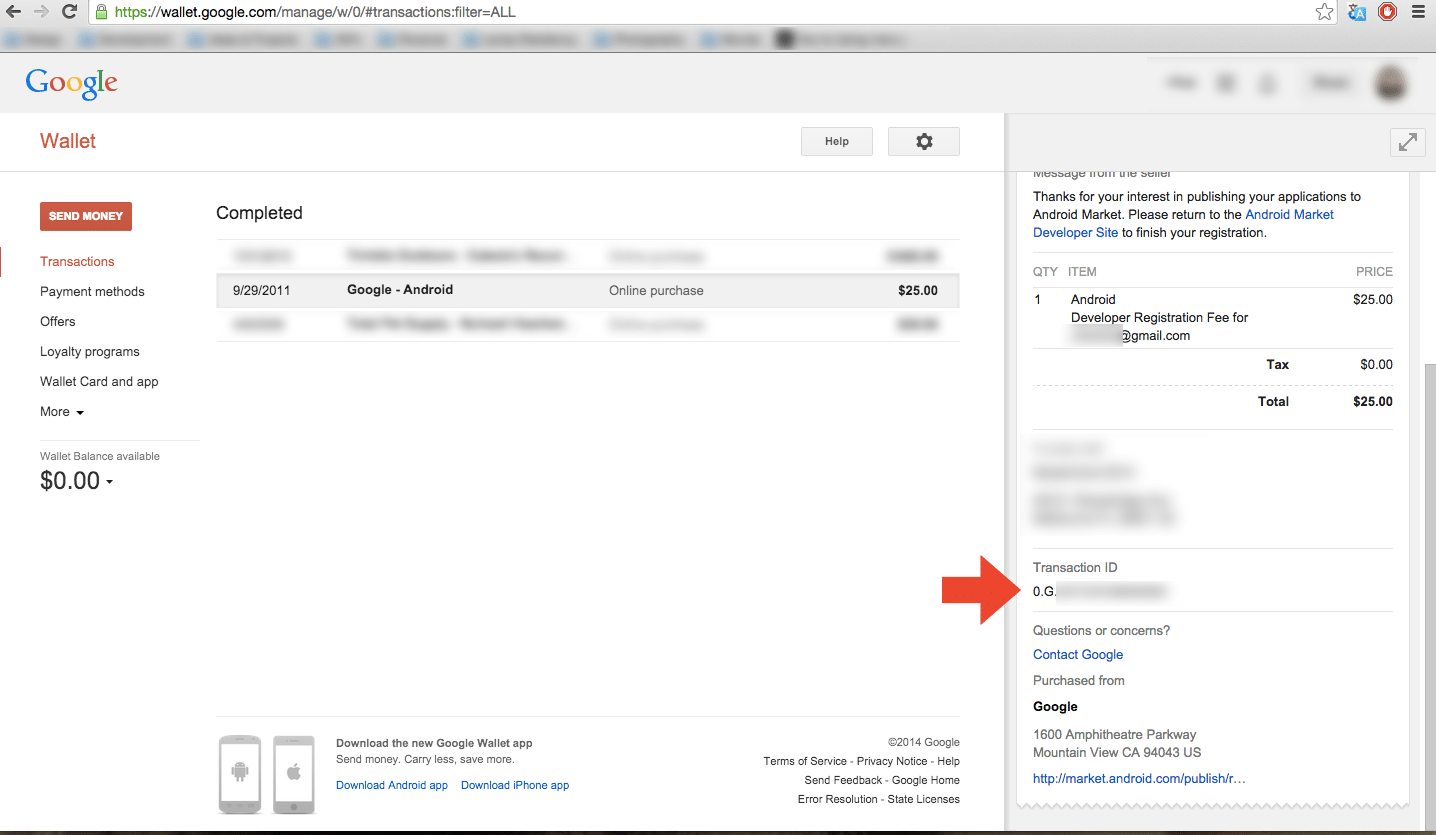
    Navigate to https://wallet.google.com/manage/ and log in to your account.Once logged in, browse for your purchase or use the search function to locate it.After finding the order, click on it to open the transaction details page for the order.Look in the right side of the page for a ‘Transaction’ code. This is the Transaction ID for your order.

    KU13v

    The Google Wallet Transaction ID is typically formatted like this:01234567890123456789.token.0123456789012345 or 0.G.123456789012345