IMPORTANT! App Exclusive Discounts will only work for Shopify Plus stores.
This guide will walk you through the process of setting up app-exclusive discounts in your Shopify store using our app. By following these steps, you can ensure that certain discount codes are only valid within the mobile app.
Step 1: Install the Vendrux Shopify App
In your Shopify Admin Dashboard, install the Vendrux Shopify App, found here: Vendrux Shopify App.
Step 2: Configure Checkout Rules
- Open your Shopify Admin Dashboard.
- Navigate to Settings.
- Go to Checkout.
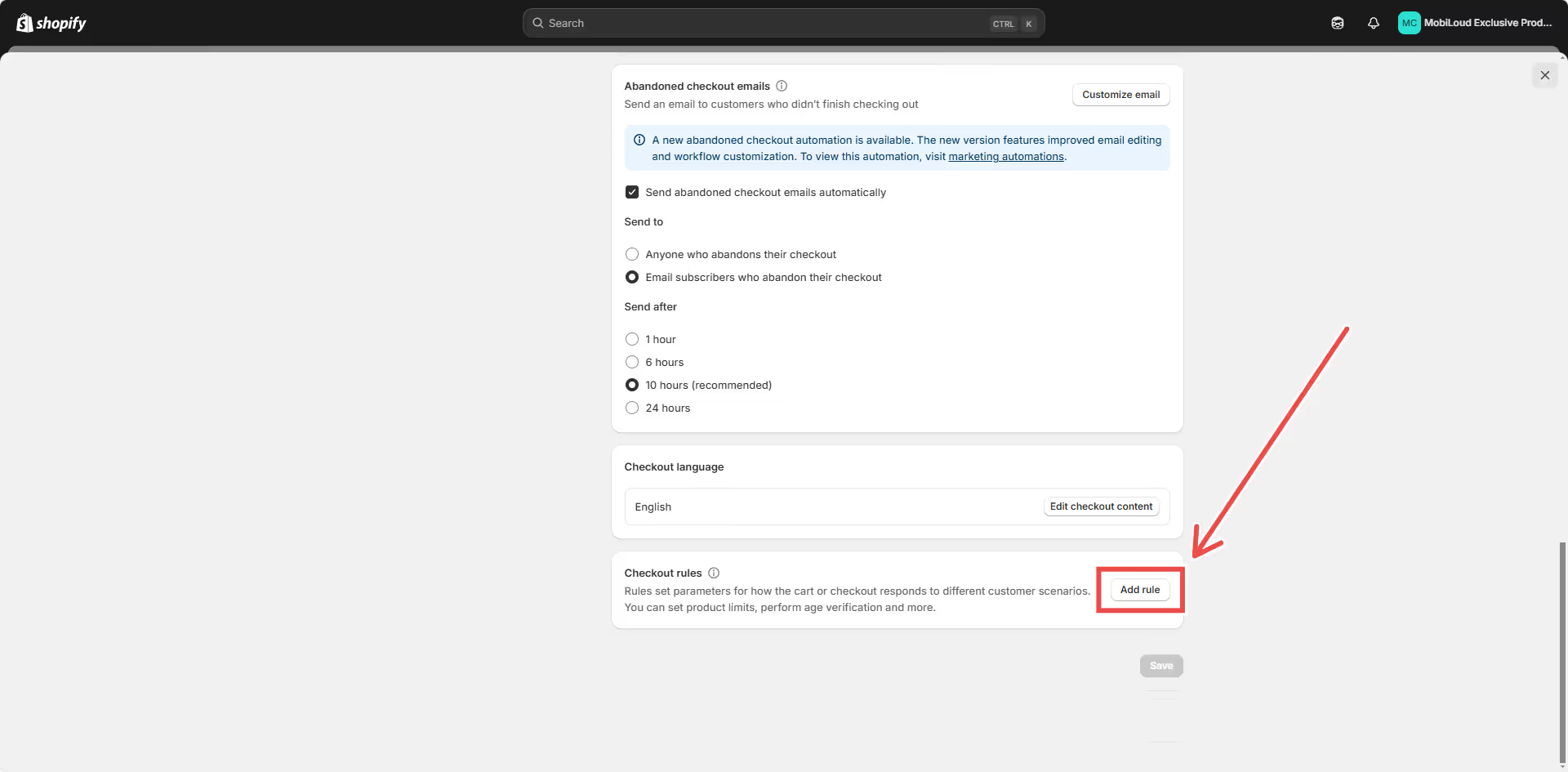
- Scroll down to Checkout Rules.
- Click Add Rule.
- Locate Mobile Checkout Validation and deselect the Allow all customers to complete checkout option.
- Click Save.
- Once saved, turn on the Checkout Rule.
.avif)
.avif)
.avif)
Step 3: Edit Checkout Configuration
- In Settings, navigate to Checkout.
- Click on the Customize button under Checkout Configuration.
- In the left menu, go to Apps.
- Select Mobile Checkout UI and add it to the checkout.
- Enable the “Include app block in Shop Pay” option.
- Click Save.
.avif)
.avif)
Step 4: Create an App-Exclusive Discount
Any discount coupon that contains “APP” in its code will automatically be restricted for use within the mobile app. To set this up, simply create a coupon with “APP” in its code, no additional configuration is needed.
Step 5: Test Your Coupon
Once the setup is complete, verify that app-exclusive discount codes function correctly.
- Open your Shopify store on the web.
- Proceed to checkout.
- Try applying an app-only discount code.
- You should receive an error stating that the discount is only valid on the mobile app.
- Attempt to complete the checkout process.
- The checkout should be blocked until all invalid discount codes are removed.
By following these steps, you ensure that app-exclusive discount codes are correctly enforced, restricting their use to purchases made through your mobile app.
Leave a Reply