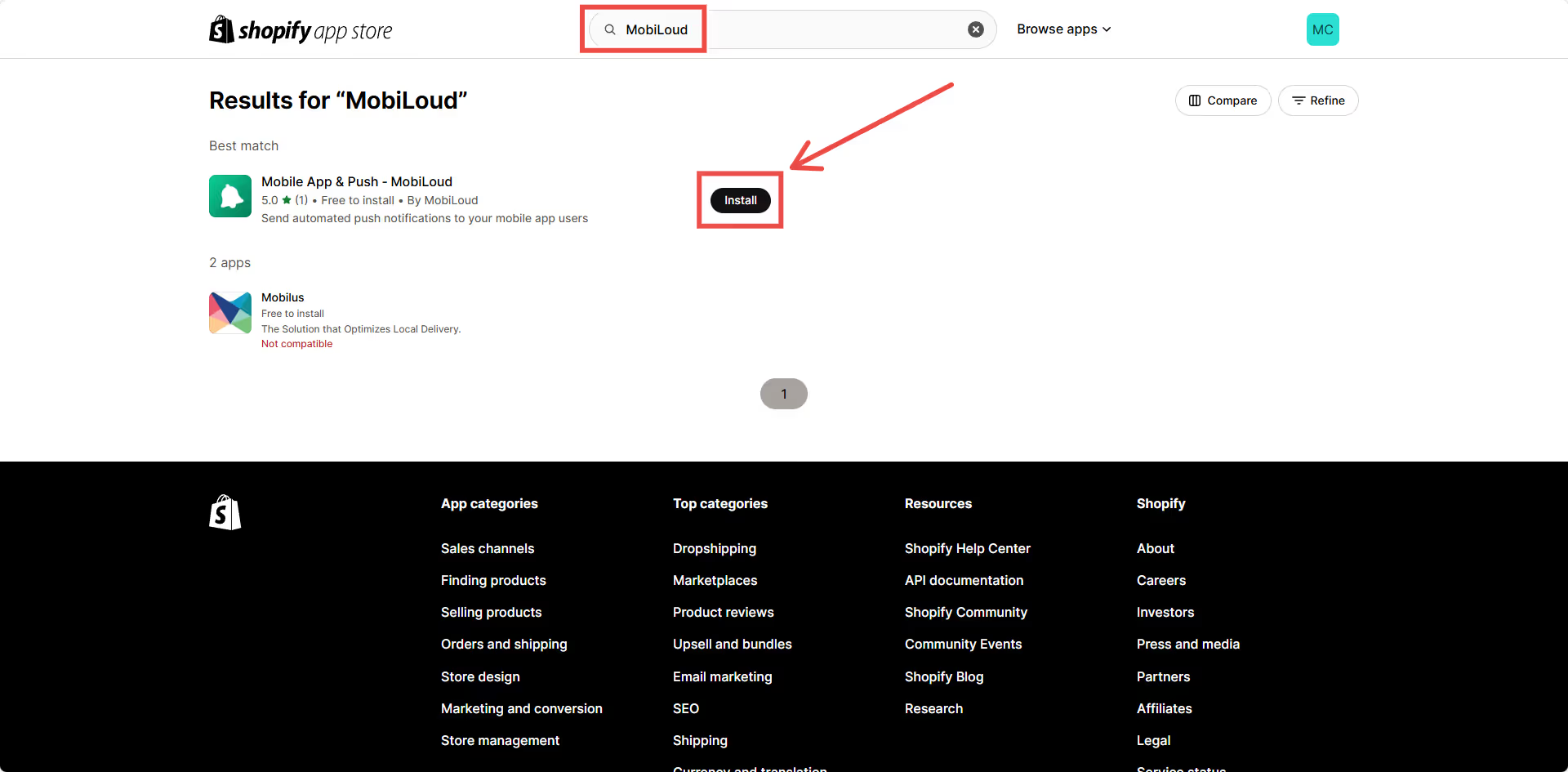
This guide will walk you through the process of setting up app-exclusive products in your Shopify store using our app. By following these steps, you can ensure that certain products are only visible and purchasable within the mobile app.
Step 1: Install the Vendrux Shopify App
In your Shopify Admin Dashboard, install the Vendrux Shopify App, found here: https://apps.shopify.com/mobile-push-notifications
.avif)
Step 2: Create the Metafield
To mark products as app-exclusive, you need to make sure the required metafield is created.
- Open your Shopify admin panel.
- Navigate to Apps > Vendrux
- Under Settings, if the metafield is not already created, click Create Metafield.
.avif)
Once this is set up, you will be able to assign specific products as app-only.
Step 3: Assign Products as App-Exclusive
- Open the Products section in your Shopify admin.
- Select a product you want to make available only in the app.
- Scroll down until you find the “Metafield” area.
- In the “Mobile App Exclusive” metafield, set the value to “true“
.avif)
Step 4: Edit Your Theme
To ensure app-exclusive products are hidden from the online store but visible in the app, you need to modify your Shopify theme.
Enable the App Embed
- Go to Online Store > Themes.
- Click Customize.
- Navigate to App Embeds.
- Enable the Mobile App Products embed.
- Save the settings.
.avif)
Step 5: Modify the Theme Template File
This is a more technical step, and if you are not familiar with your theme code, we suggest asking a web developer to implement these changes for you.
Vendrux is also available to help if needed, just let us know!
- In the Online Store > Themes section, click the 3 dots button, then Edit Code.
- Locate the appropriate template file where products are listed.
- In the default Dawn theme, this is found under Sections > main-collection-product-grid.liquid.
Now, you will need to find the “loop” where the products are being displayed, it will usually look like this:
{%- for product in collection.products -%}Inside that “loop”, you will need to find a “wrapper” element, which is usually an HTML tag that wraps all the product related elements, such as title, image, pricing, etc. In the “Dawn” theme, that wrapper looks like this:
li
  class="grid__item{% if settings.animations_reveal_on_scroll %} scroll-trigger animate--slide-in{% endif %}"
  {% if settings.animations_reveal_on_scroll %}
  	data-cascade
  	style="--animation-order: {{ forloop.index }};"
  {% endif %}
>
You will need to adjust the code that is inside the “class” attribute of that wrapper, adding the following right before the closing double quotes:
{% if product.metafields.vendrux.mobile_app_exclusive %} mobile-app-exclusive {% endif %}The final code will look like this:
li
	class="grid__item{% if settings.animations_reveal_on_scroll %} scroll-trigger animate--slide-in{% endif %}{% if product.metafields.vendrux.mobile_app_exclusive %} mobile-app-exclusive {% endif %}"
	{% if settings.animations_reveal_on_scroll %}
		data-cascade
		style="--animation-order: {{ forloop.index }};"
	{% endif %}
>.avif)
Step 5: Test the Implementation
Once you’ve completed the setup, verify that the feature works as expected:
- Open the store on a desktop browser.
- The app-exclusive product should not appear.
- Open the store in the mobile app.
- The app-exclusive product should be visible.
By following these steps, you ensure that certain products are only available in your mobile app, creating a unique shopping experience for your app users.
Important
This feature uses HTML and CSS to hide products on your website; however, these products may still be accessible if a user navigates directly to the product URL.
Leave a Reply