Author: Vendrux

  • How do I delete my app from Google Play?

    How do I delete my app from Google Play?

    You can unpublish an app, when you do, it will no longer appear in the store.

    To unpublish your app on the Google Play store:

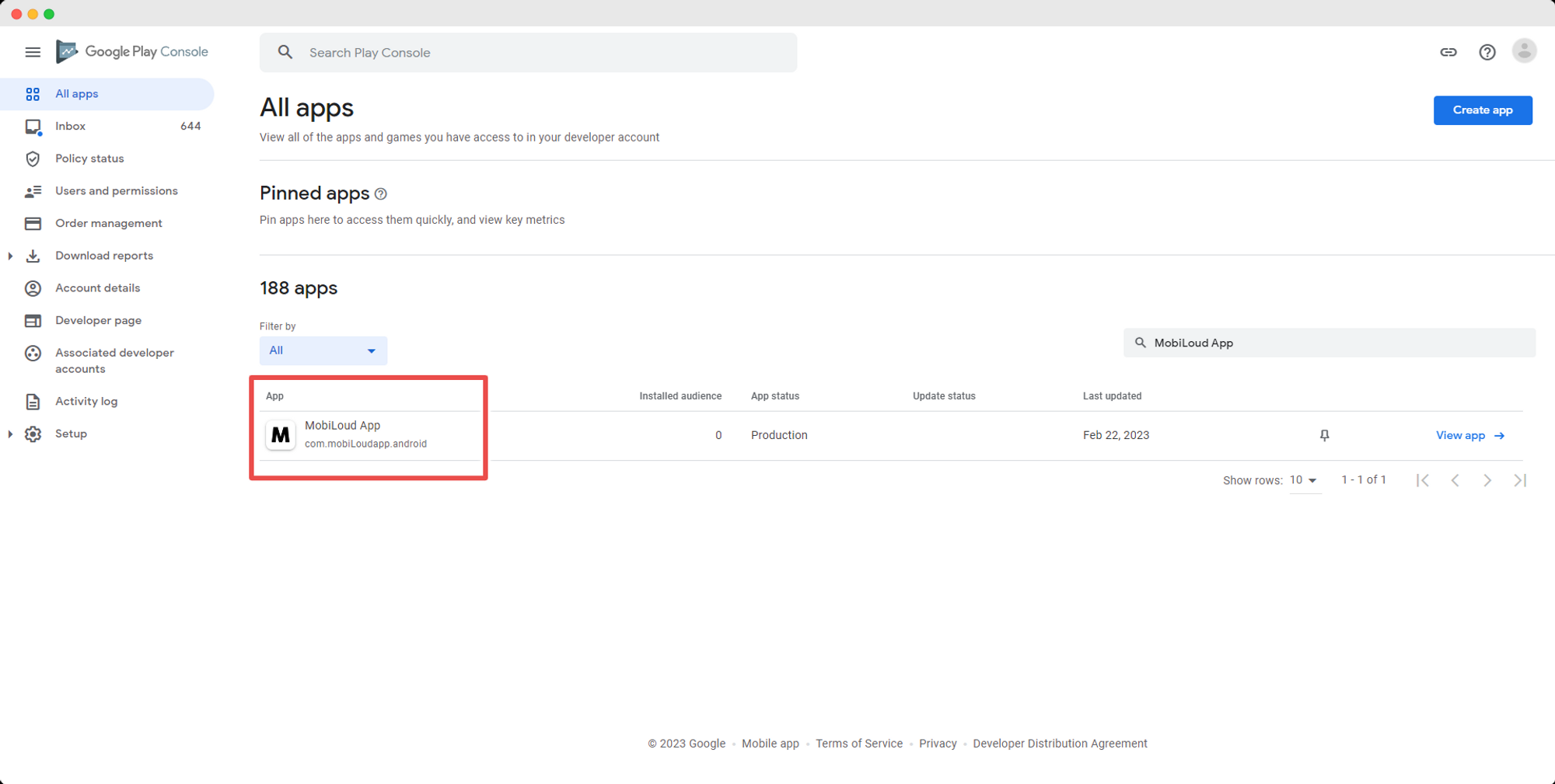
    1. Go to https://developer.android.com/distribute/console/index.html and log in to your Google Play account.
    1. Click on the application you want to remove
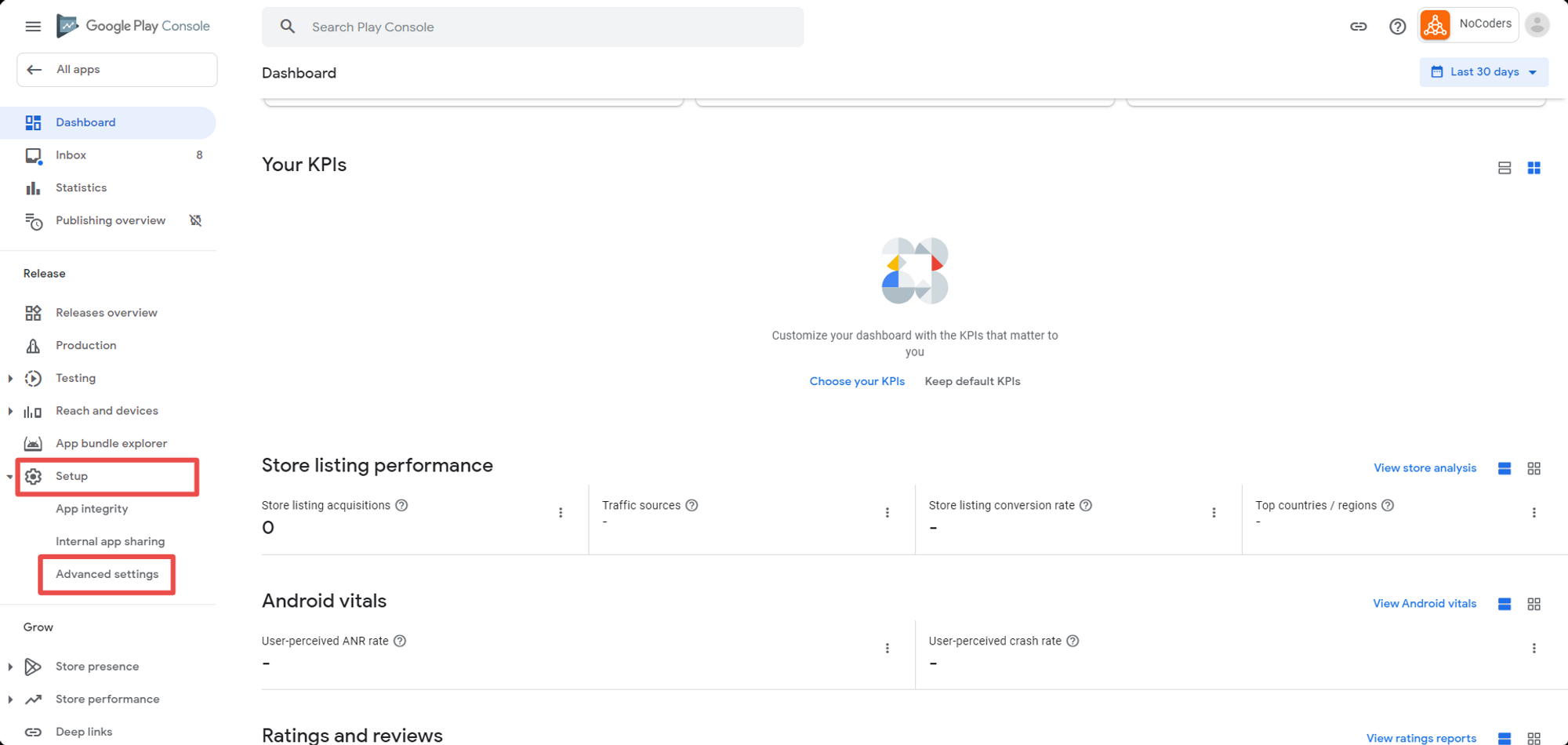
    1. Click on the “Setup” menu, and then on the “Advanced settings” item.
    Notion Image
    1. Click Unpublish and then save your changes
    Notion Image

    Now that you’re done with that… if you’d like to build a fast, native mobile app for your content site, check out Vendrux, and if you think we could help, get in touch at support@vendrux.com or request a demo.

    We focus on native apps for content sites, and news sites but also information-rich sites, directories, and corporate websites. Our service is fully featured and includes a customized app, push notifications, maintenance, and ongoing updates.

  • How can I find My Google Wallet Transaction ID?

    Navigate to https://wallet.google.com/manage/ and log in to your account.

    Once logged in, browse for your purchase or use the search function to locate it.

    After finding the order, click on it to open the transaction details page for the order.

    Look in the right side of the page for a ‘Transaction’ code. This is the Transaction ID for your order.

    The Google Wallet Transaction ID is typically formatted like this:01234567890123456789.token.0123456789012345 or 0.G.123456789012345

  • Hiding Elements in Your App

    When your website is displayed in a mobile app, certain elements that are useful on a desktop site—like footers or large widgets—might take up valuable screen space in the app. By hiding these elements, you can create a cleaner, more focused experience. This guide shows you how to identify elements to hide, use CSS or PHP to do so, and avoid common issues like flickering.

    Identifying Which Elements to Hide

    Here are common elements you might want to hide in your app:

    • Footers that contain links and information suited for desktop browsing.
    • Pop-ups and overlays that can take over too much screen space.
    • Unnecessary widgets or ads that disrupt the flow.

    Using JavaScript to Inject CSS and Hide Elements

    We’ll use JavaScript to inject a tag into the header that applies the necessary CSS. This ensures the CSS is applied only when the site is viewed in the Vendrux app.

    Hiding the Footer

    JavaScript Example:

    if (navigator.userAgent.toLowerCase().includes('canvas')) {   
    	var style = document.createElement('style');   
        style.innerHTML = 'footer { display: none; }';    
        document.head.appendChild(style);
    }
    

    PHP Example:

    if (strpos(strtolower($_SERVER['HTTP_USER_AGENT']), 'canvas') !== false) {    
    	echo '';
    }

    Hiding Pop-ups and Overlays

    Pop-ups and overlays can disrupt the user experience. Use the following code to hide them in the app.

    JavaScript Example:

      if (navigator.userAgent.toLowerCase().includes('canvas')) {
          var style = document.createElement('style');    
          style.innerHTML = '.popup, .overlay { display: none; }';   
          document.head.appendChild(style);
      }
    

    PHP Example:

    if (strpos(strtolower($_SERVER['HTTP_USER_AGENT']), 'canvas') !== false) {    
    	echo '';
    }

    Avoiding Common Issues (Like Flickering)

    To prevent elements from flashing briefly before being hidden, it’s best to add the customizations directly to your website. By applying CSS early in the load process, you minimize flickering.

    Ensure the injected CSS is applied in the to avoid delays. This will stop elements from rendering before being hidden.

    Creating a Class to Hide Elements

    You can also create a reusable class that allows you to easily hide elements across your site.

    JavaScript Example:

      if (navigator.userAgent.toLowerCase().includes('canvas')) {    
          var style = document.createElement('style');    
          style.innerHTML = '.hide-in-app { display: none; }';    
          document.head.appendChild(style);
      }
    

    PHP Example:

    if (strpos(strtolower($_SERVER['HTTP_USER_AGENT']), 'canvas') !== false) {   
    	echo '';
    }

    After you define the .hide-in-app class, you can simply add class="hide-in-app" to any element in your HTML to hide it in the app.

    Conclusion

    By following these examples, you can easily hide unnecessary elements from your website when it’s viewed inside the Vendrux app. Use either JavaScript or PHP, depending on your setup, to ensure the customizations are applied only within the app.

    For more detailed guidance on customizing your app and optimizing your website’s performance in the app, be sure to check out our other guides:

    These resources will help you fine-tune the app experience for your users and make the most of your mobile presence.

  • Haptic Feedback | vendrux Docs

    The Haptic Feedback feature provides tactile confirmation for user interactions through device vibration. This native function enhances user experience by delivering immediate physical feedback when actions are performed, creating a more engaging and responsive interface.

    This guide helps you add satisfying vibration feedback to user actions in your Vendrux app, making interactions feel more responsive and engaging.

    What is Haptic Feedback?

    Haptic feedback refers to the use of touch sensations, particularly vibration, to communicate with users through their sense of touch. In mobile and touch-enabled applications, haptic feedback provides:

    • Action confirmation: Immediate response that an action has been registered
    • Enhanced user satisfaction: Tactile feedback creates a more engaging interaction
    • Accessibility benefits: Additional sensory confirmation for users with visual impairments

    When to Use Haptic Feedback

    Haptic feedback is most effective in these scenarios:

    • Button presses and tap interactions
    • Form submissions and confirmations
    • Toggle switches and checkboxes
    • Swipe gestures and drag-and-drop actions
    • Success confirmations (save, send, complete)
    • Navigation transitions

    Implementation

    Basic Usage

    The haptic feedback function is straightforward to implement:

    if (navigator.userAgent.toLowerCase().includes('canvas')) {
        // Trigger haptic feedback
        nativeFunctions.hapticFeedback();
    } else {
        // Web fallback - no haptic feedback available
        console.log('Haptic feedback not available in web environment');
    }

    Button Click Confirmation

    function handleButtonClick() {
        // Perform the primary action
        submitForm();
        
        // Provide haptic confirmation
        if (navigator.userAgent.toLowerCase().includes('canvas')) {
            nativeFunctions.hapticFeedback();
        }
    }
    
    // Attach to button element
    document.getElementById('submit-btn').addEventListener('click', handleButtonClick);

    Best Practices

    User Experience Guidelines

    Timing and Responsiveness:

    • Trigger haptic feedback immediately when the action occurs
    • Don’t delay the feedback – users expect instant response
    • Ensure the haptic feedback doesn’t interfere with the primary action

    Consistency:

    • Use haptic feedback consistently across similar interactions
    • Establish clear patterns for when feedback occurs
    • Document your haptic feedback strategy for team consistency

  • Google review process | vendrux Docs

    When you submit an Android app to the Play Store, it will go through a review before it is made publicly available.

    The review process with Google might take up to 5 business days, and in case your app gets rejected you will receive an email with more details on why it was rejected.

    Vendrux will take care of performing adjustments and making sure your app gets approved by Google, if any actions are required on your end we will let you know.

    You can find the guidelines from Google, here: https://play.google.com/about/developer-content-policy/

  • Google Developer Analytics | vendrux Docs

    Google Developer Analytics | vendrux Docs

    In your Google Developer Console, you will be able to track your Android app usage.

    1 – Log into your Google Developer Console account

    You can login using this link: https://play.google.com/console/

    2 – Select your app from the list of available apps

    Notion Image

    3 – Navigate to the Statistics tab in the left-hand menu

    Notion Image

    4 – Usage information

    Under the “Statistics” area you can find your app usage details, you can change the period as well as the metrics using the different options on that page:

    Notion Image

  • Get user information | vendrux Docs

    Vendrux allows you to pull certain information from the current user programmatically using an object that is generated on every page load inside the app.

    The object name is called “mobiloudAppInfo” and you can call it using the following piece of code:

    >
        var userObject = window.mobiloudAppInfo;
        console.log('User Push Token: ' + userObject.pushToken);


    Alternatively, if you prefer to use native functions to request the user information, you can use the following piece of code:

    >
        var userObject = nativeFunctions.getDeviceInfo();
        console.log('User Push Token: ' + userObject.pushToken);


    The parameters that are available in that object will look as follows:

    var mobiloudAppInfo = {
        appId: string,
        appVersion: string,
        brand: string,
        hardware: string,
        manufacturer: string,
        model: string,
        nameos: string,
        osVersion: string,
        platform: string,
        pushSubscribed: boolean,
        pushToken: string,
        pushUserId: string,
        timeZone: string
    };
    
  • Generate a public link for TestFlight

    In this guide, we will go through some of the frequently asked questions about testing iOS apps.

    Unfortunately, Apple doesn’t provide users with an easy way to test iOS apps before they are available in the App Store, they require you to use TestFlight, an app that is maintained by Apple itself. Although the app is easy enough to use, it will require you to take some extra steps before your users can test it.

    Different testing methods using TestFlight

    Invitation

    This is the quickest method to get users to start testing your app.

    You will be required to add your testers to your Apple Developer Account, and then, once they have accepted the invitation, add them as testers to TestFlight.

    Here is a breakdown of the steps for your reference:

    1. Invite a user by his Apple ID email, to your Apple Developer Account. You can find a guide on how to do so, clicking here
    1. Once the user has accepted the invitation, you will need to add him as a tester to your app in the TestFlight area. You can find a guide on how to do so, clicking here

    Public link

    If instead of adding users to your Apple Developer account and then inviting them to TestFlight you prefer to simply send a link to the users that you would like to test the app you can use the Public Link alternative.

    To generate your public link you will need to submit your app for review and wait until it gets approved by Apple, which usually takes about 48 hours. Once your app is approved you will be able to generate a link that can be shared with users so they get access to a test version of your app.

    You can find a complete guide on how to generate the public link for your app by clicking here.

    Redeem Code

    The redeem code is required in order for users to be able to download the app in TestFlight.

    Below you will find answers to the most common questions about the redeem code.

    How do I get a redeem code?

    The redeem code is sent to your email once you are added as a tester to TestFlight.

    Where do I use the redeem code?

    The redeem code is used inside the TestFlight app, when you open TestFlight you should see a “redeem code” link on the top right:

    Can other users use my redeem code?

    No, each user will need to be invited separately in order for a unique redeem code to be generated.

    I didn’t get my redeem code, what do I do?

    Before anything make sure to check your email SPAM box, if you still can’t find your code we recommend resending the invitation to your email.

  • Floating Back Button | vendrux Docs

    You always want users to have a smooth and enjoyable experience when using your websiter and app. The ability to navigate backwards plays a big role in that experience, specially in a hybrid solution like Vendrux.

    Website users are already familiar with the browser back feature, and to keep that experience consistent in the app, you can enable a floating back button that will allow your app users to easily navigate to the previous page in a smooth and familiar manner.

    Why a Back Button is Essential for Your App

    • Intuitive navigation:  People are used to having a back button in mobile apps. It’s a familiar way to move between pages, making your app feel user-friendly and polished.
    • Increased engagement:  A smooth back-and-forth flow encourages shoppers to explore more of your site, boosting their chances of finding something they love.

    Implementing the Floating Back Button in Your App

    To enable the floating back button for your app you will need to edit your app’s advanced configuration.

    Look for the “Floating_Back_ Button” block, and make sure “Enabled_ iOS” and “Enabled_ Android” are set to true, as follows:

    "Floating_Back_Button": {
    	"Enabled_iOS": true,
    	"Enabled_Android": true
    }

    Customization

    You can customize several aspects of your floating back button, allowing you to match your branding and website design.

    Below you can find a complete list of all the available settings:

    Border_Radius

    Description: Controls the roundness of the back button’s corners. 0 creates square corners, while 90 makes them circular.

    Example:

    "Floating_Back_Button": {
    	"Border_Radius": "90"
    }

    Drop_Shadow

    Description: Determines whether to display a shadow behind the button or not. Use this when you don’t want the button to blend into your website design.

    Example:

    "Floating_Back_Button": {
    	"Drop_Shadow": true
    }

    Position_Vertical

    Description: Determines the back button placemt on the Y-Axis. Possible values are “top” and “bottom”.

    Example:

    "Floating_Back_Button": {
    	"Position_Vertical": "top"
    }

    Position_Horizontal

    Description: Determines the back button placemt on the X-Axis. Possible values are “left” and “right”.

    Example:

    "Floating_Back_Button": {
    	"Position_Horizontal": "left"
    }

    Spacing_Vertical

    Description: Determines the inner vertical padding of the back button, the spacing between the icon and the top/bottom edge of the button.

    Example:

    "Floating_Back_Button": {
    	"Spacing_Vertical": "10"
    }

    Spacing_Horizontal

    Description: Determines the inner horizontal padding of the back button, the spacing between the icon and left/right edge of the button.

    Example:

    "Floating_Back_Button": {
    	"Spacing_Horizontal": "10"
    }

    Icon

    Description: Let’s you choose between Font Awesome icons to be used in your back button. You can pick icons from the Font Awesome website here: https://fontawesome.com/icons

    Example:

    "Floating_Back_Button": {
    	"Icon": "fachevronleft"
    }

    Icon_Color

    Description: Determines the color of the icon. Use a HEX color value.

    Example:

    "Floating_Back_Button": {
    	"Icon_Color": "#FFFFFF"
    }

    Dark_Mode_ Icon_ Color

    Description: Determines the color of the icon when dark mode is enabled. Use a HEX color value.

    Example:

    "Floating_Back_Button": {
    	"Dark_Mode_Icon_Color": "#999999"
    }

    Button_Background_ Color

    Description: Determines the color of the icon when dark mode is enabled. Use a HEX color value.

    Example:

    "Floating_Back_Button": {
    	"Button_Background_Color": "#FFFFFF"
    }

    Dark_Mode_ Button_ Background_ Color

    Description: Determines the color of the icon when dark mode is enabled. Use a HEX color value.

    Example:

    "Floating_Back_Button": {
    	"Dark_Mode_Button_Background_Color": "#222222"
    }

    Click_Effect

    Description: Triggers a ripple animation when the back button is clicked. Possible values are “true” and “false”.

    Example:

    "Floating_Back_Button": {
    	"Click_Effect": true
    }

    Click_Effect_Color

    Description: Determines the color of the effect that is triggered when the button is clicked. Use a HEX color value.

    Example:

    "Floating_Back_Button": {
    	"Click_Effect_Color": "#FAFAFA"
    }

    Dark_Mode_ Click_ Effect_ Color

    Description: Determines the color of the effect that is triggered when the button is clicked and dark mode is enabled. Use a HEX color value.

    Example:

    "Floating_Back_Button": {
    	"Dark_Mode_Click_Effect_Color": "#FFFFFF"
    }

    Show_Button_With_Animation

    Description: Displays the back button with a subtle fade-in animation. Possible values are “true” and “false”.

    Example:

    "Floating_Back_Button": {
    	"Show_Button_With_Animation": true
    }

    Hide_On_Scroll

    Description: Hides the back button while the user is scrolling through the page, only shows up again once the user scrolls up. Possible values are “true” and “false”.

    Example:

    "Floating_Back_Button": {
    	"Hide_On_Scroll": true
    }

    Left_Padding

    Description: Sets the width of the padding area to the left of the icon in the back button.

    Example:

    "Floating_Back_Button": {
    	"Left_Padding": "10"
    }

    Right_Padding

    Description: Sets the width of the padding area to the right of the icon in the back button.

    Example:

    "Floating_Back_Button": {
    	"Right_Padding": "10"
    }

    Top_Padding

    Description: Sets the width of the padding area to the top of the icon in the back button.

    Example:

    "Floating_Back_Button": {
    	"Top_Padding": "10"
    }

    Bottom_Padding

    Description: Sets the width of the padding area to the bottom of the icon in the back button.

    Example:

    "Floating_Back_Button": {
    	"Bottom_Padding": "10"
    }

    Final code

      "Floating_Back_Button": {
        "Enabled_iOS": true,
        "Enabled_Android": true,
        "Border_Radius": "5",
        "Drop_Shadow": false,
        "Position_Vertical": "top",
        "Position_Horizontal": "left",
        "Spacing_Vertical": "10",
        "Spacing_Horizontal": "10",
        "Icon": "fachevronleft",
        "Icon_Color": "#333333",
        "Button_Background_Color": "#ffd966",
        "Click_Effect_Color": "#a0a0a0",
        "Dark_Mode_Icon_Color": "#333333",
        "Dark_Mode_Button_Background_Color": "#ffffff",
        "Dark_Mode_Click_Effect_Color": "#ffffff",
        "Click_Effect": false,
        "Show_Button_With_Animation": true,
        "Left_Padding": "0",
        "Right_Padding": "0",
        "Top_Padding": "0",
        "Bottom_Padding": "0"
      },
  • Firebase Analytics | vendrux Docs

    Firebase Analytics | vendrux Docs

    All Vendrux apps make use of Firebase for usage and performance tracking.

    If you have live apps and want to be able to see how many active users are active on each platform, you can do that from your Firebase account, in the Firebase Analytics area.

    How to access Firebase Analytics

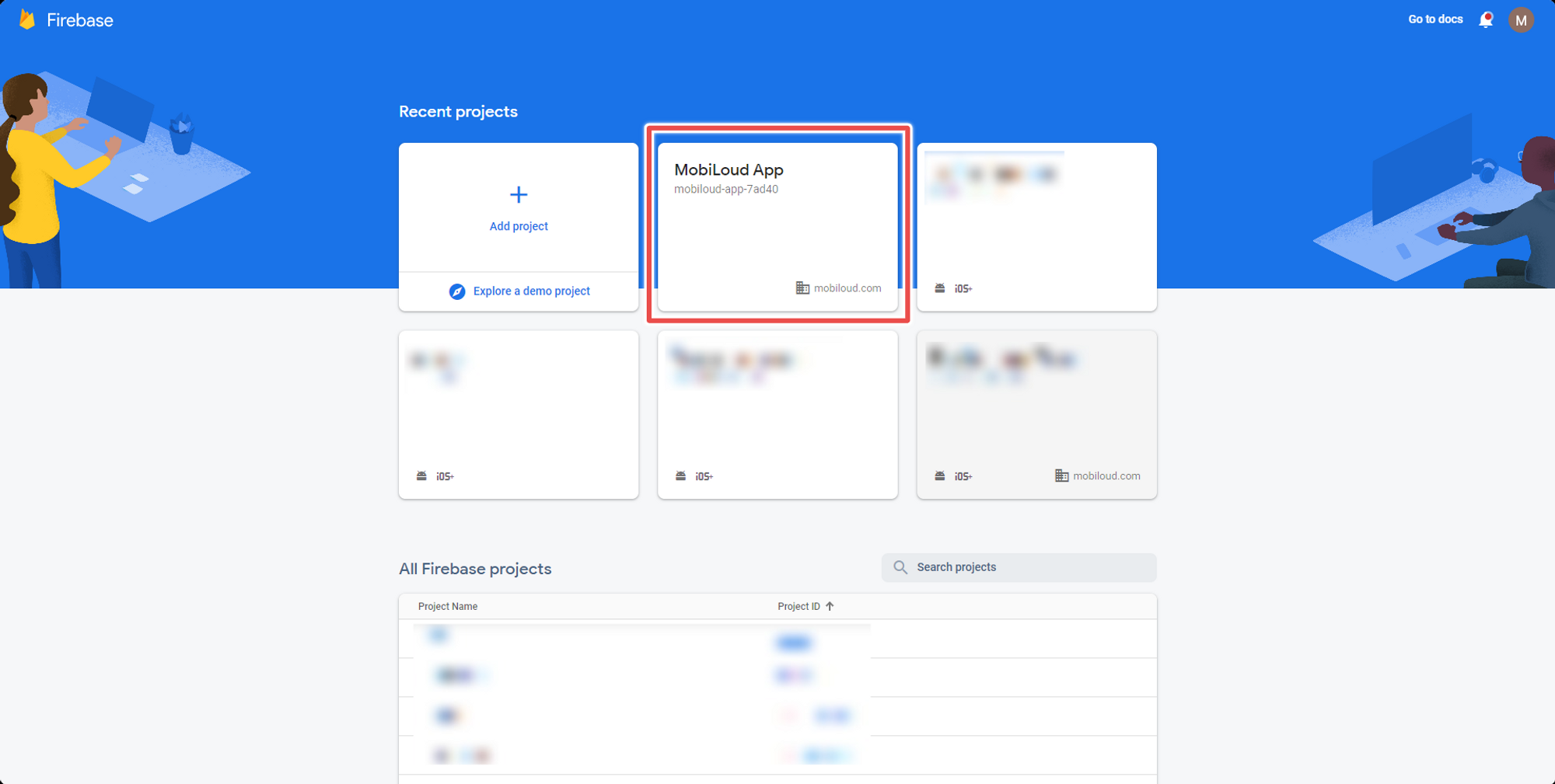
    1 – Open your Firebase Console

    Open your Firebase Console here: https://console.firebase.google.com/

    2 – Select your app from the list

    Click on the project connected to your apps:

    Notion Image

    3 – Open the “Analytics” area in the sidebar

    On the left sidebar, you will see a section called “Analytics”, click on it:

    Notion Image

    4 – Open the “Dashboard” area

    In the new area that appeared, click on “Dashboard”:

    Notion Image

    You will now be able to see analytics data tracked for your apps, to see more detailed information you can select the platforms (iOS or Android) by clicking on the following elements:

    Notion Image