Author: Vendrux

  • Invite users to Google Tag Manager container

    Google Tag Manager (GTM) allows you to grant access to other users so they can manage tags, triggers, and variables within a container. Follow these steps to invite users to a GTM container.

    Step 1: Sign in to Google Tag Manager

    1. Go to Google Tag Manager.
    2. Sign in with your Google account that has administrator access.

    Step 2: Open the Account and Container

    Click on the Container you want to share access to.

    Step 3: Open User Management Settings

    1. In the Admin panel (located in the top left-hand menu), select User Management under the Container level.
    2. Select Container Settings > User Management.

    Step 4: Add a New User

    1. Click the + (plus) button in the top-right corner.
    2. Select Add users from the dropdown menu.

    Step 5: Enter User Details

    1. Enter the email address of the user you want to invite.
    2. Choose the user’s permissions:
      • Read – Can view container settings but cannot make changes.
      • Edit – Can create and edit tags but cannot publish changes.
      • Approve – Can create, edit, and approve changes but cannot publish them.
      • Publish – Can create, edit, approve, and publish changes.
    3. Check Notify new users by email to send an invitation email.

    Step 6: Save and Confirm

    1. Click Invite to send the user an invitation.
    2. The invited user will receive an email with access to the container.

  • Invite users to Google Developer account

    Invite users to Google Developer account

    In order for our team to be able to configure and submit your Android apps we will need an invitation to your Google Developer Console.

    Here you can find a step-by-step guide on how to invite users as an admin to your account:

    Step 1: Login to your Google Developer Account

    You can log in via the following link: https://developer.android.com

    Step 2: Go to “Users and permissions”

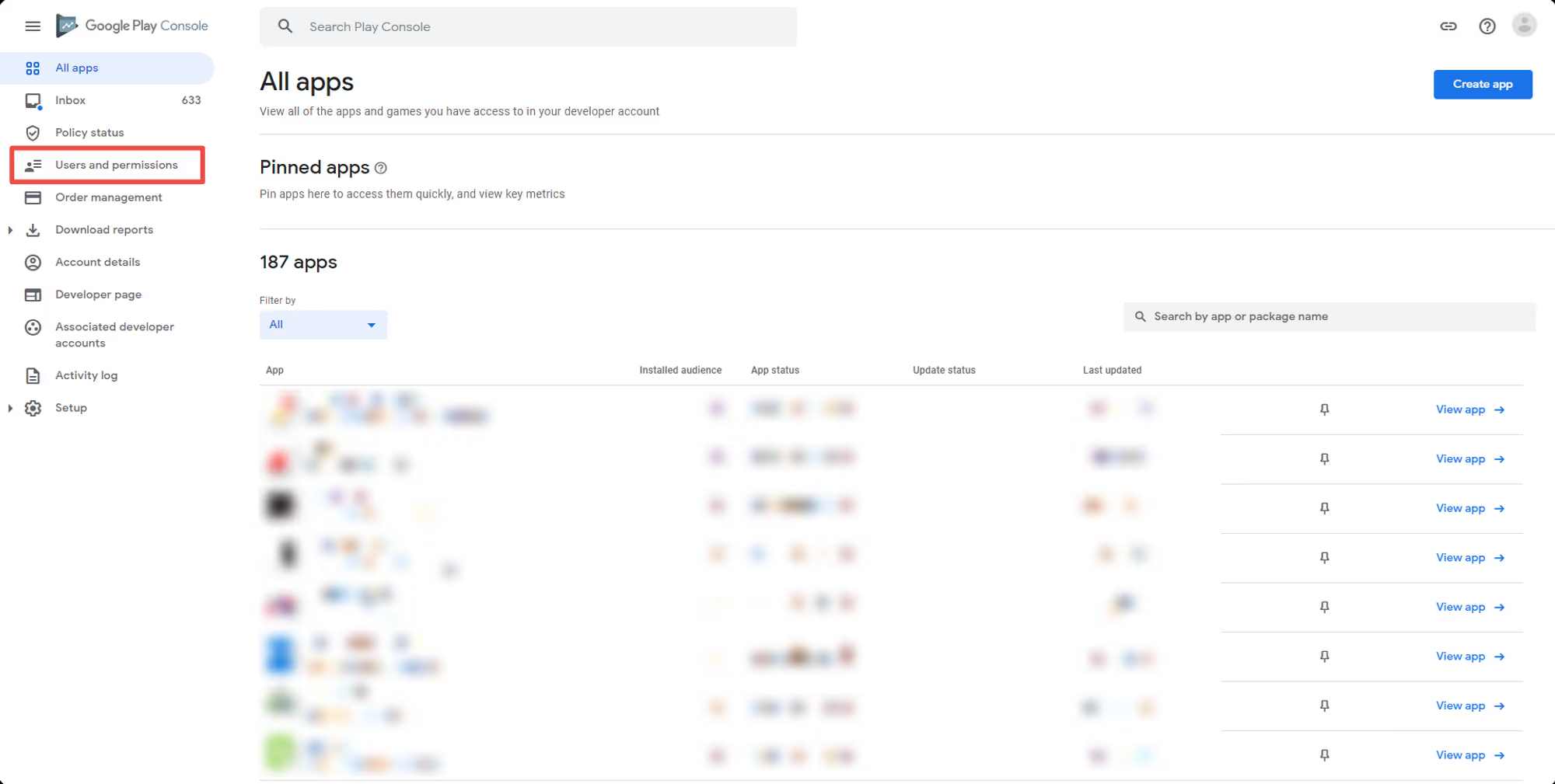
    In your Google Developer Console, look for “Users and permissions” on the left sidebar:

    Notion Image

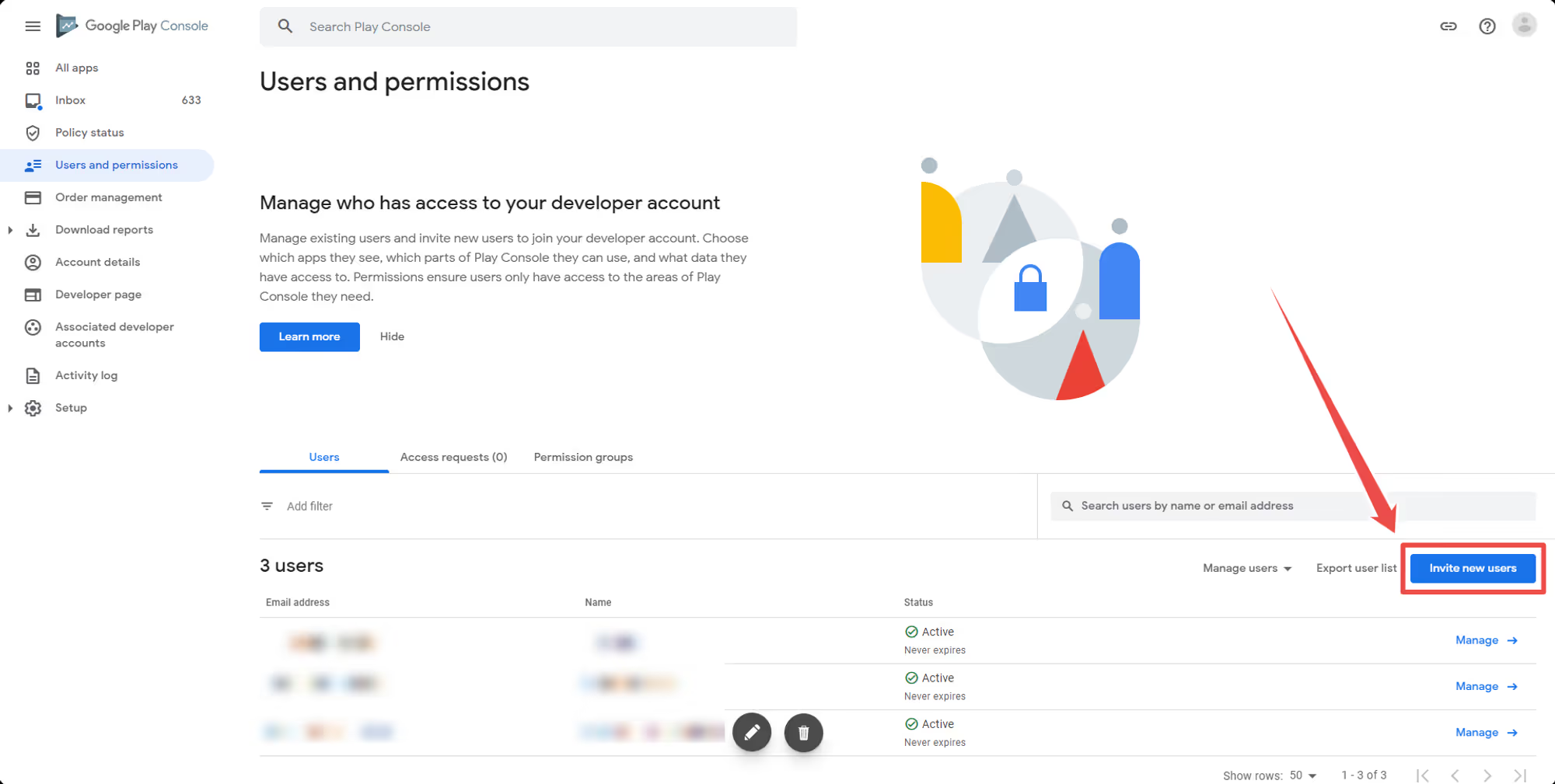
    Step 3: Click “Invite new users”

    On the right area of the screen, you will find a button that says “Invite new users”, click it:

    Notion Image

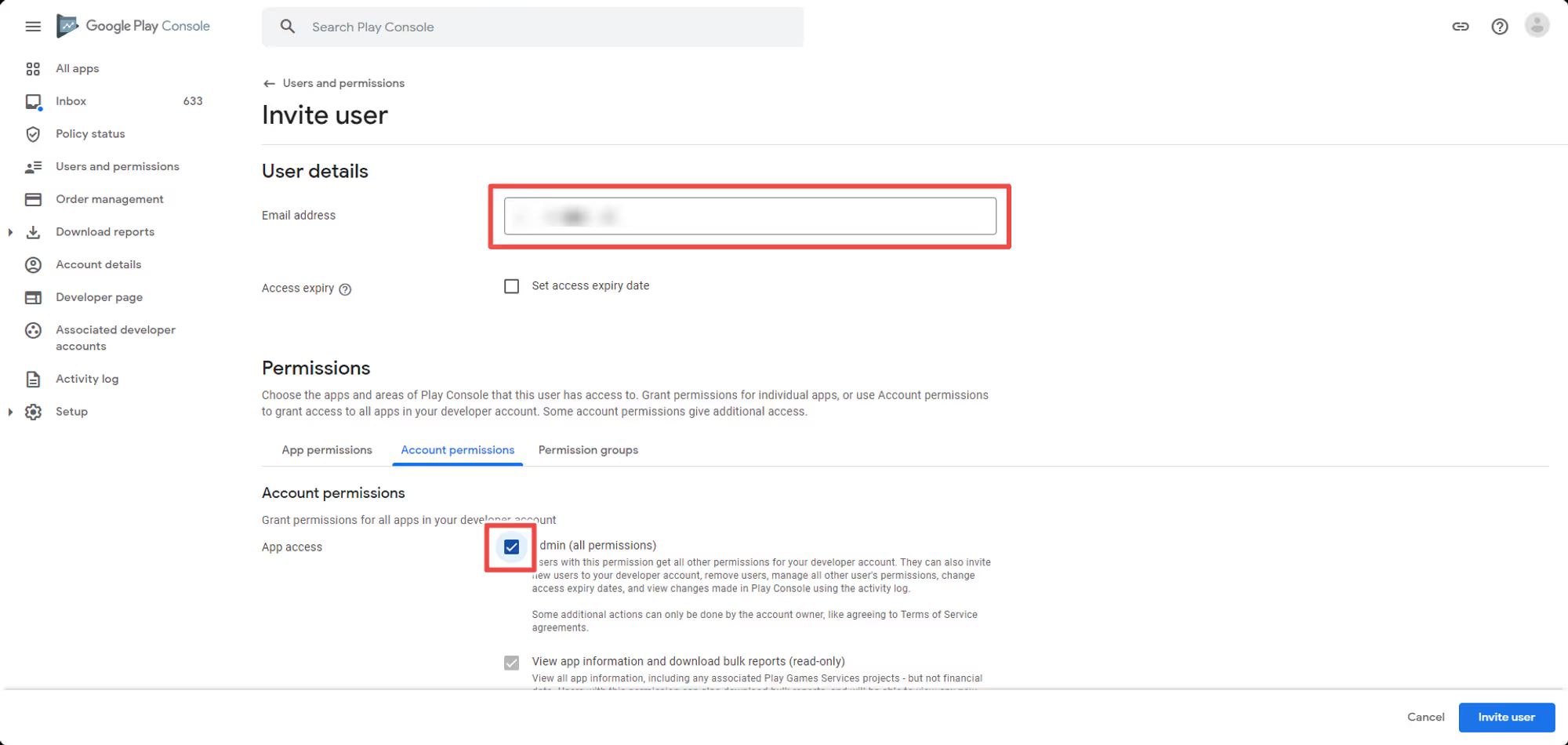
    Step 4: Add the user email address

    Add the user email address that should be invited to your account:

    Notion Image

    Step 5: Click “Account permissions”

    This is an important step to make sure the invited user will have access to create and upload your app:

    Notion Image

    Step 6: Provide “Admin” permission

    On the “Account permissions” page make sure to check the “Admin” box. The “Admin” role is required in order for Vendrux to be able to create, upload and submit your app to the Play Store:

    Notion Image

    Step 7: Click “Invite user”

    Once you are done, click the “Invite user” button on the bottom right area:

    Notion Image

    That’s it! The invited user will now be requested to accept the invitation, once accepted he will be able to create, upload and submit your app to the Play Store.

  • Invite users to Google Developer account

    Invite users to Google Developer account

    In order for our team to be able to configure and submit your Android apps we will need an invitation to your Google Developer Console.

    Here you can find a step-by-step guide on how to invite users as an admin to your account:

    Step 1: Login to your Google Developer Account

    You can log in via the following link: https://developer.android.com

    Step 2: Go to “Users and permissions”

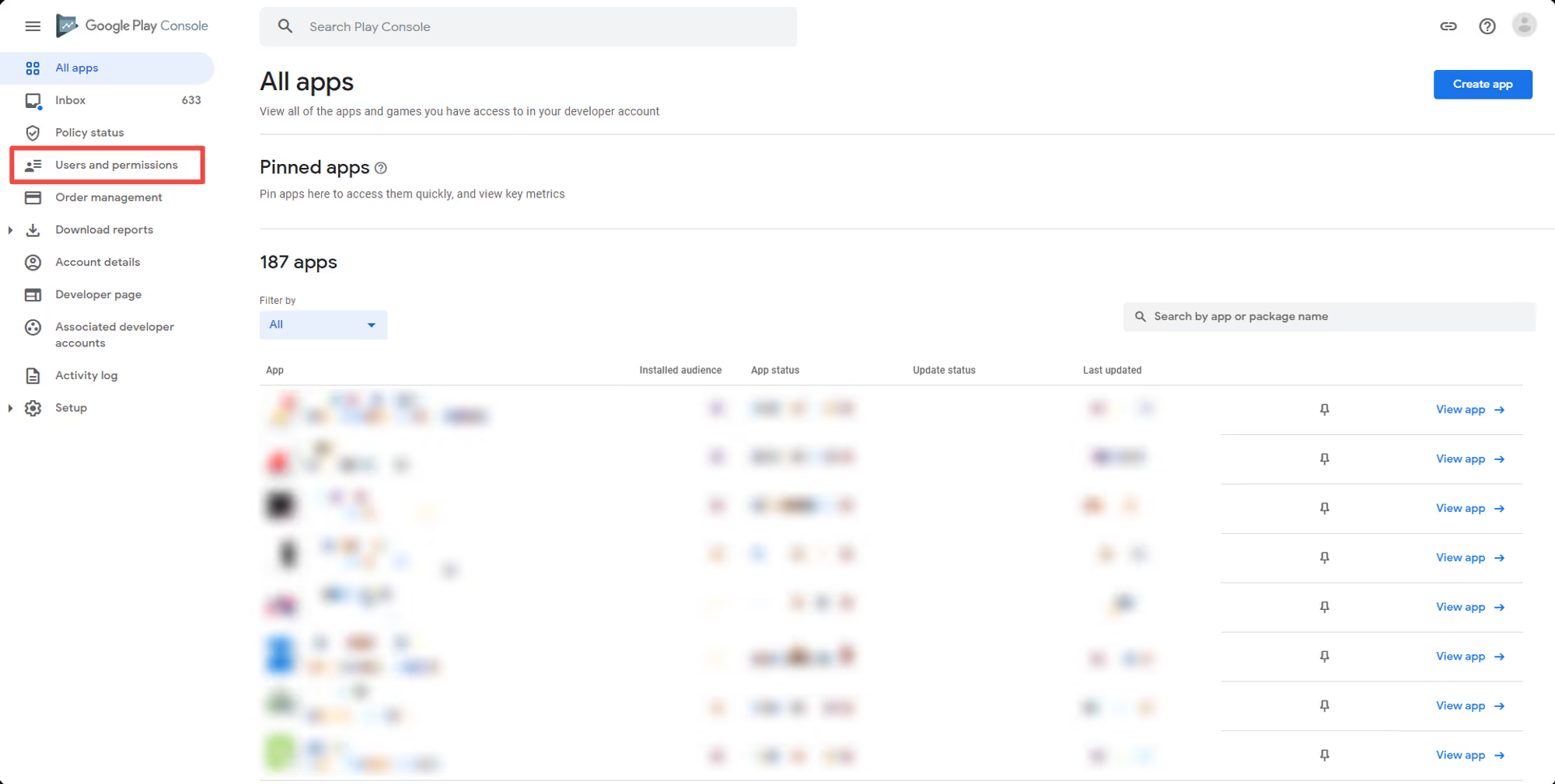
    In your Google Developer Console, look for “Users and permissions” on the left sidebar:

    Notion Image

    Step 3: Click “Invite new users”

    On the right area of the screen, you will find a button that says “Invite new users”, click it:

    Notion Image

    Step 4: Add the user email address

    Add the user email address that should be invited to your account:

    Notion Image

    Step 5: Click “Account permissions”

    This is an important step to make sure the invited user will have access to create and upload your app:

    Notion Image

    Step 6: Provide “Admin” permission

    On the “Account permissions” page make sure to check the “Admin” box. The “Admin” role is required in order for Vendrux to be able to create, upload and submit your app to the Play Store:

    Notion Image

    Step 7: Click “Invite user”

    Once you are done, click the “Invite user” button on the bottom right area:

    Notion Image

    That’s it! The invited user will now be requested to accept the invitation, once accepted he will be able to create, upload and submit your app to the Play Store.

  • Invite users to Google Analytics account

    Google Analytics allows you to grant access to other users so they can view reports, manage settings, or administer the account. Follow the steps below to invite users to your Google Analytics account.

    Step 1: Sign in to Google Analytics

    1. Go to Google Analytics.
    2. Sign in with your Google account that has administrator access.

    Step 2: Navigate to Admin Settings

    In the Google Analytics dashboard, select the Admin option from the left-hand menu.

    Step 3: Open Account Access Management

    Click on Account Access Management.

    Step 4: Add a New User

    1. Click the + (plus) button in the top-right corner.
    2. Select Add users from the dropdown menu.

    Step 5: Enter User Details

    1. Enter the email address of the user you want to invite.
    2. Select the user’s role:
      • Administrator – Full access, including managing users.
      • Editor – Can make changes but cannot manage users.
      • Analyst – Can create and edit shared assets but cannot change settings.
      • Viewer – Can only view reports and settings.

    Step 6: Save and Confirm

    1. Click Add to save the new user’s permissions.
    2. The invited user will receive an email with access to the account.

  • Invite users to Google Analytics account

    Google Analytics allows you to grant access to other users so they can view reports, manage settings, or administer the account. Follow the steps below to invite users to your Google Analytics account.

    Step 1: Sign in to Google Analytics

    1. Go to Google Analytics.
    2. Sign in with your Google account that has administrator access.

    Step 2: Navigate to Admin Settings

    In the Google Analytics dashboard, select the Admin option from the left-hand menu.

    Step 3: Open Account Access Management

    Click on Account Access Management.

    Step 4: Add a New User

    1. Click the + (plus) button in the top-right corner.
    2. Select Add users from the dropdown menu.

    Step 5: Enter User Details

    1. Enter the email address of the user you want to invite.
    2. Select the user’s role:
      • Administrator – Full access, including managing users.
      • Editor – Can make changes but cannot manage users.
      • Analyst – Can create and edit shared assets but cannot change settings.
      • Viewer – Can only view reports and settings.

    Step 6: Save and Confirm

    1. Click Add to save the new user’s permissions.
    2. The invited user will receive an email with access to the account.

  • Invite users to Firebase | vendrux Docs

    Invite users to Firebase | vendrux Docs

    After registering for your Firebase account and creating your first project you will want to invite users to your account.

    Open your Firebase Console here: https://console.firebase.google.com/

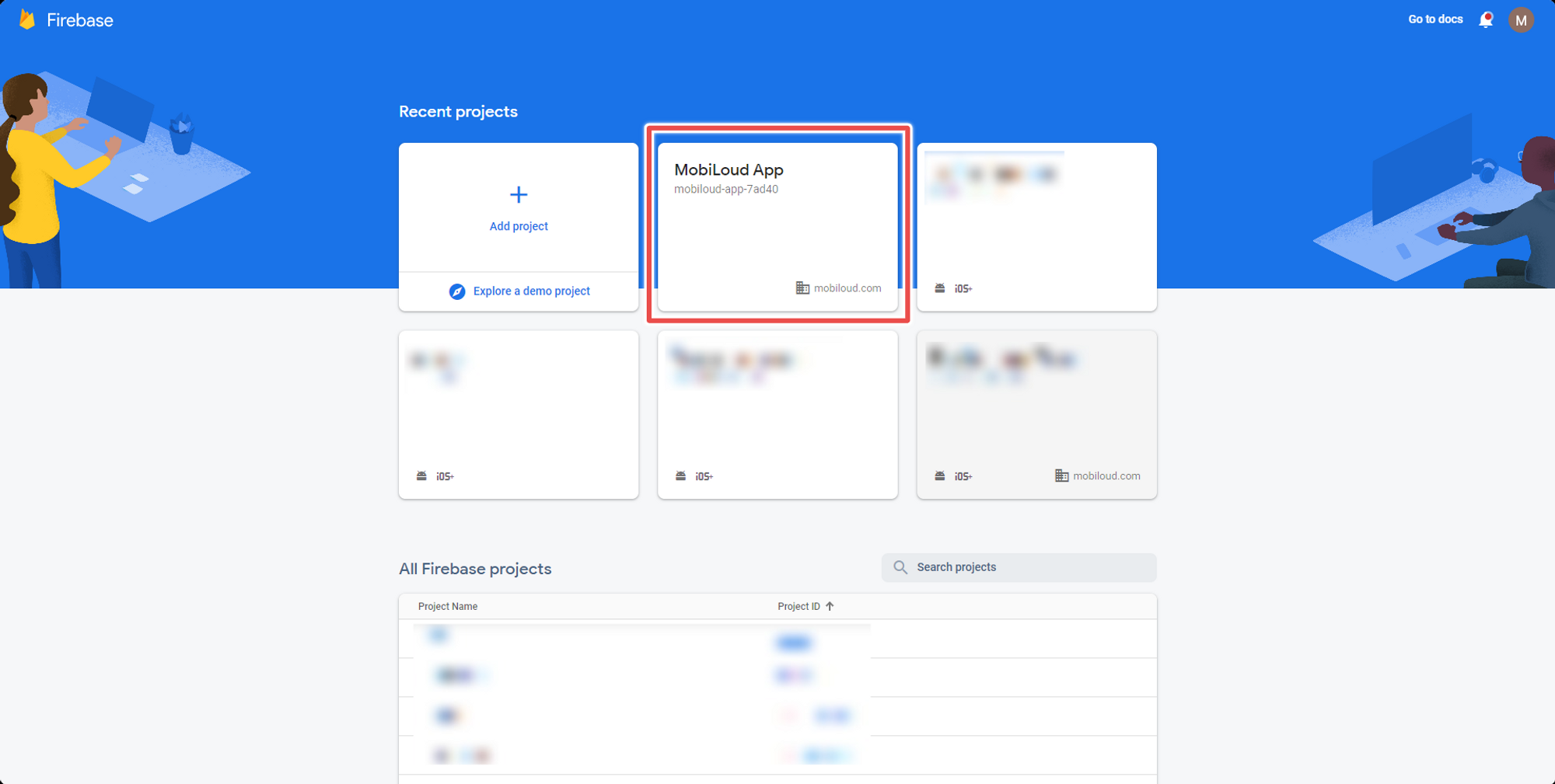
    1 – Select your app from the list

    Click on the project to which you would like to invite users for:

    Notion Image

    2 – Click the “gear” icon and then “Users and permissions”

    On the left sidebar you will see a gear icon, click on it and then select “Users and permissions”:

    Notion Image

    3 – Click “Add member”

    You can now click on the “Add member” button on the right side of the screen:

    Notion Image

    4 – Fill in the user details and invite

    Fill in the user email and the role (you will want to use owner for Vendrux). Once you are done, click “Add member”.

    Notion Image

    Done! The user will receive an invitation via email.

  • Invite users to Apple Developer account

    Invite users to Apple Developer account

    You can invite someone as an admin to your Apple Developer account by following these steps:

    1 – Access your App Store Connect account

    The first step is to login to your App Store Connect account and login using your Apple credentials: https://appstoreconnect.apple.com/login

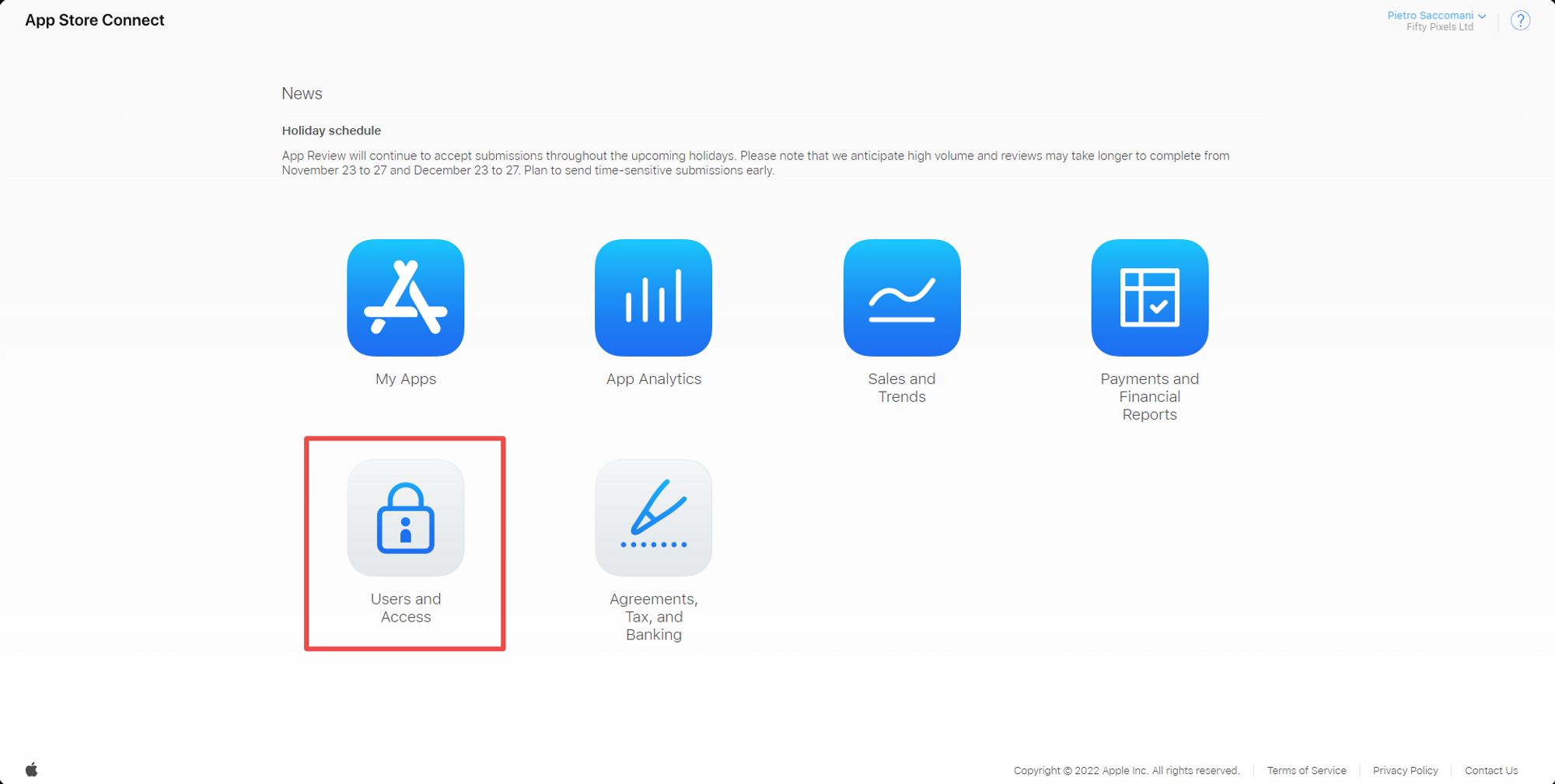
    2 – Go to “Users and Access”

    After logging in, you will see a list with several options, click “Users and Access”

    Notion Image

    3 – Click the “+” icon

    You will see a list with all users that have access to your Apple Developer account, click the “+” icon to add a new user

    Notion Image

    4 – Fill in the user information

    You will be requested to fill in all the user information in order to send the invite, make sure to fill in all the necessary details including the role, additional resources, and the apps that the user should have access to

    Notion Image

    That’s it! Your user has been invited and will now receive a link via email that needs to be clicked in order for the invitation to be confirmed. Note that the invitation link will expire after 48 hours, and if that happens you will need to login to your App Store Connect account and re-send the invitation.

  • Integrating ecommerce features to your app

    Vendrux allows you to use a native API to integrate your website with native features of your app.

    Cart Abandonment and Cart Badge features rely on the number of products in the user’s cart to work, integrating them directly with your website is the most reliable way to ensure that you are passing the right information to the app.

    When integrating these features into your website, you will always want to make sure they are wrapped in a conditional to ensure that they will only be triggered when your website is displayed inside the app, to do this we can use the user agent, as follows:

    >
      function isApp() {
      	// Get the browser user agent and convert it to lower case
        const userAgent = navigator.userAgent.toLowerCase();
        
        // Return true if the user agent includes the "canvas" string
        return userAgent.includes("canvas"); 
      }
    

    You can now trigger the native API functions when the user browses your website in the app, by wrapping the code with the isApp() function.

    Cart Badge

    The Cart Badge feature should be triggered whenever the number of products in the user cart changes, this is how you should use it:

    >
    	nativeFunctions.updateBadge($tabIndex, $badgeValue);
    

    The tabIndex refers to the position of the tab where the cart badge should be displayed. If your app displays the “Cart” tab as the second tab in the bottom navigation, then you will want to use “2” as the value for that parameter.

    The badgeValue refers to the number that should be displayed in the badge, and it should be updated as the user adds or removes products from his cart.

    The final code should look like this:

    >
      function isApp() {
      	// Get the browser user agent and convert it to lower case
        const userAgent = navigator.userAgent.toLowerCase();
        
        // Return true if the user agent includes the "canvas" string
        return userAgent.includes("canvas"); 
      }
      
      if(isApp) {
      	// Get actual cart item count using code from your website, here we are using 3 as a placeholder
        let cartItems = 3;
    
        // Call updateBadge only if the count has changed, again you will want to use your website code to determine when to trigger the following code
        if (cartItems !== previousCartItemCount) { 
        	// Update the badge in the second tab of your app's bottom navigation
            nativeFunctions.updateBadge(2, cartItems);
            
            // Update for next comparison
            previousCartItemCount = cartItems;
        }
      }
    

    Tab Refresh

    When updating the badge with the number of products in the cart, you will also want to trigger a page refresh on the tab that displays the cart page, so the next time the user goes to that tab he can see all the latest products in it.

    For this, we can use the nativeFunctions.updateTab($tabIndex) function, as follows:

    >
      function isApp() {
      	// Get the browser user agent and convert it to lower case
        const userAgent = navigator.userAgent.toLowerCase();
        
        // Return true if the user agent includes the "canvas" string
        return userAgent.includes("canvas"); 
      }
      
      if(isApp) {
      	// Get actual cart item count using code from your website, here we are using 3 as a placeholder
        let cartItems = 3;
    
        // Call updateBadge only if the count has changed, again you will want to use your website code to determine when to trigger the following code
        if (cartItems !== previousCartItemCount) { 
        	// Update the badge in the second tab of your app's bottom navigation
            nativeFunctions.updateBadge(2, cartItems);
            
            // Triggers a refresh on the second tab of your app's bottom navigation
            nativeFunctions.updateTab(2);
            
            // Update for next comparison
            previousCartItemCount = cartItems;
        }
      }
    

    Cart Abandonment

    The Cart Abandonment feature also integrates with the number of products in the user’s cart, so you can use a similar piece of code to configure it.

    The specifics of the Cart Abandonment notifications (title, message, link, delay) must be adjusted directly in the app configuration, but scheduling the notifications is something that must happen on the website side.

    The logic we will use for this is very simple, when there is one or more products in the cart we will schedule the notifications, when there are no products we will cancel any scheduled notifications. The idea is to schedule the notifications whenever the user adds something to his cart, and cancel any scheduled notifications when he removes all products or completes a purchase.

    >
      function isApp() {
      	// Get the browser user agent and convert it to lower case
        const userAgent = navigator.userAgent.toLowerCase();
        
        // Return true if the user agent includes the "canvas" string
        return userAgent.includes("canvas"); 
      }
      
    if (isApp) {
    	// Get actual cart item count (replace this placeholder)
        let cartItems = 3;
    
        // Call the following functions only if the cart item count has changed, again you will want to use your website code to determine when to trigger the following code
        
        // If there is 1 or more products in the cart, schedule the notifications
        if (cartItems > 0) {
            nativeFunctions.scheduleLocalNotifications();
        }
    
        // If there are no products in the cart, cancel all scheduled notifications
        if (cartItems === 0) {
            nativeFunctions.cancelLocalNotifications();
        }
    }
    

    Integrating With Your Website

    Collaborate with your website developer to implement the provided code snippets into your site’s codebase.

    You will want to get his assistance to determine the best way to get the number of products in the user cart, and also to use events to trigger the badge and notification logic whenever the number of products in the cart changes.
  • Integrate OneSignal with your website

    ⚠️ This guide should not be used if you have a WordPress website.

    There are many situations in which you will want to trigger push notifications to your users, here are some examples:

    • A private message has been received
    • An order has been delivered
    • A new file has been added to the account
    • A subscription is about to expire

    For all of these examples, the notification will need to target a specific user when a specific event happens on your website. In order to be able to send these notifications you will need the following implemented into your website’s code:

    • Vendrux native functions

    Keep in mind that this is not an implementation guide for the OneSignal REST API, each server and website is different and will require a developer to find the best approach for integrating the OneSignal REST API. The purpose of this guide is to give you a better understanding of how to integrate your website with the Vendrux platform for sending targeted, or transactional push notifications.

    Let’s go through each one of the requirements:

    OneSignal REST API

    Since Vendrux uses OneSignal for push notifications, you will need to use the OneSignal REST API to trigger the notifications.

    Whenever a push notification is expected to be sent, you will need to make a call to the OneSignal REST API with the notification details (title, text, link, image, tags, etc), this call must be implemented on your website.

    Here you can find the complete documentation for the OneSignal REST API: https://documentation.onesignal.com/reference/create-notification

    Vendrux native functions

    Implementing the OneSignal REST API should be straightforward, but at some point, you will ask yourself “How do I target a specific user?”, and that’s where the Vendrux native functions come into play.

    On your website, you are probably using a unique ID or even an email to identify your users, but in OneSignal that unique identifier is not available out of the box, so the idea here is to tell OneSignal to store the same unique user ID from your website into the OneSignal profile of that user.

    To do this, we are going to trigger the following Javascript function as soon as the user has logged in:

        // Check the user agent for the "canvas" string
        const isApp = navigator.userAgent.toLowerCase().indexOf('canvas') > -1;
        
        // Check if we are in the app
        if (isApp) {
        
          try {
    
              // Set the external user ID
              let externalUserId = 1;
    
              // Trigger the native function to save to OneSignal
              nativeFunctions.onesignalSetExternalUserId(externalUserId);
    
              // Log the event in the console
              console.log("External user ID set");
    
    
          } catch (ex) {
    
              console.log(ex.message);
    
          }
          
      	}
    

    We recommend adding the Javascript code inline rather than using a separate file, to avoid compatibility issues.

    Fo more details on how to target users using the External User ID, you can refer to the OneSignal documentation here: https://documentation.onesignal.com/docs/external-user-ids

  • Integrate Loyalty Apps with vendrux

    Integrate Loyalty Apps with vendrux

    This guide shows you how to create a custom Shopify Flow that can be used to integrate Vendrux with your preferred loyalty program in Shopify.

    The idea is simple, we will check if the user has a specific tag assigned to his Shopify profile once an order is placed, and if so, we will grant him extra points.

    The tag is only assigned to his profile when he is using the app, so this means that if our check passes, the user placed the order while in the app.

    Before we Begin

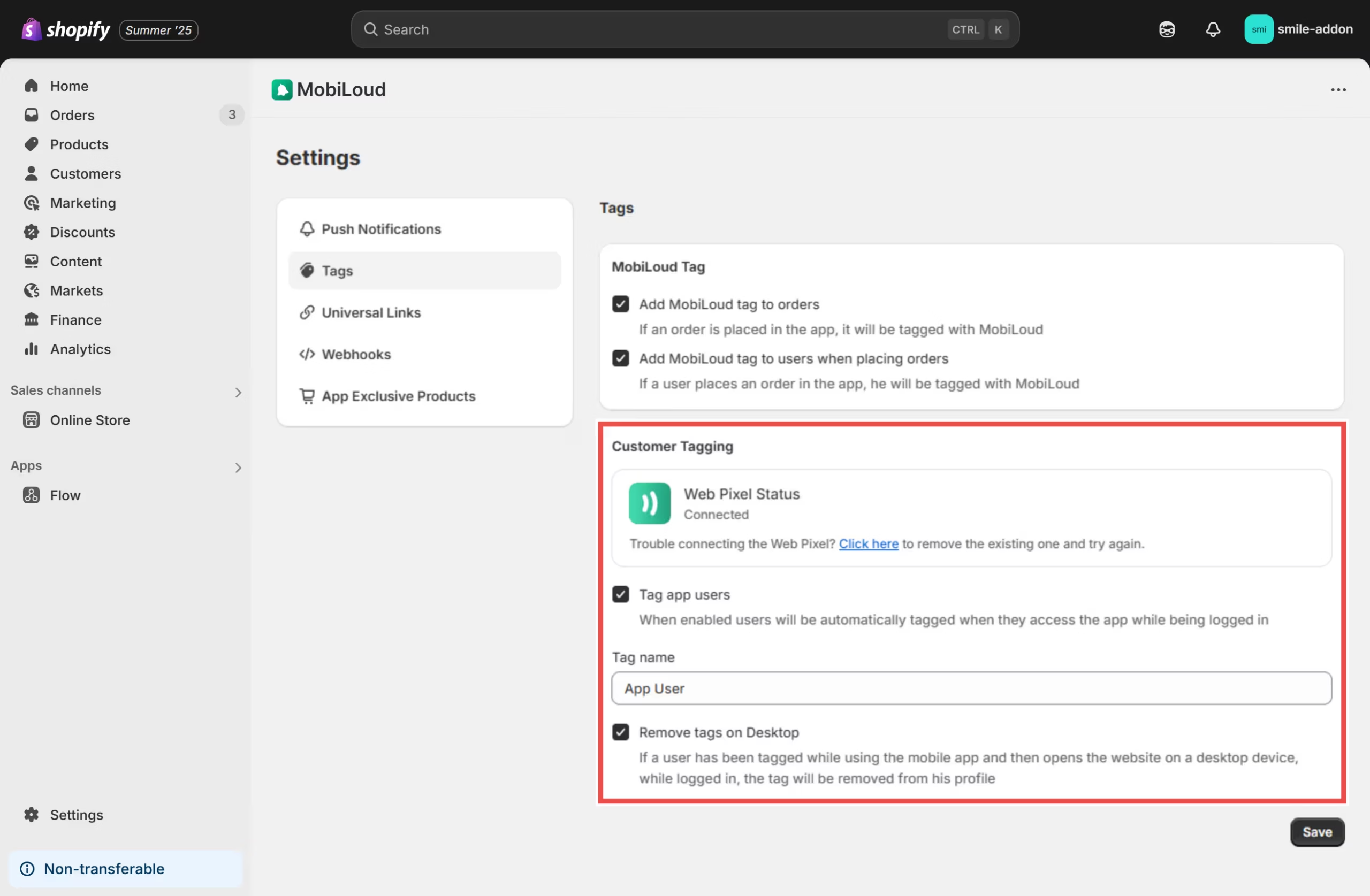
    Before we jump into the Flow creation, make sure you have the Vendrux Shopify App installed with the tags configured as follows:

    Overview

    This Flow action will:

    • Check if a customer has a specific tag
    • Return a boolean result that can be used in Flow conditions

    Setup Steps

    1. Create the Flow Action

    Go to Apps > Flow in your Shopify admin

    Create a new Flow or edit an existing one, add a Run code action.

    Configure the code action as follows:

    2. Input Schema (GraphQL)

    query {  
    	order {    
    		id    
    		customer {
    			id      
    			tags    
    		}  
    	}
    }

    Note: If your Flow is triggered by a customer event (not an order), use:

    query {  
    	customer {    
        	id    
            tags  
        }
    }

    3. Output Schema (SDL)

    type Output {  
    	hasCanvasTag: Boolean!
    }

    4. JavaScript Code

    export default function main(input) {
      // Get customer from order (adjust path based on your trigger)
      const customer = input.order?.customer;
      const customerTags = customer?.tags || [];
      
      // Tag to check for (case insensitive)
      const targetTag = 'App User'; // Change this to your desired tag
      
      // Check if customer has the target tag (case insensitive)
      const hasTargetTag = customerTags.some(tag => 
        tag.toLowerCase() === targetTag.toLowerCase()
      );
      
      // Return a plain object
      const result = {
        hasCanvasTag: hasTargetTag
      };
      
      return result;
    }

    Your “Run Code” action will look like this:

    Using the Result

    After the “Run Code” action is created, you can use the result in Flow conditions:

    Add a Condition action after your code action, then search for the “Run Code” step you just created:

    Select the “hasCanvasTag” variable:

    Adjust the condition to “Equal to” “true”, as follows:

    The idea is to check if the user has the “App User” tag in his profile, and if that is the case, proceed with adding the extra points to his account.

    The next steps will vary depending on your preferred loyalty program, but here are some guides from the most popular ones to assist with the final steps of the setup: