Author: Vendrux

  • Merge Profiles | vendrux Docs

    The nativeFunctions.klaviyoMergeProfiles() function allows you to merge user profiles across mobile app and website platforms in Klaviyo. This function should only be called in Canvas-based environments.

    External User ID Usage

    // Check if the user agent contains 'canvas' (case-insensitive)
    if (navigator.userAgent.toLowerCase().includes('canvas')) {
      try {
        // Merge profile using external ID
        nativeFunctions.klaviyoMergeProfiles('user123', null)
      } catch (error) {
        // Handle any potential errors
        console.error('Profile merge failed:', error)
      }
    }

    Email Usage

    // Check if the user agent contains 'canvas' (case-insensitive)
    if (navigator.userAgent.toLowerCase().includes('canvas')) {
      try {
        // Merge profile using email
        nativeFunctions.klaviyoMergeProfiles(null, 'user@example.com')
      } catch (error) {
        // Handle any potential errors
        console.error('Profile merge failed:', error)
      }
    }

    Profile Merge Mechanism

    User Existence Verification

    The klaviyoMergeProfiles() function performs an internal check to determine the user’s existence in Klaviyo before initiating the merge process. This means:

    • The merge is only triggered if a matching user profile is found
    • If no existing user is detected, no merge action occurs
    • This ensures data integrity and prevents unnecessary profile modifications

    Post-Merge User Information Update

    After a successful profile merge, the app automatically updates the external user ID in the userInfo object. This process ensures:

    • The most recent and accurate user identification
    • Synchronization between the app’s internal user tracking and Klaviyo’s profile system
    • Consistent user data across different platforms and touchpoints

    More details can be found here: https://www.vendrux.com/docs/get-user-information

    Why the User Agent Check?

    • Ensures the function is only called in the intended Vendrux based environment
    • Prevents errors in non-supported platforms
    • Provides a safeguard against unintended function calls

    Function Signature

    nativeFunctions.klaviyoMergeProfiles(externalID, email)

    Parameters

    • externalID (Optional): A unique identifier for the user
    • email (Optional): The user’s email address

    Important Notes

    • You must provide at least one of the two parameters
    • Do not pass both externalID and email simultaneously
    • The function will only execute if the user agent contains “canvas”

    Best Practices

    • Always wrap nativeFunctions.klaviyoMergeProfiles() in a user agent check
    • Use toLowerCase() to ensure case-insensitive matching
    • Implement robust error handling
    • Log merge operations for tracking

    Potential Pitfalls to Avoid

    • Calling the function without a user agent check
    • Passing both parameters simultaneously
    • Ignoring potential merge errors

  • Configuring the tab menu | vendrux Docs

    Configuring the tab menu | vendrux Docs

    Under the “Menu” area you will be able to configure your app’s tab navigation.

    The tab navigation is an important aspect of your app as it:

    1. Improves the user experience by providing quick access to the most important areas of your app
    1. Improves the overall app design, helping with making your app look better
    1. Helps with getting the app approved by Apple and Google, by providing a native element

    Configuring your tab navigation is simple, here you can find details on how it works:

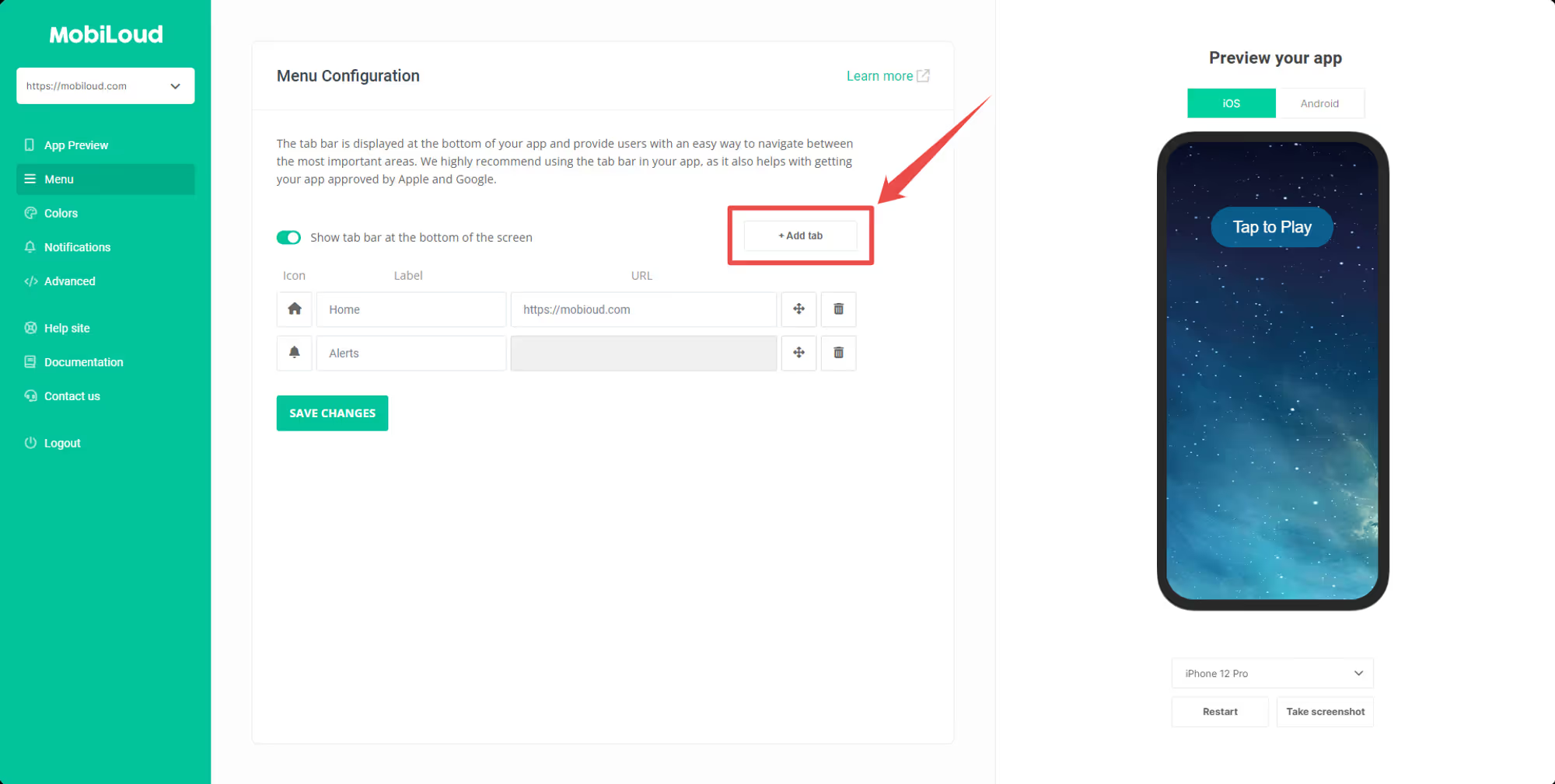
    Adding a new tab

    To add a new tab to your navigation click the “+ Add tab” button:

    Notion Image

    Moving tabs around

    You can easily move your tabs around to change their order by clicking on the handle icon and dragging the tabs around:

    Notion Image

    Picking an icon

    Use our icon picker tool to choose the most appropriate icon for your tabs:

    Notion Image

    If you prefer, you can also upload your own icons:

    Notion Image

    Keep in mind that only single and solid-colored icons are supported, we also recommend using a .PNG file with at max 200x200px in size for your icons, to make sure your app loads quickly and the icon displays correctly.

    Adding a URL

    In the URL field, you will want to add the link to the page that should be displayed in the app. Make sure to use the final URL, as redirects might create problems in the app.

    Notion Image

    The “Settings” tab

    The “Settings” tab allows you to provide app users easy access to important options and links. We highly recommend that you keep it enabled.

    Notion Image

  • Logout with native functions | vendrux Docs

    If your app is configured to require users to log in before they can access the content, and you are already using the nativeFunctions.login() to log users in, you will want to implement the nativeFunctions.logout() function as well.

    When triggered, the nativeFunctions.logout() will clear all cookies and sessions in the app, and reload the app, taking the user back to the login screen.

    Imagine a situation where while browsing your app the user gets logged out because his cookies expired, if the nativeFunctions.logout() function is not triggered the user will see your website’s error messages for blocked content, and the user experience might get confusing for the user.

    Instead, you should take the user to the login screen so he can provide his credentials and re-login accordingly.

    You can call the nativeFunctions.logout() after you have confirmed that the user is not logged in:

    >
        // Get the user agent and convert it to lowercase for case-insensitive comparison
        var userAgent = navigator.userAgent.toLowerCase();
    
        // Log the user out directly if the user agent contains 'canvas'
        function appLogout() {
            try {
                // Check if the user agent contains the string "canvas"
                if (userAgent.indexOf('canvas') > -1) {
                    nativeFunctions.logout();
                }
            } catch (ex) {
                console.log(ex.message);
            }
        }
    
    
  • Login with native functions | vendrux Docs

    Vendrux allows you to display a login screen when the app is opened, requiring users to log in before they can access the app content.

    In order to dismiss the login screen after a successful login, you can use the “login” native function.

    By calling the nativeFunctions.login() function the app will immediately dismiss the login screen and reload the app, updating all the content for the user who is now logged in.

    Here is an example of how to use the login native function:

    >
        // Get the user agent and convert it to lowercase for case-insensitive comparison
        var userAgent = navigator.userAgent.toLowerCase();
        
        // Set the user ID
        var userId = "1";
    
        // Log the user in directly if the user agent contains 'canvas'
        function loginApp() {
            try {
                // Check if the user agent contains the string "canvas"
                if (userAgent.indexOf('canvas') > -1) {
                    nativeFunctions.login();
                }
            } catch (ex) {
                console.log(ex.message);
            }
        }
    
    
    button onClick="loginApp()">Log me inbutton>
    

    Keep in mind that dismissing the login screen and updating the content is all that the app does in this case, cookies and sessions should still be managed by your website.

    You will also want to trigger the “logout” event when a page is loaded and the user is logged out, so the app can display the login screen again.

  • Login feature | vendrux Docs

    The Vendrux platform allows you to configure a page of your website to be used as the login screen of your app. The login screen has a unique behavior, as it will reload the app and be dismissed after a successful login.

    The reload is important in most cases so the content can be updated, displaying specific elements in their logged-in state.

    Note that you can configure the login screen in two different ways:

    • On app start: in this case, the login screen will be displayed as soon as your app is opened, requiring users to log in before they can access the content of your app
    • Inside your app: the login screen will be triggered as soon as the user clicks a button or link that matches the URL used as the “Login URL” in your configuration

    The user authentication is controlled exclusively by your website, meaning that the user will be providing his website username and password, and your website will be responsible for validating that information.

    What happens after the successful login is what matters to the app, as it will use that information to determine if the login screen should be dismissed and the app should be reloaded.

    Successful login in the app

    The app needs to know that a user has been successfully logged in, so it can dismiss itself and reload the content. There are a few different ways of doing that:

    WordPress

    When using the WordPress login method the app will communicate with our WordPress Plugin called Vendrux, and automatically identify the logged-in user.

    Cookie name

    The cookie name login method is the most reliable option for all websites outside of the WordPress space. The app will look for a specific cookie when a URL redirect is triggered in the login screen, and if that cookie is in place after the redirect it will consider the user logged in.

    You can find more details on how to set this up clicking here.

    URL Matching

    In case you don’t have control over the cookies of your website, you can use the URL matching option. When enabled, the app will be looking for a specific URL on the login screen, when that URL is loaded it will consider the user logged-in.

    The URL can look like this: https://yourwebsite.com/login-successful

  • Klaviyo native functions | vendrux Docs

    Vendrux’s Klaviyo integration includes several native functions that allow you to manage user profiles and attributes with ease. In this guide you will find a list of available functions with examples and more details on how to use them.

    klaviyoSetExternalUserId

    This function sets a new external ID for a user profile and deactivates any old profiles associated with the previous external ID.

    Example:

    	nativeFunctions.klaviyoSetExternalUserId('12345')
    

    klaviyoSetEmail

    This function sets the email address for a user profile.

    Example:

    	nativeFunctions.klaviyoSetEmail('john@gmail.com')
    

    klaviyoSetPhoneNumber

    This function sets the phone number for a user profile.

    Example:

    	nativeFunctions.klaviyoSetPhoneNumber('+3059999999')
    

    klaviyoSendAttributes

    This function sets the specified attributes as true for a user profile.

    Example:

    	nativeFunctions.klaviyoSendAttributes(['tag_name'])
    

    klaviyolDeleteAttributes

    This function sets the specified attributes as false for a user profile.

    Example:

    	nativeFunctions.klaviyolDeleteAttributes(['tag_name'])
    

    klaviyoSetAttributes

    This function sets attributes with custom values for a user profile. Ensure you use JSON.stringify() to format the values correctly.

    Example:

    	nativeFunctions.klaviyoSetAttributes(JSON.stringify({'tag_name_1': false, 'tag_name_2': true}))
    
  • iOS App icon | vendrux Docs

    iOS App icon | vendrux Docs

    Creating an app icon for an iOS app can be a daunting task. Fortunately, with the right tools and tips, the process can be much easier.

    The iOS app icon consists of a single file, with the following specifications:

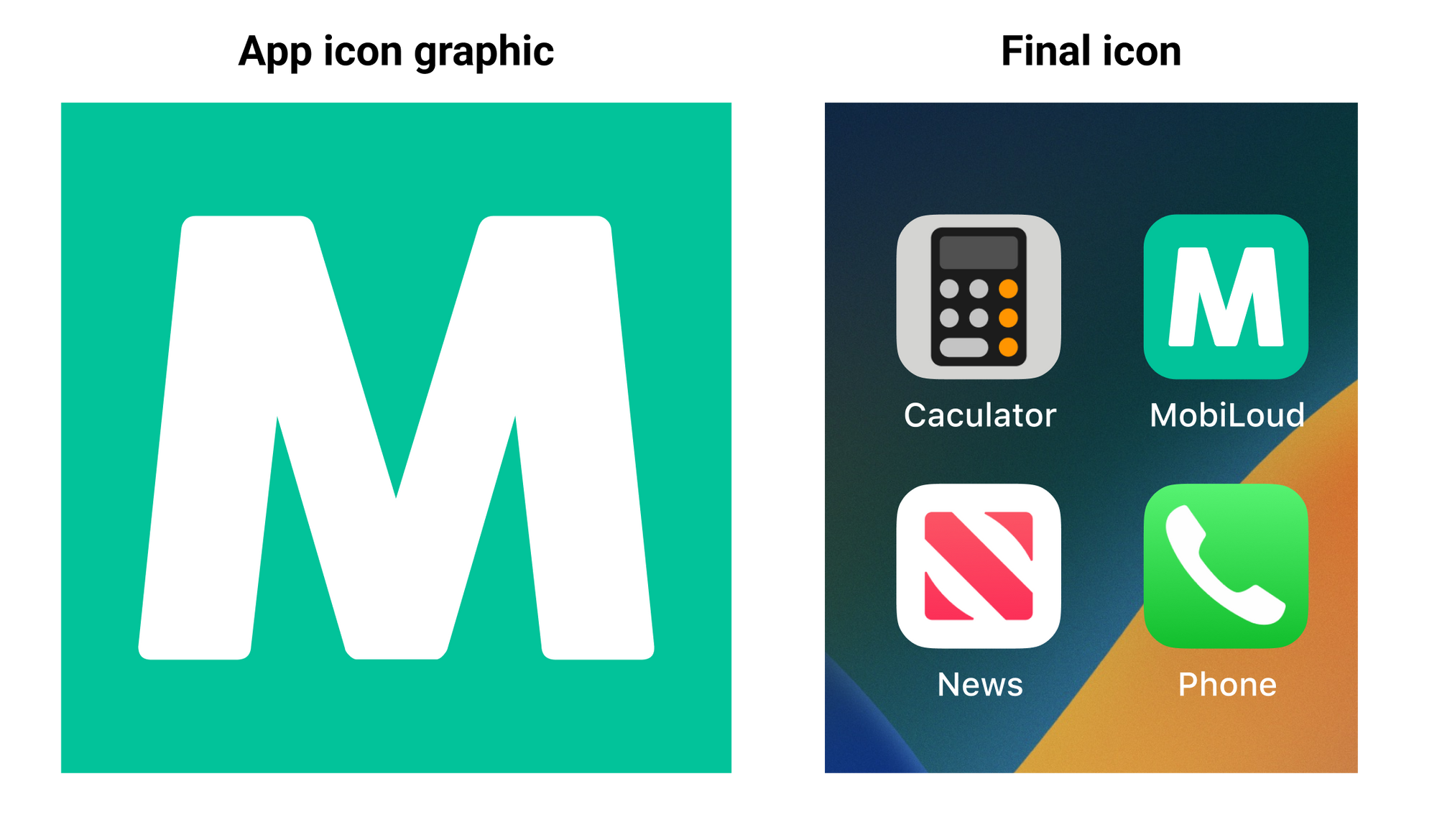
    This is how the graphic you provide looks when converted into an app icon on iOS devices:

    Notion Image

    Here are some tips on how to make a great iOS app icon:

    1 – Make it unique

    The app icon is the first element of your app that users will see after installing it, make sure you have something unique that allows the user to easily recognize your brand.

    2 – Keep it simple

    App icons should be simple because they will be seen quickly by users, and the simpler the icon, the easier it is to recognize and remember. Also, the simpler the design, the less likely it is to confuse users. A simple icon is more likely to fit within the design of the operating system in which it is included.

    3 – No words or complex images

    You have minimal space to work with inside your app icon, avoid using words or complex images as these will not look good when displayed in a small element.

    Even for your logo, you might want to use a smaller version or simply a piece of it, something that allows users to easily recognize it.

    4 – Space

    Make sure to leave some space around your app icon to make sure it will be displayed properly. Keep in mind that the borders will be rounded automatically, so you don’t want to have any elements too close to the edges.

    Templates

    Here you can find templates for the iOS app icon:

    If you’d like to learn more about how to design the perfect icon for your app, check the guidelines from Apple, here: https://developer.apple.com/design/human-interface-guidelines/foundations/app-icons/

  • Invite users to TestFlight | vendrux Docs

    TestFlight is an app provided by Apple to allow users to test apps before making them publicly available in the App Store.

    In order to be able to invite users as testers to TestFlight you first need to make sure the user is added to your App Store Connect account. You can find a complete guide on how to invite users to your account by clicking here.

    Below you can find a step-by-step guide on how to invite users to test your app using TestFlight.

    1. On App Store Connect, open your list of apps then select the app to which you would like to invite your users as testers, you can use this link: https://appstoreconnect.apple.com/apps
    1. On the app details page, click “TestFlight”
    1. You will need to create a new Internal Testing group, you can do so by clicking on the “+” icon:
    1. Type in the name of your Internal Testing group, the name will be visible to invited testers
    1. With your Internal Testing group created, you can now invite users by clicking on the “+” icon
    1. Select the users that you would like to add as testers to the app and click “Add”
    1. That’s it! The selected users will receive an invitation in their emails, the invitation will include a “Redeem code” which can be used in TestFlight to redeem and install your app for testing purposes.
  • Invite users to OneSignal | vendrux Docs

    Invite users to OneSignal | vendrux Docs

    Now that you have registered for your OneSignal account and created your OneSignal app, you will want to invite Vendrux to your account so we can configure your app accordingly.

    Access https://dashboard.onesignal.com/apps and select the OneSignal app to which you would like to invite us to.

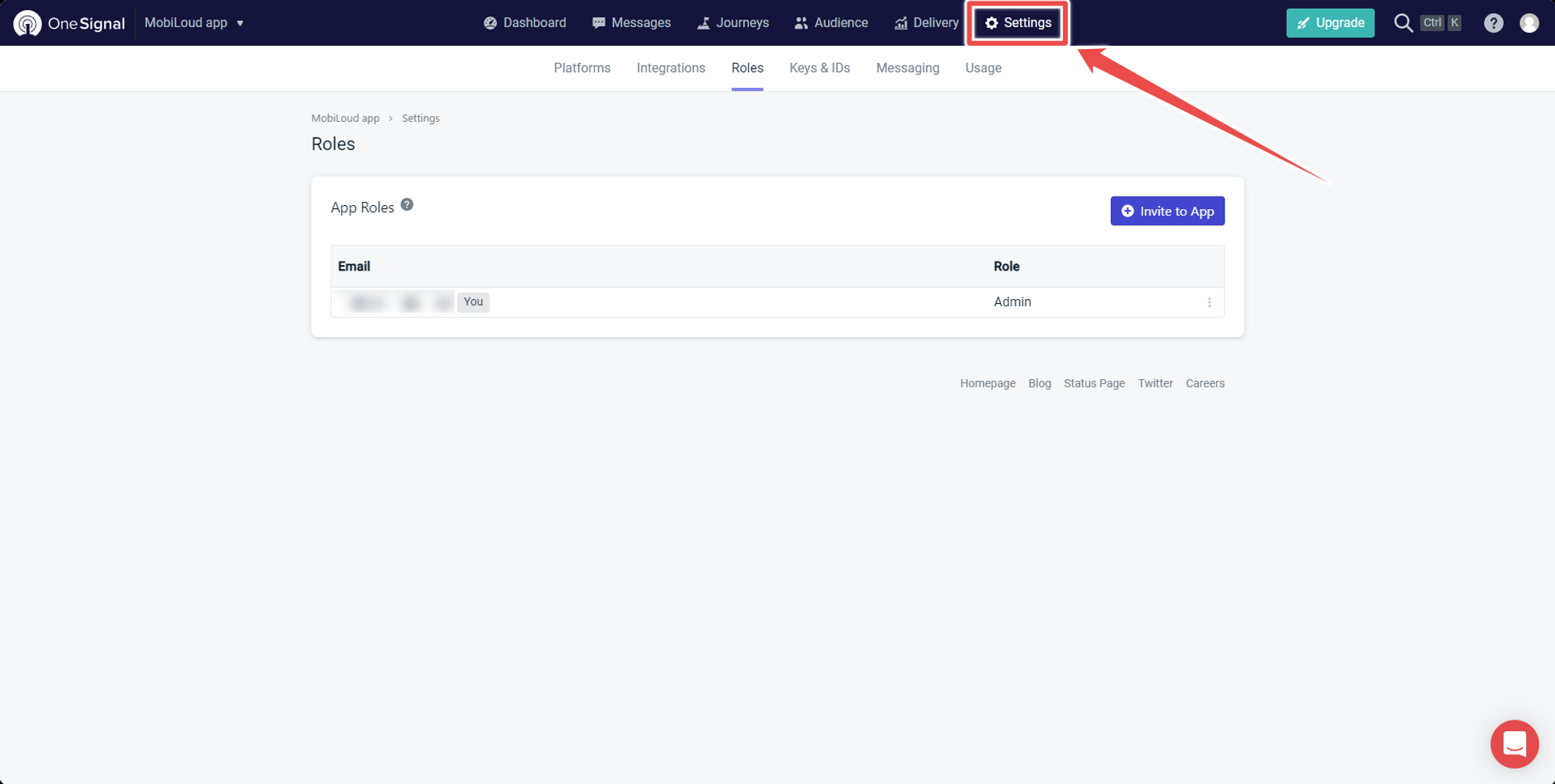
    1 – Go to “Settings”

    On the top menu select “Settings”:

    Notion Image

    2 – Select “Roles”

    Now on the submenu below “Settings” click on “Roles”:

    Notion Image

    3 – Click “Invite to App”

    To add a new user click “Invite to App” on the right side of the screen:

    Notion Image

    4 – Fill in the user details and click “Invite”

    Notion Image
  • Invite users to Google Tag Manager container

    Google Tag Manager (GTM) allows you to grant access to other users so they can manage tags, triggers, and variables within a container. Follow these steps to invite users to a GTM container.

    Step 1: Sign in to Google Tag Manager

    1. Go to Google Tag Manager.
    2. Sign in with your Google account that has administrator access.

    Step 2: Open the Account and Container

    Click on the Container you want to share access to.

    Step 3: Open User Management Settings

    1. In the Admin panel (located in the top left-hand menu), select User Management under the Container level.
    2. Select Container Settings > User Management.

    Step 4: Add a New User

    1. Click the + (plus) button in the top-right corner.
    2. Select Add users from the dropdown menu.

    Step 5: Enter User Details

    1. Enter the email address of the user you want to invite.
    2. Choose the user’s permissions:
      • Read – Can view container settings but cannot make changes.
      • Edit – Can create and edit tags but cannot publish changes.
      • Approve – Can create, edit, and approve changes but cannot publish them.
      • Publish – Can create, edit, approve, and publish changes.
    3. Check Notify new users by email to send an invitation email.

    Step 6: Save and Confirm

    1. Click Invite to send the user an invitation.
    2. The invited user will receive an email with access to the container.