Author: Vendrux

  • Popup Widget | vendrux Docs

    Popup Widget | vendrux Docs

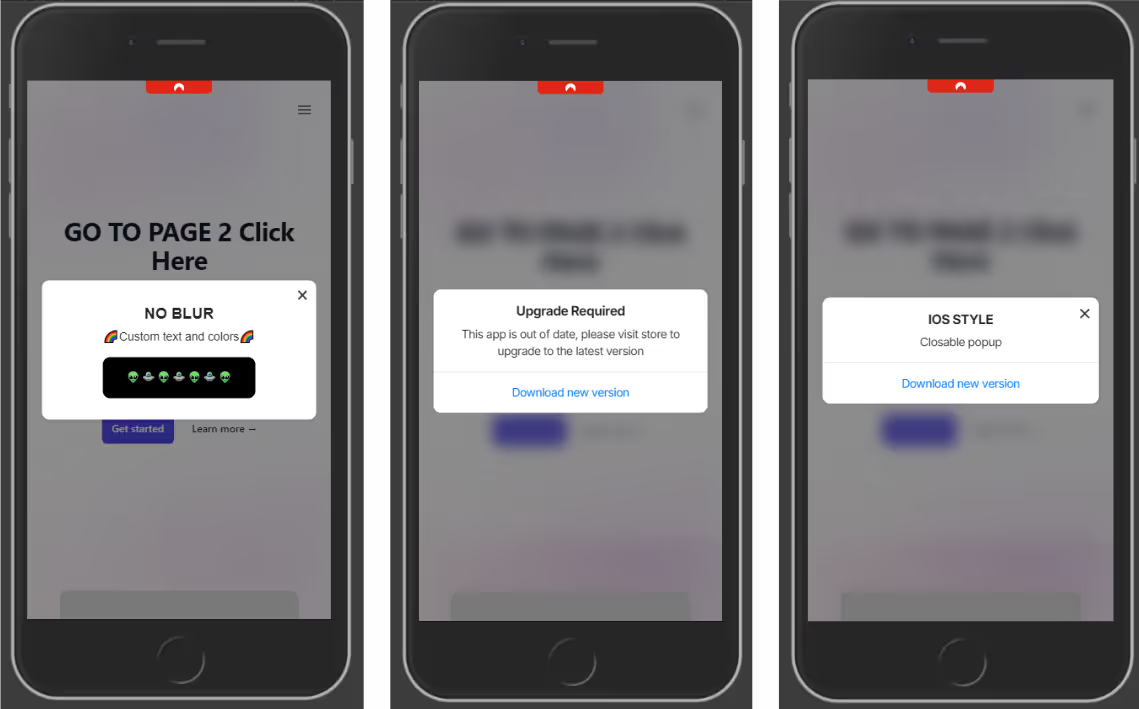
    The ML Popup Widget makes it easy to prompt users with a native-style popup when their app version is outdated. This keeps your user base on the latest, most secure version of your app.

    By effectively utilizing update popups, you can drive app engagement, improve user satisfaction, and ultimately increase your app’s success.

    This element can also be used as a normal popup to add a custom UI ele

    ment and a different experience in your app.

    What This Widget Does

    The widget checks the user’s app version and displays a popup only if it’s older than your defined minimum version. This works inside mobile apps or webviews, and uses native-feeling styling that resembles iOS or Android prompts.

    It also works as a normal popup to provide your users a nice User Experience.

    The popup includes:

    • A custom heading, description, and CTA button
    • Links to the relevant App Store / Play Store
    • Optional blurred backdrop, animations, and more
    • Conditional display based on app version

    Copy Directly Into Your Site 📄

    Paste the following code at the end of your page’s . This popup will show only when the user’s app version is older than your defined minimum version (minVersion), in this code we set the closable param to false, ensuring the popup is not dismissable. Full list of options at the end of this guide:

     src="">
    script>
      const popupOptions = {
        popupStyle: 'ios',
        fontFamily: `"Source Sans Pro", "Arial", sans-serif`,
        textColor: '#222',
        textHeading: 'Upgrade required',
        textDescription: 'This app is out of date, please visit store to upgrade to the latest version',
        buttonText: 'Download new version',
        buttonColor: '#000000',
        buttonTextColor: "#ffffff",
        widgetColor: '#fff',
        backDrop: true,
        backDropBlur: true,
        backDropZIndex: 888888,
        zIndex: 999999,
        position: 'center',
        animation: 'fadeIn',
        display: 'onLoad',
        radius: '10px',
        delay: 0,
        shadow: true,
        useSession: false,
        maxWidth: "700px",
        closable: false,
        padding: '20px',
        linkIos: 'https://itunes.apple.com/?PATH-TO-YOUR-APP',
        linkAndroid: '',
      };
    
      function addPopupWidget() {
      // Checks if current device is a phone  (deviceData.isMobile) and if its the app (deviceData.isCanvas)
        if (deviceData.isMobile || deviceData.isCanvas) {
          const minVersion = 1.0;
          // Gets current app version
          const appVersion = nativeFunctions.getDeviceInfo().appVersion;
          // Compares the minimum required version with the current app version
          // if appVersion 
          const isOutdated = deviceData.compareAppVersion(minVersion, appVersion);
    			
          if (isOutdated) {
          // Triggers the widget
            new PopupWidget(popupOptions).init();
          }
        }
      }
    
      window.addEventListener('load', addPopupWidget);
    script>

    Widget Methods

    The widget have the following methods to compare the current app version and to enable the widget in the app only:

    // returns true if its an ios or anroid device
    deviceData.isMobile
    
    // returns 'ios', 'android' or 'windows'
    deviceData.os
    
    // Returns true if using the app
    deviceData.isCanvas
    
    // Accepts two params (numbers)
    // if appVersion 
    
    deviceData.compareAppVersion(minVersion, appVersion)
    
    // CANVAS PLATFORM METHODS
    
    // Returns an object with app metadata and info
    nativeFunctions.getDeviceInfo()
    
    /*
    mobiloudAppInfo = {
    	appId = string,
    	appVersion = string,
    	brand = string,
    	hardware = string,
    	manufacturer = string,
    	model = string,
    	nameos = string,
    	osVersion = string,
    	platform = string,
    	pushSubscribed = bool,
    	pushToken = string,
    	pushUserId = string,
    	timeZone = string
    }
    */

    This function returns true if the current version is lower than the required minimum. It enables developers to show the popup only when needed, avoiding unnecessary prompts.

    Customization Options

    You can modify any value in popupOptions to match your app’s tone and design:

    • textHeading, textDescription, buttonText: Popup content
    • linkIos, linkAndroid: Deep link or store URL for each platform
    • popupStyle : This accepts ‘ios’ for  default ios styles or ‘android’ for custom CSS styles
    • position, animation, shadow, radius: Look and feel
    • closable: false: Disables the close (X) button to make the popup mandatory
    • useSession: false: Ensures popup shows every time until the app is updated

    Key points

    • Set a meaningful minimum version number whenever a critical update is released.
    • Always include store links for both platforms or ensure the popup is shown only in the desired platforms (this can be done using deviceData.os for getting the current device)
    • Match styling to your app’s branding for a consistent experience.
    • Make the popup non-dismissible (closable: false) if the update is required.

    Widget Options
  • Popup Widget | vendrux Docs

    Popup Widget | vendrux Docs

    The ML Popup Widget makes it easy to prompt users with a native-style popup when their app version is outdated. This keeps your user base on the latest, most secure version of your app.

    By effectively utilizing update popups, you can drive app engagement, improve user satisfaction, and ultimately increase your app’s success.

    This element can also be used as a normal popup to add a custom UI ele

    ment and a different experience in your app.

    What This Widget Does

    The widget checks the user’s app version and displays a popup only if it’s older than your defined minimum version. This works inside mobile apps or webviews, and uses native-feeling styling that resembles iOS or Android prompts.

    It also works as a normal popup to provide your users a nice User Experience.

    The popup includes:

    • A custom heading, description, and CTA button
    • Links to the relevant App Store / Play Store
    • Optional blurred backdrop, animations, and more
    • Conditional display based on app version

    Copy Directly Into Your Site 📄

    Paste the following code at the end of your page’s . This popup will show only when the user’s app version is older than your defined minimum version (minVersion), in this code we set the closable param to false, ensuring the popup is not dismissable. Full list of options at the end of this guide:

     src="">
    script>
      const popupOptions = {
        popupStyle: 'ios',
        fontFamily: `"Source Sans Pro", "Arial", sans-serif`,
        textColor: '#222',
        textHeading: 'Upgrade required',
        textDescription: 'This app is out of date, please visit store to upgrade to the latest version',
        buttonText: 'Download new version',
        buttonColor: '#000000',
        buttonTextColor: "#ffffff",
        widgetColor: '#fff',
        backDrop: true,
        backDropBlur: true,
        backDropZIndex: 888888,
        zIndex: 999999,
        position: 'center',
        animation: 'fadeIn',
        display: 'onLoad',
        radius: '10px',
        delay: 0,
        shadow: true,
        useSession: false,
        maxWidth: "700px",
        closable: false,
        padding: '20px',
        linkIos: 'https://itunes.apple.com/?PATH-TO-YOUR-APP',
        linkAndroid: '',
      };
    
      function addPopupWidget() {
      // Checks if current device is a phone  (deviceData.isMobile) and if its the app (deviceData.isCanvas)
        if (deviceData.isMobile || deviceData.isCanvas) {
          const minVersion = 1.0;
          // Gets current app version
          const appVersion = nativeFunctions.getDeviceInfo().appVersion;
          // Compares the minimum required version with the current app version
          // if appVersion 
          const isOutdated = deviceData.compareAppVersion(minVersion, appVersion);
    			
          if (isOutdated) {
          // Triggers the widget
            new PopupWidget(popupOptions).init();
          }
        }
      }
    
      window.addEventListener('load', addPopupWidget);
    script>

    Widget Methods

    The widget have the following methods to compare the current app version and to enable the widget in the app only:

    // returns true if its an ios or anroid device
    deviceData.isMobile
    
    // returns 'ios', 'android' or 'windows'
    deviceData.os
    
    // Returns true if using the app
    deviceData.isCanvas
    
    // Accepts two params (numbers)
    // if appVersion 
    
    deviceData.compareAppVersion(minVersion, appVersion)
    
    // CANVAS PLATFORM METHODS
    
    // Returns an object with app metadata and info
    nativeFunctions.getDeviceInfo()
    
    /*
    mobiloudAppInfo = {
    	appId = string,
    	appVersion = string,
    	brand = string,
    	hardware = string,
    	manufacturer = string,
    	model = string,
    	nameos = string,
    	osVersion = string,
    	platform = string,
    	pushSubscribed = bool,
    	pushToken = string,
    	pushUserId = string,
    	timeZone = string
    }
    */

    This function returns true if the current version is lower than the required minimum. It enables developers to show the popup only when needed, avoiding unnecessary prompts.

    Customization Options

    You can modify any value in popupOptions to match your app’s tone and design:

    • textHeading, textDescription, buttonText: Popup content
    • linkIos, linkAndroid: Deep link or store URL for each platform
    • popupStyle : This accepts ‘ios’ for  default ios styles or ‘android’ for custom CSS styles
    • position, animation, shadow, radius: Look and feel
    • closable: false: Disables the close (X) button to make the popup mandatory
    • useSession: false: Ensures popup shows every time until the app is updated

    Key points

    • Set a meaningful minimum version number whenever a critical update is released.
    • Always include store links for both platforms or ensure the popup is shown only in the desired platforms (this can be done using deviceData.os for getting the current device)
    • Match styling to your app’s branding for a consistent experience.
    • Make the popup non-dismissible (closable: false) if the update is required.

    Widget Options

  • Optimize Your Website to Work Like an App

    To create a seamless app experience for your users, it’s important to optimize your website for the mobile environment. In this guide, we’ll walk you through simple adjustments that will make your website function and feel more like a native app when viewed inside the Vendrux app.

    By applying these optimizations, you can ensure smoother navigation, faster loading times, and a cleaner user interface—all while maintaining full control over your website’s design and content.

    IMPORTANT! Keep in mind that the code snippets provided below are examples, it is very likely that you will need to customize them to work with your website.

    Creating a Fixed Header for Easier Navigation

    One of the key features of many mobile apps is a fixed header or navigation bar that stays in place as users scroll. This makes it easier for users to access important links or menu items without needing to scroll back up to the top.

    Here’s how you can make your header fixed:

    CSS + Javascript Example:

    	// Check the user agent for the canvas string
      	if (navigator.userAgent.toLowerCase().includes('canvas')) {
        	const style = document.createElement('style');
        	style.textContent = `
          		header {
            		position: fixed;
            		top: 0;
            		z-index: 9999;
          		}
        	`;
        	document.head.appendChild(style);
      	}
    

    This keeps your navigation always visible, improving user accessibility.

    Optimizing Image Sizes and Media for Mobile

    Large images and unoptimized media can slow down your website's load time, which is especially noticeable in mobile apps. It’s crucial to ensure that your images are optimized for mobile users by using appropriate file sizes, formats, and resolutions.

    To optimize your media:

    • Use responsive images: Add the srcset attribute to your tags to serve different image sizes based on the device screen size.
    • Compress images: Tools like TinyPNG or ImageOptim can significantly reduce file sizes without sacrificing quality.
    • Lazy-load media: Defer loading images and videos until they come into view, improving initial page load time.

    These optimizations will make your website load faster inside the app, providing a smoother experience for users.

    Removing Unnecessary Pop-ups and Overlays

    Pop-ups, modals, and overlays can take over too much screen space on mobile devices, making it harder for users to navigate the app. It’s a good practice to either remove these elements or simplify them for the mobile app environment.

    Here’s how to hide pop-ups and overlays when viewed in the app:

    CSS + Javascript Example:

    	if (navigator.userAgent.toLowerCase().includes('canvas')) {
    		const style = document.createElement('style');
    		style.textContent = `
    			.popup, .overlay {
    			display: none !important;
    		}
    		`;
     		document.head.appendChild(style);
    	}
    

    This will ensure a cleaner, less disruptive interface inside the app, while still allowing pop-ups and overlays to work on the website when accessed via desktop or browser.

    Removing the Footer

    Mobile app users generally expect minimal distractions when using an app. Removing the website footer inside the app can help reduce clutter and keep the focus on the core content.

    Here’s how to hide the footer when your website is viewed in the Canvas app:

    CSS + Javascript Example:

      if (navigator.userAgent.toLowerCase().includes('canvas')) {
      	const style = document.createElement('style');
      	style.textContent = `
      		footer {
      			display: none !important;
      		}
      	`;
      	document.head.appendChild(style);
      }
    

    This reduces unnecessary scrolling and declutters the interface.

    Making Buttons Easier to Click

    On mobile devices, buttons that are too small or too close together can be difficult to tap. It’s important to optimize button sizes and spacing to enhance usability in the app.

    To make buttons easier to click:

    • Increase button size: Ensure buttons are large enough to be easily tapped on small screens.
    • Add padding: Increase spacing between clickable elements to prevent accidental taps.

    CSS + Javascript Example:

    	if (navigator.userAgent.toLowerCase().includes('canvas')) {
    		const style = document.createElement('style');
    		style.textContent = `
    			button {
    			padding: 15px 20px;
    			font-size: 18px;
    		}
    		`;
    		document.head.appendChild(style);
    	}
    

    This will ensure buttons are more user-friendly inside the app, improving overall usability.

    By applying these simple adjustments, you’ll be able to create a more app-like experience for your users. Each optimization makes the app feel more responsive and tailored to mobile, while still being easy to manage on your end.

    For more detailed guidance on customizing your app and optimizing your website’s performance in the app, be sure to check out our other guides:

    These resources will help you fine-tune the app experience for your users and make the most of your mobile presence.

  • Open URLs inside the app

    Open URLs inside the app

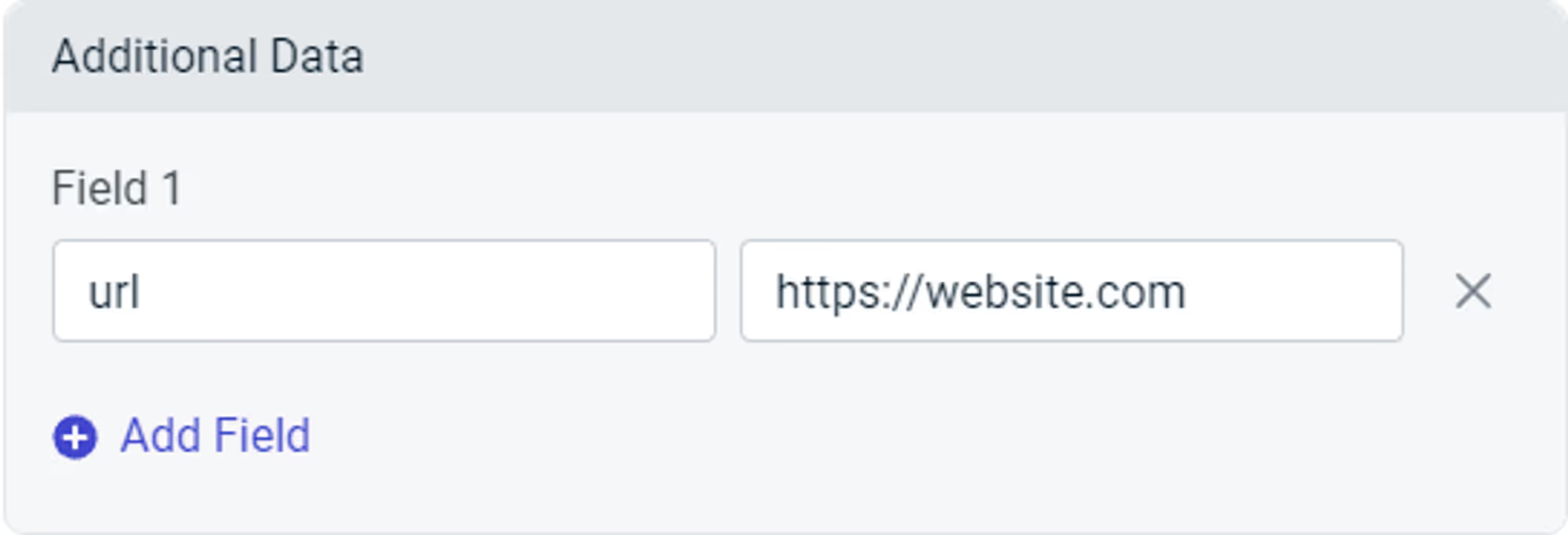
    ⚠️ The “Launch URL” field provided by OneSignal won’t work inside the app, you will need to use “Additional Data” in order to display a specific URL in the app when the notification is clicked.

    When you create a push notification, either via the OneSignal Dashboard or the REST API, you can specify a URL to open when the notification is clicked.

    To do so, you must include a field called “url” in the “Additional Data” area, with the URL that must be opened as the value.

    Below you can see what that should look like:

    Notion Image
    OneSignal Dashboard
    //OneSignal REST API
    
    "included_segments": [
      "Subscribed Users"
    ],
    "data": [
    	'url' = 'https://website.com'
    ],
    "contents": {
      "en": "Notification content",
    }
  • Open settings screen using native functions

    If you are not using the native bottom navigation in your app, you might still want to open the “Settings” screen, where users can easily adjust their push notification settings.

    You can integrate website elements with the app for this, using native functions.

    Here is a simple code sample that shows how you can achieve this:

    "nativeFunctions.settingsOpen();">Open Settings Screen

    Since native functions will only work in the app, you might want to wrap your web element with a conditional, so it only shows up in the app.

  • OneSignal Analytics | vendrux Docs

    OneSignal Analytics | vendrux Docs

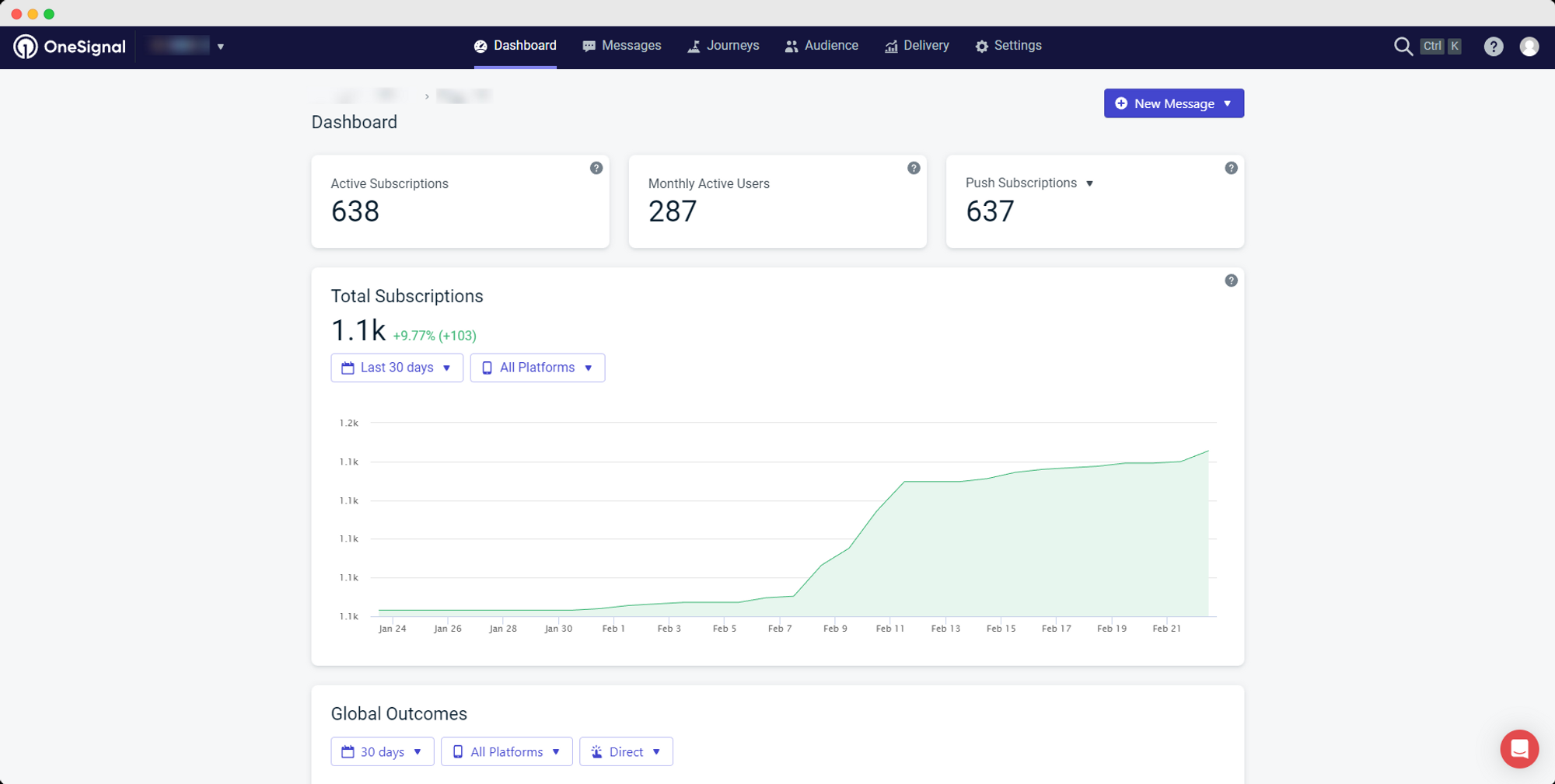
    OneSignal provides accurate information about how many users have subscribed to receive push notifications on your app, and how many of these users are active on a monthly basis.

    1 – Login to your OneSignal account

    Go to https://dashboard.onesignal.com/login and login to your account

    2 – Select your app

    After logging in, click on the app for which you want to see the usage information

    3 – Usage information

    Right after selecting your app, OneSignal will display general usage information about your app, as you can see below:

    Notion Image

    These are the metrics you want to be looking into:

    Monthly Active Users: an estimate of the number of users who have used your app in the last 30 days. Examples of activity include opening a notification, opening the app, and receiving tags from the app.

    Push Subscriptions: this number is the total count of active push subscriptions

  • Notifications | vendrux Docs

    Notifications | vendrux Docs

    If you would like app users to be able to select from which categories they will receive notifications for, notification tags are the solution you are looking for.

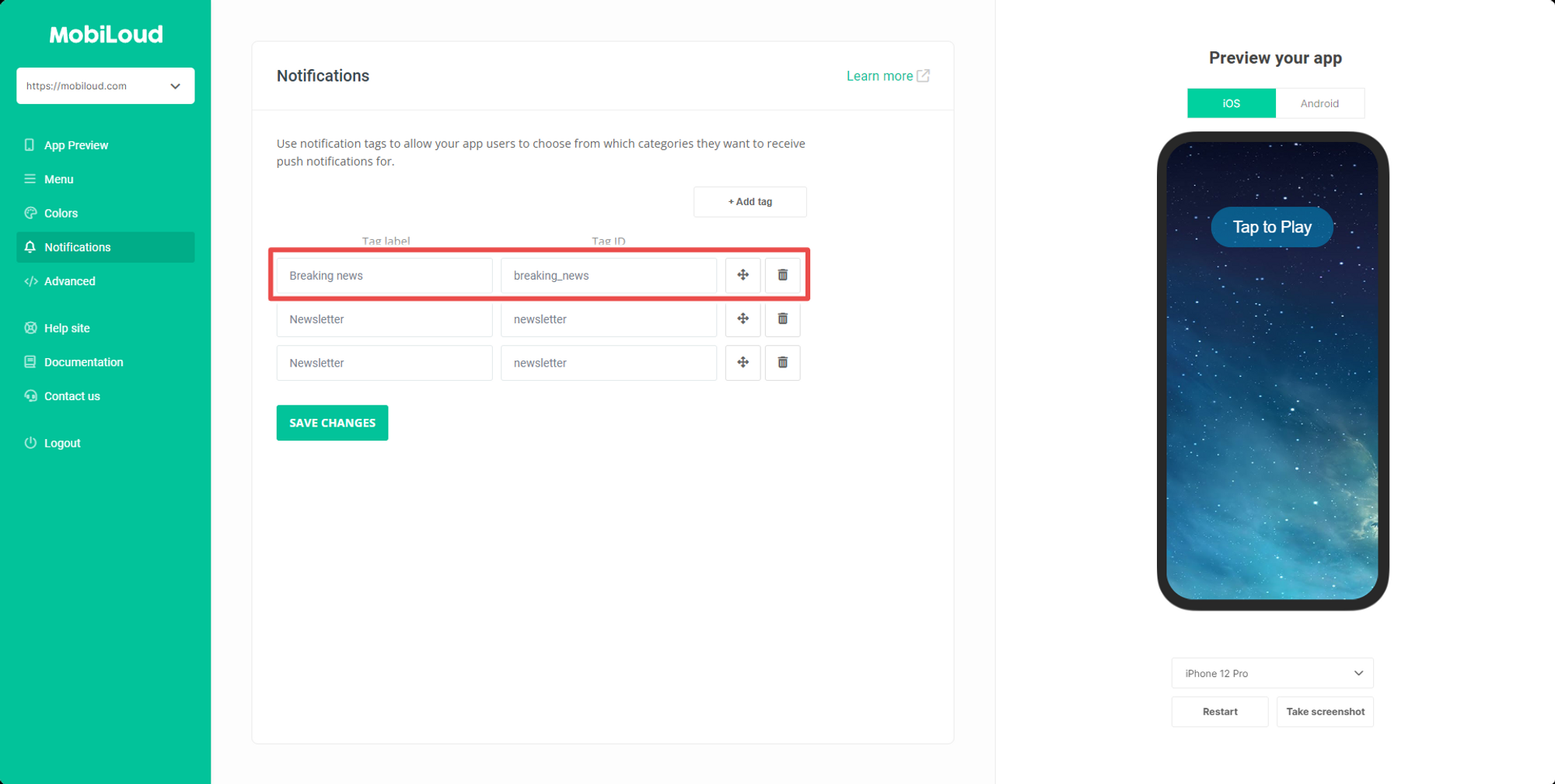
    In your Vendrux Dashboard, under “Notifications” you can manage and create notification tags. For each tag, you will be able to define a label and an ID. The label will be displayed to users and can contain any sort of special characters, while the ID will be used to match the tags that are added to your push notifications and should not contain any special characters.

    For the purpose of this guide let’s create a new tag for “Breaking News” push notifications, in this case, we would have something like this:

    When sending your notifications you will now need to include the “breaking_news” tag into your notification payload. Our plugin allows you to do that in a few different ways for manual and automatic notifications.

    Notion Image

    Manual Notifications

    When sending a manual notification from the plugin you will need to add your created tag into the “Manual notification tags” field, as you can see below:

    Automatic notifications

    For automatic notifications you have two settings that can be used to add tags to your notifications, see below:

    If you use category names as tags, notifications will include the “slug” of your categories as tags. In this example, you will need to have a category called “Breaking News” with a slug that looks exactly like the ID you created “breaking_news”

    You can also add specific tags to always be included in your notifications, you just need to make sure they match the tags you created in your Vendrux Dashboard.

  • Notification variables reference | vendrux Docs

    When configuring your notifications in the Vendrux – Notifications app you can use variables to improve your user targeted notifications.

    Here is a list of all the available variables:

    • {{id}}
    • {{email}}
    • {{name}}
    • {{order_number}}
    • {{shop.name}}
    • {{subtotal_price}}
    • {{total_price}}
    • {{financial_status}}
    • {{shipping_method.title}}
    • {{shipping_address}}
    • {{line_items}}
    • {{item_count}}
    • {{order_status_url}}
    • {{company.name}}
    • {{customer_order_url}}
    • {{shop.url}}

  • vendrux Documentation | vendrux Docs

    Welcome to our Vendrux documentation area, here you will learn more about how to trigger actions programmatically inside the app, and find guides and resources on how to take the most out of your app.

    This area is dedicated to developers and users with some familiarity with programming languages.

    If you are looking for a way to customize the design of your website inside the app, check out our “Custom CSS” guide.

    Otherwise, if you want to trigger specific actions inside the app start by looking into our guide about “Native functions”.

  • vendrux dashboard | vendrux Docs

    vendrux dashboard | vendrux Docs

    The Vendrux Dashboard is the configuration area for your app, it allows you to easily adjust the bottom navigation, login options, alerts, and many other elements.

    In this guide, we will go through the most used settings and how to modify them.

    Making changes to your app

    Before anything, it is important to understand that your app configuration is live, meaning that any changes you make will be instantly applied to your apps as soon as you save them.

    Once you modify the values of your settings, you just need to click the “Save changes” button and your changes will be applied.

    In order to be able to see the changes on the apps you will need close and reopen them.

    Menu

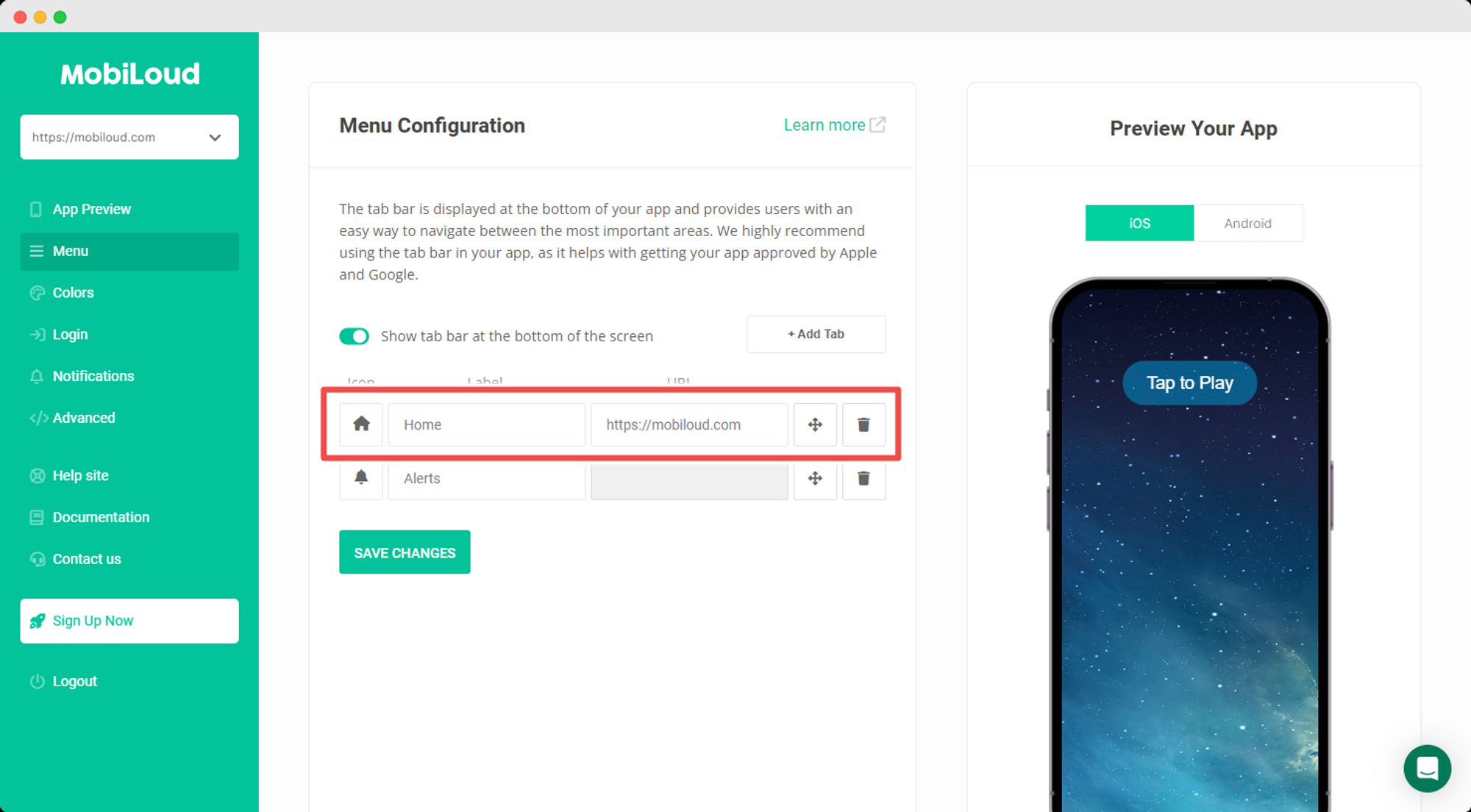
    In the menu area, you will be able to configure the menu displayed at the bottom of your app, which consists of a set of tabs, each with its own label and icon.

    Labels and links will be available as text inputs, see below:

    Notion Image

    You can easily drag and drop the tabs to re-order them:

    Notion Image

    We have a set of default icons that you can pick from:

    Notion Image

    If you prefer to use something different you can easily upload your own .png icon, making sure to follow these requirements:

    • The icon must have a transparent background
    • The icon must have the final color for the active and default states (the values from the app configuration will not be applied to custom icons)
    • The icon must have a maximum size of 250x250px
    • The icon must be in .png format

    Colors

    As the title suggests, here you will be able to configure the colors of different elements displayed throughout your app.

    The main elements you might want to adjust are the colors of tabs and loading spinners.

    Notion Image

    Notifications

    Under Notifications you will be able to create and manage the notification tags, which allow users to select from which topics they want to receive notifications from.

    We have a more detailed guide with more details on how the notification tags work here: How to use notification tags

    Notion Image

    Login

    If you want to require users to login before they can access the content of your app, this is the place where you will be able to configure that behavior.

    We highly recommend that you contact Vendrux fore more details on how to properly configure your app login.

    Notion Image