Category: Help Knowledge Base

  • Convert your Apple Developer Program from Individual to Organization

    If you’ve incorporated your business, then Apple will require you to register as a Corporation to have your app published on the App Store. If you submit your app under an Individual account in your name, it will be rejected.

    You must enroll as an organization if your company is a registered company such as Corporation (Corp., Inc.), Limited Liability Company (LLC, LC, Ltd. Co.), or a legal entity (GmbH, AG, KG, oHg, etc.).

    If you are a sole proprietorship you must register as an Individual. Apple does not accept DBAs, fictitious businesses, trade names, or branches for enrollment as a company/organizationBenefits of an Organization account:

    • You can invite developers to access your account
    • You can choose the name that will be displayed on the stores as the Developer of the app – this will match your company name e.g. Business Inc.
    • Apple will know you’re authorized to act for the company and will not challenge your use of your own brand name and content

    At Vendrux, our team of experts are here to hold your hand through every step of the app development and publishing process. Click here to learn more about how we can help.

    Convert your registration

    To change your account to a Corporate account, submit a request to Apple Developer Program Support.

    1. Navigate to the Contact Us form on Apple Developer’s Program pages.
    2. Log in with the Apple ID and Password
    3. Select your Region.
    4. Choose Account Updates and Renewals as your Subject.
    5. Enter a message with text along these lines

    “I’d like to convert my account from Individual to Organization. This will be our only Organization account. Here is the information regarding the company:

    – CEO/Director Name: First and Last Name.

    – Company Name: Your Company Name, including Ltd or Inc.

    – Account Type: Organization.

    – D-U-N-S Number: your Company’s DUNS number.

    – Address: Your Company’s Legal Address.

    – Phone Number: Your mobile phone or another phone number where you can be reached

    Apple will call to verify your enrollment. They’ll then send you an email with a link to a form for you to fill out more info about your Company.

    Organizations enrolling in the Apple Developer Program will need:

    Your business must be recognized as a legal entity (e.g., a corporation, limited partnership, limited liability company) to enter into the legal terms and obligations of Apple Developer Program. The legal entity name will appear as the developers for apps you distribute on the App Store. Example: Seller: ABC Company, Inc.

    You must have a D-U-N-S Number so that Apple can verify your organization’s identity and legal entity status. Learn more about what is a DUNS number and how you can get one for your company.

    You must have the legal authority to bind your organization to legal agreements. You must be the organization’s owner/founder, executive team member, senior project lead, or have legal authority granted to you by a senior employee.

    Your Company needs a public website and your domain name should be owned by the company.
  • How to configure the horizontal menu

    How to configure the horizontal menu

    The horizontal menu is displayed below the main header, where you can see your logo, hamburger menu and search icon.

    This menu will only work with categories, the idea is to give app users a quick way to navigate between the different categories of your app.

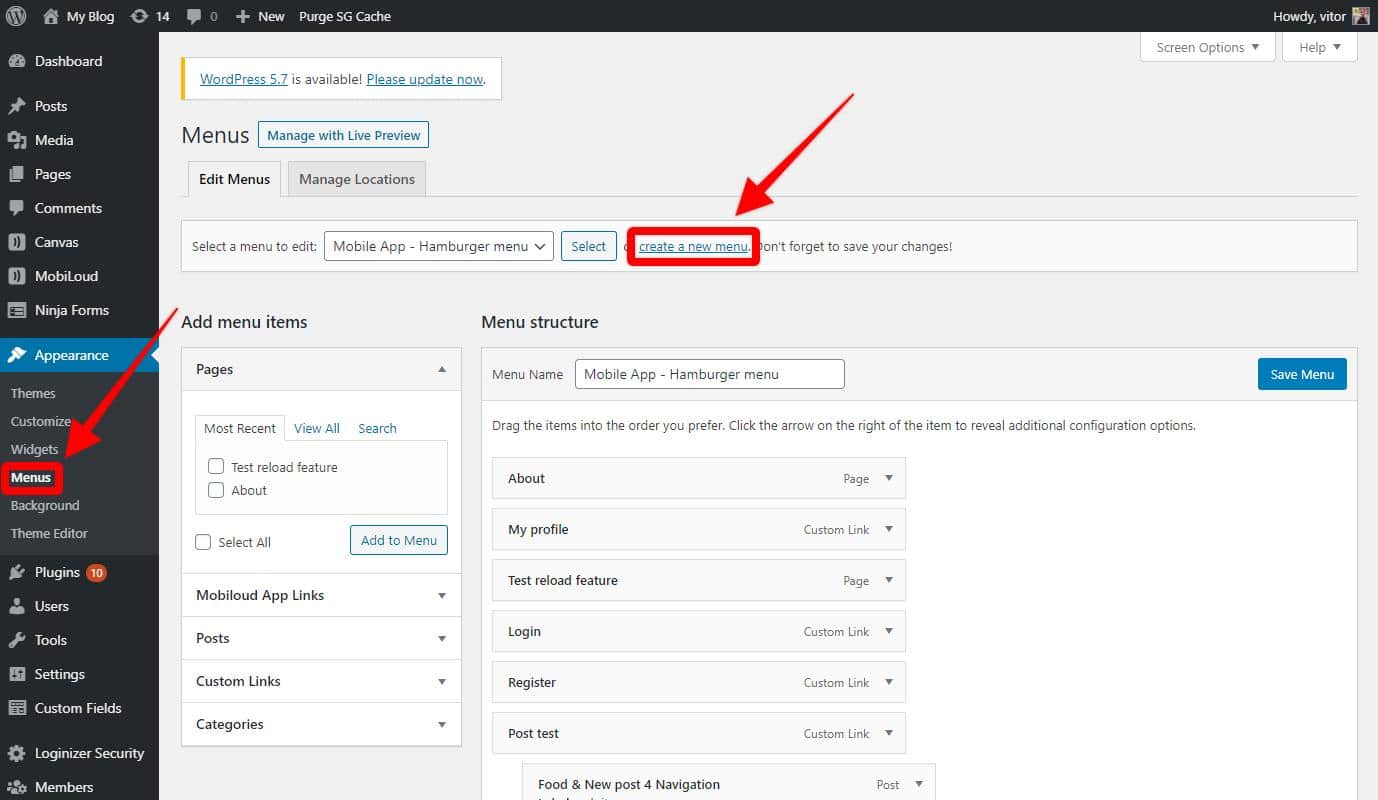
    Similarly to most menus in the Vendrux platform, you will need to create a WordPress menu and then assign it accordingly.

    So let’s get started with the configuration of your horizontal menu:

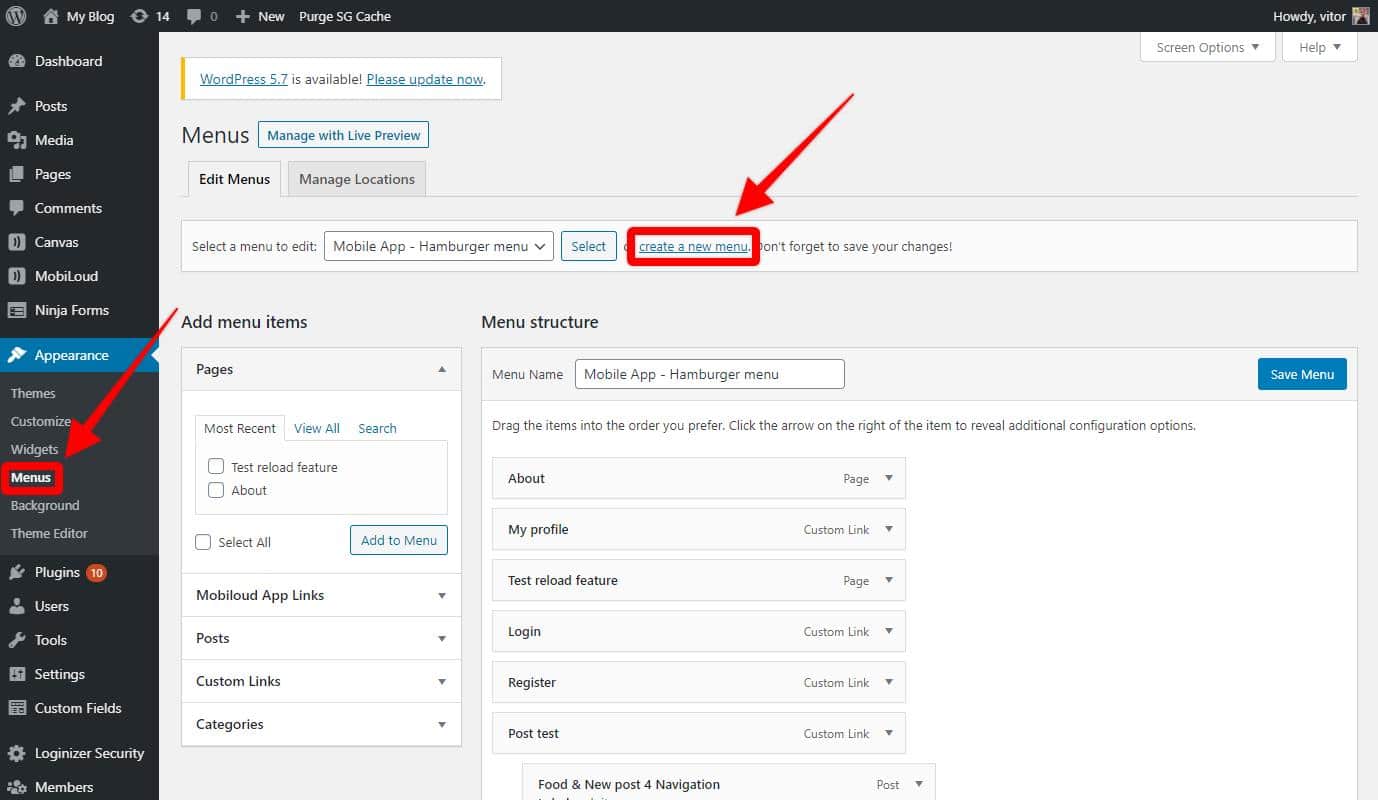
    1 – In your WordPress Dashboard, go to “Appearance > Menus” and click “create a new menu”.

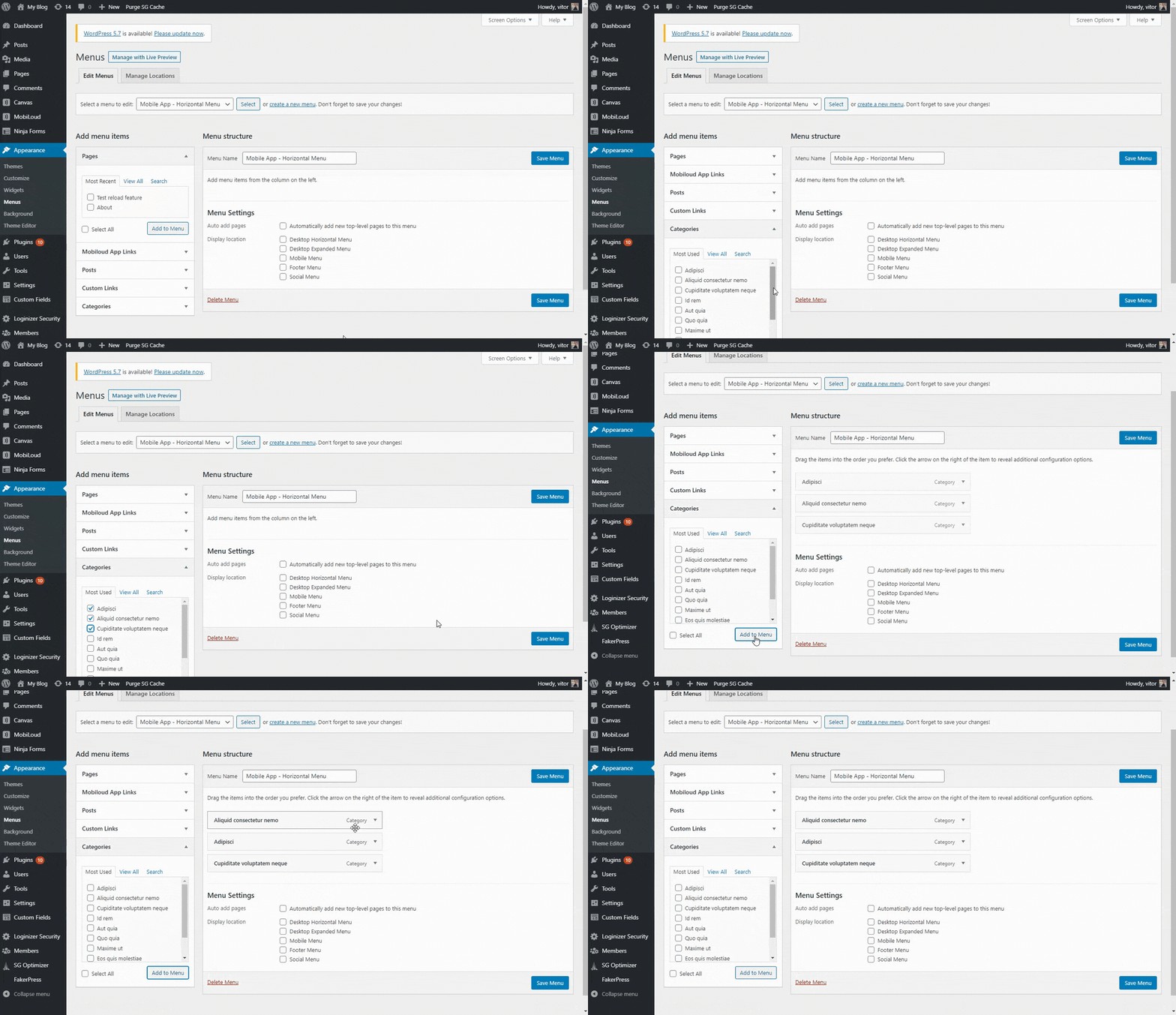
    2 – You can now drag and drop the different types of links into the newly created menu

    3 – Once you have organized the menu according to your requirements make sure to save it

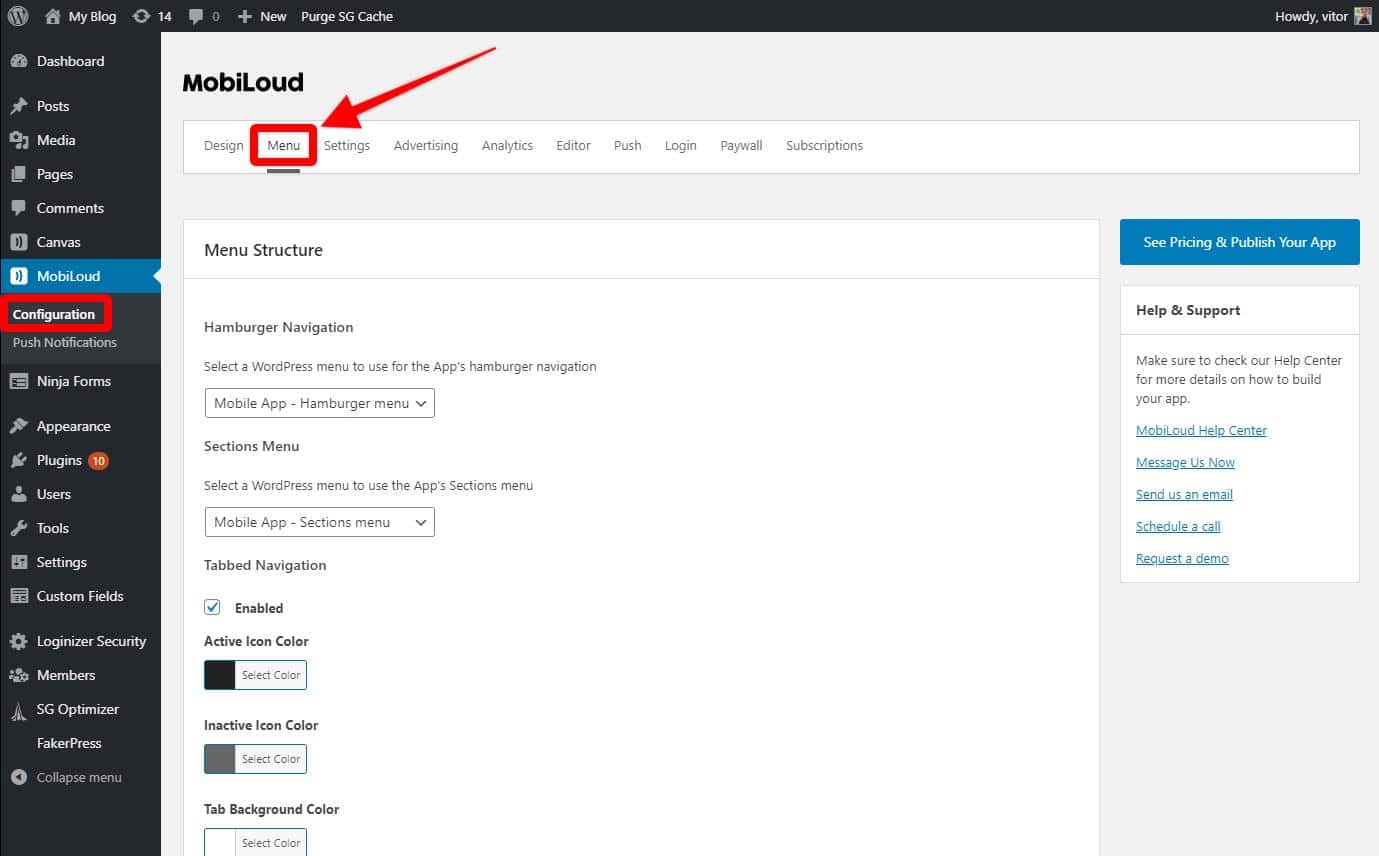
    4 – Now go to “Vendrux > Configuration” and access the “Menu” area

    With your menu created, you will want to assign it to the app, in case you have the tabbed menu disabled, or to a specific tab.

    Tabbed menu disabled

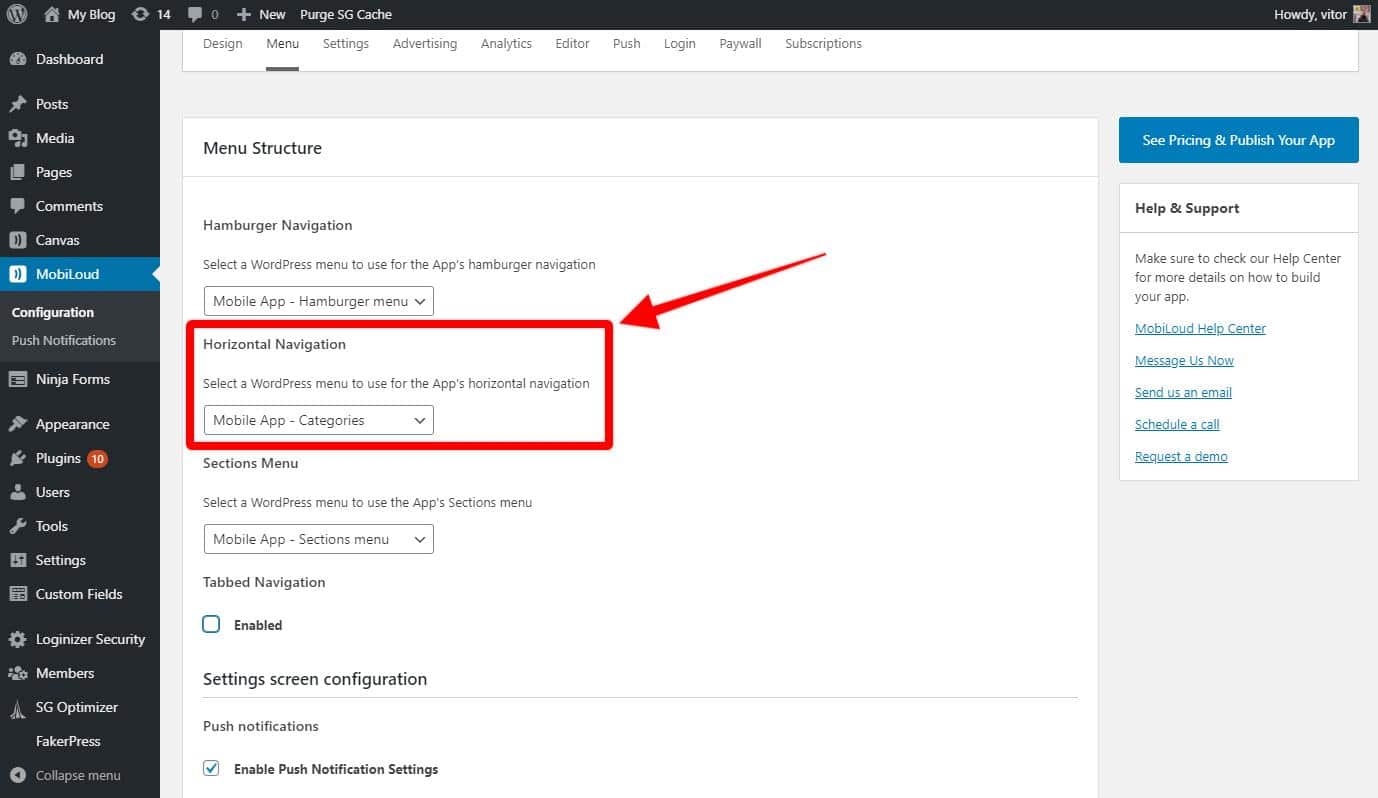
    If the tabbed menu is disabled in your app you will want to configure your horizontal menu in the following setting:

    Remember, this setting will only be displayed if the tabbed menu is disabled

    Tabbed menu enabled

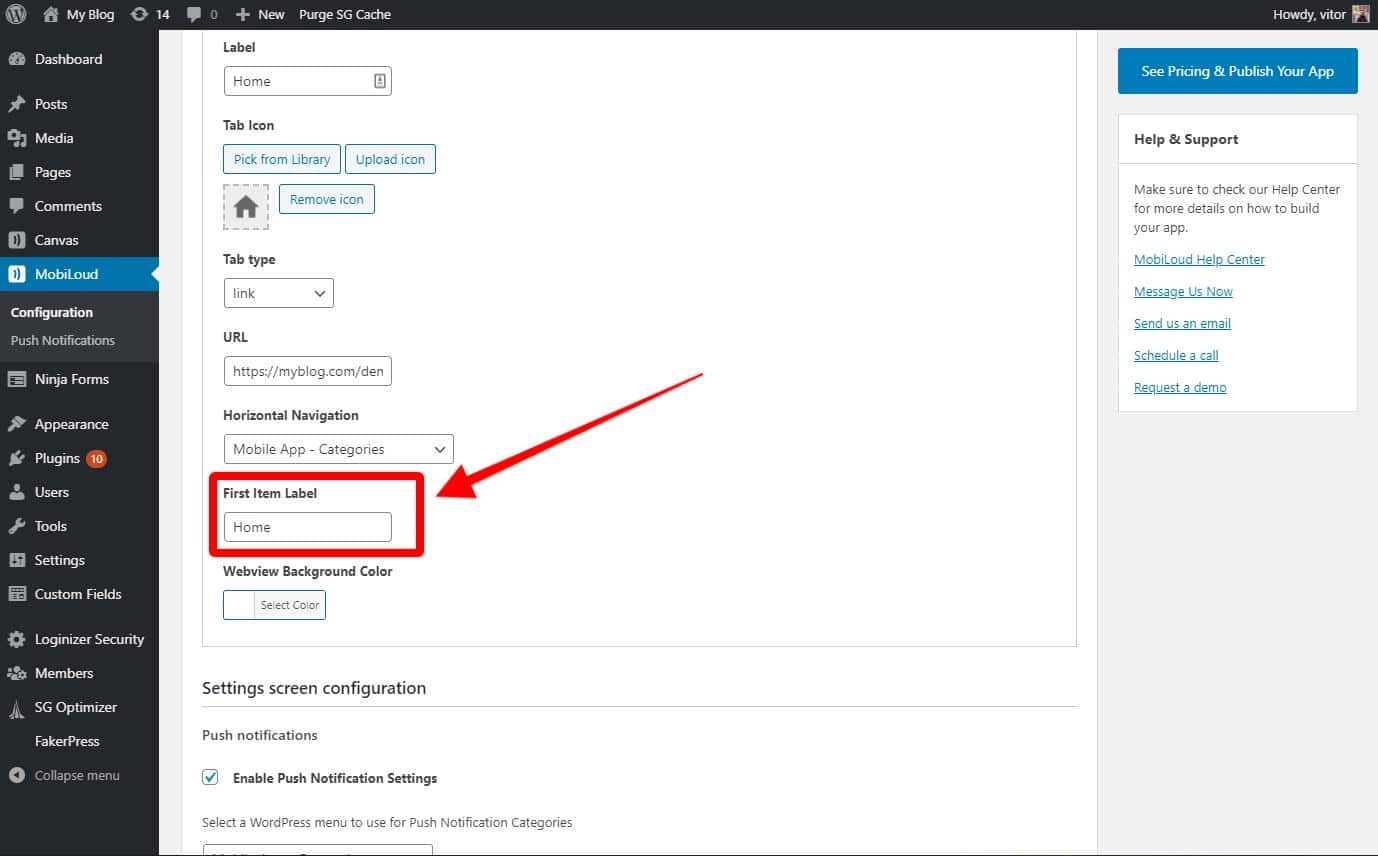
    If the tabbed menu is enabled, you will be able to configure the horizontal menu individually for each one of your tabs, as you can see below:

    You will also want to adjust the First Item Label accordingly:

    This is the text that will be displayed in the first item of your horizontal menu, in this case, the tab’s content.

  • Configuring ads on vendrux News

    Configuring ads on vendrux News

    One of the most popular monetization methods for apps is to display ads in the content.

    We offer a few different ways for you to include your ads, below you can find more details about each one of them.

    1. Google Admob
    2. Google DFP
    3. HTML + Javascript embeds

    Google AdMob

    With our Google AdMob integration, you will be able to display banner ads in a fixed position at the bottom of the screen on list and article screens as well as interstitial ads every time a certain amount of posts has been viewed by the user.

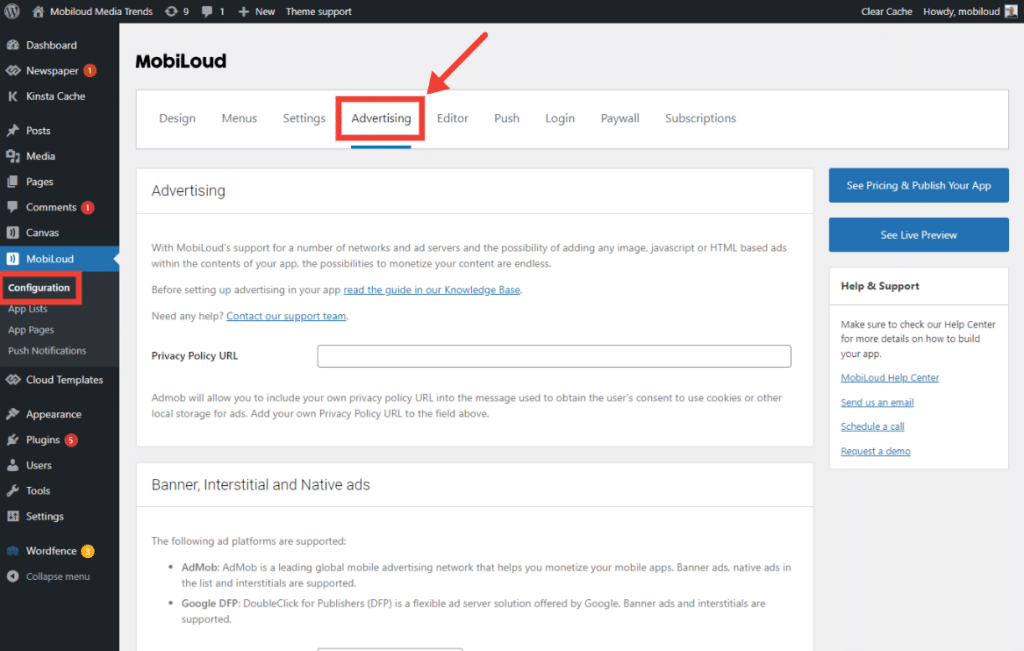
    You can find the Google AdMob settings under “Vendrux > Configuration > Advertising” as you can see here:

    Scroll down a bit and you will find the settings to insert your AdMob App ID and ad units.

    The AdMob App ID is required in order for the ads to work.

    Here is a guide with more details on how to find your AdMob App ID: https://support.google.com/admob/answer/7356431

    With your AdMob App ID in place, you can now add the ad unit IDs for the placements you want to display:

    Make sure to configure the ad units for iOS and Android:

  • Common questions on OneSignal and GDPR compliance

    Does a OneSignal paid plan ($99/month) automatically opt out a customer of data collection in the app – data sharing with third parties?Yes, OneSignal‘s paid plans do not share any data with 3rd parties.If we use a free plan from OneSignal does that mean that an EU company would not be compliant with GDPR?Generally there are 2 options in working with OneSignal:

    1. Stay on the free plan and ask users to opt-in to share their data with services you use (including OneSignal).
    2. Upgrade your OneSignal Plan

    The first option keeps OneSignal free, but puts the burden on you to make sure users opt-in. The second option shifts the onus to OneSignal. For additional guidance on any specific GDPR responsibilities, we recommend working with your legal counsel.OneSignal’s paid plans do provide a DPA and model clauses which help provide the necessary legal framework for the data processing on your behalf and for EU-US data transfer. They work with many enterprise businesses in the EU/UK and this has not been an issue as long as the DPA is in place.

  • How can I change the splash screen and icon?

    Your app’s icon and launch screen are integral part of the final app that will be submitted for you to Apple and Google Play.To provide your app icon and launch screen images you’ll use our submission form after purchasing your app or signing up for a plan.

    Icon files required

    For iOS, the required image resolution is 1024×1024. Your icon file should be squared i.e. not include any rounded borders. Apple will apply rounded corners to your icon for you. iOS icons cannot include any transparency.For Android, a second icon file is required at 512×512. You can include rounded corners and transparency.

    Launch image specifications

    For your splash screen (launch image) you will upload a 2208×2208 PNG where the logo or other important artwork is placed within the center 1000×1000 pixels or so. We’ll be cropping this image into the many different resolutions required for each different device and orientation, so we need your logo or artwork to be at the center, where no cropping will occur.

  • Can I require users to login to enter the app?

    Can I require users to login to enter the app?

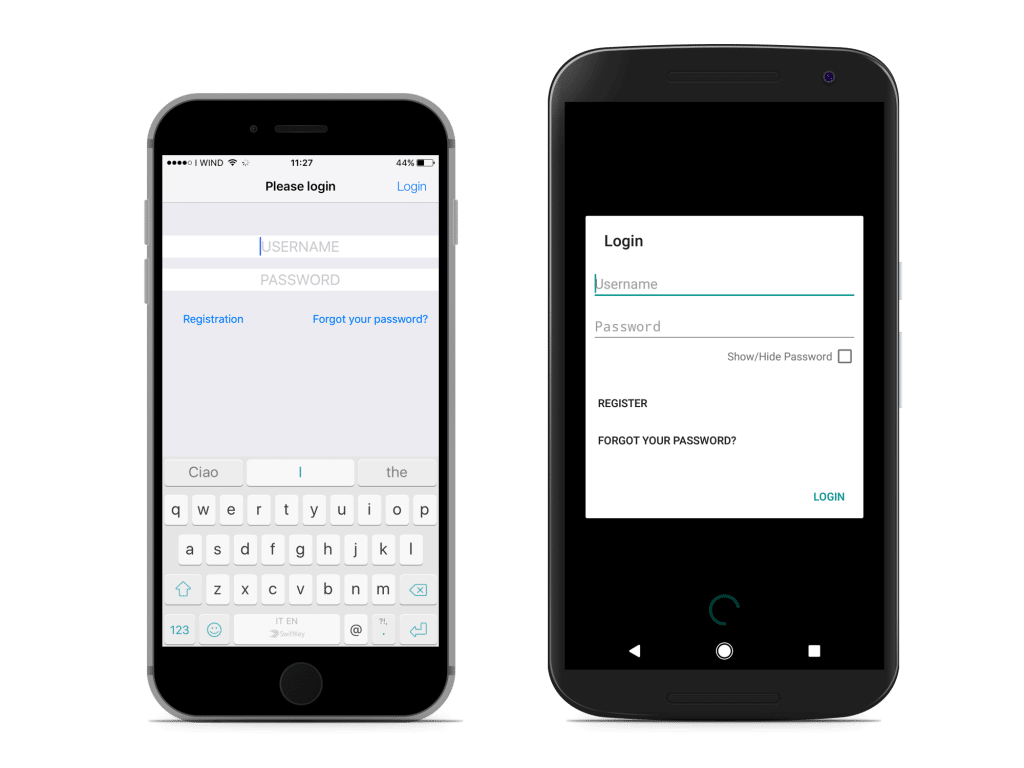
    Yes, you can require users to login before they can access your app and content. Here’s how the login screen will look like:

    What membership plugins are compatible with Vendrux?Most of the plugins work well with Vendrux. If there’s anything in particular you need help with, send us a message using the form below.WP Groups integrationAll you need to do is to install the WP Groups plugin and we’ll take care of setting up the login screen for you when building your app.With the Groups plugin, you can (but you don’t have to) define different access privileges for different user groups.When the app will loads, a login screen will ask the users to enter a username and password. Users will also have an option to visit your site to register or reset their password.Note the login functionality cannot be tested in the demo apps or online preview.

  • Can vendrux design my icon and splash screen?

    Yes, our designers can create a custom design for your app incorporating your brand guidelines, logo, colours and style.

    Pricing starts at $439 for a custom design package including icon and splash screen. A professional designer will work with you and deliver up to 3 revisions to have you completely satisfied with the outcome. If required we can also create “designed” splash screens, incorporating text, backgrounds and real-life scenarios to better promote your app on the stores.

    Just get in touch with us at support@vendrux.com and ask for a quote.

  • Can I Publish My App on My Own App Store or Google Play Accounts?

    Yes! Note Apple’s and Google’s fees are not included in our pricing. The Apple App Store charges a US$99 annual developer fee and Google Play charges a one-time fee of US$25.Apple Developer Programhttps://developer.apple.com/programs/ios/ ($99 a year)Google Play Developer registrationhttps://support.google.com/googleplay/android-developer/answer/113468?hl=en ($25 one-time fee)Will you publish the apps for me?Yes, Vendrux can take care of the submission process for you.Can I publish the apps on my own using the binaries?Yes, we can send you binaries for your app and have you publish it, if you know what you’re doing. Just request so when completing Vendrux’s submission form.You will still need to provide us with your Apple’s account credentials or add us as an Admin team member to your team (for Organisation accounts only). This is because we’ll need your account to sign the app for publishing.

  • Showing videos in your News app

    Showing videos in your News app

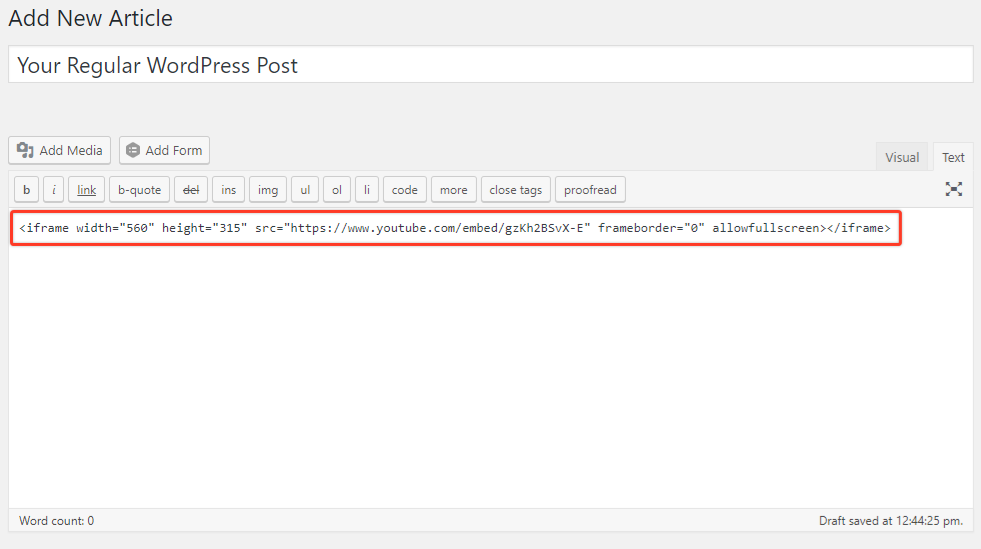
    Yes, you can definitely have video players working in your app. Chances are your videos are currently added to your content in one of these two ways:1) Videos added directly into your content If you manually add videos to your posts or pages using embed codes from sites like Youtube or Vimeo, then these will be available in your app out of the box. If you’re using a plugin that allows you to add videos using shortcodes, these will be interpreted by Vendrux and shown in your app. No work on your end will be required.

    2) Videos added using custom fields or through a theme If you add your videos by copy-pasting a URL in a special section of your post “Edit” screen, created by your theme, or in a custom field that your template then reads and presents on your website, then some work will be required to get the videos to show in your app.No worries, nothing complicated if you have some experience coding a WordPress template. You’ll just need some PHP code to read the contents of your custom fields and add the appropriate embed code to your article screen. You can add this code to your app using our editor.

    From the “Settings” / “Editor” page in the plugin, choose an appropriate location for your videos (generally “PHP above the contents” works well), then add the code required to pull the video ID from the custom field used by your template (you can generally find this by inspecting your theme’s code for single pages, at single.php within your template folder) and embed the video with the appropriate player (Youtube, Vimeo, etc.).

  • Can I change the icon and splash screen of my app?

    Yes, it is important to keep in mind that in order to change the graphics used in your app, our team needs to rebuild and resubmit them to the stores. For that reason, you are limited to one free rebuild to change the graphics per month, if for some reason you decide to update the graphics more than once in the same month, there will be a small fee to cover the work.