Yes, Canvas will work perfectly with WooCommerce as long as your theme is optimized for mobile devices. Having optimized pages for the shopping cart, my account and payment sections is very important as they will not only improve the overall user experience but also increase the chances of having your app approved by Apple and Google.
Can I sell anything in my app?
You can sell physical products in your app, using your preferred payment method, like PayPal.Selling digital content is not allowed in the Apple App Store unless you used Apple’s own in-app purchase system, which we do not support. So it might be a problem to sell downloads/content in the app.
The short answer to this question is yes, Canvas works with BuddyPress, but since the app relies on your website’s mobile design you will need to make sure your theme supports all the available BuddyPress features on mobile devices.
Getting your iOS social app approved by Apple
If you decide to submit your social app to the App Store you will need to make a few adjustments to your website to make sure it complies with Apple’s policies for apps that contain user-generated content:
Require that users agree to terms (EULA) and these terms must make it clear that there is no tolerance for objectionable content or abusive users
A method for filtering objectionable content
A mechanism for users to flag objectionable content
A mechanism for users to block abusive users
The developer must act on objectionable content reports within 24 hours by removing the content and the user who provided the offending content
Push Notifications
BuddyPress notifications (friend requests, messages, posts) will soon integrate with the app’s push notifications. This is a feature that is under development and will be implemented in the near future.
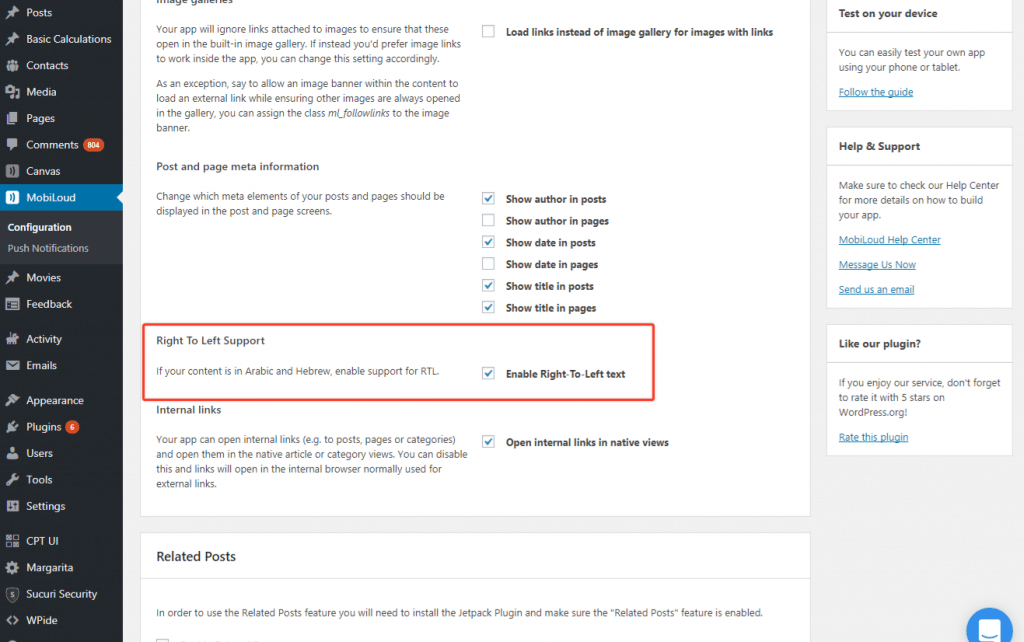
Yes, the app offers full support for RTL languages, you just need to make sure that the following setting is enabled under the Vendrux News plugin, as in the image below:
The app will then be displayed in RTL mode on devices that are using Hebrew or Arabic as the system language.
Can I use a different font?
You can customize the article content including the font used in our Custom CSS tool, located under the “Editor” section of the Vendrux News plugin. The font used in the article list, cannot be modified.
The app is not RTL in my preview, why?
Since the preview tool uses a virtual device to generate your app, we don’t have control over the device’s selected language, which must be in Hebrew or Arabic in order for the RTL feature to work as expected. Your final app, though, can be configured to work in RTL for all languages, just make sure to request that in your submission form.
The Vendrux News plugin will allow you to customize some aspects of your app directly from your WordPress Dashboard.
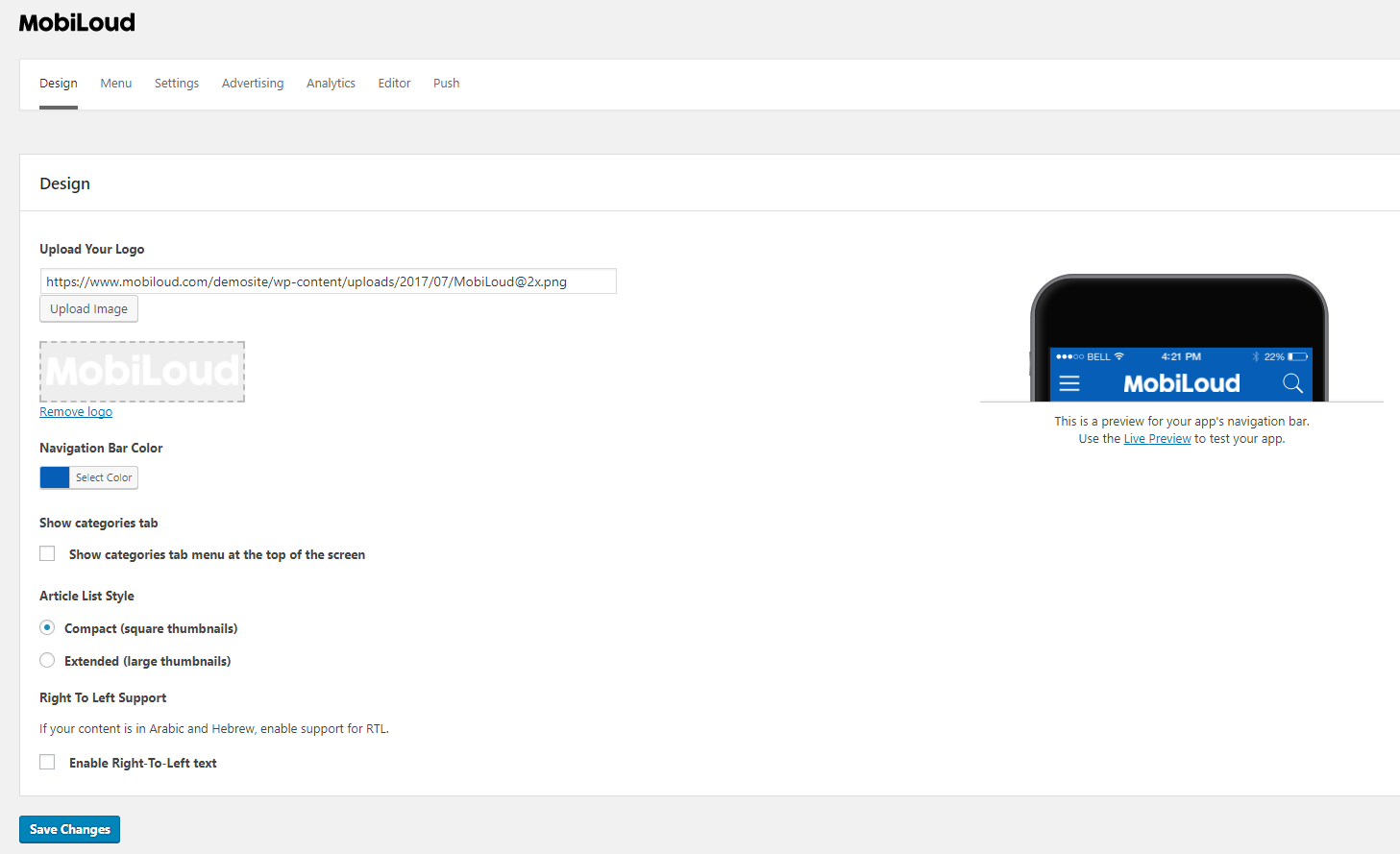
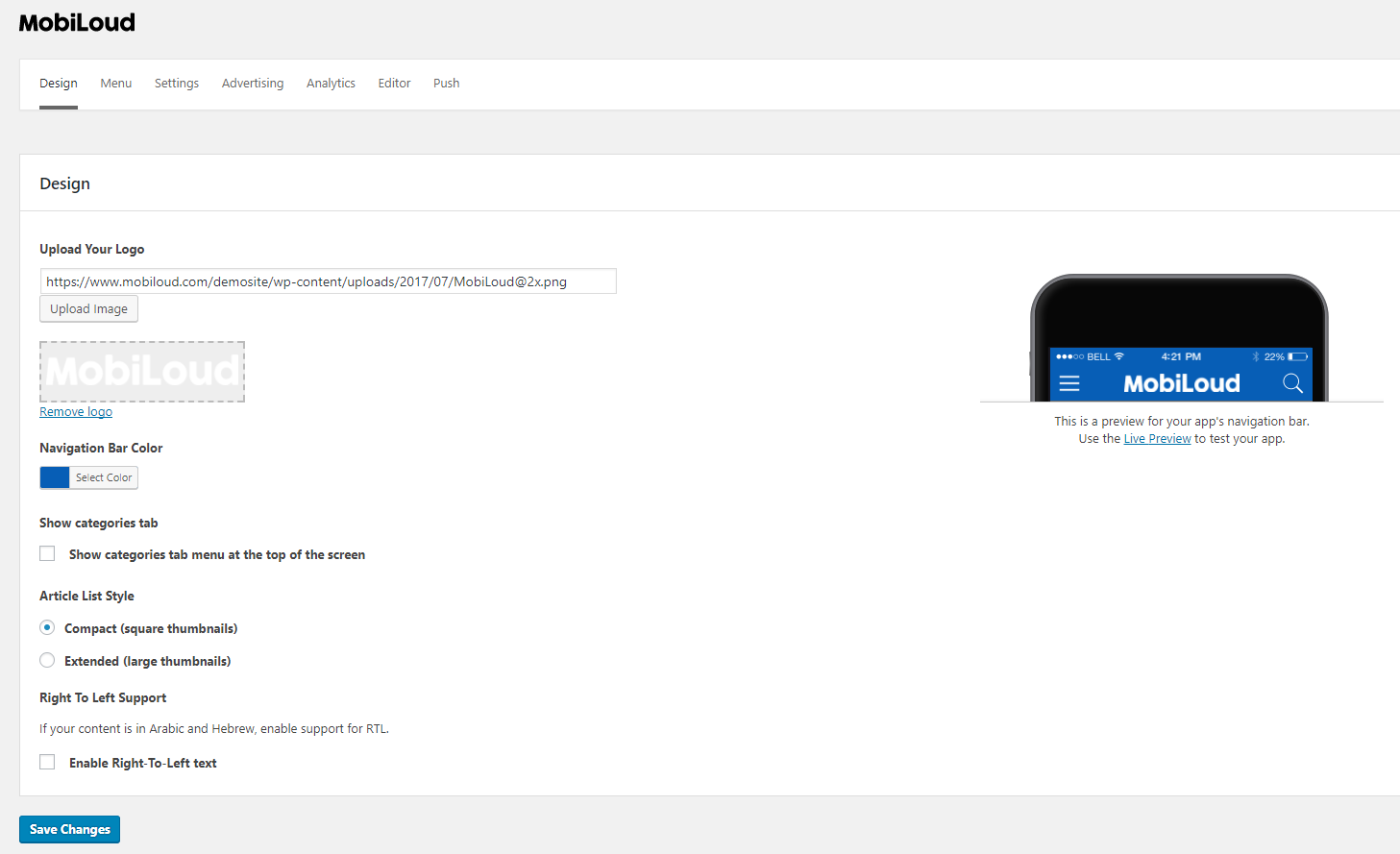
Under “Vendrux News > Configuration > Design” you will find settings for the following:
Logo
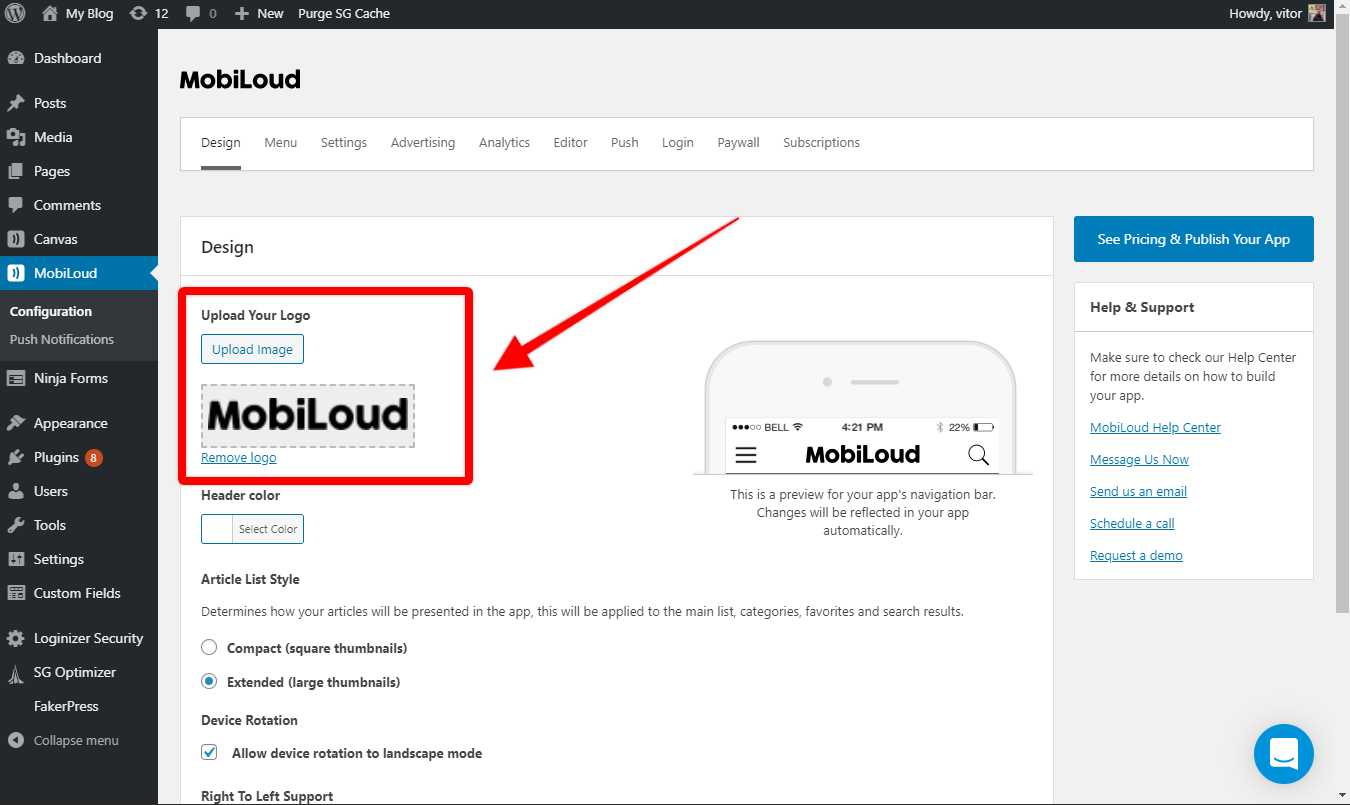
The logo is displayed in the app’s header and can be uploaded on the following area:
The logo must be in .PNG format with a transparent background.
Header Color
The header color will dictate the colors of your app, keep in mind that the header is displayed in all screens of your app, so it is important to select a color that matches your logo and branding. You can define the header color using the following setting:
Article List Style
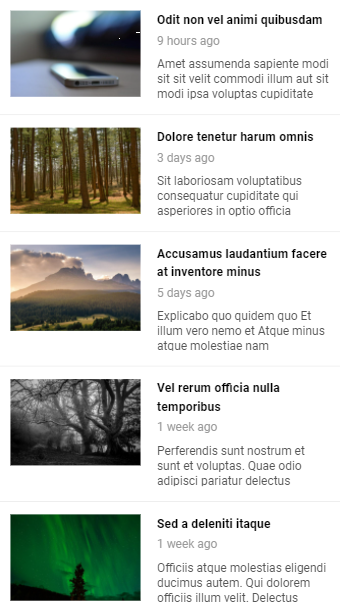
You can choose between a compact and extended style for the lists, keep in mind that the selected style will be applied to all the different lists in your app, such as: home screen, categories, authors, search results, favorites.
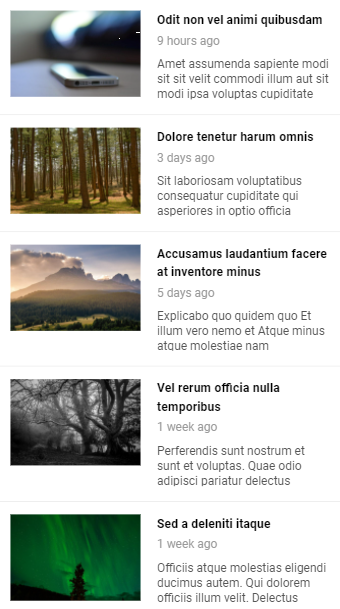
Below you can see how each style will look like by default:
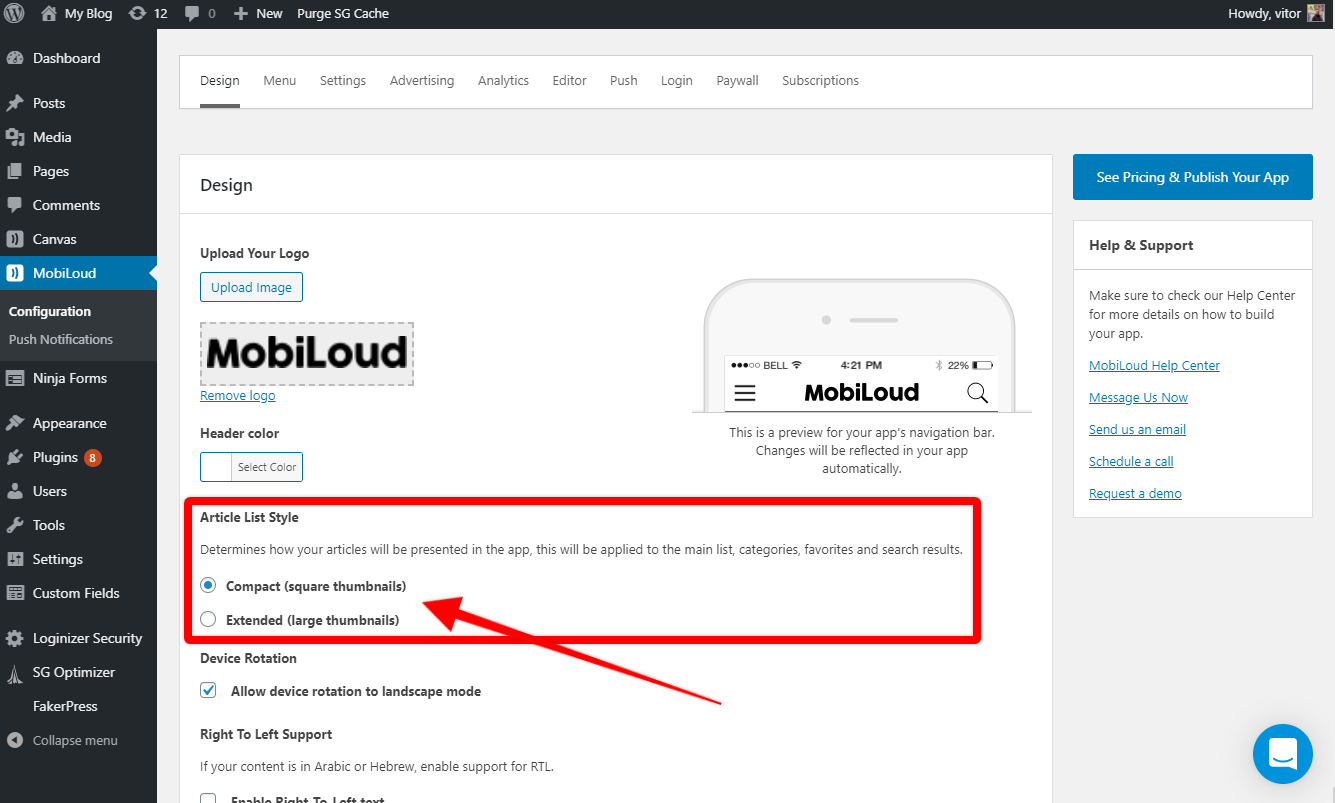
The list style can be adjusted using the following setting:
The Vendrux News plugin will allow you to customize some aspects of your app directly from your WordPress Dashboard.
Under “Vendrux News > Configuration > Design” you will find settings for the following:
Logo
The logo is displayed in the app’s header and can be uploaded on the following area:
The logo must be in .PNG format with a transparent background.
Header Color
The header color will dictate the colors of your app, keep in mind that the header is displayed in all screens of your app, so it is important to select a color that matches your logo and branding. You can define the header color using the following setting:
Article List Style
You can choose between a compact and extended style for the lists, keep in mind that the selected style will be applied to all the different lists in your app, such as: home screen, categories, authors, search results, favorites.
Below you can see how each style will look like by default:
The list style can be adjusted using the following setting:
Click on the Store Presence menu, and click the “Pricing and Distribution” item.
Click Unpublish
Now that you’re done with that… if you’d like to build a fast, native mobile app for your content site, check out Vendrux and if you think we could help, get in touch at support@vendrux.com or request a demo.We focus on native apps for content sites, news sites but also information-rich sites, directories, corporate websites. Our service is full featured and includes a customized app, push notifications, maintenance and ongoing updates.
The home screen is, as the name suggests, the first screen that users will see in your app. For that reason it is important to make sure your articles are displayed with all the details your users will look for when choosing a post to read.
Below you will find a list of all the settings that will affect the design and structure of your app’s home screen and how to use them.
Article List Style
You can choose between a compact and extended style for the lists, keep in mind that the selected style will be applied to all the different lists in your app, such as: home screen, categories, authors, search results, favorites.
Below you can see how each style will look like by default:
The list style can be adjusted using the following setting under the “Design” area of the Vendrux News Plugin:
Date Display Options
Under “Configuration > Settings” you will find a long list of settings, the “Date Display Options” will allow you to determine how the post date should be presented in the lists.
You can display the dates using what we call pretty dates (e.g. “2 hours ago”, “1 day ago”), or you can set a custom date format.
The list preferences will allow you to show or hide several details in your article lists, such as:
Post date
Excerpt
Comment count
Category
Author
Image proportions
Whenever you make changes to these settings, make sure to clear your server/website cache and then close and re-open the app to see the changes taking place.
Here you can see the settings:
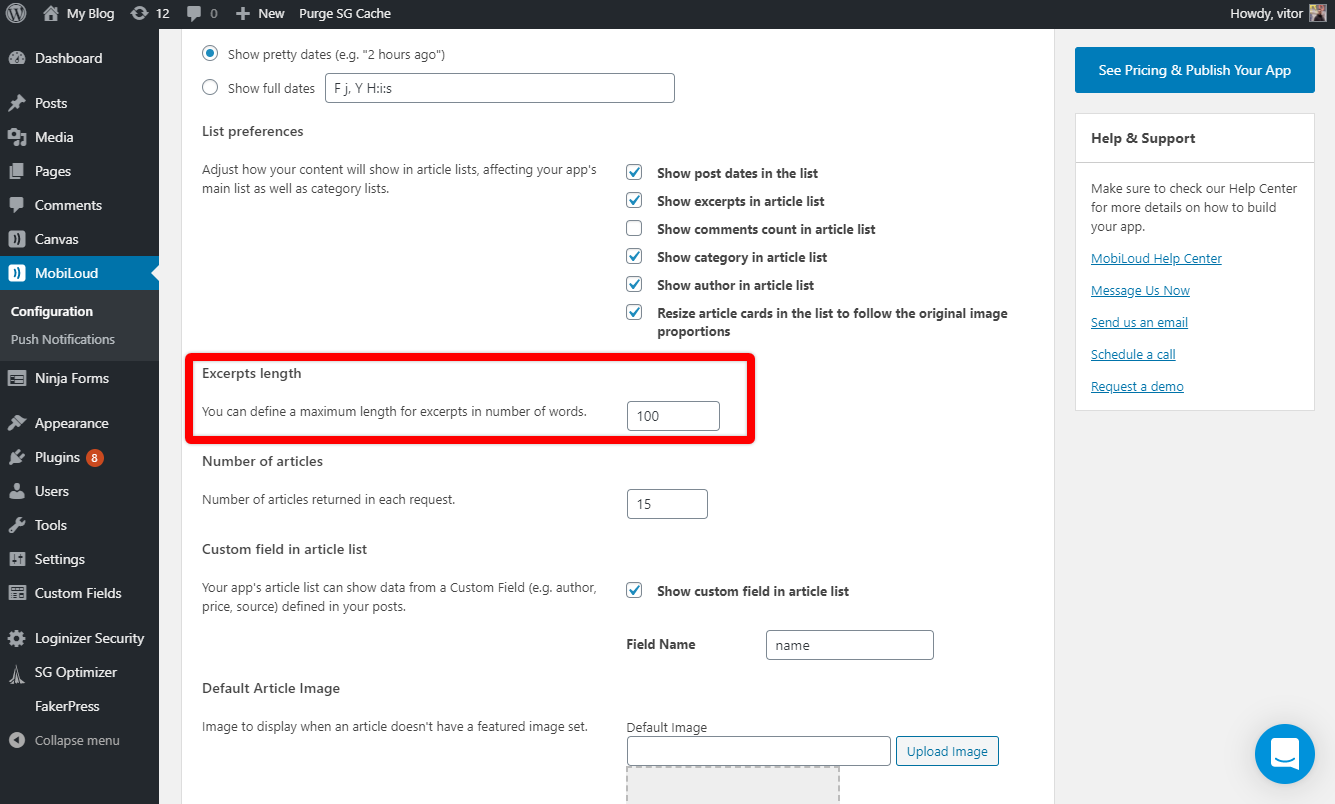
Excerpt Length
The excerpt length will determine how many words are displayed in the excerpt when that element is enabled in your lists, we’d recommend using something around 15 and 20.
Number of Articles
The number of articles that are displayed in your lists when they are loaded is an important aspect of the app, the more articles you decide to load, the longer the lists will take to load. Keep in mind that every time the user scrolls down, the same number of articles will be loaded when the user reaches the end of the initial list.
Default Article Image
The default article image will be displayed in your lists whenever you don’t have a featured image set for your posts. We’d recommend using a simple image, that matches your branding design.
The suggested image size is 560px in width x 400px in height.
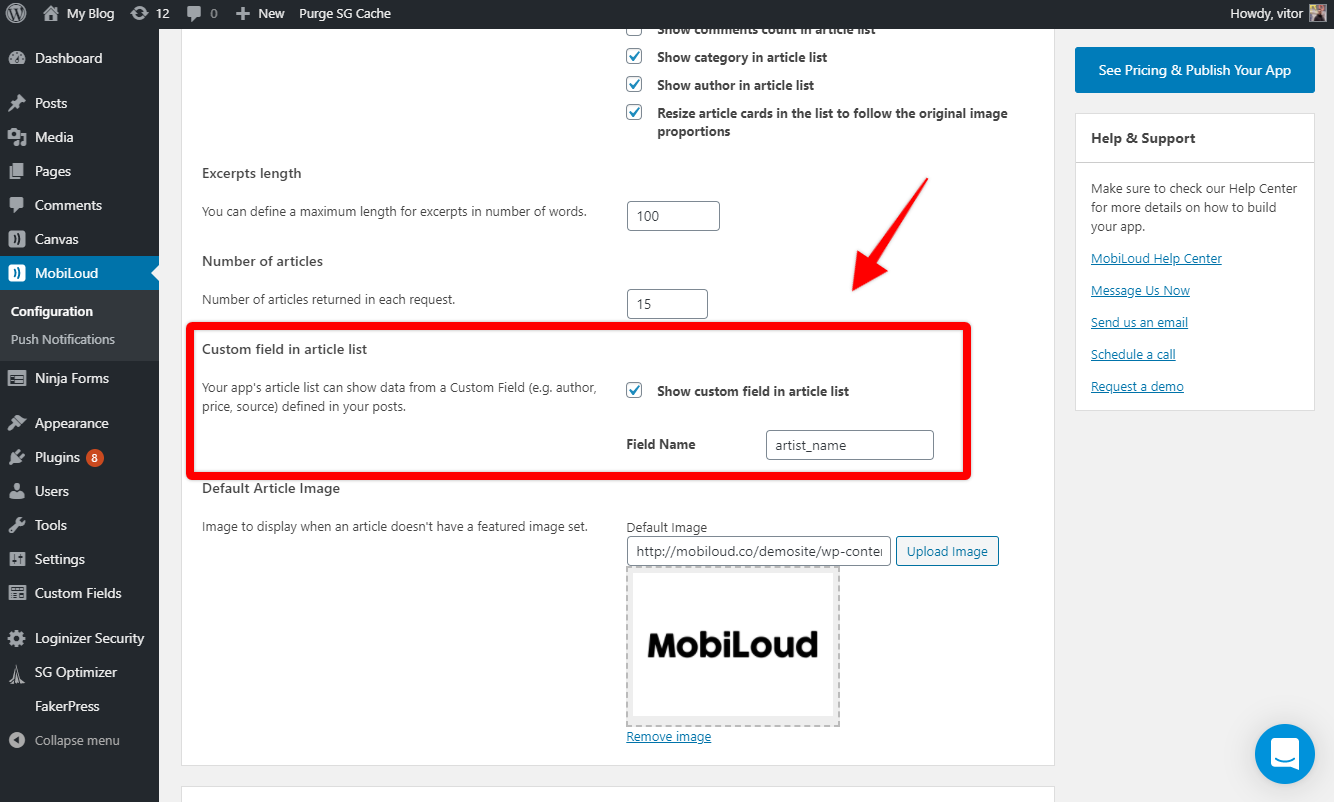
Custom field in article list
The “Custom Field in Article List” setting will allow you to display a custom field in the list of articles, for each post.
In order for the custom field to be displayed you will need to add its
This feature will be useful in case you have a unique setup on your website, where you use a custom field to store specific information about your posts.
Customising your app’s logo, color, menu and content
Once installed, you will be able to find the Vendrux plugin in your sidebar.
1. Add your branding
Under this tab, you will be able to upload your app’s logo, change the navigation bar color, and choose what to show on your app’s home screen.You can also see a quick preview of the app design. To test your app, load your app from the stores and see changes taking place immediately.
2. Configure the Menu
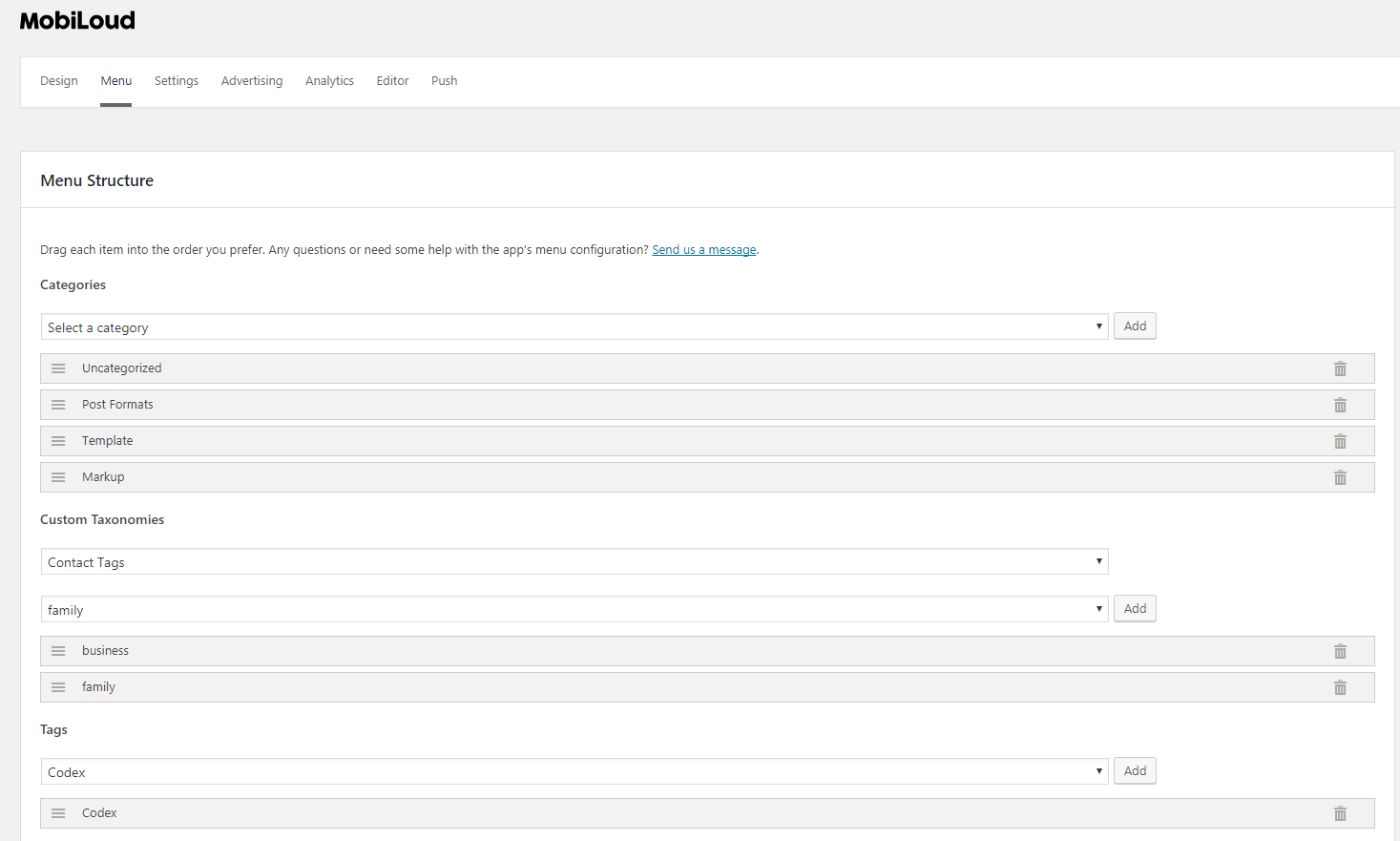
On the Menu Tab, you will be able to customize your Menu structure, adding pages, categories, custom taxonomies and any URL you’d like to load in the app.You can change all menus in the app, the hamburger menu, tab menu and even a “Sections” menu if your app is using one.
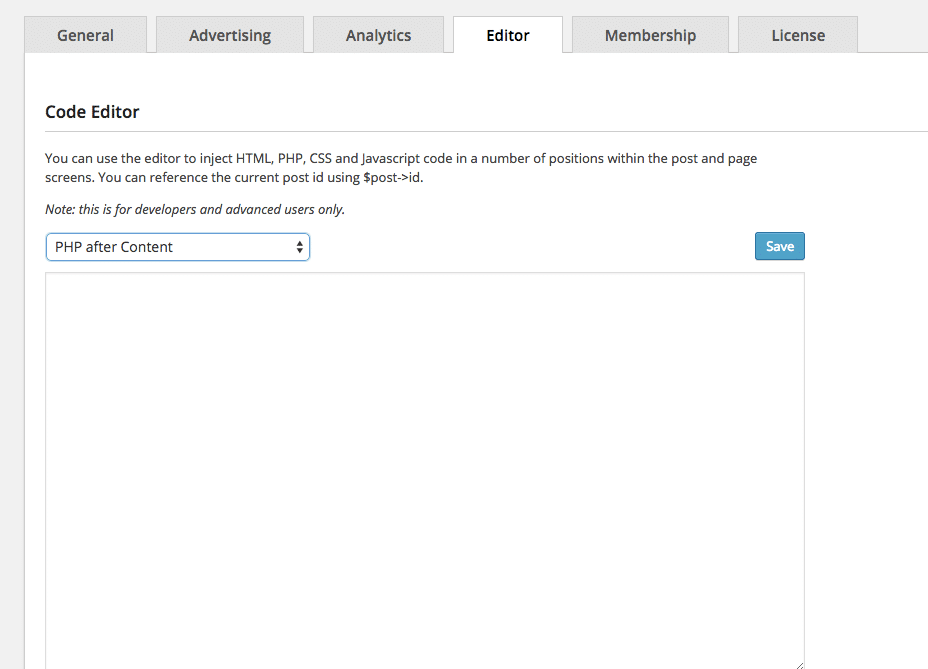
https://www.youtube.com/watch?v=igf_VzuCqdI With Vendrux you have the ability to add any custom code to your app’s post/page layout. Just click on Vendrux in your WordPress admin dashboard, select Settings and then click on the Editor tab. You’ll see something like this:
Using the Editor, select a “PHP” position within the article screen, like “PHP after Content”. This allows you to add any PHP code and have the result shown below the main article or page contents. Note for “PHP” spaces, you should enter PHP code directly, without the ID, ‘fieldname’, true). Say for example you want to include the value for a book title you’ve reviewed and include the “Title:” text before the value, while checking if the value is actually present for the current post, you’d use this code:
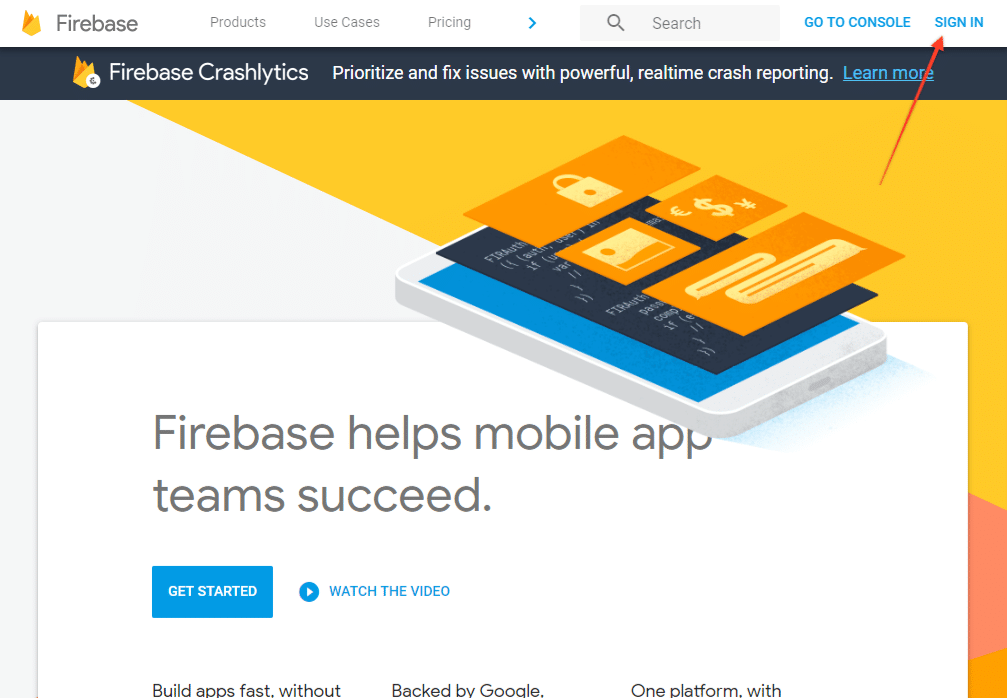
Google’s Firebase is an app development platform that gives you control over several parts of your app, with it you will be able to track analytics data, crashes, user behavior, ads and much more.Just like other Google services, in order to have a Firebase account, you will need to sign-in with your own Google Account login details here: https://firebase.google.com/