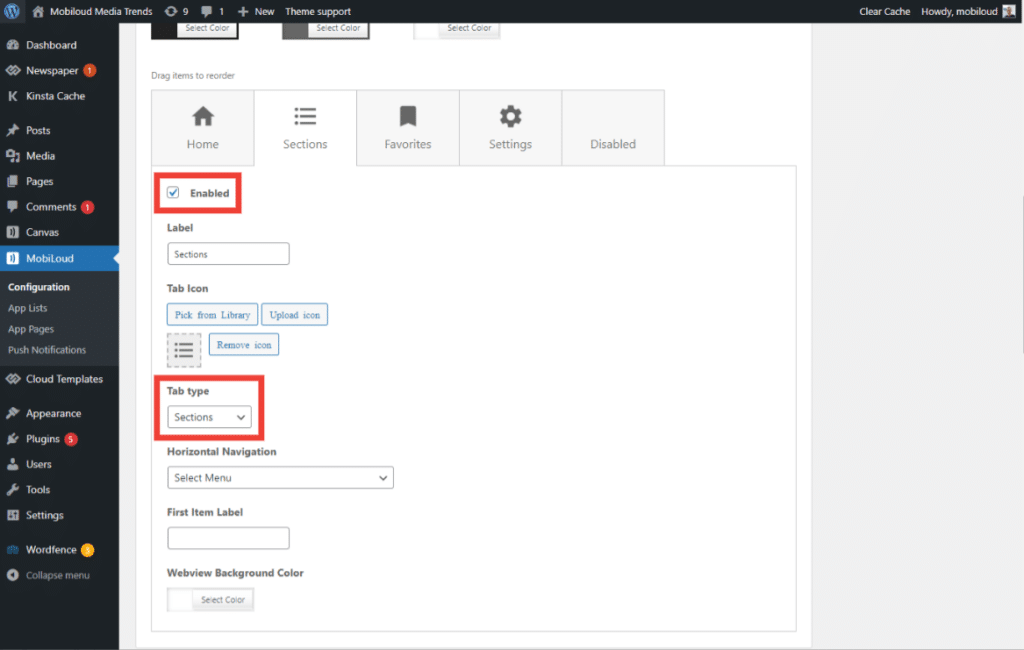
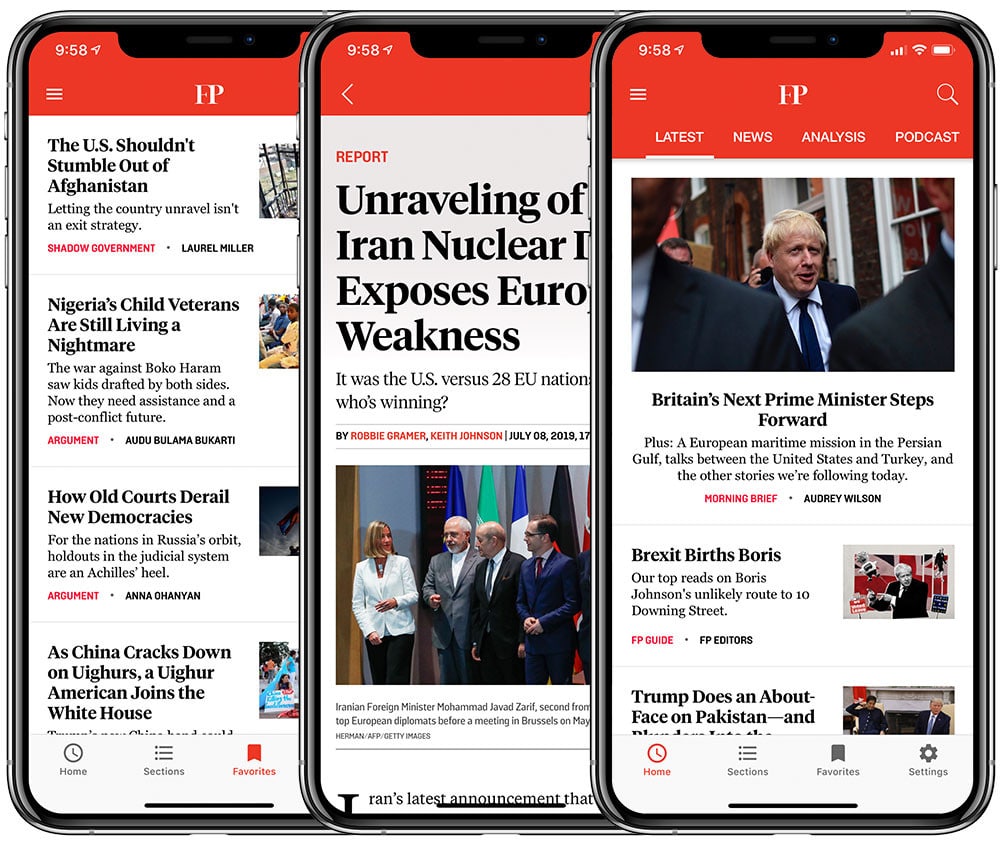
The hamburger menu is displayed on the top left corner of the app, and allows app users to quickly access different areas of the app, from categories and pages to the favorites and settings.
In this guide you will learn how to customize the links that are displayed in the hamburger menu, step-by-step. You will also find more details about the different opening methods that are available in the Vendrux News platform.
Vendrux News uses the default WordPress Menu system for the most part of the navigation elements of the app, so the first step will be to create a new WordPress Menu to be assigned to the App’s Hamburger Menu.
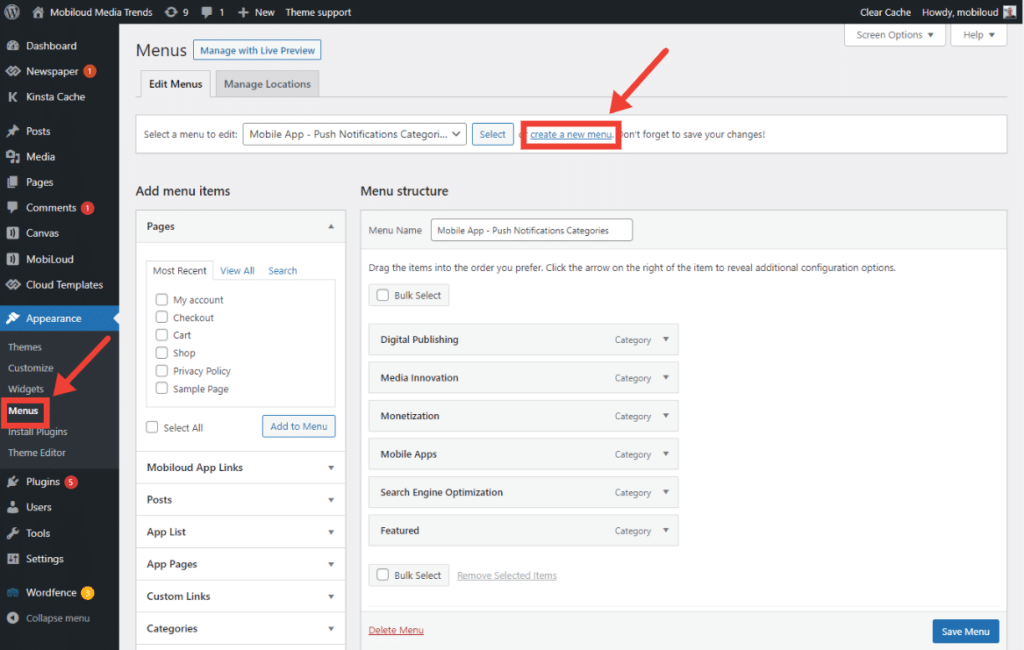
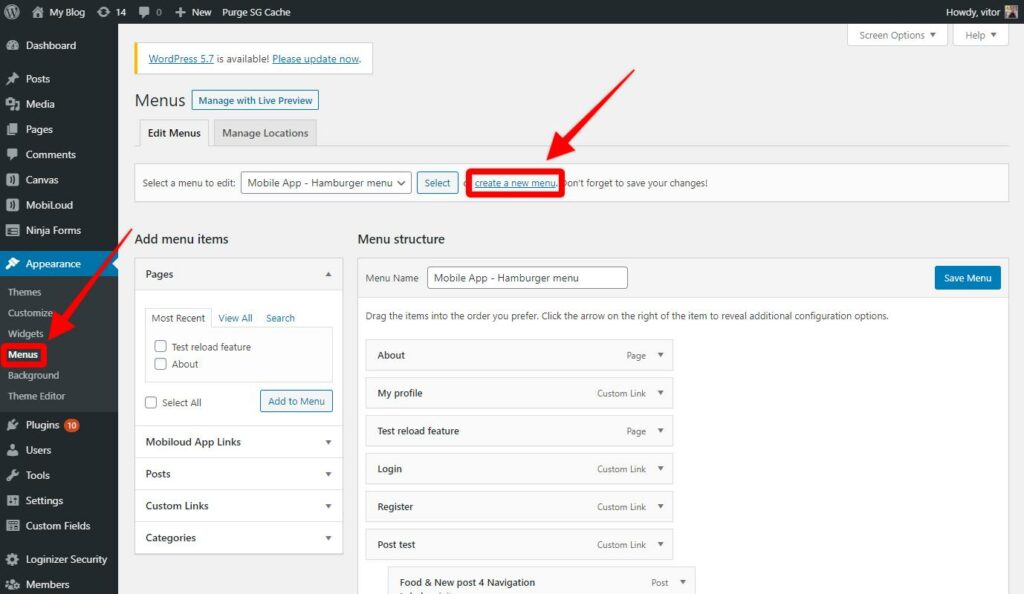
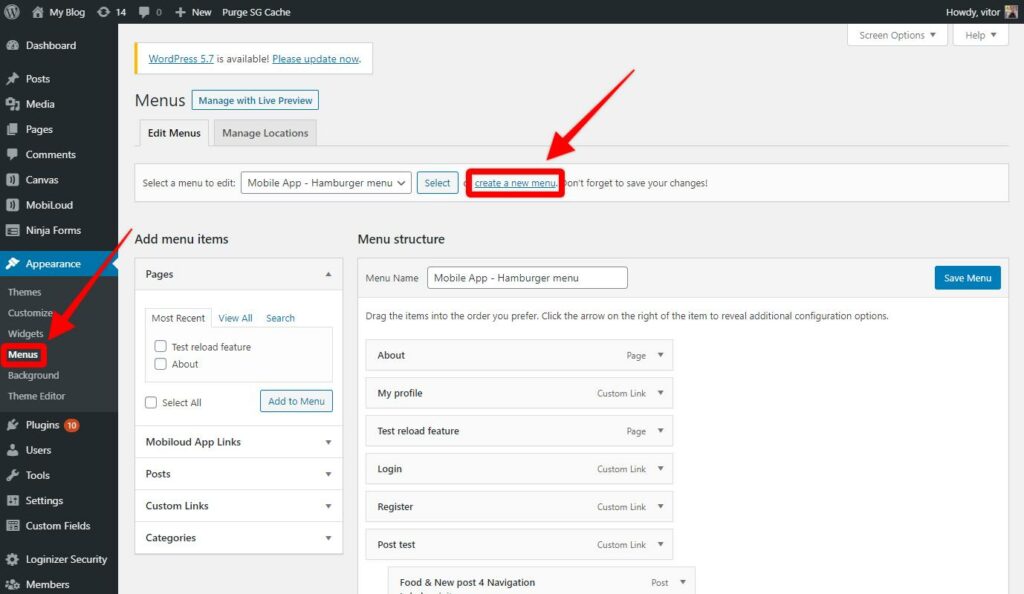
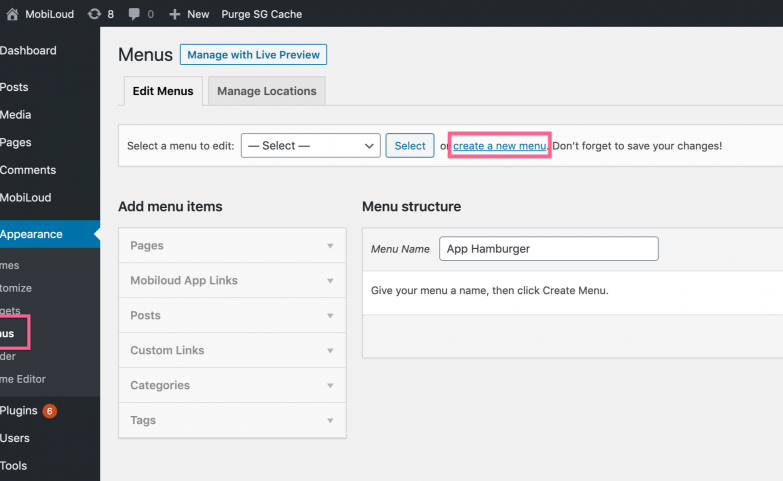
1 – In your WordPress Dashboard, go to “Appearance > Menus” and click “create a new menu”.
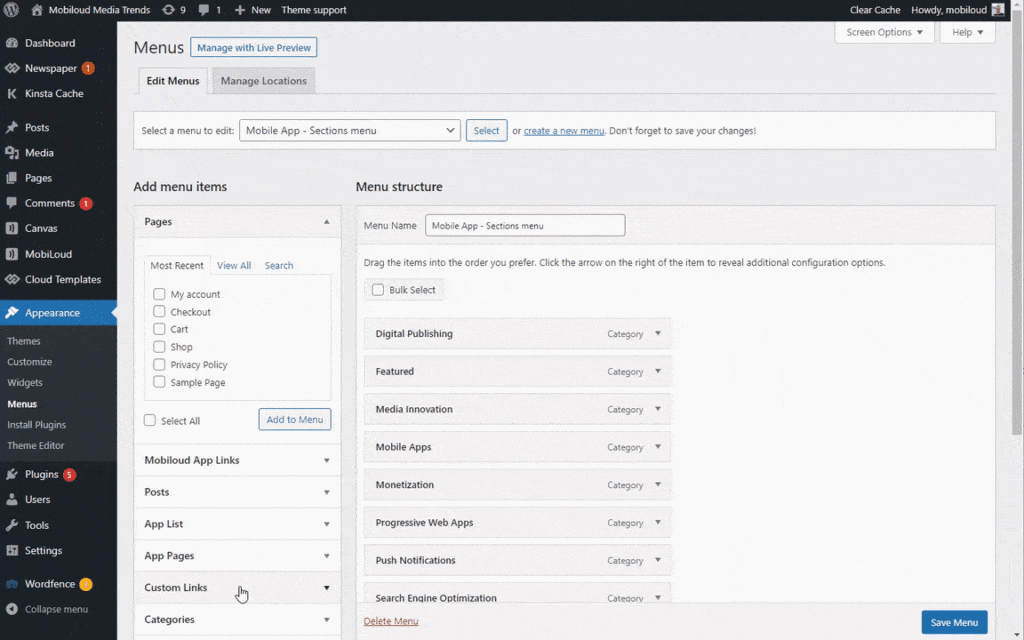
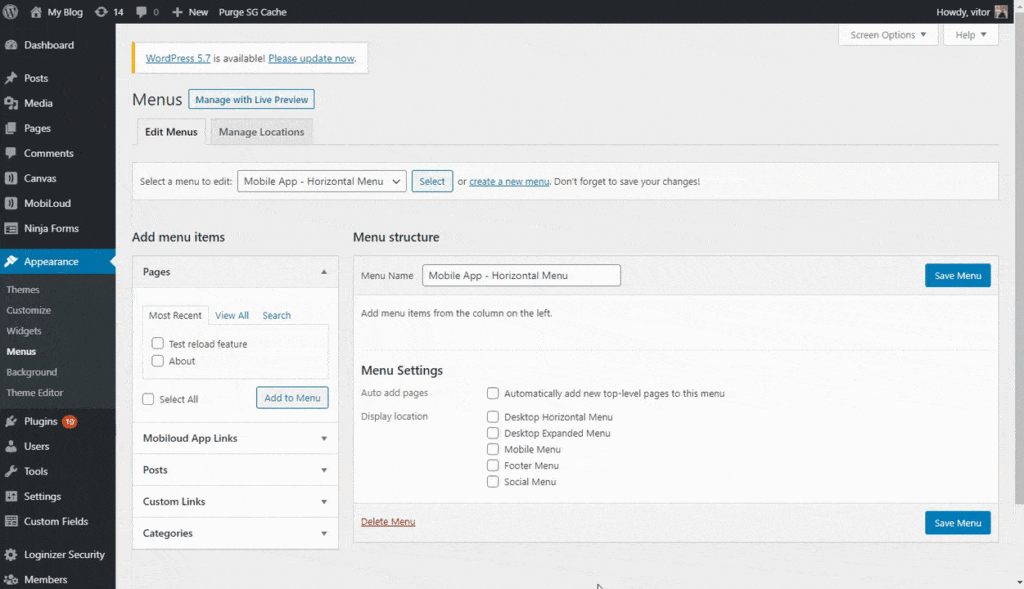
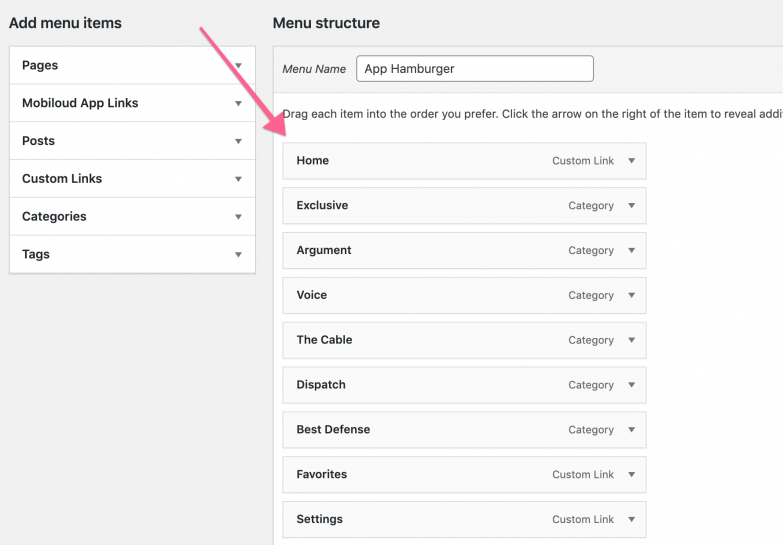
2 – You can now drag and drop the different types of links into the newly created menu
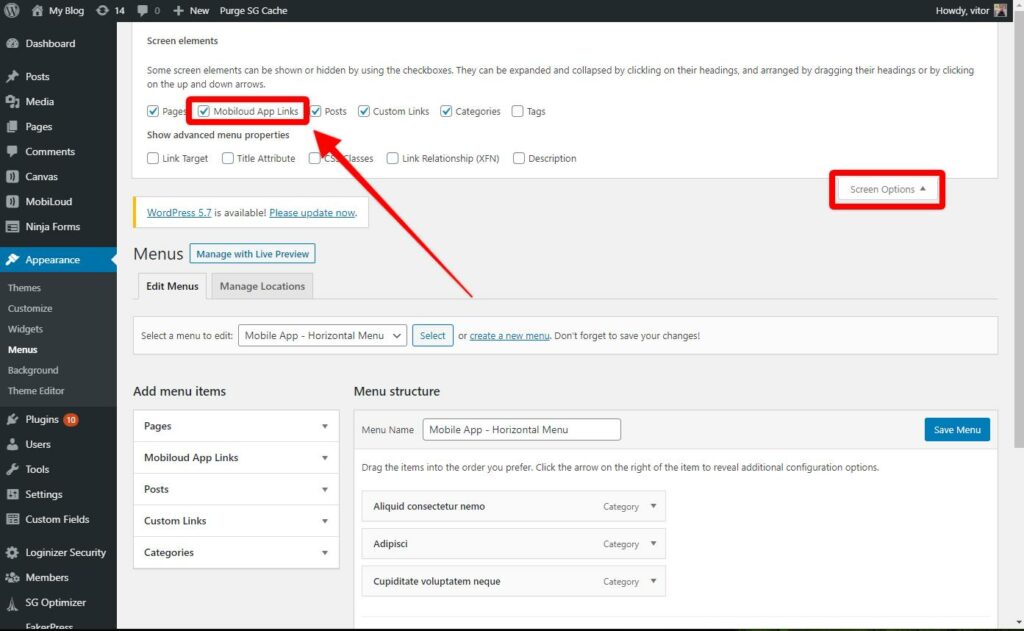
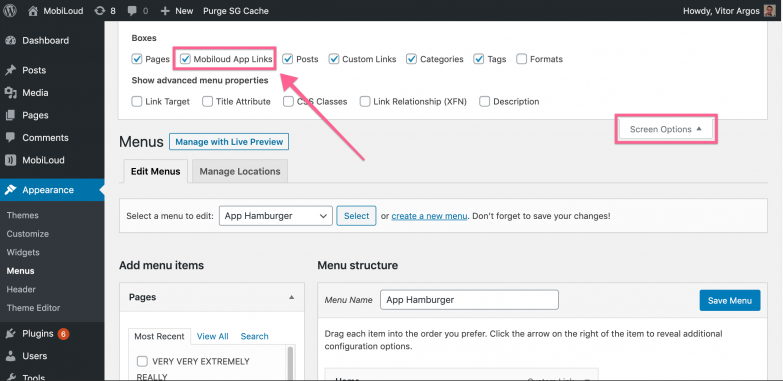
3 – To enable the Vendrux App Links, expand the screen options at the top and make sure “Vendrux App Links” is checked
4 – Once you have organized the menu according to your requirements make sure to save it
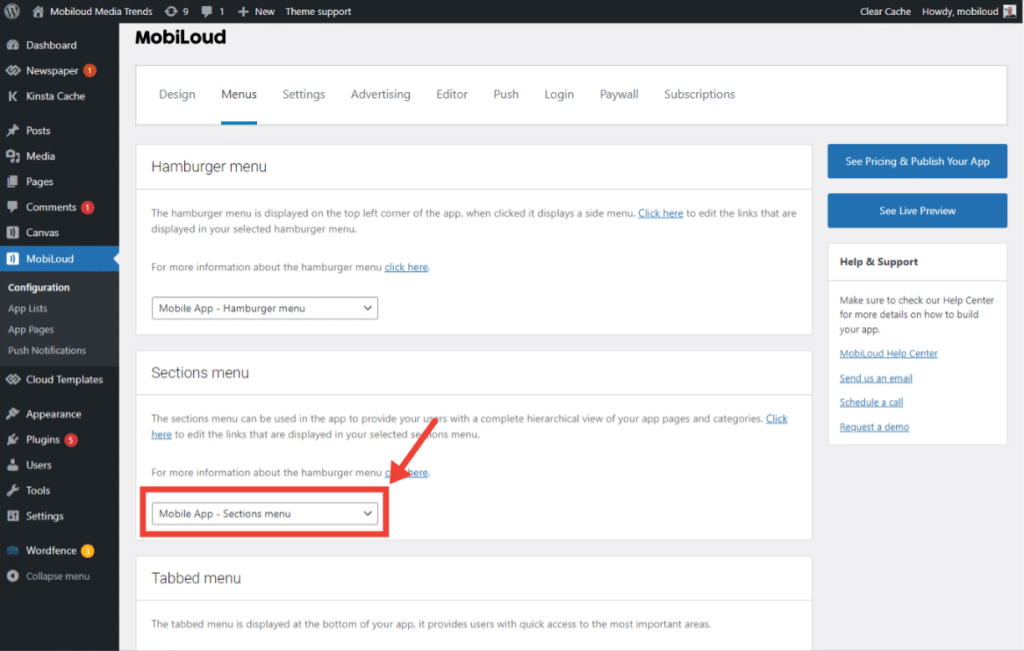
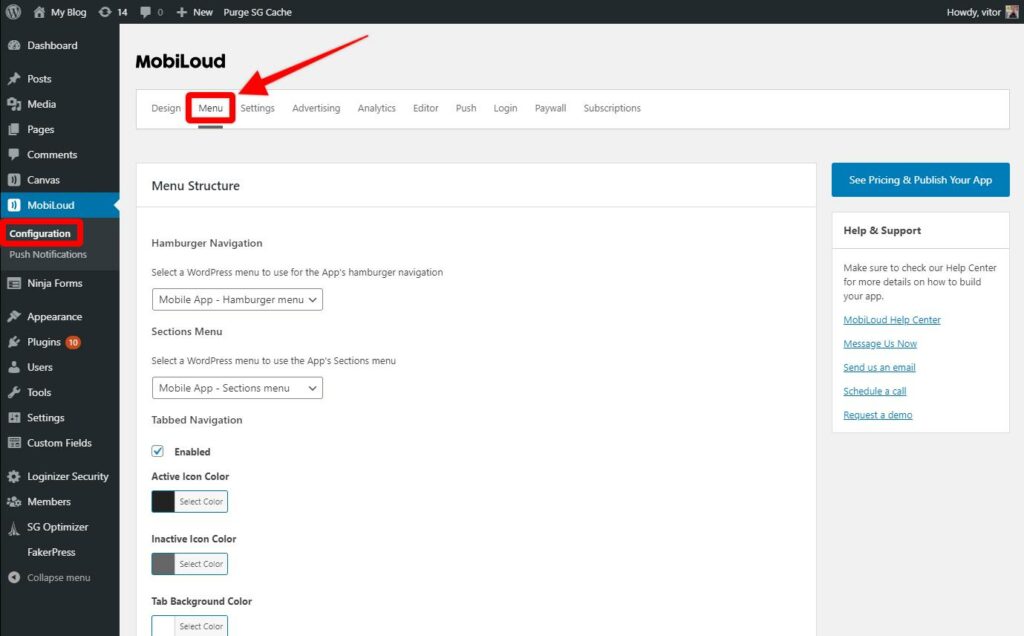
5 – Now go to “Vendrux > Configuration” and access the “Menu” area
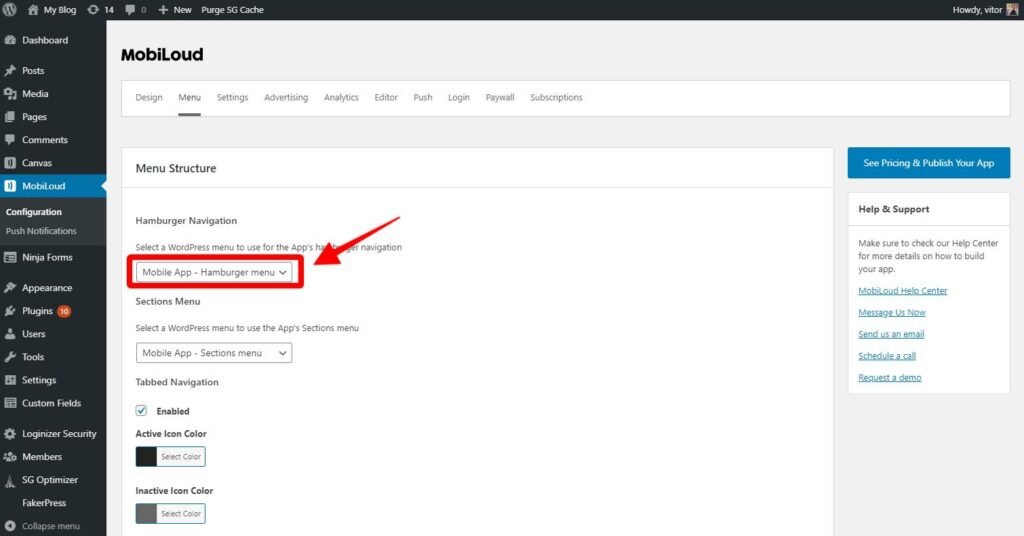
6 – Assign the menu you have created to the Hamburger Menu setting as you can see below:
The hamburger menu is required in the Vendrux Platform, so make sure to make good use of it, thinking about how you can provide the best possible experience to your users.
This menu is the only one that will support all link types and opening methods, below you will find a guide on how each link type behaves in the app and the opening methods that are available:
Pages
When using pages in the hamburger menu they will be opened in the native view, meaning that only the content added to the WordPress WYSIWYG editor will be displayed in the app. Any elements that have been incorporated through theme files, or complex features will not be displayed in this case.
The content will be displayed using the app’s stylesheet, which is very basic and optimized for performance.
Some examples of links that you can include as pages: About Us, Privacy Policy, Terms & Conditions
Posts
Posts will be displayed in the exact same as pages, with written content only and a basic stylesheet.
Custom Links
These are the only links that can be configured to open in different ways: native, internal or external.
Native: will open the provided URL inside the native view, with the back bar on the top. This opening method should only be used in specific cases, when the content displayed is not only optimized for mobile devices, but also to be used inside the app
Internal: these links will be opened using an internal instance of the user’s mobile browser (Safari for iOS, Chrome for Android). The content will be displayed in the exact same way that it does on the mobile browser, but inside the app, meaning that the user will not leave the app.
External: the link will be opened outside of the app, on the mobile browser. This opening method is used for donations, as those can only be taken outside of the app.
Categories and Taxonomies
Categories will be displayed in the form of lists, using the native design.
Vendrux App Links
Vendrux app links will trigger specific sections of the app such as the home screen, favorites, settings or the login screen.
The hamburger menu is displayed on the top left corner of your app, it will expand when clicked, displaying a complete list of links.
The Vendrux app hamburger menu can be configured directly from your WordPress Dashboard, using the default Menu functionality of your WordPress installation. Follow the steps below to configure your menu:
In your WordPress Dashboard, go to “Appearance > Menus” and create a new menu for the app, name it “App Hamburger”
Enable the “Vendrux App Links” feature on the top of the screen, so you can add links to your app’s home screen, favorites, and settings
Drag and drop the links that you would like to have displayed in your app’s Hamburger Menu
Save the menu
Go to the Vendrux App settings, under “Menu” and select the newly created menu accordingly
Save your settings and you should now be able to see your updated Hamburger Menu in the app
Apple is constantly making changes to its guidelines and policies, because of that, they will require you to accept new terms and agreements in your Apple Developer account with some frequency.
Some features of your Apple Developer account will get locked until all agreements have been accepted, including the ability to create new versions, certificates, upload apps, etc.
Keep in mind that only the Account holder, in other words, the person who registered the account, can accept the agreements.
Below is a step-by-step guide on how to access your Apple Developer Account and accept all the agreements that are pending.
Open the App Store connect area, here: https://appstoreconnect.apple.com/agreements/
Make sure to log in with your Account holder credentials.
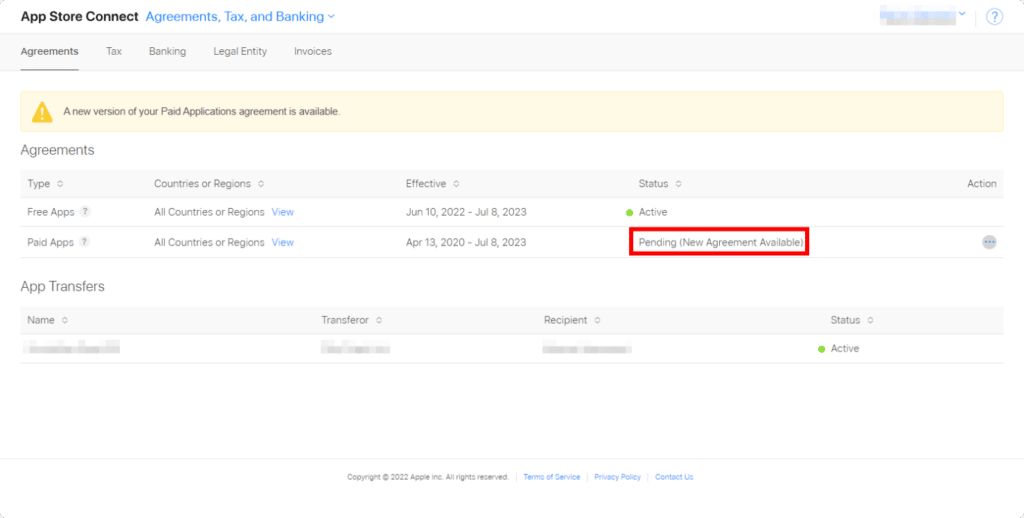
If there are any pending agreements you will see the following screen:
For all your pending agreements, as long as you are logged in as the account holder, you can click on the icon displayed on the “Action” column and then select “View and Agree to Terms”:
This will trigger a popup with all the latest terms, which you can then agree to by clicking on the following button:
That’s it! Just make sure to confirm that all agreements have been accepted.
Do I need to accept the Paid Apps agreement? Why?
Yes, you will also need to accept the Paid Apps agreement even if you do not offer any type of payment in your app.
You don’t need to set up your tax and bank information though, simply accepting the terms is enough.
Every change in your app’s content or configuration will be automatic and does not require an update.In general you don’t pay anything extra for updates required to fix any bugs or make your apps compatible with the latest iOS/Android versions. All maintenance updates are included in your subscription fees.To request an app update, just get in touch at support@vendrux.com
There are quite a few different app builders out there that target small and medium sized businesses. Many of them can work well in some limited cases – but all come with serious drawbacks for serious businesses.
How so?
In a nutshell – most app builders will restrict you with a cookie-cutter template that doesn’t let you create the apps you really want. They’ll leave you to figure it out on your own for the most part, and won’t be very proactive in helping you to build and maintain the apps in the future.
Vendrux is different to any other mobile app platform you have come across. How?
We set out to combine the quality of native, custom development’s end result, with the speed and affordability of automated app builder platforms – combined with a premium service and tools that anyone can use without touching a single line of code.
Foreign Policy could not have built their native apps with a DIY builder – but Vendrux was ideal
We decided to give you all the benefits of native apps and a modern, high-end mobile UX – with none of the major downsides in terms of effort and investment.
Did we achieve that? We think so. But you be the judge.
Here’s how Vendrux is unique.
Vendrux is a Truly Flexible Platform
In the mobile app world, flexibility in terms of features and functionality traditionally came from native development – for which you’d need to contract a team of specialists.
This generally isn’t the way to go for small and medium sized businesses though. Why? Because it’s prohibitively expensive and takes many months.
At this point, many turn to the various app development platforms that are just a Google search away. These are cheaper, and faster, but may not be worth the effort – let’s look at why.
Most App Builders are Restrictive
These tools look initially promising, and it makes sense. When you’re building for the browser these days – platforms like WordPress make it ‘simple’ for non-developers to build all manner of sites and web apps. Surely the same thing exists for mobile apps?
Well, not really.
There’s a big problem with most app builders. While these tools can get you into the App Stores – with an app that does “something” and has your logo on it – you’ll soon realise that you’re severely limited.
Your ideas and vision for the apps will be forced to fit into their pre-built templates and modules. You’ll likely have to make serious compromises and tradeoffs.
Here’s where Vendrux comes in, and here’s why Vendrux’s different.
Vendrux Integrates the Best of the Web
The web is amazing, and very flexible. With the huge proliferation of no-code tools, platforms like WordPress, and the increasing flexibility of major browsers – there has never been a better time to build your ideas on the web.
We are the only mobile app platform that allows you to integrate the flexibility of the web into the native mobile app format.
Every feature, plugin, customization and tweak you’ve made for your site or web app can be integrated into the mobile apps you build with Vendrux – whether that’s through Canvas or News.
No matter what you built for the web, Vendrux can turn it into top-quality mobile apps
News and Commerce build fully native apps that are easy to integrate the features and logic of your site into. The apps are highly customizable, and can take functionality from plugins or custom code that you now run on the web.
Canvas on the other hand is designed for maximum flexibility out of the box. Canvas apps provide everything your site does with no need for customization or integration, and they’re always 100% synced with your site – so there’s never any need to worry about design changes to the apps or porting functionality to them.
Get the Apps you Really Want
The apps can integrate everything from your web experience, or some of it. You aren’t limited. If you can build for web browsers you can now build for the App Store and Google Play too with Vendrux.
While the process differs in terms of specifics, flexibility is what really unites our products and sets them apart from other options on the market.
By leveraging our platform and the expertise of our team – you can get the web’s flexibility and diversity of features on your mobile apps too.
You can get the flexibility of native apps built from scratch, but at a fraction of the price. The apps will be just as unique as your site is, nobody will ever know you took a shortcut, and you only have to wait weeks – not months.
A Professional Level of Design and UX
Unlike many app builder platforms, we are not a good option for hobbyists or people tinkering with building simple apps.
Rather, we’re completely zeroed in on the needs of successful and growing businesses. We understand what site owners and growing companies need and work with you to find the right solution and roadmap for the apps, maximising efficiency as well as the quality of the end result.
This means a strong focus on design and User Experience. As we mentioned above – we are not about templates or cookie cutter apps. Our platform, and the apps we create, are constantly optimized with the end user in mind.
Vendrux apps are built with modern UX and usability best practices
Everything is customized, right down to the push notification icons that your users will see popping up on their lockscreens. We create unique designs for everything from the splash screens, to the App Store icons – personally taking care of all the small but important details that usually get skipped over or templated.
You’ll get apps that match your brand exactly. Your users will get a modern, fast user experience that is simple, intuitive and enjoyable.
We Don’t Just Sell you Software, we Partner with you and Guarantee Success
The typical SAAS model is to sell you a license to the software, point you in the direction of some explainer videos and documentation – and then set you loose.
This works fine for a lot of things, but not so well for a complex process like app development. It’s the model a lot of app builders use, and it can work for them as the options are so limited that a simple drag and drop suffices.
We Manage the App Project with You
As Vendrux builds higher end, unique, custom apps – this won’t do. So we take a very proactive approach to customer support and manage the project with you – from the initial concept stage to going live on the App Stores and beyond.
Every site is different, and every app is different. We’ve seen it all over the last seven years and 1000+ app projects.
It’s a Personal Experience
Getting you the best apps for your business requires a personal touch.
You’ll know our team members by name, and you’ll always be able to count on help from a fast and competent team. We are real people that you can chat with directly via email – but also on the phone or on a Zoom call whenever necessary.
We solve any issues that crop up directly, hands on. You’ll never be left alone to fix things or on hold with some hopeless support bot or impersonal ticket system.
Success is Guaranteed
Your success is also guaranteed. As we don’t leave you to figure things out or go through the pain of dealing with Apple’s stringent requirements – there’s no chance of you failing and not getting your apps approved.
We handle submission and publishing the apps on the App Store and Google Play, and deal with them on your behalf.
The App Stores often have certain changes or tweaks required to get the apps approved, and this can be tricky. We know the process inside and out though – having gone through it more than 1000 times – so we guarantee a successful outcome.
With no long term contracts, and a 60 day satisfaction guarantee – there’s no risk that you get apps that you don’t like or that don’t work for you. In the unlikely event that you feel that way – we just refund you!
A Platform for Every Goal
Vendrux has two different platforms that we have developed over the last 7 years.
Canvas is for converting any site (woocommerce stores or community sites) or web app into mobile apps. News is for WordPress based digital publishers.
If you have a website or web app, and you want to turn it into apps in the most effective way possible – chances are Vendrux is for you.
Other app builders will try to squeeze whatever you have into one of their templates, then connect it with your existing CMS with an API (if you’re lucky) or an RSS feed. More accurately, they’ll likely leave you to set that up, as generally they won’t have much enthusiasm for solving any unusual or unique problems for your use case.
On the other hand – we’ll work with you to figure out which of our platforms is the best fit, and then we’ll work with you to get the optimal result.
Whether you’re a publisher, a growing startup, or an eCommerce brand – you can use Vendrux to build apps that you can be proud of. They’ll be completely custom, bringing the best of your web experience to the native app world.
We Never Leave your Side
What about when the apps are published? Do you then have to handle everything yourself?
Thankfully no.
Although the apps are simple for you to manage – they will automatically sync with any changes or updates to your site and you can manage everything from a simple plugin – we offer lifetime support.
Operating systems bring out frequent updates, new phones are launched, regulations change. This means that apps have to be constantly maintained by developers or they will fail. Usually this costs five figures a year at a minimum.
As part of our license though – we handle everything, for the lifetime of the apps.
We’re here to recompile, retest, rebuild and republish your apps as many times as necessary. We’re here to release updates to the stores – you’re never alone to deal with these crucial parts. Most app builders might assist with the initial setup – but few will be around to handle maintenance which is just as important.
There’s nothing for you to worry about, and no expensive surprises around the corner. We save you money and give you peace of mind.
The Canvas platform makes use of a mix between Cookies and Headers to identify a proper user login in the apps.
Below you will find more details on how that approach works in a more technical perspective.
In order to enable the login functionality in your app you will first need to adjust two parameters, located in the “General” group of settings of your app:
Remote_Server_Available: this parameter needs to be set to “true” if you want to enable the native login handling in the app. It will basically tell the app to look for the proper headers when it starts and in all subsequent requests.
Remote_Server_URL: this parameter will determine which URL should be used for a quick check when the app starts, looking for the login headers. We recommend using a fast loading URL. If you are on WordPress make sure to use the /canvas-api/loginstate endpoint as it will only output the information we need.
Now that you have configured the app to use the native login here is what will happen when you first open the app:
The app will perform a request to the URL defined in the “Remote_Server_URL”, looking for the “ml_available” and “ml_username” parameters, if the user is logged-in those parameters should be set in the form of headers as you can see below:
The app will check both parameters but will look for the ml_username to determine whether the user should be logged in or not. If ml_username is set as a header the app will understand that the user is logged in and will bypass the login screen.
If ml_available is set as a header but ml_username is not, the app will understand that the user is not logged in and will present the login screen to him.
There are a few things to keep in mind:
ml_available should always be set as a header and its value should always be true, no matter if the user is logged in or not
ml_username should only be set as a header when the user is logged-in
The value for ml_username will be stored in OneSignal, so it can be used to target specific users for push notifications. If you are using WordPress its value will be a hashed user id, if you are not on WordPress we’d recommend using a similar solution.
Cookies and sessions should be handled by the website to avoid conflicts where the ml_username header is set but the user is not logged in, if you are on WordPress this will be automatically handled by the Vendrux Canvas plugin
The apps will not perform any specific checks to your website’s cookies
Other app building solutions have one or both of these problems: either their app building tools are complex and unintuitive, or the apps they create are low-quality because they use non-native technologies like HTML5. These apps don’t look and feel like the native apps we enjoy using every day.
Unlike other solutions, Vendrux gives you a completely “native” app. Native apps look and feel great on Android and iOS, and don’t have the sluggish and glitchy behavior of non-native apps.
Building an app with Vendrux is simple: we take care of every element of complexity for you, so you can focus on creating amazing content and growing your business.
Vendrux is also the only native app solution exclusively dedicated to WordPress, which means we understand the platform your site runs on better than anyone else.
We offer 1:1 personal support which none of our competitors offers. Test us out, just write to support@vendrux.com.
https://www.youtube.com/watch?v=1tEz4BKh7jMThe Settings / Content tab offers many opportunities to affect how your content is visible inside your application.Namely you can change:
Whether to show or not a featured image at the top of the article screen
Whether you want to show date / author / title for posts and pages
You can enable RTL – right to left, for Hebrew or Arabic content
You can decide whether images should always open in the gallery (default) or whether images with a link should enable users to reach the linked location when tapped.
You can also define which commenting system to use in your app, WordPress, Disqus, Facebook or whether to disable comments completely.For advanced customization options, read more about the Code Editor feature.
https://www.youtube.com/watch?v=T1aKKwSJPo4Among other settings, the General tab under Settings allows you to decide what content to display in the main screen – article list – of your app and how much information to display for each article.You’ll have the option of:
Showing the date for posts in the article list
Showing excerpts – summaries – in the list
Showing a count of comments for each post in the list
You’ll also be able to decide exactly which content will be accessible from the list, filtering all your site’s content by category and/or post type.