Category: Docs

  • Customize the redirect URL after login

    You might want to customize the URL that users get redirected to after a successful login in order to better integrate your login page with the Vendrux app. To do this, you can modify your theme code as follows:

    Step-by-Step Tutorial

    Access the Theme Code:

    1. Log in to your Shopify admin panel.
    2. Go to Online Store > Themes.
    3. Find the theme you want to edit and click on Actions > Edit Code.

    Locate the Login Form Code:

    1. In the theme editor, find the file that contains the customer login form. This is usually located in Sections or Templates, and the file might be named customers/login.liquid or something similar.
    2. Open the file to edit the code.

    Add a Form ID:

    Locate the form tag for the customer login form. Add an id attribute to the form tag for easy reference in JavaScript. Your form tag should look something like this:

    {%- form 'customer_login', novalidate: 'novalidate', id: 'customer_login_form' -%}

    Insert the JavaScript Snippet:

    Add the following JavaScript code at the bottom of the same file. This script checks if the user’s user agent contains the string “canvas” (case insensitive) and updates the form action URL accordingly:

      document.addEventListener('DOMContentLoaded', function() {
        var form = document.getElementById('customer_login_form');
        if (navigator.userAgent.toLowerCase().includes('canvas')) {
          form.action += '?app_login=true';
        }
      });
    

    After adding the JavaScript code, save the changes by clicking the Save button in the top-right corner of the theme editor.

  • Custom CSS | vendrux Docs

    We can add custom CSS to apps by performing a check to the user-agent.

    If the “canvas” string is included in the user-agent, it means that the content is being displayed inside the app.

    Below you can find a code snippet that will save the user agent and then check if the “Vendrux” string is present, if so it will add custom CSS to the HTML head.

    // Get the current user agent
    const isApp = navigator.userAgent.toLowerCase().indexOf('canvas') > -1;
    
    // Check if the user agent contains the canvas string
    if (isApp) {
    
      // Outputs the custom CSS in case canvas is present in the user-agent
      document.head.innerHTML += '';
    
    }
    

    If you are using PHP you can use the following piece of code:

    $u_agent = $_SERVER['HTTP_USER_AGENT'];
    if (strlen(strstr($u_agent, "canvas")) > 0) {
      echo "";
    }
    
  • Custom app reports in Google Analytics

    Custom app reports in Google Analytics

    With Vendrux you can easily track your app usage in Google Analytics, but there is a way to create a specific area in your Google Analytics account where you can see your app data, organized according to your needs.

    There are a few steps to follow but you will only have to do it once.

    Head over to your Google Analytics account: https://analytics.google.com/analytics/web/

    Follow the steps below to create reports that are dedicated to your app.

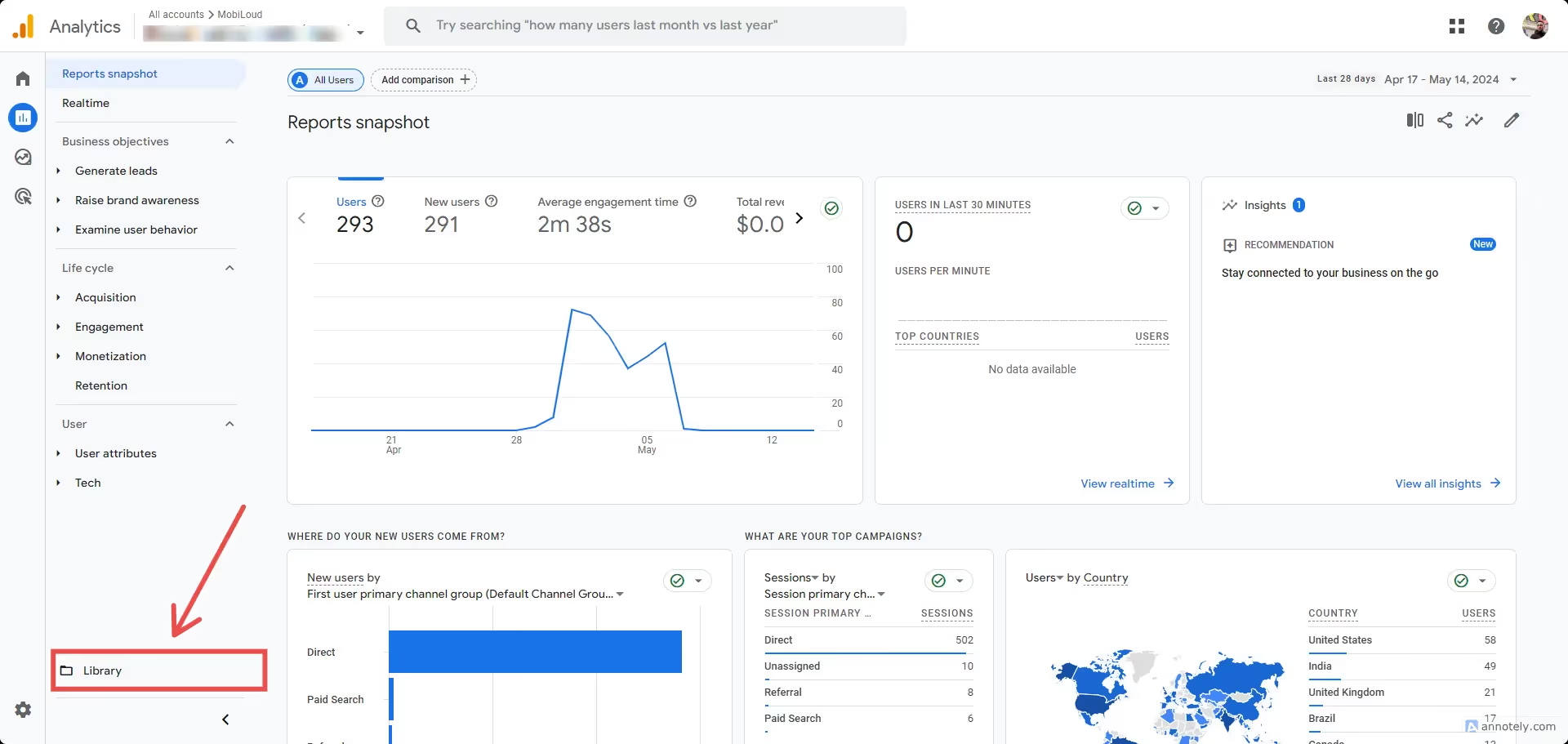
    Under “Reports”, click the “Library” link at the bottom left area of the screen:

    Click the “Create new report” button:

    Select “Create detail report”:

    You will be presented with a list of all the existing detail reports, pick one that you would like to replicate for the app, in this example we will go with the “Pages and Screens”:

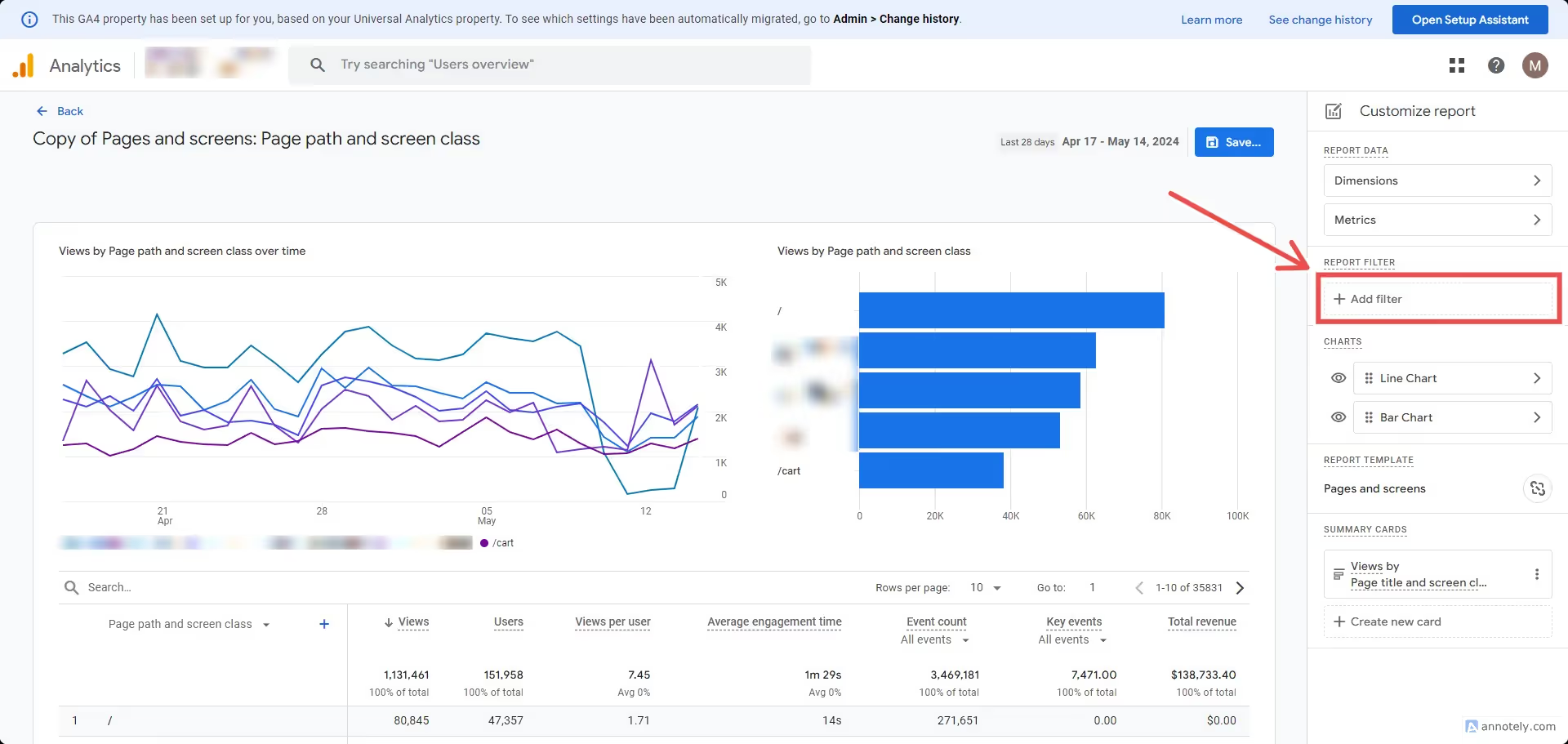
    Click “Add filter” on the right sidebar:

    Use the custom dimension you previously created. If you used the labels we suggest, select “app_session” as the dimension, “exactly matches” as the match type, and “true” as the value, then click “Apply”:

    Now save the report by clicking “Save…”:

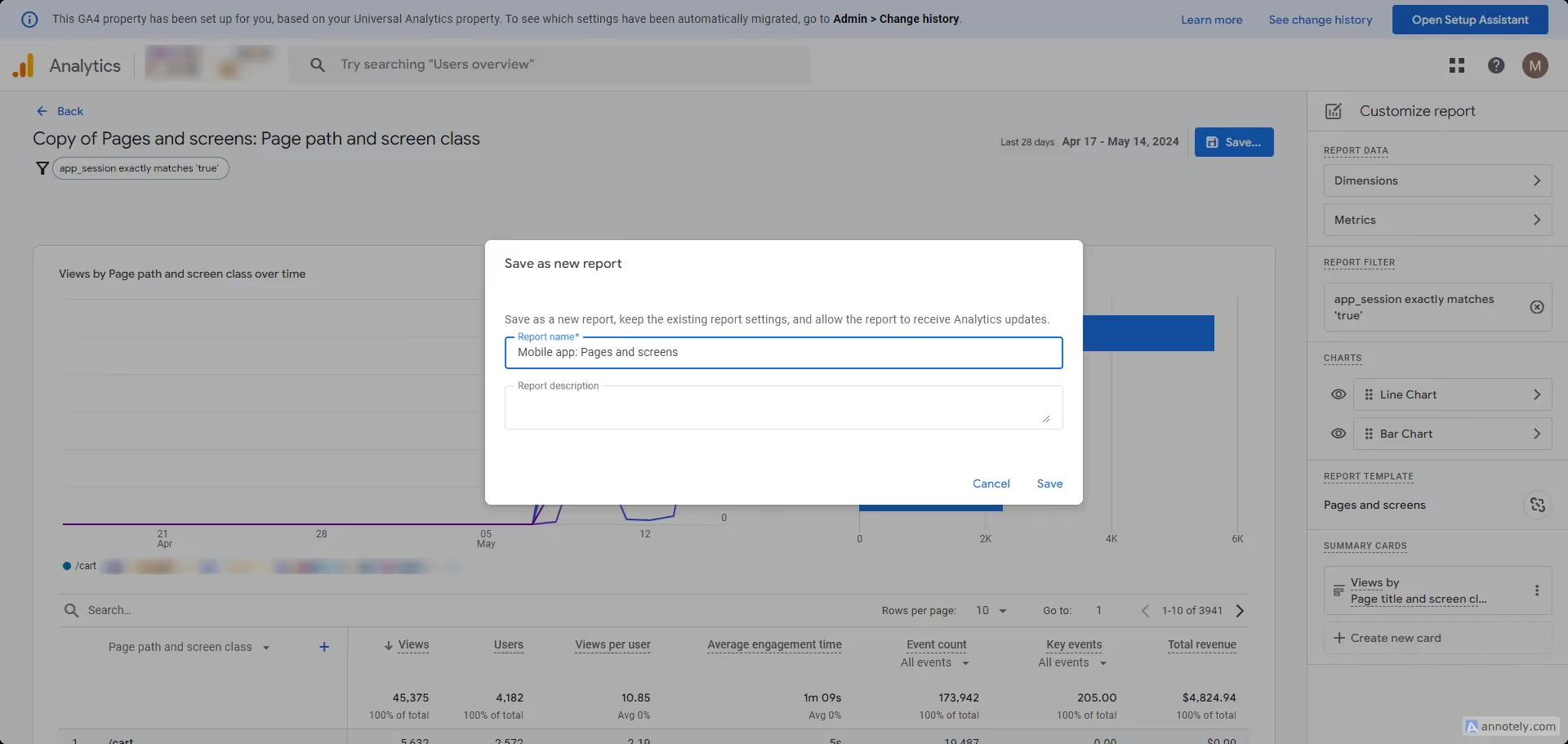
    Add a name that makes the report easy to recognize as an app specific report:

    Your first report is now created and you can use it in the collection that we are going to create next. Note that you can replicate these steps to create more reports based on pre-existing ones. We suggest doing the same for:

    • Pages and screens
    • Events
    • Ecommerce purchases
    • Traffic acquisition

    Once you are done, we will proceed with creating a collection, so you can easily access these app specific reports from your “Reports” area in Google Analytics.

    To start go back to “Reports”, then click “Library”, but now click the “Create new Collection” block:

    Select “Blank” to create a new collection:

    Click on the collection name to name it. We suggest using “Vendrux App”:

    Click “Create new topic”:

    Add the following topics “Engagement” and “Push notifications”

    Now drag and drop the reports you previously created into the topics, as you can see here:

    Save your changes:

    And go back to the previous page:

    Now make sure your new collection is published:

    You should see the new collection on your left sidebar:

  • CSS Injection Tool | vendrux Docs

    Introduction

    The Web-App Style Injector is a lightweight JavaScript library that simplifies the process of tailoring your website for web and app versions. By adding a few lines of code, you can apply distinct styles to elements visible only on the app version or hidden entirely on it. No advanced technical knowledge is required; it’s as simple as copy-pasting two script tags!

    Key Features

    1. Effortless Integration: Just copy and paste the provided script tags to get started.
    2. Dynamic Styling: Automatically adds a is-app class to the , enabling custom styles for app and web versions.
    3. App-Specific Classes:
      • app-hide: Hides elements exclusively on the app version.
      • app-exclusive: Displays elements only on the app version.
    4. Customizable Options: Use optional parameters for further flexibility, such as hiding predefined sections or disabling logs.
    5. Helper Logs: By default, helpful console logs guide you during setup and usage.
    6. Advanced Classes Injection: A developer-oriented feature that allows regex-based CSS injection for specific pages.

    How to Use It

    1. Basic Implementation

    For the simplest setup, follow these steps:

    Copy the following code and paste it right before the closing tag of your document

     defer>
    script>
      (function(){
          styleTemplate();
      })();
    script>


    With this setup, your website will Automatically add a is-app class to the

    when the site is navigated through the app, and enables custom styles for app and web versions.

    It also add some useful style rules to the document:

    The app-hide and app-exclusive classes provide simple ways to control the visibility of elements in the app version:

    • .app-hide: Hides certain elements in the app version of the site.
    • .app-exclusive: Displays certain elements only in the app version of the site.

    Here’s an example of how to use these classes in your HTML:

    class="app-hide">❌ Element not visible in app ❌

    div class="app-exclusive">📱 Element only visible in app 📱div>

    Define  styles in your stylesheet as you would normally do, like this:

    .elementClass {
        color: blue; /* Default for web */
    }
    body.is-app .elementClass {
        color: red; /* For app */
    }


    In this example, text will appear blue on the web version but red in the app version.

    2. Optional Parameters

    The library supports optional settings to enhance its functionality:

    • Logs: Enable or disable helper console logs.
    • Predefined Stylesheets: Automatically hide common sections in the app version (e.g., footers, banners, popups).

    Example of using optional parameters:

    (function(){
        styleTemplate({
            hideSections: ["hide-footers", "hide-banners"],
            logs: false
        });
    })();
    

    Available Predefined Stylesheets:

    • hide-footers: This hides the site's footer
    • hide-wp-adminbar: Hides WordPress adminbar, this usually shows after users sign in in a WordPress site
    • hide-back-to-top: This hides some floating back to top arrows/buttons
    • hide-popups-and-consents: This includes: cookie consent in bottom drawers, promotional popups, and enables overflow in the body, sometimes popups locks page scroll
    • hide-banners: This hides some promotional bars / banners that are above the site's header
    • hide-fabs: This hides Floating buttons (a lot of them added with plugins, so we include some common plugin selectors), this also hide some floating captcha elements

    By customizing the parameters, you can fine-tune the appearance of your app version with minimal effort.

    3. Advanced Classes Injection

    For developers, the library provides a powerful feature to inject CSS globally or selectively based on URL patterns using regular expressions. This allows precise control over styles for specific pages.

    Example implementation:

    >
    script>
    (function(){
        addStyle({css: `a{color: red !important}`});
        addStyle({css: `a{color: yellow !important}`, regex: /\/?param$/});
        addStyle({css: `a{color: green !important}`, regex: /.*/, name: "Global Styles"});
        addStyle({css: `a{color: green !important}`, regex: /.*/, name: "Global Styles", logs: true});
    })();
    script>

    You can define styles and target specific pages by passing a regex pattern. Here are some examples of how to use the configuration options:

    // Define styles as a string
    let style = `
      a {
        color: green;
        background-color: yellow;
      }
      .className {
        font-size: 2rem;
      }
    `;
    
    // Use regex to target specific pages
    let regex = /.*\/login/;
    
    // Name the style block (optional)
    let name = "Login Styles";
    
    // Enable logs for debugging (optional)
    addStyle({css: style, regex: regex, name: name, logs: true});
    
    // Apply global styles without regex
    addStyle({css: `color: red !important`});
    • css: The CSS rules as a string.
    • regex: A regular expression to target specific pages.
    • name: A name for the style block (optional).
    • logs: Enable or disable logs for debugging (optional).

    Device-Specific Methods

    • deviceData.os: Returns the current OS ("android", "ios", "windows", "desktop").
    • deviceData.isCanvas: Returns true or false.
    • deviceData.isMobile: Returns true or false.

    By combining these advanced features, you can achieve highly customized styling for specific scenarios.

    Mixing Methods

    The library allows you to combine the styleTemplate and addStyle methods for even greater flexibility. For example, you can use styleTemplate to apply predefined styles globally and then customize specific pages with addStyle:

    (function(){
        styleTemplate({hideSections: ["hide-footer"]});
        // Custom styles applied in canvas/app only
      if(deviceData.isCanvas){
        addStyle({css: ".customClass{color: red}", regex: /.*login/});
        addStyle({css: `a{color: yellow !important}`, regex: /\/?param$/});
        }
    })();
    

    This approach ensures a consistent base styling while allowing for precise page-level customizations.
  • Creating App-Specific Pages | vendrux Docs

    Creating app-specific pages is a great way to offer an exclusive experience that engages users and drives conversions. This guide will walk you through creating pages that are only visible in your app and setting up conditionals to make sure the links to these pages only show up for app users.

    Importance of Creating an Exclusive App Experience

    Offering content that is only accessible in your app encourages users to download and engage with your mobile app. It can enhance user experience, build loyalty, and increase conversions. By tailoring the experience specifically for app users, you can keep them engaged with features or content that’s not available on your website.

    Benefits of App-Specific Content:

    • Increased Engagement: Exclusive in-app content encourages users to spend more time in your app.
    • Higher Conversion Rates: Offering app-only promotions or features can motivate users to take action.
    • Improved User Experience: Tailoring content for app users can make your app more valuable than just browsing your website.

    Creating Pages for Your App

    First, you’ll need to create the pages that will only be accessible within the app. These pages should exist on your website but be hidden from your website’s main navigation to ensure they aren’t visible to regular visitors.

    Here’s a simple approach:

    1. Create a new page in your website’s CMS.
    2. Add any app-specific content you want—whether it’s special promotions, app features, or exclusive articles.
    3. Add the link to the newly created page to your menu using conditionals, so it only shows to app users.

    Once you’ve created the app-specific pages, it’s time to ensure they’re only accessible from within the app.

    Adding Conditional Links for App Users

    To make sure these app-specific pages only appear for users who are browsing your website within the app, you can use conditionals to hide or show links based on the user agent string. If the user agent contains “canvas”, it means the user is in the app.

    Here’s how you can implement this using JavaScript and PHP.

    JavaScript Example

    You can dynamically add a link to the app-specific page using JavaScript, which will only show up if the user is accessing the site from the app.

      if (navigator.userAgent.toLowerCase().includes('canvas')) {    
        var appLink = document.createElement('a');    
        appLink.href = '/app-specific-page';    
        appLink.innerText = 'Exclusive App Content';   
        document.body.appendChild(appLink);
      }
    

    This code checks if the user is in the app by inspecting the user agent. If they are, it creates a link to your app-specific page and adds it to the bottom of the page. You can modify the placement by appending the link to different elements on your site.

    PHP Example

    If you’re using PHP, you can add a conditional statement to check if the user is in the app before displaying the link.

    if (strpos(strtolower($_SERVER['HTTP_USER_AGENT']), 'canvas') !== false) {   
    	echo 'Exclusive App Content';
    }

    This will output the link only if the user agent contains "canvas", ensuring that regular visitors to your website don’t see it.

    Conclusion

    By creating app-specific pages and using conditionals to display links only in the app, you can offer an exclusive, engaging experience for your mobile app users. This approach not only boosts engagement but also helps differentiate your app from your website, adding value for your most dedicated users.

    For more detailed guidance on customizing your app and optimizing your website’s performance in the app, be sure to check out our other guides:

    These resources will help you fine-tune the app experience for your users and make the most of your mobile presence.

  • Create segments in Klaviyo | vendrux Docs

    Create segments in Klaviyo | vendrux Docs

    You will want to create segments in Klaviyo so you can send your push notifications to specific groups of users, or even to all users that are subscribed to receive push notifications.

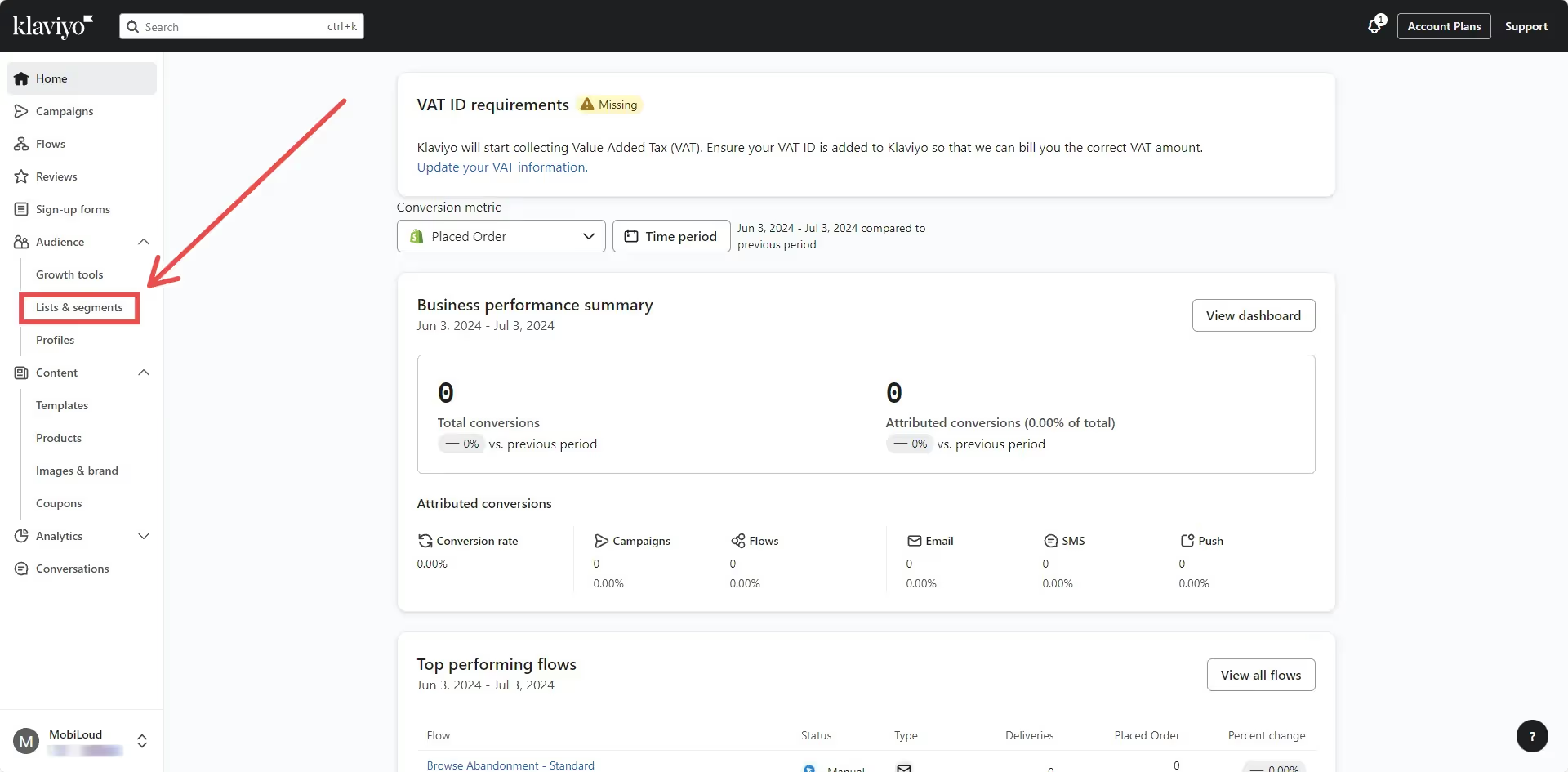
    On your Klaviyo Dashboard, click on “Lists & Segments”:

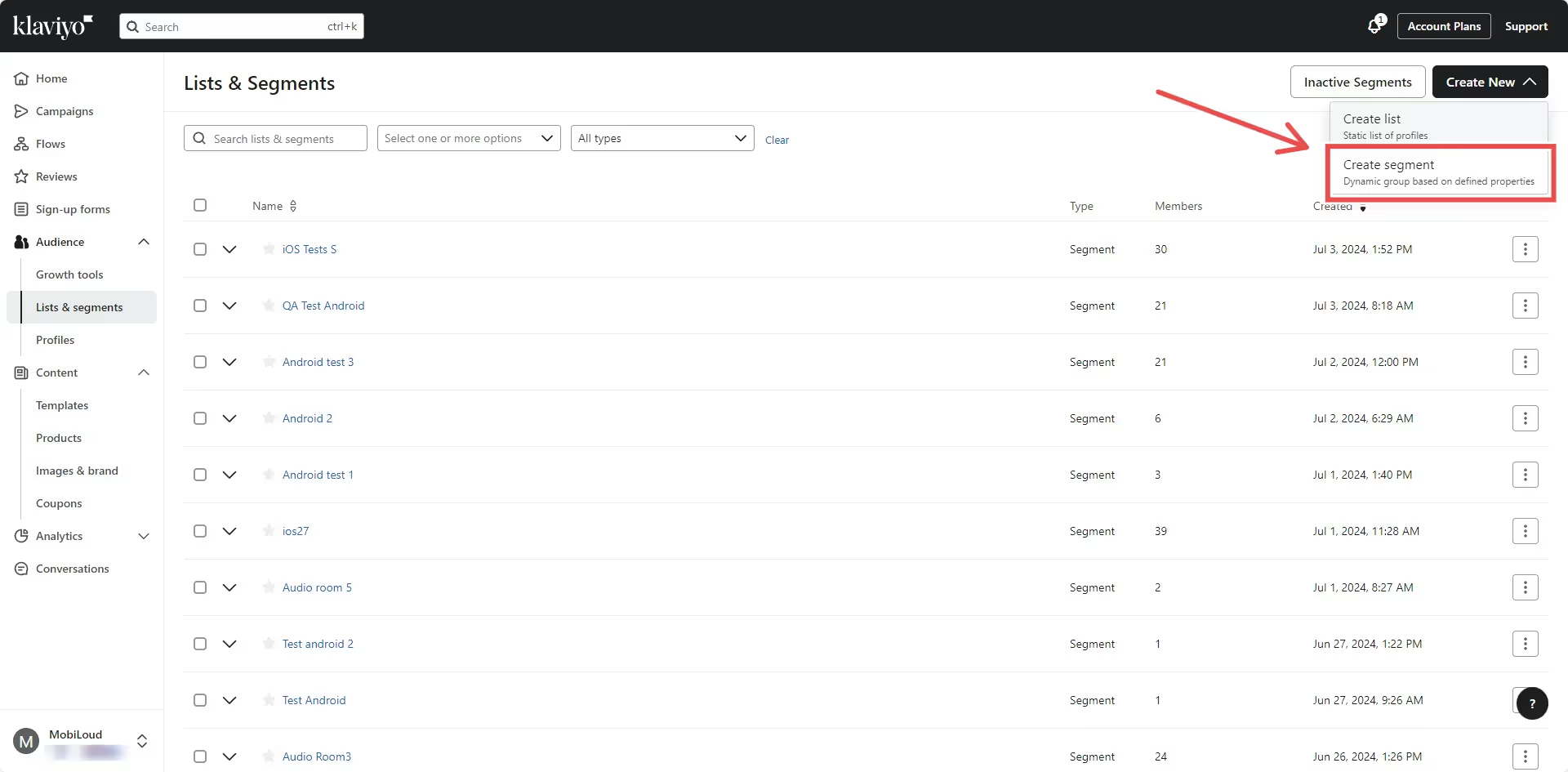
    Select “Create new” on the top right area:

    Pick “Create segment” in the drop down:

    Give your segment a name and pick the following options for the definition:

    • Condition: If someone can or cannot receive marketing
    • Person: can receive /mobile push marketing

    That’s it! You can now select your custom segment when sending push notifications to target all push subscribers.

    IMPORTANT! Klaviyo can take some time to update the list of users in the segment once you create it.

  • Create an Account Deletion Page

    Why an Account Deletion Page is Necessary

    Both Apple and Google require mobile apps to offer users an easy way to delete their accounts. This regulation ensures that users can control their data and enhances transparency.

    Failing to provide a compliant account deletion page can result in app rejections or removal from app stores.

    Making the Page Publicly Accessible

    The account deletion page doesn’t necessarily need to be publicly accessible, but in order to avoid back-and-forth with Apple and Google during the app review we always suggest that you make these pages publicly accessible and easy to use.

    A simple page with a form in it should do the job and help us get your app approved faster.

    Designing the Account Deletion Form

    Include Essential Fields:

    1. User Identification: Ask for information that identifies the user uniquely, like their username or email.
    2. Reason for Deletion: Optionally, include a dropdown or text field for users to provide a reason for deletion.
    3. Confirmation: A checkbox for confirming the decision to delete the account permanently.

    Writing a Clear Description Above the Form

    Include a message explaining what deleting the account entails, such as permanent data removal and the potential inability to recover information.

    Here is a sample message that you can use:

    “Please note: Once your account is deleted, it cannot be recovered. All associated data will be permanently erased, and any remaining subscriptions or services will be canceled.”

    More Details

    You can find more details on the requirements from Apple and Google on the following pages:

  • Cookie-based login | vendrux Docs

    Cookie-based login | vendrux Docs

    The cookie-based login method is the easiest approach for enabling login on your Vendrux app.

    On most websites, when a user goes through the authentication process, a cookie is generated and stored on the browser. That cookie holds a token, which is then used by the website to revalidate the user login without having to ask for the username and password to be provided again.

    Vendrux allows you to use that cookie to determine if the user is logged in or not.

    ⚠️ IMPORTANT! Vendrux doesn’t authenticate or validate the user login, it simply uses the cookie to determine if the user is logged in or not, dismissing the login screen if necessary.

    On every request performed by the app, a check with be performed against the cookies on the page being requested, if the selected cookie name is present, the user will be considered logged in.

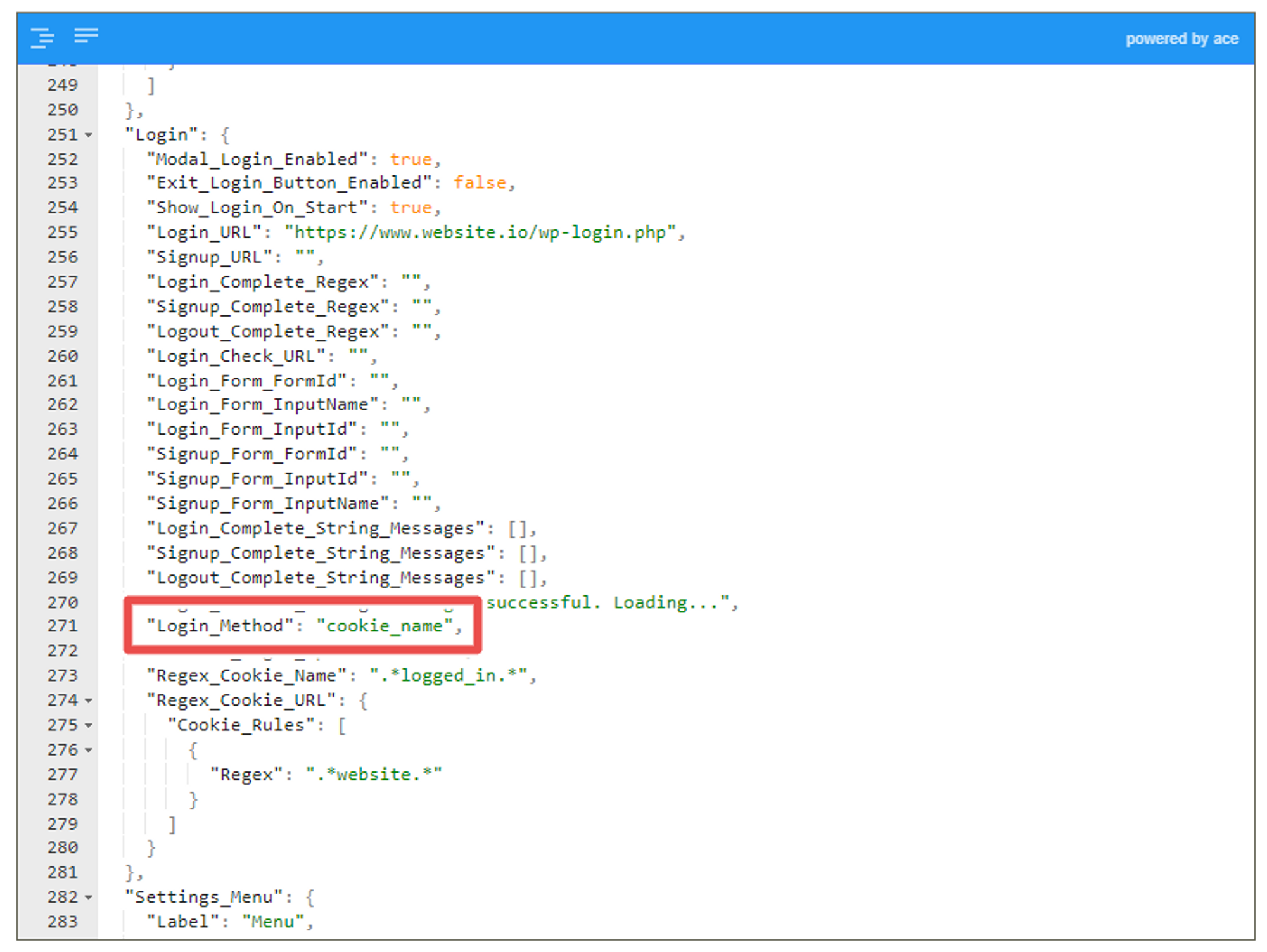
    To enable the cookie-based login the first step is to set the “login_method” parameter in your Vendrux configuration to “cookie_name”. The “cookie_name” parameter must be added inside the “Login” options, as you can see below:

    Notion Image

    You will now need to set up the “Cookie_Name_Regex” parameter with your cookie name. This is a regex field, meaning that the app will look for a cookie name that matches the rules defined in this field.

    Notion Image

    If your cookie name is “logged_in” you can use “logged_in” as the value. If your cookie name uses random strings, like “logged_in_123456” where the number is always different for each user, you can use “user_logged_in_.*” as the value.

    Defining the cookie name when you are the website developer is easy, but if you need assistance with identifying the name of your login cookie, see our guide on how to find your login cookie name.

    Now that you have configured your cookie-based login in the app, you will want to make sure everything works as expected.

    Whenever the app identifies a successful login, it will display your app splash screen, with a message at the top (“Logged-in successfully, redirecting…”), for a very brief period and then will take the user to the content. If you are not seeing the splash screen after the login you might want to review your regex and app configuration to make sure everything has been properly configured.

  • Convert individual Apple Developer account to Organizational

    Convert individual Apple Developer account to Organizational

    If your business is incorporated, Apple requires you to register as a Corporation to publish your app on the App Store. If you submit your app under an Individual account, it will be rejected.

    Who Needs to Enroll as an Organization?

    You must enroll as an Organization if your company is a registered business, such as:

    • Corporation (Corp., Inc.)
    • Limited Liability Company (LLC, LC, Ltd. Co.)
    • Legal entities (GmbH, AG, KG, oHg, etc.)

    If you are a sole proprietor, you must register as an Individual.

    Apple does not accept:

    • DBAs (Doing Business As), fictitious businesses, trade names, or branches for enrollment as an organization.

    Benefits of an Organization Account

    • Invite developers to access your account.
    • Use your company name as the Developer Name on the App Store (e.g., “Business Inc.” instead of your personal name).
    • Easier brand verification—Apple recognizes you as an authorized representative of your company.

    Converting Your Account from Individual to Organization

    To switch from an Individual to an Organization account you will need to contact Apple.

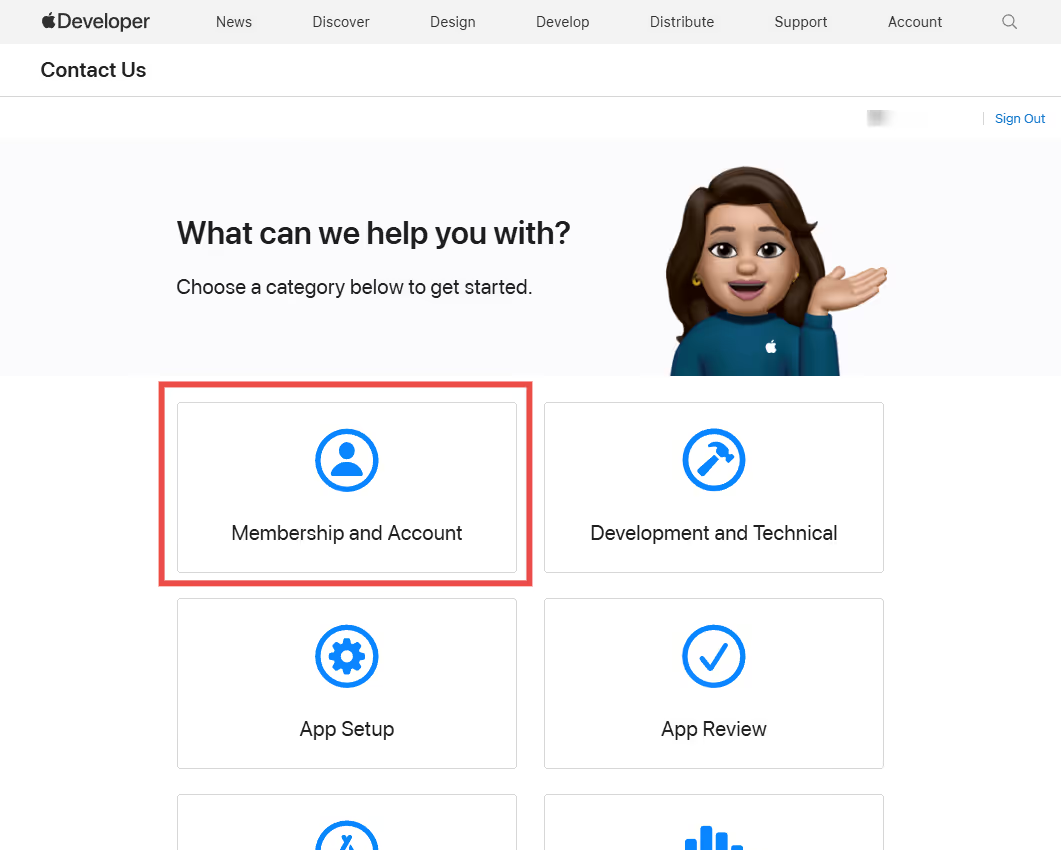
    Go to the Contact Us area on Apple’s website: https://developer.apple.com/contact/topic/select

    Select “Membership and Account”, then “Account Information Update”.

    You will then have two options, to contact Apple via phone (if available) or email.

    We recommend using email.

    You can then use the following details:

    I’d like to convert my Apple Developer account from Individual to Organization. This will be our only Organization account.

    Here is the required company information:

    • CEO/Director Name: [First and Last Name]
    • Company Name: [Your Company Name, including Ltd. or Inc.]
    • Account Type: Organization
    • D-U-N-S Number: [Your Company’s DUNS number]
    • Address: [Your Company’s Legal Address]
    • Phone Number: [A number where you can be reached]

    You will then need to wait for Apple’s response.

    Requirements for an Apple Developer Organization Account

    To successfully enroll as an Organization, your business must meet the following criteria:

    1. Legal Entity Status

    Your business must be a legally recognized entity (e.g., corporation, limited partnership, or LLC). The legal entity name will appear on the App Store as the developer of your apps.

    • Example: Seller: ABC Company, Inc.

    2. D-U-N-S Number

    A D-U-N-S Number is required for Apple to verify your business’s identity and legal status.

    • Learn more about what a D-U-N-S number is and how to obtain one here.

    3. Legal Binding Authority

    You must have the authority to enter into legal agreements on behalf of your organization. This means you must be:

    • The business owner/founder
    • A member of the executive team
    • A senior project lead
    • An individual with legal authorization from a senior employee

    4. Company Website

    Your business must have a public website that is owned by your company. Your domain name should match your company name.

  • Connect Google Analytics to Firebase

    Connect Google Analytics to Firebase

    If you would like to see the analytics information tracked by Firebase directly in your Google Analytics Dashboard, follow the steps below:

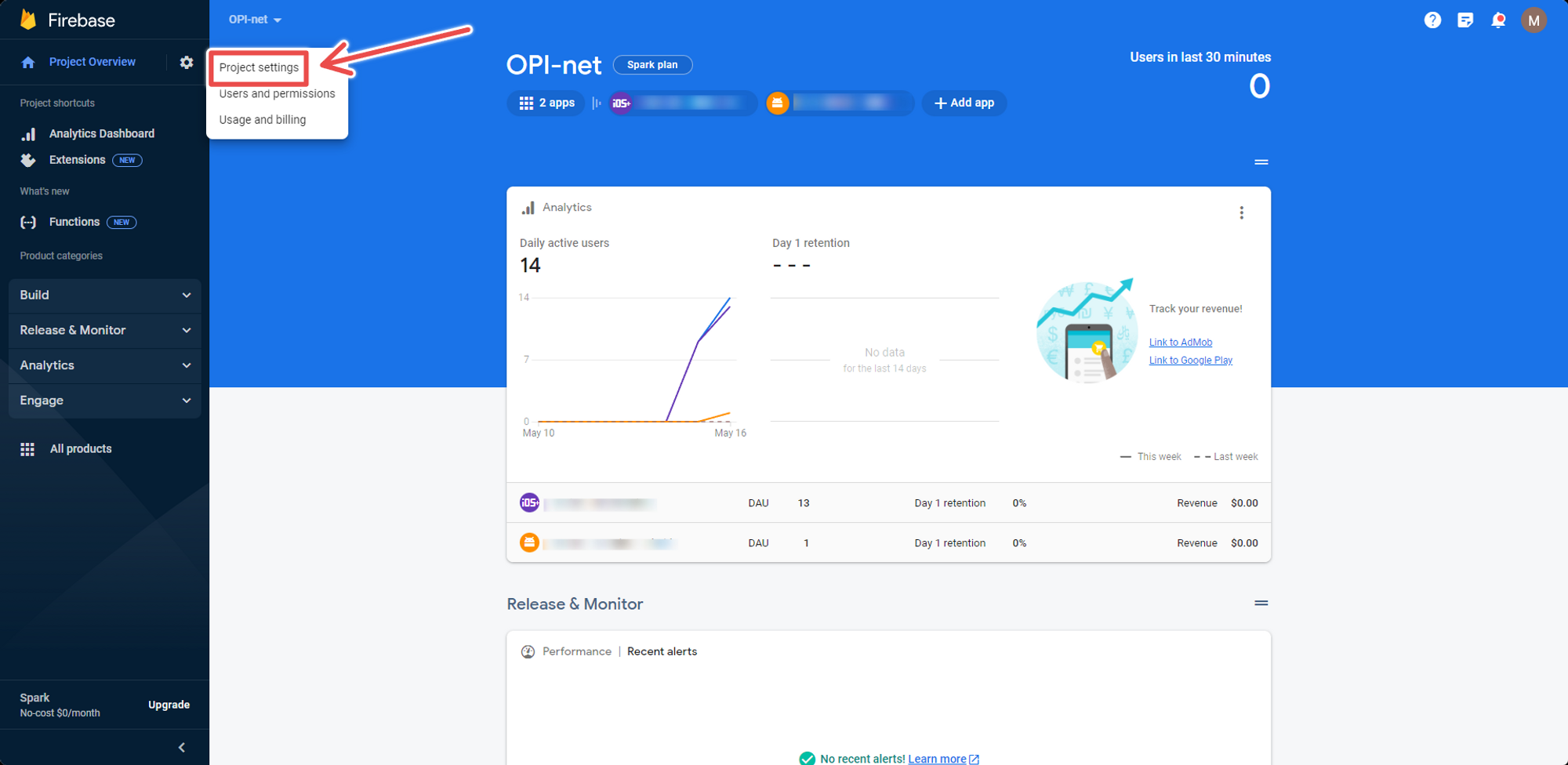
    1 – Go to the Project Settings

    Open your Firebase console and selected your app, then click on the gear icon next to the “Project Overview”:

    Notion Image

    2 – Enable the Google Analytics Integration

    Click on the “Integrations” tab and then “Enable” on  your Google Analytics Integration:

    Notion Image

    3 – Select your Google Analytics Account

    You will then be prompted to pick the Google Analytics account in which the data should be displayed

    Notion Image

    Note that by default Firebase will create a new property on the selected account, but you can connect Firebase to an existing property if you’d like, just click the edit button as you can see below:

    Notion Image

    Once all steps have been completed the connected data streams should start feeding the data within 48 hours.