Category: Docs

  • Configure Yotpo Loyalty with Shopify

    Configure Yotpo Loyalty with Shopify

    If you have a Shopify website you can use Yotpo to create unique experiences for your users, using their rewards and loyalty features.

    The first step is to install the “Push Notifications – Vendrux” Shopify app on your store: https://apps.shopify.com/mobile-push-notifications

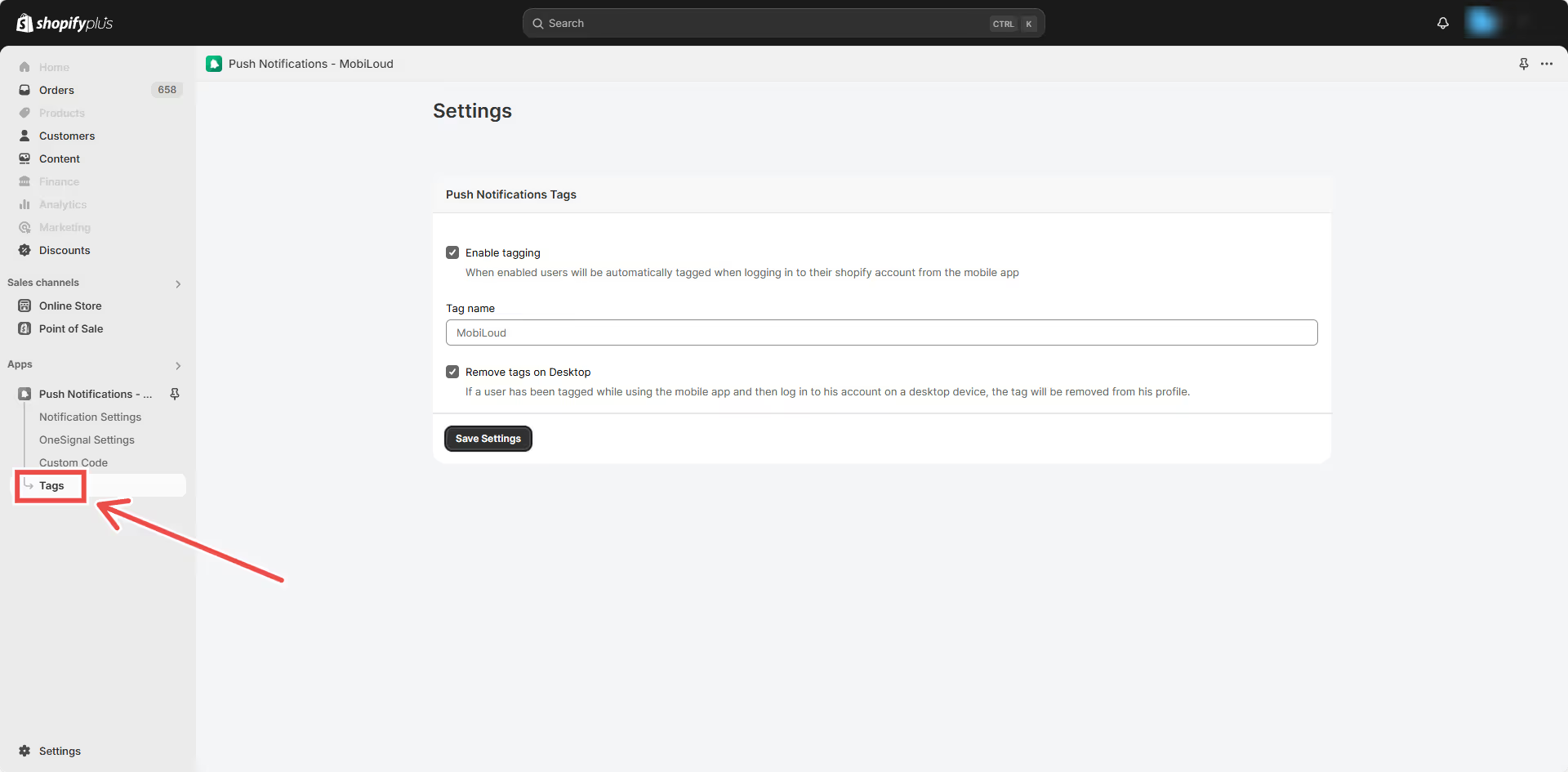
    Once installed, go to the app settings and then to “Tags”, where you will be able to configure the tagging system. This will add a tag to the profile of users who log in to your website through the app.

    You can use the following settings to get started:

    Whenever a user logs in to his account through the app, the “Vendrux” tag will be added to his profile.

    Now in your Yotpo account, under the Loyalty area (https://loyalty-app.yotpo.com/), you will need to create a new “Segment”, for users that have been tagged with the “Vendrux” tag, as you can see below:

    Done! You can now create rules that will target your Mobile App Users specifically, as you can see here:

  • Configure Smart App Banners | vendrux Docs

    Configure Smart App Banners | vendrux Docs

    Driving traffic to your app from your mobile site is the smartest way to gain new app users and retain mobile visitors. To get these people to download your app, you can use smart app banners.

    We highly recommend promoting your app using smart app banners – with these you’ll show a banner suggesting to install your app only to your website visitors using either an iOS or an Android device.

    Read on to learn more about smart banners, and how to implement a smart app banner on your site.

    What Are Smart App Banners?

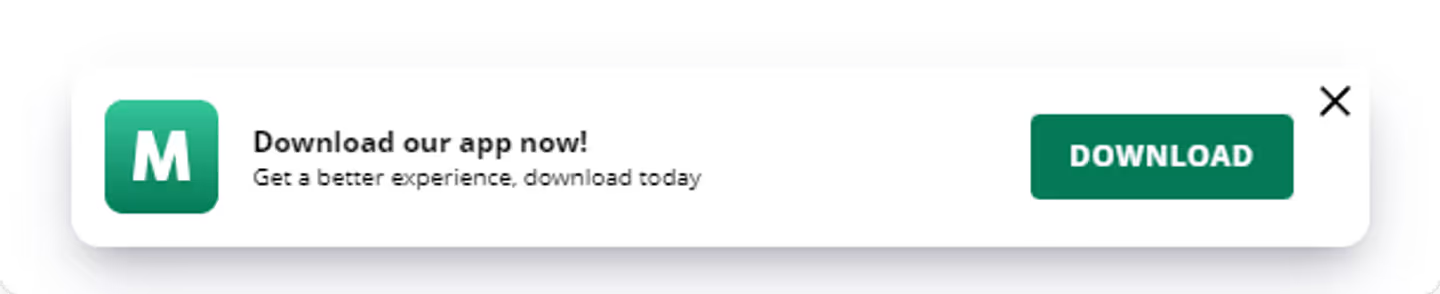
    Smart app banners are banners that show up when someone lands on your mobile website, prompting them to get your app.

    Here’s an example:

    smart-app-banner.png

    Here’s what Apple’s own help pages say about smart app banners:

    “Smart App Banners vastly improve users’ browsing experience compared to other promotional methods. Users will trust that tapping the banner will take them to the App Store and not a third-party advertisement. They will appreciate that banners are presented unobtrusively at the top of a webpage, instead of as a full-screen ad interrupting the web content. And with a large and prominent close button, a banner is easy for users to dismiss. When the user returns to the webpage, the banner won’t reappear.”

    Features

    ML Smart Banner features:

    • Configuration options:
    • Banner position
    • Banner delay
    • Texts fonts
    • Texts color
    • Banner BG
    • Text content (for button and heading/description)
    • App icon (the same for Android and Ios)
    • Entering animation
    • Display options: On load or when user scrolls up/down
    • Android and iOS links
    • Button Link applies automatically depending on user agent: If Android, it uses the provided android link if iOS, uses the provided ios link.
    • getMobileOs method available: its a function that can be called to get the current browser OS, useful for triggering external functions’. It returns a string containing “android” | “ios” | “windows”
    • Fallback App Icon option –> If the provided icon link is invalid / or image can not be displayed, an icon is generated using the App Name Param and Button colors
    • Default options set (if not texts, images or colors provided, it shows placeholder info, useful for catching errors or for testing while implementing the banner)
    • Banner can be used as a module or used directly in an html / script tag
    • Code written in Typescript and minified/bundled with Vite

    📖 How to use

    Smart Banner can be used importing the JS code via CDN or as a module using NPM

    🚀 With CDN

     src="https://cdn.jsdelivr.net/npm/ml-smart-banner/dist/ml-smart-banner.min.js">
    script>
      function addSmartBanner() {
        new SmartBanner().init();
      }
      window.addEventListener('load', addSmartBanner);
    script>

    Configuration options:

    const options = {
        fontFamily: `"Source Sans Pro", "Arial", sans-serif`, // Font family for banner texts, defaults to system safe fonts
        fallbackFontFamily: 'sans-serif', // Font family for fallback icon, safe options are serif and sans-serif
        appName: 'ML', // Initials for fallback icon.  Reccommended 2 characters. Fallback Image uses button text and bg color
        textColor: '#222', // Banner texts color (any color property value)
        buttonColor: '#222', // Button color (any background property value)
        buttonText: 'Download', // Button text
        buttonTextColor: '#fff', // Button Text Color (any color property value)
        iconUrl: '', // Icon url, defaults to avatar with appName
        textHeading: 'Download now!', // Heading Text
        textDescription: 'Try it now, download today', // Description text
        bannerColor: '#fff', // Banner BG color
        linkIos: 'https://itunes.apple.com/', // Link for iOS 
        linkAndroid: 'https://play.google.com/', // Link for Android 
        position: 'bottom', // Position of the banner, default 'top'. 'top' | 'bottom'
        animation: 'fadeIn', // Banner animation, default 'fadeIn'. 'fadeIn' | 'scaleUp' | 'slideBottom' | 'slideTop' | 'slideLeft' | 'slideRight' | null,
        display: 'onLoad', // Display options, default 'onLoad'. 'onLoad' | 'onScrollDown' | 'onScrollUp'
        radius: '0', // Banner radius with units
        delay: 0, // defines how much time to wait until the element shows up
        shadow: true // If true applies soft shadow, true | false
    }
    
    const smartBanner = new SmartBanner(options);

    Methods

    getMobileOS

    Returns current OS, useful for knowing the user OS and triggering functions depending on that

    const smartBanner = new SmartBanner(options);
    smartBanner.getMobileOS()

    Development

    • npm run build produces a production version into /dist folder
    • npm run dev runs dev version and starts a dev server

    Testing the smart app banner

    You will definitely want to test the smart app banners once you deploy them to your website, to make sure that everything works and looks as you want.

    Running these tests on real mobile devices can get overwhelming, so we recommend that you run your tests on your desktop browser.

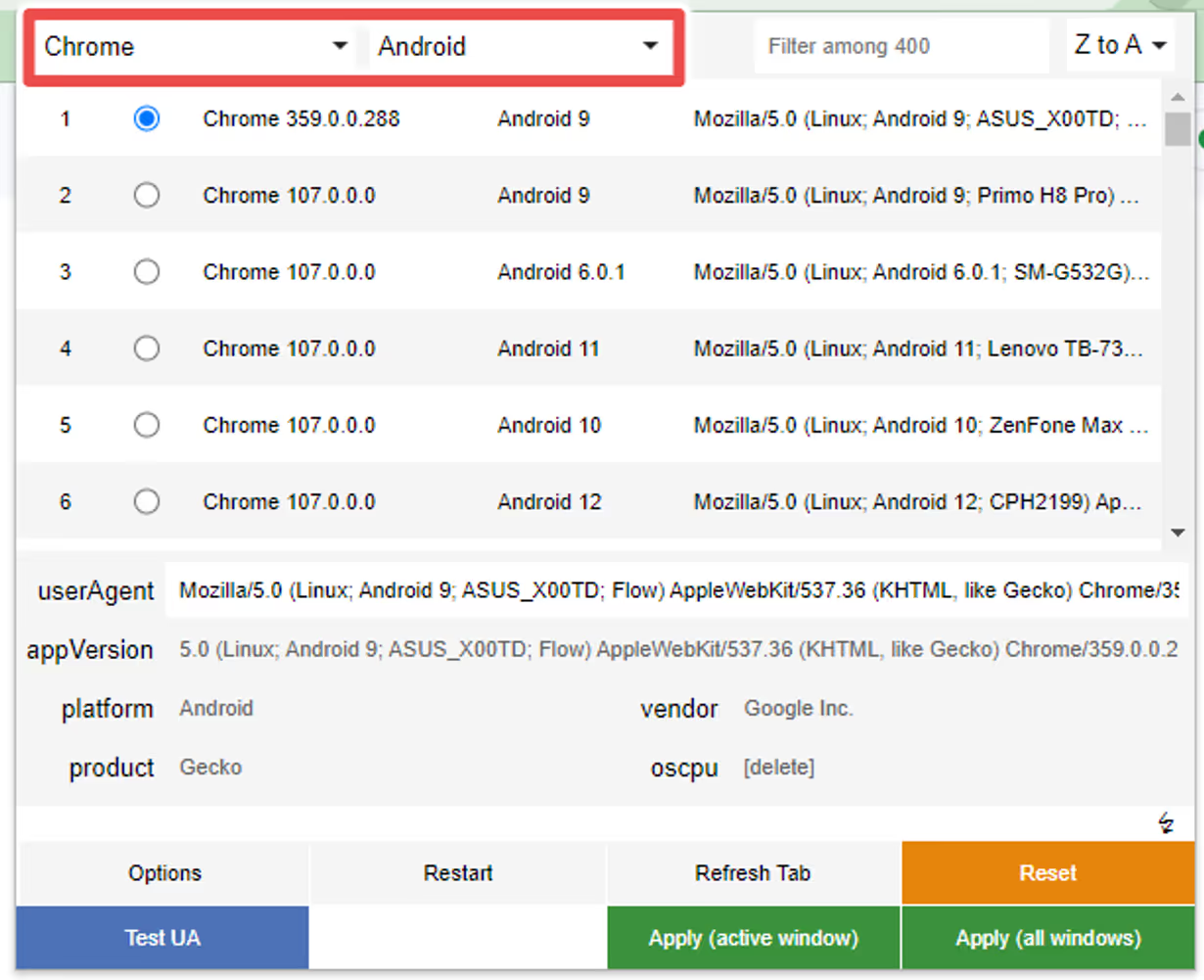
    To do this, you will need to emulate a mobile device by adjusting your browser’s user agent. We recommend using the following Chrome extension to do this: User Agent Switcher and Manager

    Once you have installed the extension, set it up as follows:

    Step 1

    Select “Chrome” as the browser and “Android” as the platform if you want to test the Android version of the banner, or “Safari” and “iOS” in case you want to test the iOS version:

    annotely_image (61).png

    Step 2

    Select one of the options that will appear, any will work:

    annotely_image (62).png

    Step 3

    Click “Apply” to make sure the user agent is properly set up on your browser:

    annotely_image (63).png

    Step 4

    You can now press “F5” while viewing your website to refresh the browser window with the updated user agent.

    Reset

    If you want to revert the changes to the user agent, as some websites might start behaving differently after doing so, you can click the “Reset” button:

    annotely_image (64).png

  • Configure Google Login in WebView

    Google login might not work out-of-the-box when used inside WebViews.

    For security reasons Google prevents the login page from being displayed when the page is requested from within a WebView element.

    To resolve that issue, you will want to display your Google login page using a custom popup, that can be configured using the following parameters in your app’s advanced configuration:

    "Regex_Social_Login": {
      "Regex_Social_Login_Opening_Method": "popup",
      "Regex_Social_Login_Rules": [
        {
         	"Regex": ".pay\\.google."
        },
        {
    	"Regex": ".accounts\\.google."
        }
      ]
    }

    Regex_Social_ Login_ Opening_ Method

    This parameter should always default to “popup”

    Regex_Social_ Login_ Rules

    Within the rules, we can have multiple regex expressions to identify which URLs should be opened using this method.

    In the example above we have configured the Google Account page and the GPay page to open in the popup.

    You will want to make sure that these URLs are all configured to open as internal links in your app, otherwise they will open outside the app and the popup won’t work.

  • Configure Deep Links for third-party apps

    You might have deep links on your website for third-party apps, like Facebook or Twitter.

    These deep links might not work out-of-the-box in your Vendrux app and will require some extra app configuration.

    To enable support for these deep links, you first need to identify the URLs that are used on them.

    Facebook for example, will usually have something like this: fb://profile/10050099380

    In your app advanced configuration you will want to add the following to support that specific type of deep link:

    "Deep_Links": [
      {
      	"Scheme": "fb"
      },
      {
      	"Scheme": "twitter"
      }
    ]

    With this code in place the app will understand that URLs starting with a specific scheme must be handled differently, and the links should open directly on the third-party app.

  • Colors | vendrux Docs

    Colors | vendrux Docs

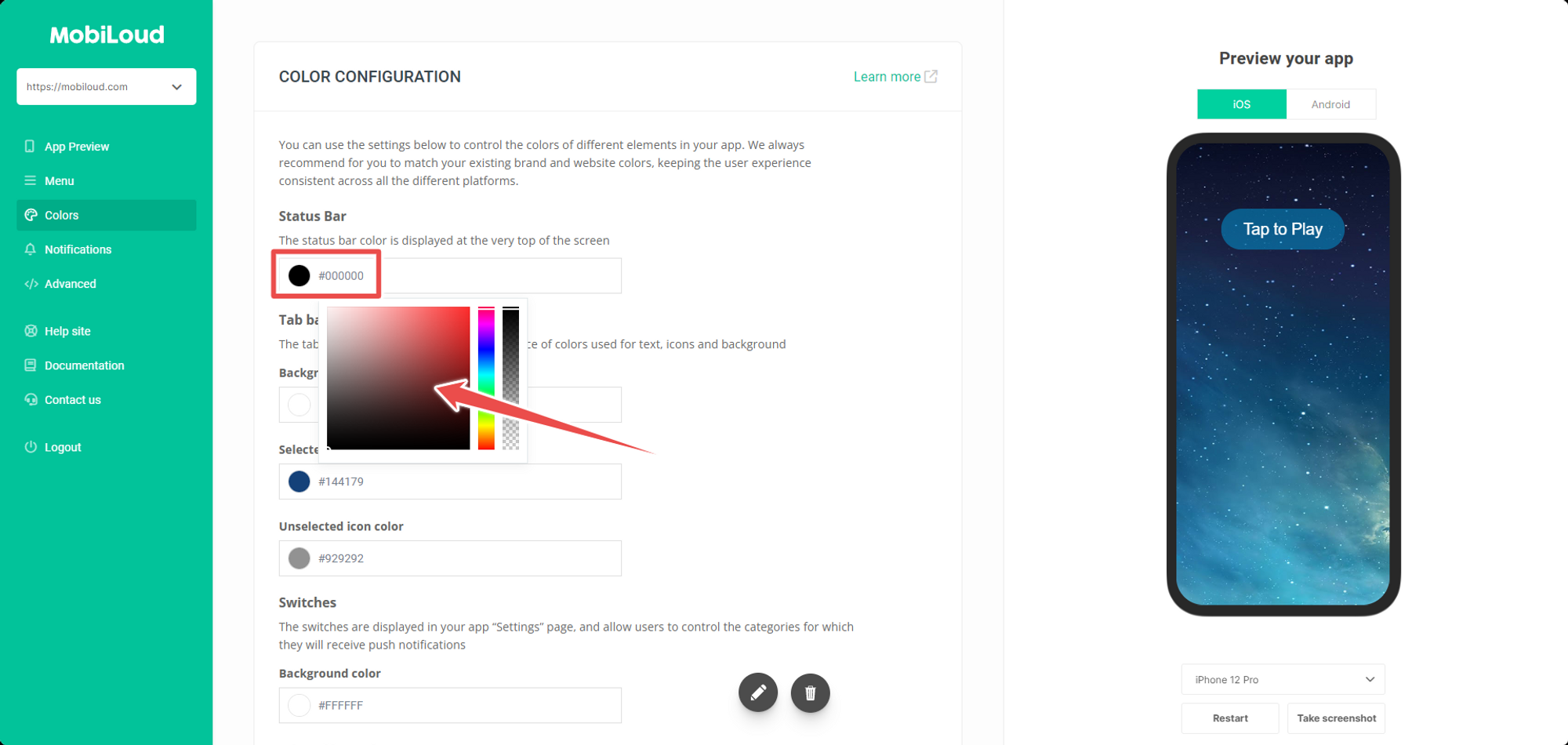
    Under the “Colors” area of your Vendrux Dashboard you will be able to customize the color of certain elements in your app, including:

    Changing colors is extremely simple, for each element you just need to click on the corresponding circle and pick the color you want to use:

    Notion Image

    Make sure to pick colors that match your branding and the colors of your website, this helps with keeping the app interface consistent and pleasant to the eyes of your users.

  • Code Injecting | vendrux Docs

    Code Injecting | vendrux Docs

    You can inject custom code into the apps, this is useful if you’d like to customize the design or functionality of your app without affecting the website.

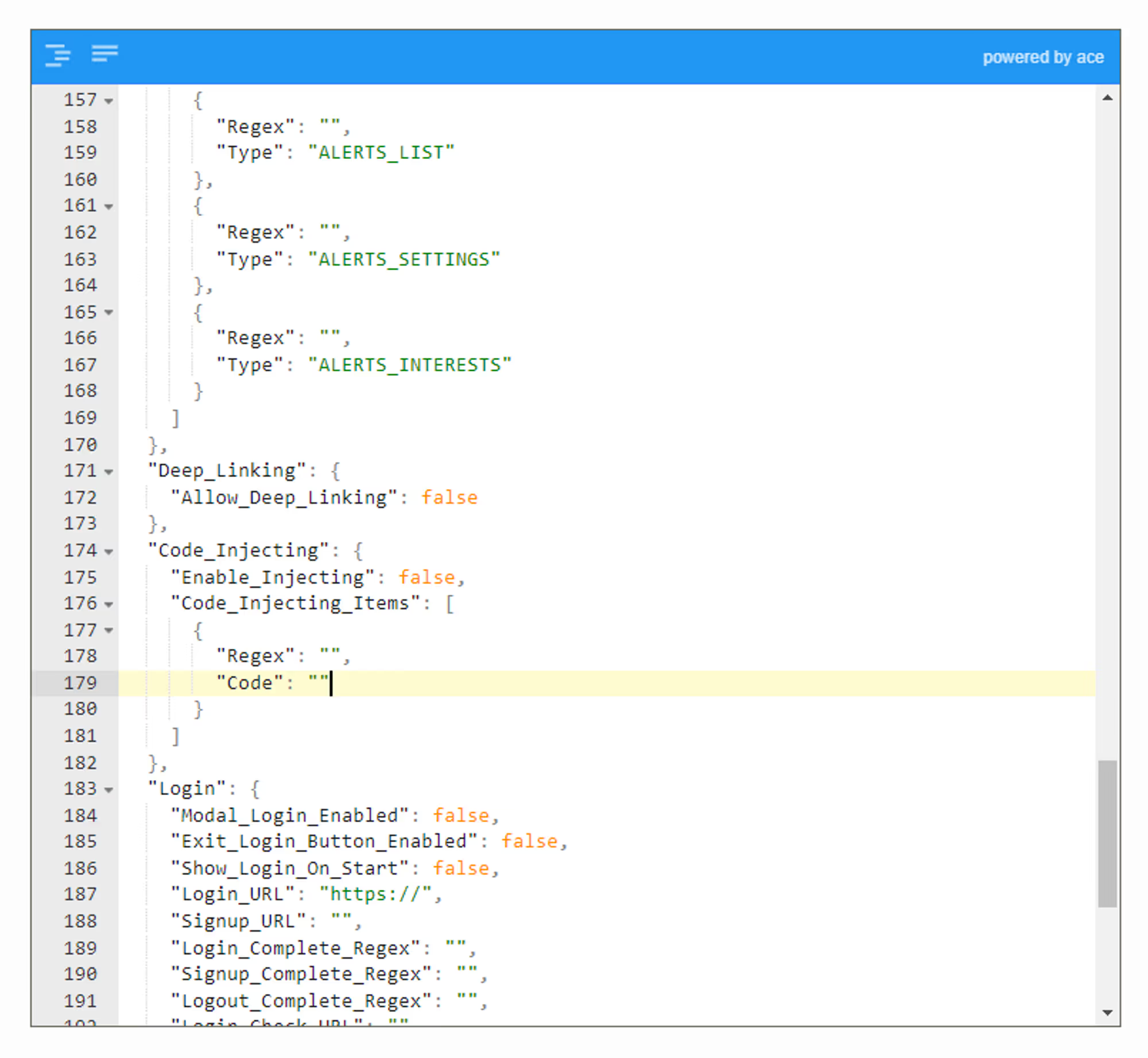
    To use code injecting you will need to edit your app’s advanced configuration.

    Notion Image

    This is how the code injecting feature will be configured by default:

    "Code_Injecting": {
        "Enable_Injecting": false,
        "Code_Injecting_Items": [
          {
            "Regex": "",
            "Code": ""
          }
        ]
      },
    

    If your configuration looks different than that you might have an old version in place, feel free to replace your code injecting related code with the one above to ensure everything will work properly in your app.

    Let’s break down each parameter:

    Enable_Injecting (true/false)

    Determines if code injecting should be active or not. In order to use this feature you will need to set the value to “true”.

    Code_Injecting_Items (array)

    Each item added to the Code_Injecting_Items will allow you to inject a different piece of code into your website.

    You might want to use different items when targeting specific URLs. You might for example want to have code #1 injected on your home page only, while code #2 injected on all other pages.

    Regex (regex)

    Determines where your code will be injected.

    When a page is loaded in your app and you have the code injecting feature turned on, the app will perform a check on the URL of that page using the regex provided. If there is a match, the code will be injected.

    If you want the code to be injected into all pages you can use the following:

    "Regex": ".*"

    Code (HTML)

    The code parameter is where you will want to add your HTML code that should be injected into your page(s).

    If you want to add custom CSS you can use the following:

    "Code": ""
    

    If you want to add custom Javascript you can use the following:

    "Code": ""

    Final Code

    Your final code should look as follows when using the code injecting feature:

    "Code_Injecting": {
        "Enable_Injecting": true,
        "Code_Injecting_Items": [
          {
            "Regex": ".*",
            "Code": ""
          }
        ]
      },
    
  • Back Button | vendrux Docs

    Back Button | vendrux Docs

    A ‘Back Button’ in your app is essential for user experience, providing a quick and intuitive way to backtrack through a series of actions or views. Without a back button, users might feel disoriented or frustrated trying to navigate within the app.

    This library provides a web based widget that replicates the native look and feel provided by the iOS and Android SDKs. The purpose is to add navigation options to a web app when running in a native app container, like what Vendrux provides.

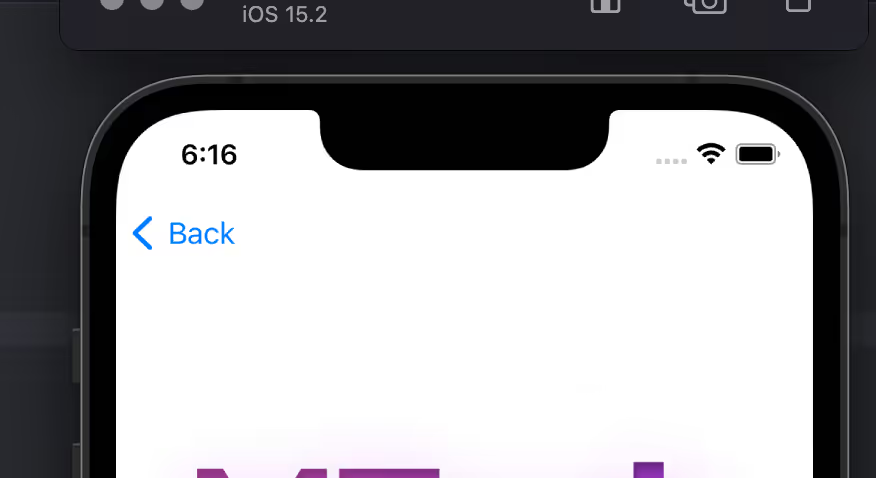
    Here’s an example:

    Features ✨

    ML Back Button features:

    • Configuration options:
      • Button text/label
      • Button colors
      • Position and animation
      • Display options: when user scrolls screen, on page load
      • Basic style settings, extensible with CSS
      • Options to replace elements and attach button to a container
      • Regex / url filtering, to avoid displaying the button in certain pages
    • deviceData method available: its a function that can be called to get the current browser OS, useful for triggering external functions’. It returns a string containing “android” | “ios” | “windows”
    • Default options set (if not texts, images or colors provided, it shows placeholder info, useful for catching errors or for testing while implementing the Button)
    • Button can be used as a module or used directly in an html / script tag
    • Code written in Typescript and minified/bundled with Vite

    How to use 📖

    ml-back-button can be used importing the JS code via CDN or as a module using NPM

    With CDN 🚀

    script type="module" src="https://cdn.jsdelivr.net/npm/@vendrux/ml-back-button@latest/dist/ml-back-button.min.js">script>
    script>
      function addBackButton() {
      	new BackButton().init();
      }
      window.addEventListener('load', addBackButton);
    script>

    NPM 📦

    @vendrux/ml-back-button

    npm i @vendrux/ml-back-button

    Configuration options ⚙️

    	const options = {
    /** Sets the button text color (if string is used in label); Example '#fff'*/
      textColor: string,
      /** Sets the button fill color (if svg is used in label); Example '#000'*/
      fillColor: string,
      /** Sets the button background color (if svg is used in label); Example '#000'*/
      buttonColorPrimary: string, 
      /** Sets the button label; Example 'Back', '...'*/
      label: string,
      /** Sets the button position when floating: 'top-right' | 'top-left' | 'bottom-left' | 'bottom-right' */
      position: 'top-right' | 'top-left' | 'bottom-left' | 'bottom-right',
      /** Sets the button entrance animation: 'fadeIn' | 'scaleUp' | 'slideBottom' | 'slideTop' | 'slideLeft' | 'slideRight' | null */
      animation: 'fadeIn' | 'scaleUp' | 'slideBottom' | 'slideTop' | 'slideLeft' | 'slideRight' | null, 
      /** Sets the button display type: 'onLoad' | 'onScrollDown' | 'onScrollUp' */
      display: 'onLoad' | 'onScrollDown' | 'onScrollUp', 
      /** Sets the button radius: css unit, 50% gives a rounded btn if same height/width; Example '50%' */
      radius: string,
      /** Sets the button width: css unit; Example '20px' */
      width: string,
      /** Sets the button inner padding: css unit; Example '1em' */
      padding: string,
      /** Defines how much time to wait until the element shows up (in ms); Example 1000 */
      delay: number, 
      /** If not null, button is injected into a container, it uses any html selectors; Example '.class', '#id', null  */
      containerSelector: string | null, 
      /** If container selector activated, it places the button before or after other elements; Example 'first' | 'last' | null */
      containerOrder: 'first' | 'last' | null,
      /** Sets text alignment, button has a flex container; Example 'center' | 'start' | 'end' */
      textAlign: 'center' | 'start' | 'end',
      /** If true applies soft shadow; Boolean */
      shadow: boolean,
      /** if a selector is placed here, this element would be replaced with the back button; Example '.className' '#idName' */
      replaceElement:  string | null,
      /** uses regex to avoid injecting button in certain pages; Example /(?:\/|\/home|\/someUrl|\/about|\/categories\/clothing)/ */
      regex: string | null,
      /** Display or not logs, useful when developing; Boolean */
      logs: boolean  
    }
    
    const BackButton = new BackButton(options);

    Methods 💡

    deviceData.os // returns current os "android" | "ios" | "windows" | "desktop"
    deviceData.isCanvas // returns true or false
    deviceData.isMobile // returns true or false

    Recipes 🍳

    This are useful ways to implement the widget. We always recommend using an Event Listener to trigger the code when the document is loaded window.addEventListener('load', fnName)

    Insert Back Button – desktop only

    function addBackButton() {
    	if(deviceData.isMobile || deviceData.isCanvas ){
    		return
    	}
        new BackButton(options).init();
      }
    window.addEventListener('load', addBackButton);

    Using deviceData method to filter devices

    const options = {
      // Set params here
    }
    
    // Insert widgets only in our Canvas platform
    if(deviceData.isCanvas) {
    	const backButton = new BackButton(options);
    }
    
    // Apply specific configs based on OS
    if(deviceData.os === "android" || deviceData.os === "windows") {
      const backButton = new BackButton(options1);
    } 
    if(deviceData.os === "desktop" || deviceData.os === "ios") {
      const backButton = new BackButton(options2);
    }
    
    // Insert widgets only in Mobile userAgent
    if(deviceData.isMobile) {
    	const backButton = new BackButton(options3);
    }

    Testing Widgets 🧪

    www.vendrux.com/docs/testing-widgets
  • Apple review process | vendrux Docs

    Before your app is made available in the App Store it will go through a review process.

    The review process is performed by a reviewer that works for Apple, and it consists of a series of tests and checks to make sure that your app works as intended and follows all the guidelines from Apple.

    You can find all the review guidelines from Apple, here: https://developer.apple.com/app-store/review/guidelines/

    The review process usually takes 3 business days to be completed, but it can take more.

    You can find all the details provided by Apple about the review process here: https://developer.apple.com/app-store/review/

    If your app gets rejected by Apple, more details will be provided in the Resolution Center, accessible via your App Store Connect account. In most cases no actions will be required on your end, Vendrux will take care of reviewing and performing the necessary adjustments to get your app approved, but if anything is needed from you, we will let you know.