Category: Docs

  • How to use the Welcome Screen feature for your News app

    How to use the Welcome Screen feature for your News app

    The Welcome Screen feature was built to help with making sure your app is compliant with the latest General Data Protection Regulation (GDPR).It allows you to present more details on how your user’s data is handled and the terms that are being accepted when they use the app.Since each business has its own policies and branding we decided to provide a customizable design for this feature, so that you can have your own logo, colors, links, and content.You can download the template that we created by clicking here. Here are the steps that must be followed after downloading the template to set up your app’s welcome screen:

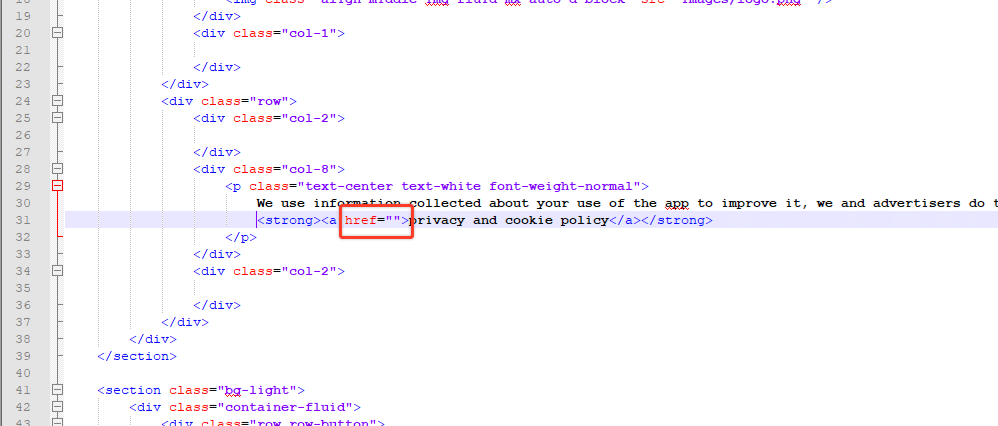
    1. Include your privacy policy URLYou must open the index.html file using a text editor and include your own privacy policy URL on line 31 between the double quotes that can be seen in the image below:
    1. Make sure to save your file afterward.
    2. Upload the vendrux-welcome-screen folder to your serverThe vendrux-welcome-screen folder needs to be uploaded to your server so that it can be accessed by the app using its own URL like this: https://yourwebsite.com/vendrux-welcome-screen (feel free to rename the folder if you prefer). For this step, we’d recommend that you contact your hosting provider for more details on how to upload files using an FTP client.
    3. Adjust your app configuration to include the new welcome screen URLNow that you have the welcome screen folder uploaded to your server you will need to go to the Vendrux News plugin “Settings” area and include the new URL under the “Welcome Screen settings” section on the “Welcome screen URL” setting, as you can see below:
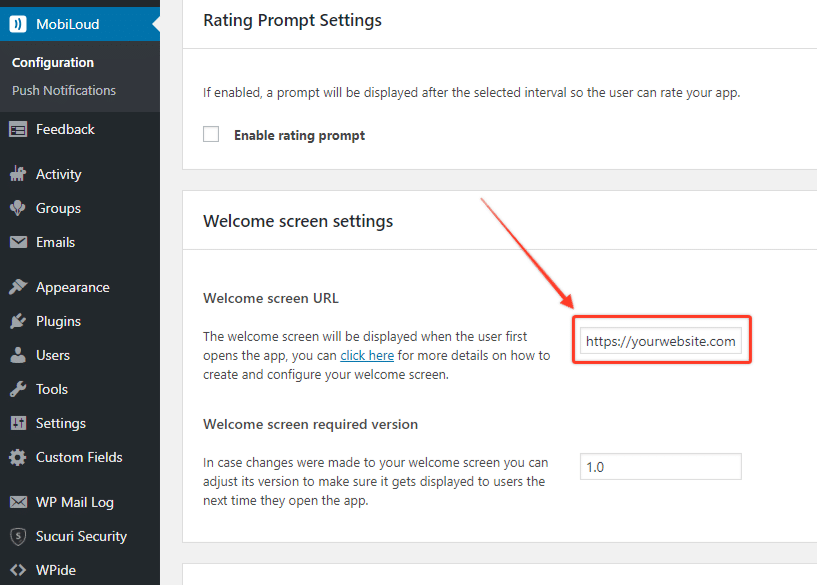
    Once your welcome screen URL is in place, you should see the welcome screen is displayed once you open the app. In order to be able to view the app’s content the “I Agree” button will have to be clicked. This will ensure that all users are aware of how your app handles their data and the terms that are being agreed on when they use it.Note that the Welcome Screen will only be displayed once, if you want to display it again to all users who previously clicked the “I agree” button you can increase the “Welcome screen required version”.Don’t hesitate to get in touch with our team in case you need further assistance with your Welcome Screen!

  • How to use the Welcome Screen feature on Canvas

    How to use the Welcome Screen feature on Canvas

    The Welcome Screen feature was built to help with making sure your app is compliant with the latest General Data Protection Regulation (GDPR).It allows you to present more details on how your user’s data is handled and the terms that are being accepted when they use the app.Since each business has its own policies and branding we decided to provide a customizable design for this feature, so that you can have your own logo, colors, links, and content.You can download the template that we created by clicking here. Here are the steps that must be followed after downloading the template to set up your app’s welcome screen:

    1. Include your privacy policy URLYou must open the index.html file using a text editor and include your own privacy policy URL on line 31 between the double quotes that can be seen in the image below:
    1. Make sure to save your file afterward.
    2. Upload the vendrux-welcome-screen folder to your serverThe vendrux-welcome-screen folder needs to be uploaded to your server so that it can be accessed by the app using its own URL like this: https://yourwebsite.com/vendrux-welcome-screen (feel free to rename the folder if you prefer).For this step, we’d recommend that you contact your hosting provider for more details on how to upload files using an FTP client.
    3. Adjust your app configuration to include the new welcome screen URLNow that you have the welcome screen folder uploaded to your server you will need to go to your Canvas app configuration dashboard and include the new URL under the “Advanced” area on line 9, as you can see below:

    Once your welcome screen URL is in place, you should see the welcome screen is displayed once you open the app. In order to be able to view the app’s content the “I Agree” button will have to be clicked. This will ensure that all users are aware of how your app handles their data and the terms that are being agreed on when they use it.Note that the Welcome Screen will only be displayed once, if you want to display it again to all users who previously clicked the “I agree” button you can increase the “Welcome_Screen_Required_Version”.Don’t hesitate to get in touch with our team in case you need further assistance with your Welcome Screen!

  • Notification Tags | vendrux

    Notification Tags | vendrux

    If you would like app users to be able to select from which categories they will receive notifications for, notification tags are the solution you are looking for.

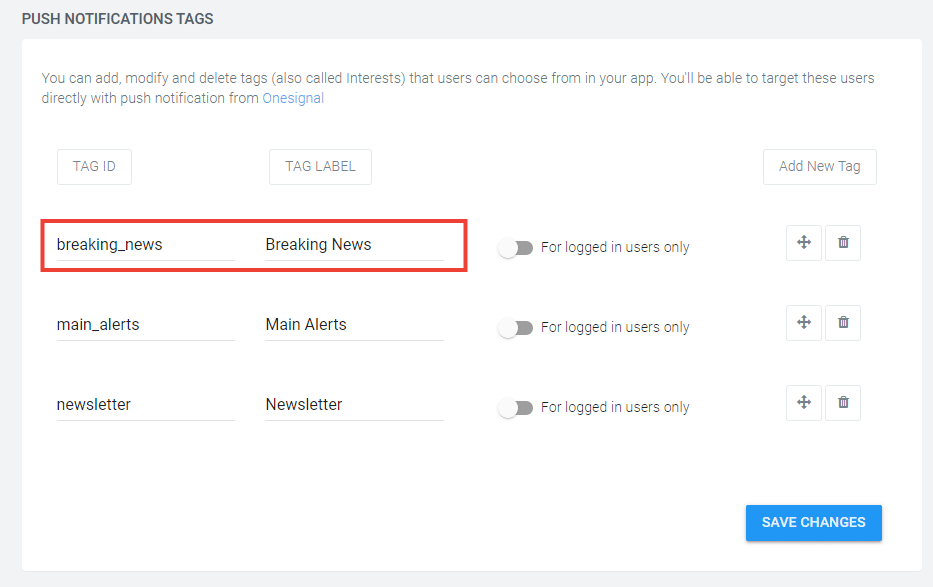
    In your Canvas Dashboard, under “Notifications” you can manage and create notification tags. For each tag, you will be able to define a label and an ID. The label will be displayed to users and can contain any sort of special characters, while the ID will be used to match the tags that are added to your push notifications and should not contain any special characters.

    For the purpose of this guide let’s create a new tag for “Breaking News” push notifications, in this case, we would have something like this:

    When sending your notifications you will now need to include the “breaking_news” tag into your notification payload. Our plugin allows you to do that in a few different ways for manual and automatic notifications.

    Manual Notifications

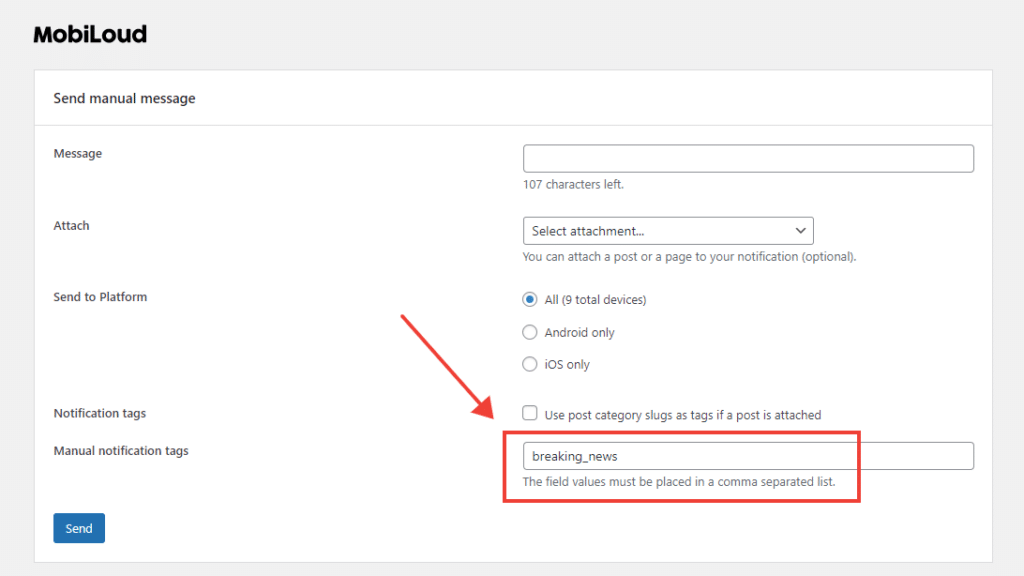
    When sending a manual notification from the plugin you will need to add your created tag into the “Manual notification tags” field, as you can see below:

    Automatic notifications

    For automatic notifications you have two settings that can be used to add tags to your notifications, see below:

    If you use category names as tags, notifications will include the “slug” of your categories as tags. In this example you will need to have a category called “Breaking News” with a slug that looks exactly like the ID you created “breaking_news”

    You can also add specific tags to always be included in your notifications, you just need to make sure they match the tags you created in your Canvas Dashboard.

  • How to use Canvas functions

    Specific features of Canvas can be triggered manually through the use of Javascript functions.

    These functions must be implemented directly on the website side, and will only work when the website is viewed inside the app.

    Below you can find a list of all the available functions:

    nativeFunctions.onesignalSendTags([$tags])
    Adds an array of tags to the user profile in OneSignal

    nativeFunctions.onesignalDeleteTags([$tags])
    Removes an array of tags from the user profile in OneSignal

    nativeFunctions.onesignalSetExternalUserId($id)
    Adds an external ID to the user profile in OneSignal

    nativeFunctions.onesignalRemoveExternalUserId()
    Removes an external ID from the user profile in OneSignal

    nativeFunctions.onesignalSetEmail($email)
    Adds an email profile to OneSignal

    nativeFunctions.onesignalLogoutEmail()
    Removes the current email profile from OneSignal

  • How to use App Pages

    How to use App Pages

    Most apps will be required to display some important details to users, such as Privacy Policy, Terms of Agreement, and Contact forms, as per the guidelines from Apple and Google.

    Those details can be added to your app in the form of pages, but instead of using the pages you already have on your website, which are cluttered with information and elements that are only relevant to mobile and desktop users, you will want to use the App Pages feature.

    App Pages will allow you to create pages that are fast to load and match your app design, without displaying them on your website. You can then use those pages across different areas of your app.

    We have included a few App Pages for you by default, but you can follow the instructions below to edit those pages or create new ones.

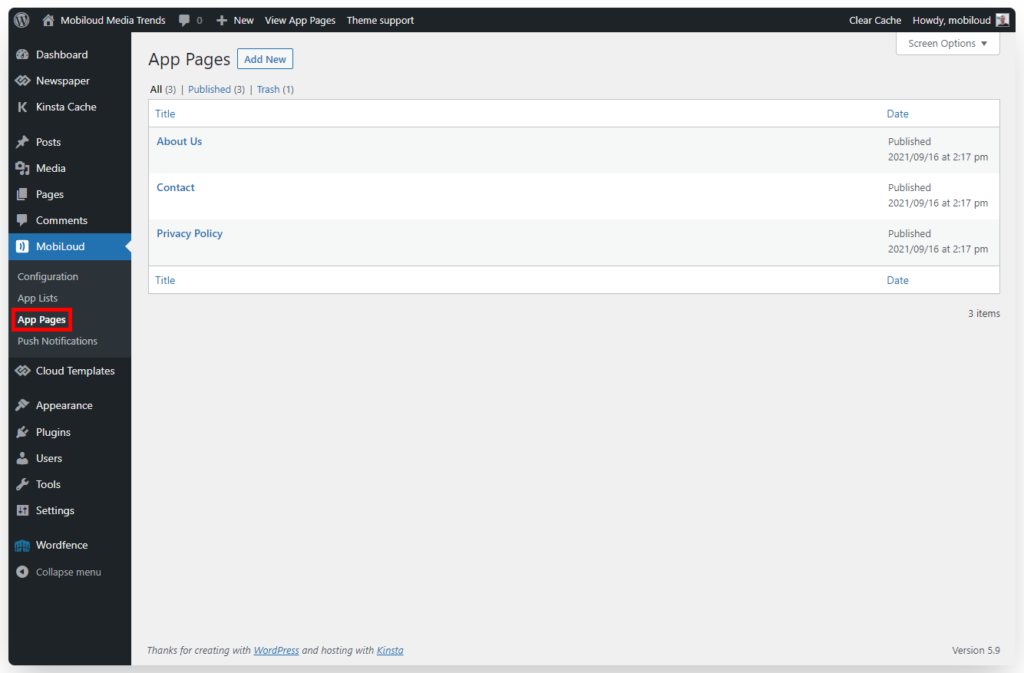
    1 – Go to “Vendrux” and then “App Pages”:

    2 – Select the App Page that you would like to edit

    3 – You can now edit the content of your App Page using the default WordPress editor

    4 – When editing your menus you will be able to select your App Page and add it just like any other link

  • How to use App Lists

    How to use App Lists

    When you open your app, the first thing you will see is a list of posts generated automatically based on the most popular categories of your WordPress website.

    If you would like to have different categories displayed or even a more unique design, you can use the App Lists feature to customize the content that will be displayed to your users when they open the app.

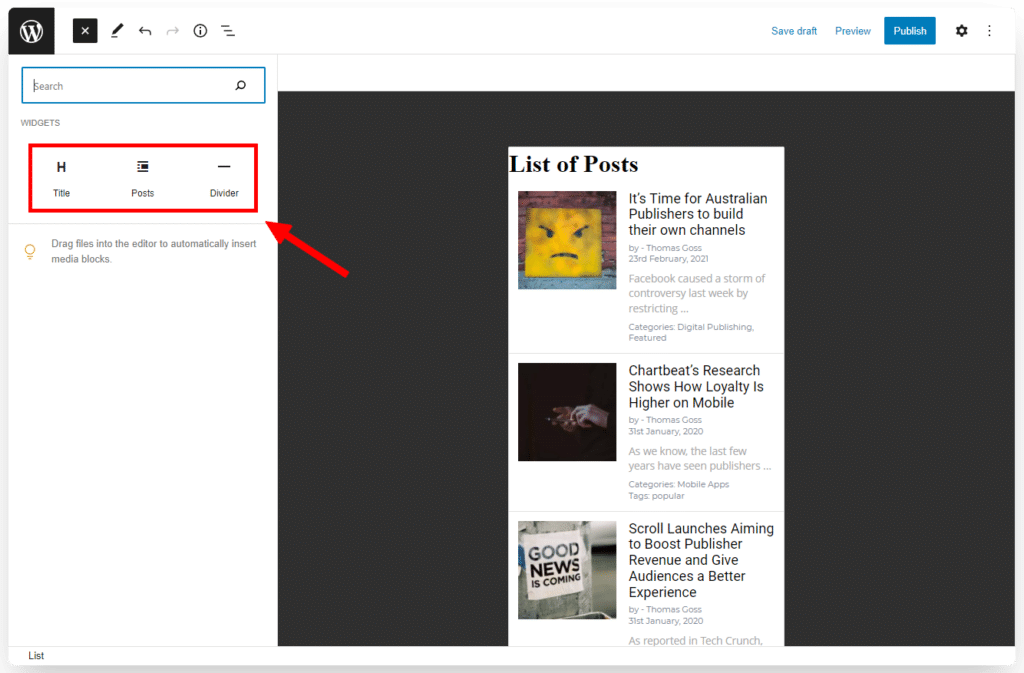
    App Lists use the WordPress Gutenberg Editor feature to provide you with an easy-to-use drag-and-drop interface, allowing you to easily determine the categories, headings, separators, and other design aspects of your lists.

    You can also use App Lists to create lists that can be used on other areas of your app.

    Below you can find more details about how to access and use this feature:

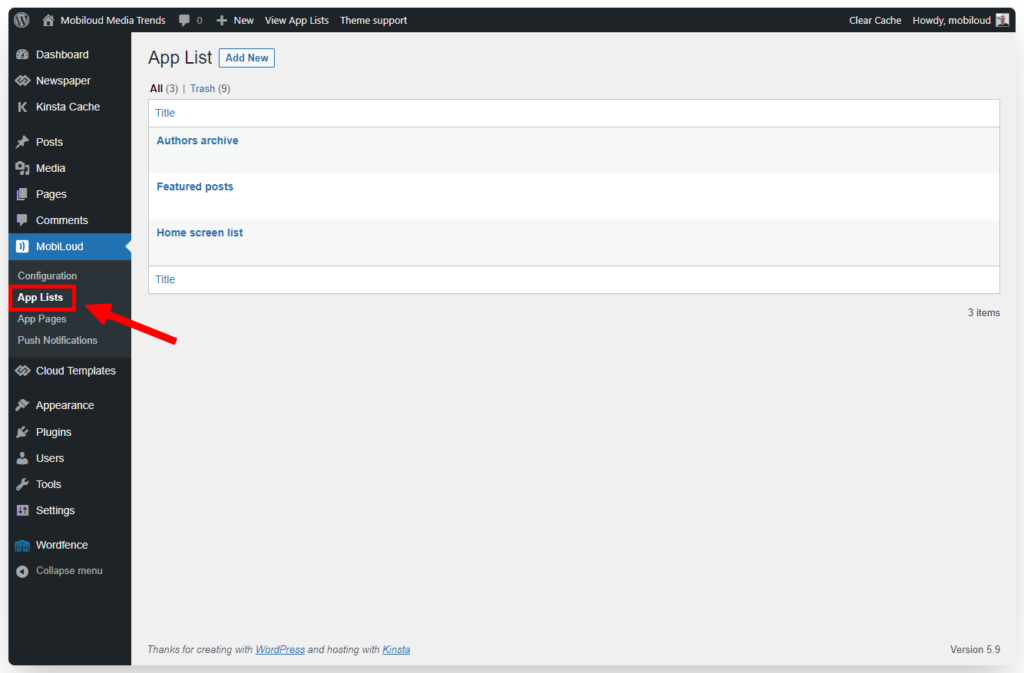
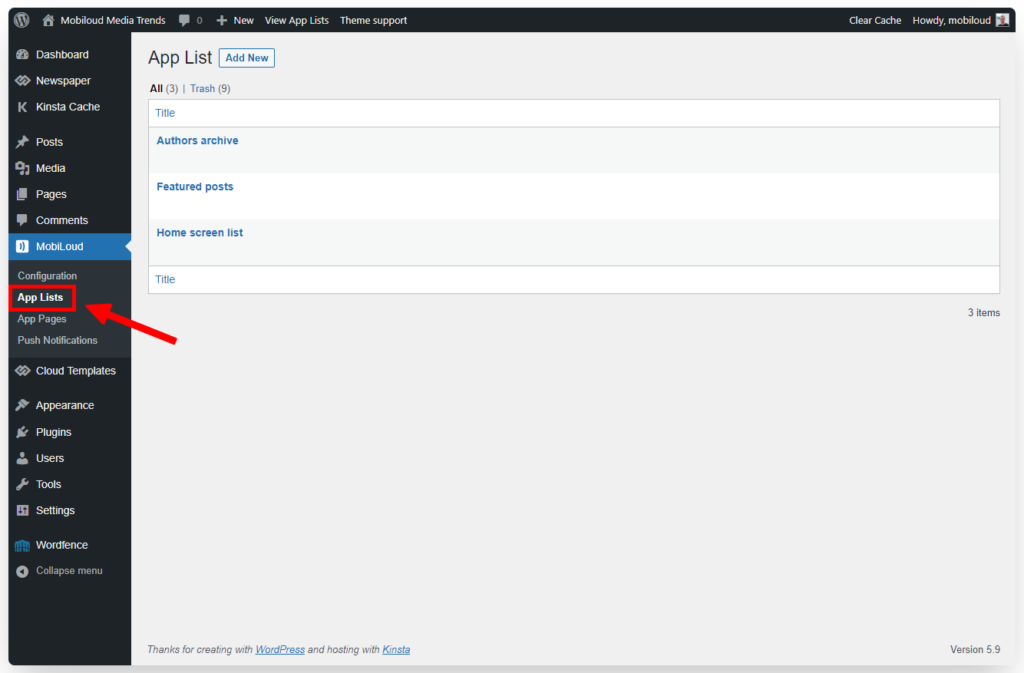
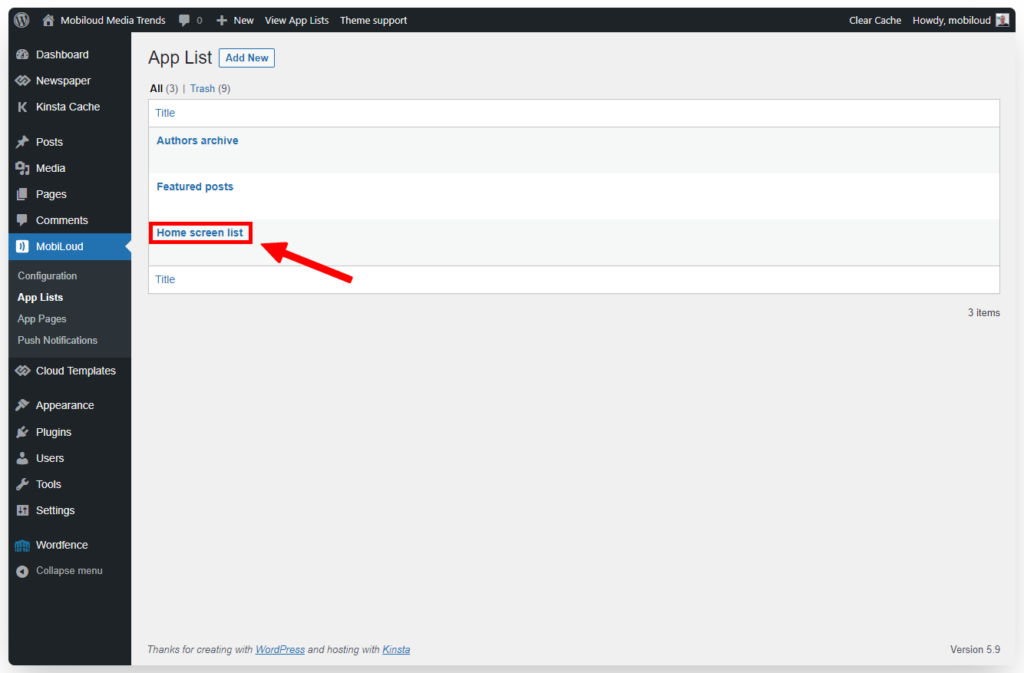
    1 – In your WordPress Dashboard, in the sidebar, click “Vendrux” and then “App Lists”

    2 – Select the list that you would like to edit

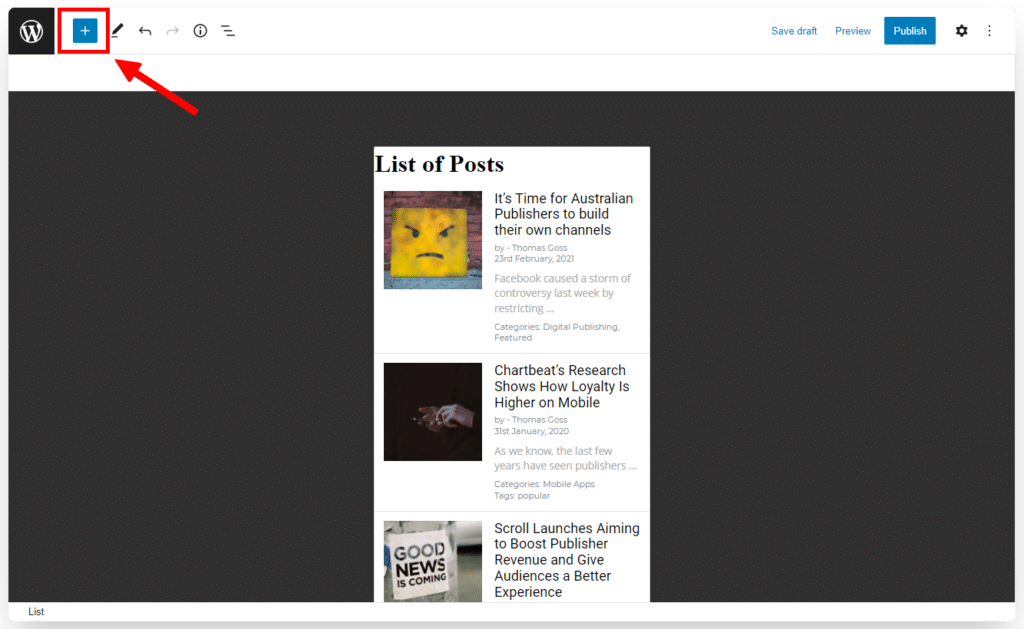
    3 – Click the “+” icon to add more blocks to your list

    4 – Select existing blocks to change their configuration

    How to apply App Lists to your app

    Once you have created and configured your app list, you can now adjust your app to display it as the app’s home screen.

    Go to “Vendrux > Configuration > Menus”:

    Scroll down a bit to the Tabbed Menu configuration and then for the first tab select “Lists” for the “Tab Type” and then pick the App List that you would like to display:

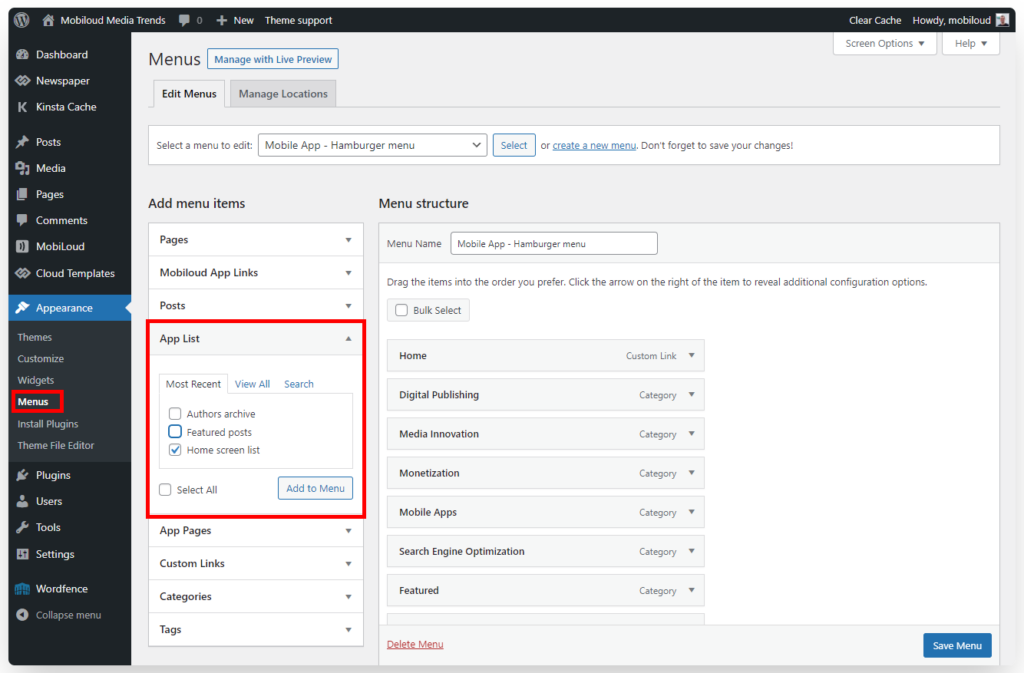
    You can also add your newly created list to the hamburger and horizontal menus, as you can see below:

  • How to track post URLs in Firebase with vendrux News

    How to track post URLs in Firebase with vendrux News

    Firebase allows you to track and monitor different aspects of your app using its Analytics tool.

    If you want to be able to track the URL of the posts that have been opened in the app you will need to set up a custom dimension in your Firebase or Analytics account.

    The objective is to tell Firebase to track a specific parameter (the URL) of a post view event.

    Unfortunately, this needs to be done manually, as Firebase will no longer track all parameters tied to events, they have also applied a limit of 50 parameters tracked on free Firebase accounts. In the past, they used to track all parameters on all events (A LOT of data!), which was certainly a problem on their end since most Firebase accounts are free.

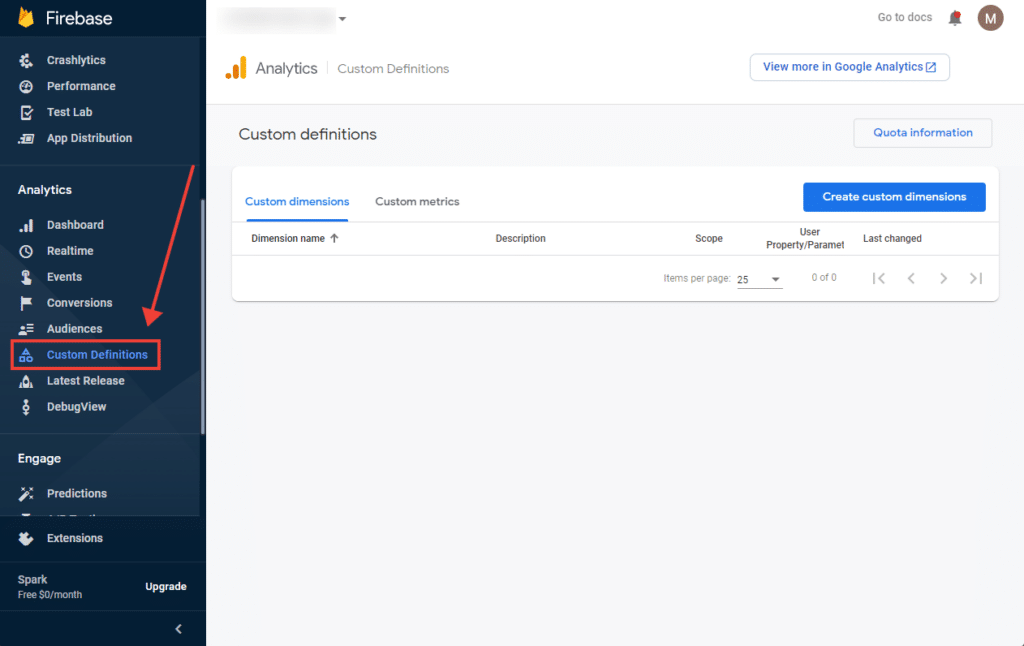
    The first step to set this up is to access your Firebase account (https://console.firebase.google.com) and click on “Custom Definitions”:

    Now go to “Create custom dimensions”:

    Fill out the form using the following values and click “Save”:

    Now that you have a custom dimension created Firebase will start tracking the “url” parameter of your “post” event, it might take up to 24 hours until the tracked data is available for you to see in your Analytics account.

    Once enough data has been tracked, follow the instructions below to see the list of post URLs:

    Go to “Events” and select “post”:

    Scroll to the bottom of the screen and you will find the statistics for the custom dimension you created:

  • How to test iOS apps using TestFlight

    In this guide, we will go through some of the frequently asked questions about testing iOS apps.

    Unfortunately, Apple doesn’t provide users with an easy way to test iOS apps before they are available in the App Store, they require you to use TestFlight, an app that is maintained by Apple itself. Although the app is easy enough to use, it will require you to take some extra steps before your users can test it.

    Different testing methods using TestFlight

    Invitation

    This is the quickest method to get users to start testing your app.

    You will be required to add your testers to your Apple Developer Account, and then, once they have accepted the invitation, add them as testers to TestFlight.

    Here is a breakdown of the steps for your reference:

    1. Invite a user by his Apple ID email, to your Apple Developer Account. You can find a guide on how to do so, clicking here
    2. Once the user has accepted the invitation, you will need to add him as a tester to your app in the TestFlight area. You can find a guide on how to do so, clicking here

    Public link

    If instead of adding users to your Apple Developer account and then inviting them to TestFlight you prefer to simply send a link to the users that you would like to test the app you can use the Public Link alternative.

    To generate your public link you will need to submit your app for review and wait until it gets approved by Apple, which usually takes about 48 hours. Once your app is approved you will be able to generate a link that can be shared with users so they get access to a test version of your app.

    You can find a complete guide on how to generate the public link for your app by clicking here.

    Redeem Code

    The redeem code is required in order for users to be able to download the app in TestFlight.

    Below you will find answers to the most common questions about the redeem code.

    How do I get a redeem code?

    The redeem code is sent to your email once you are added as a tester to TestFlight.

    Where do I use the redeem code?

    The redeem code is used inside the TestFlight app, when you open TestFlight you should see a “redeem code” link on the top right:

    Can other users use my redeem code?

    No, each user will need to be invited separately in order for a unique redeem code to be generated.

    I didn’t get my redeem code, what do I do?

    Before anything make sure to check your email SPAM box, if you still can’t find your code we recommend resending the invitation to your email.

  • How to send push notifications from your WordPress Dashboard with vendrux News

    How to send push notifications from your WordPress Dashboard with vendrux News

    Push notifications let younotify your usersof new content available on the site, or anything else like anevent or a message from you.Notifications are received without the userhaving to openthe app to check for updates. Push, used well and with respect for your users, will help you with drive traffic to your content and increase loyalty and returned visits over time.To enable push notifications, you will need to enter your App ID and Secret Key in the Settings/Push page in the plugin. You will be given the necessary information when your app is submitted by our team (if you can’t find it, just get in touch).So how can you send push notifications? Easy!

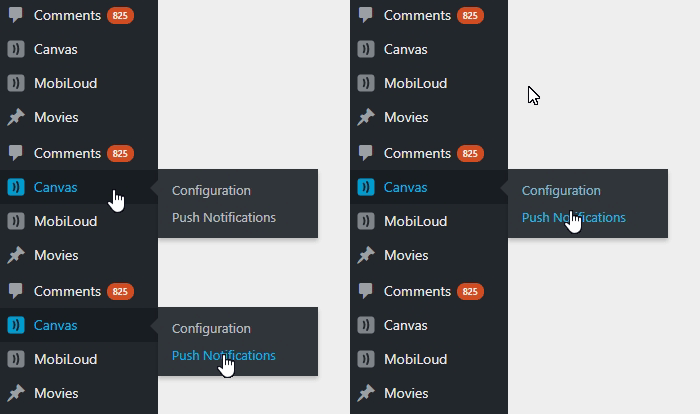
    1. Go to the admin panel of your blog and click on the Vendrux plugin in the sidebar.
    2. Still in the sidebar, click on Push Notifications

    With Vendruxyou have two options forsending out notifications.You can manually send a notificationto your users or you can setup Vendrux so that it will automatically send out notifications when a new post is published.1. Manual Push NotificationsOpenthe Notifications tab to manually send notifications. Compose the message that you want to send to your users on the message bar.Optionally you can also attach a post or page to your notification. You can use this to prompt users to open a post when the notification is clicked. You can also create a static page for anything like a special event or deal, then attach the page to your push message.When an attachment is added to a push, the user will automatically load the post or page when opening the notification.Whenmanually sending out push notifications you can send choose to alert all users or select iOS or Android devices. You’ll see a count of registered devices.2. Automatic Push NotificationsPush for new posts, hassle free! From the Push settings panel, enable the checkbox to automatically send push notifications when a new post is published.You can also define categories which will trigger notifications automatically, for example sending out push messages only for particularly important or time sensitive stories.

  • Sending Push Notifications from WordPress

    Sending Push Notifications from WordPress

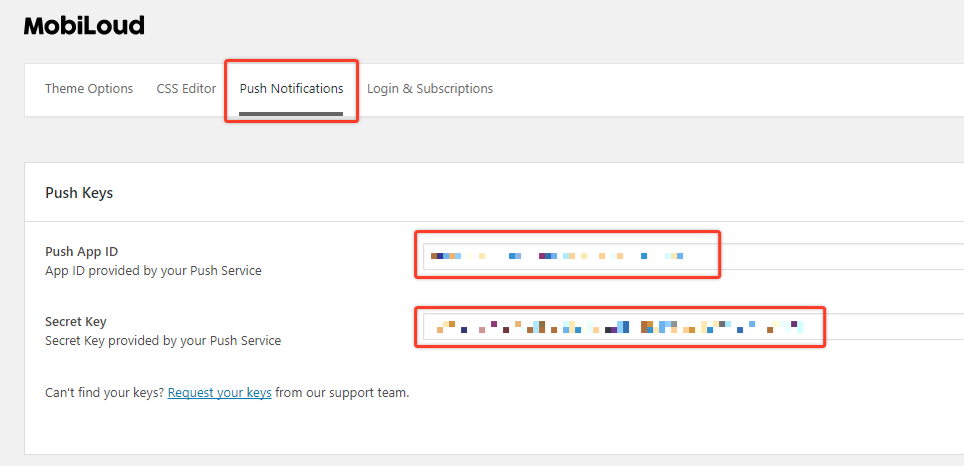
    In order to start sending push notifications from your WordPress Dashboard you will need to fill the “Push App ID” and “Secret Key” fields, under the “Push Notifications” tab, with your OneSignal keys.

    The mentioned fields can be found under “Canvas > Configuration > Push Notifications” as you can see below:

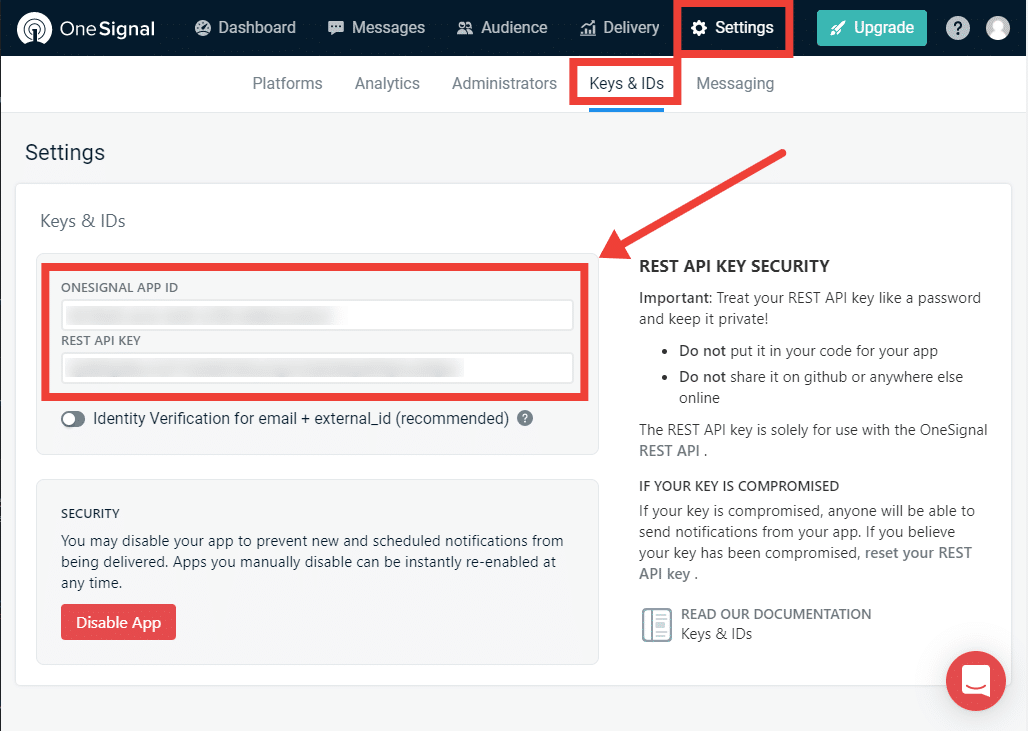
    These keys can be found in your OneSignal account, under the “Settings > Keys & Ids” area as you can see below: 

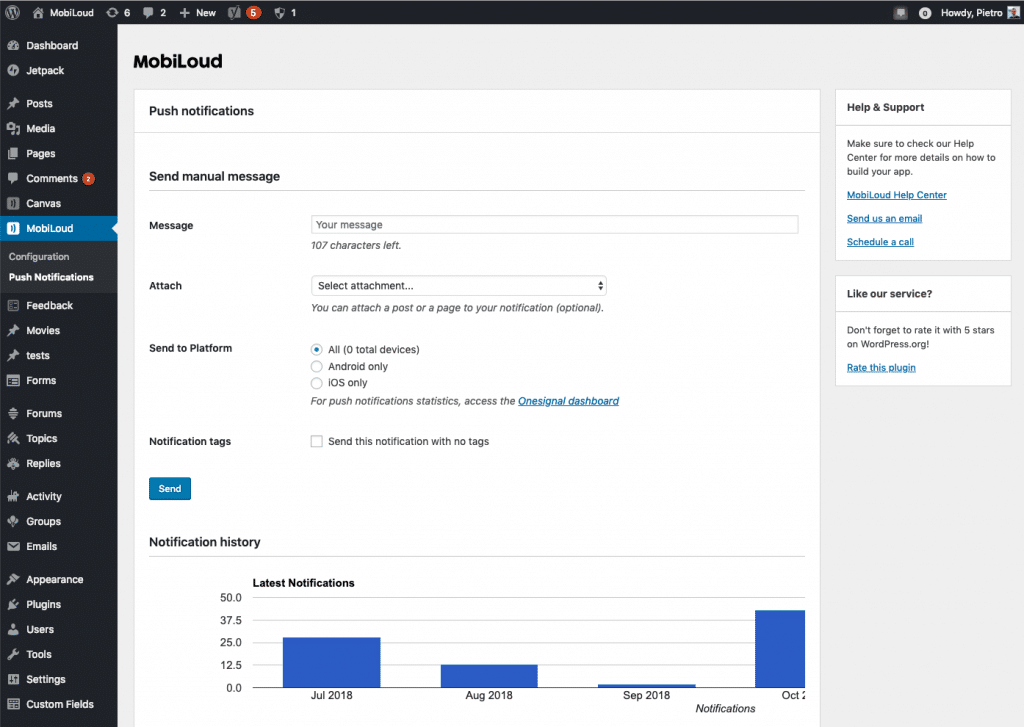
    Once you save your Push Notifications settings, a new section will be available, as you can see below:

    The Push Notifications area will allow you to send manual notifications to your users and tracking information about previously sent notifications.

    Automatic notifications for new posts

    If you would like to send automatic notifications to your users when a new post is published on your website, you can enable this feature under “Canvas > Configuration > Push Notifications”.

    At the very bottom of the page you will find all the settings to configure notifications that will be automatically sent when a new post is published, as you can see here:

    Notification tags

    Tags will allow you and your users to segment the notifications they will receive.

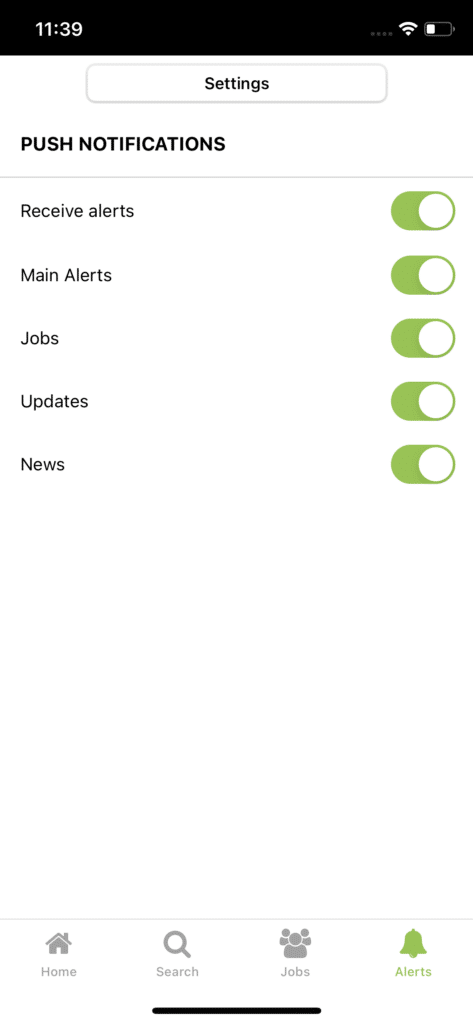
    In your app, if you have the “Alerts” tab enabled, users will be able to determine for which tags they will receive notifications, as you can see here:

    In this case Main Alerts, Jobs, Updates and News are all tags that the user can enable or disable so that when a notification is sent with one of these tags assigned to it, only users that have that tag enabled will receive it.

    You can create or edit the tags directly from your Canvas Dashboard, keeping in mind that each tag will have two values assigned to it:

    • Label: the text that will be visible to users in the app
    • ID: the actual tag name that will be assigned to the user profile and used to send the notifications

    To clarify, “Main Alerts” would be the label and “main-alerts” the ID of this tag.

    The Canvas plugin gives you two options for tags, both explained below:

    Category slugs as tags

    When you attach a post to your notification, you can mark this option to include the “category slugs” of that post as tags in the notification. If a post is assigned to the “Featured News” category, the “featured-news” tag will be assigned to your notification and only users that have that tag enabled will receive the notification.

    Keep in mind that you will need to manually create this specific tag in your “Canvas Dashboard”.

    Manual notification tags

    If instead, you prefer to add tags to your notification manually you can use this option. You can simply add the IDs of your tags in the text field and those will be included in your notification.

    How tags work in OneSignal

    Whenever a user enables or disables a specific tag, his profile in OneSignal will be updated with his selection, as you can see below:

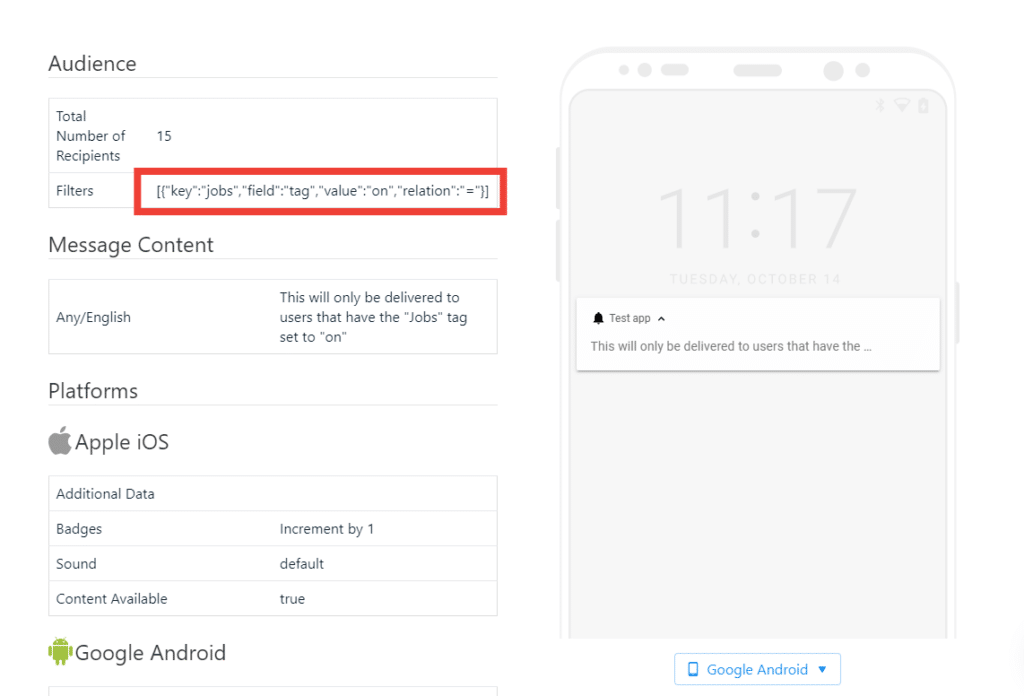
    The actual notification that you send, will include the necessary logic to ensure it only gets delivered to users that have the selected set of tags turned on: