Category: Help Knowledge Base

  • Integrate your website with OneSignal for Push Notifications

    This guide should not be used if you have a WordPress website.

    There are many situations in which you will want to trigger push notifications to your users, here are some examples:

    • Private message has been received
    • An order has been delivered
    • A new file has been added to the account
    • A subscription is about to expire

    For all of these examples, the notification will need to target a specific user when a specific action or event happens on your website. In order to be able to send these notifications you will need the following implemented into your website’s code:

    • OneSignal REST API
    • Canvas native functions

    Keep in mind that this is not an implementation guide for the OneSignal REST API, each server and website is different and will require a developer to find the best approach for implementing the push notification code. The purpose of this guide is to give you a better understanding of how to integrate your website with the Canvas platform for sending targeted and personalized push notifications.

    Let’s go through each one of the requirements:

    OneSignal REST API

    Since Canvas uses OneSignal for push notifications, you will need to use the OneSignal REST API to trigger the notifications.

    Whenever a push notification is expected to be sent, you will need to make a call to the OneSignal REST API with the notification details (title, text, link, image, tags, etc).

    Here you can find the complete documentation for the OneSignal REST API: https://documentation.onesignal.com/reference/create-notification

    Canvas native functions

    Implementing the OneSignal REST API should be straightforward, but at some point, you will ask yourself “How do I target a specific user?”, and that’s where the Canvas native functions come into play.

    On your website, you are probably using a unique ID or even an email to identify your users, but in OneSignal that unique identifier is not available out of the box, so the idea here is to tell OneSignal to store the same unique user ID from your website into the OneSignal profile of that user.

    To do this, we are going to trigger the following Javascript function as soon as the user has logged in:

    // Add the event listener
    window.addEventListener(“message”, (event) => {
    runNativeFunctions(event);
    }, false);

    // Run when the event listener is triggered
    function runNativeFunctions(event) {
    try {

    // Check if we are in the app
    if (isApp) {

    // If we have the app confirmation to use native functions
    if (event.data && event.data == ‘nativeFunctionsLoaded’) {
    // Set the external user ID
    let externalUserId = 1;
    // Trigger the native function to save to OneSignal
    nativeFunctions.onesignalSetExternalUserId(externalUserId);
    // Log the event in the console
    console.log(“External user ID set”);
    }

    }
    } catch (ex) {
    console.log(ex.message;);
    }
    }

    The nativeFunctions.onesignalSetExternalUserId function will tell the app to make a request to OneSignal and set the provided ID as the External User ID for the current device, which will allow you to target that specific user in your notifications using the exact identifier that you use on your website.

    We recommend adding the Javascript code inline rather than using a separate file, to avoid compatibility issues.

    For more details on how to target users using the External User ID, you can refer to the OneSignal documentation here: https://documentation.onesignal.com/docs/external-user-ids

    You can also find a list of all available native functions here: https://www.vendrux.com/help/knowledge-base/how-to-use-canvas-functions
  • Installing the vendrux News plugin

    Installing the vendrux News plugin

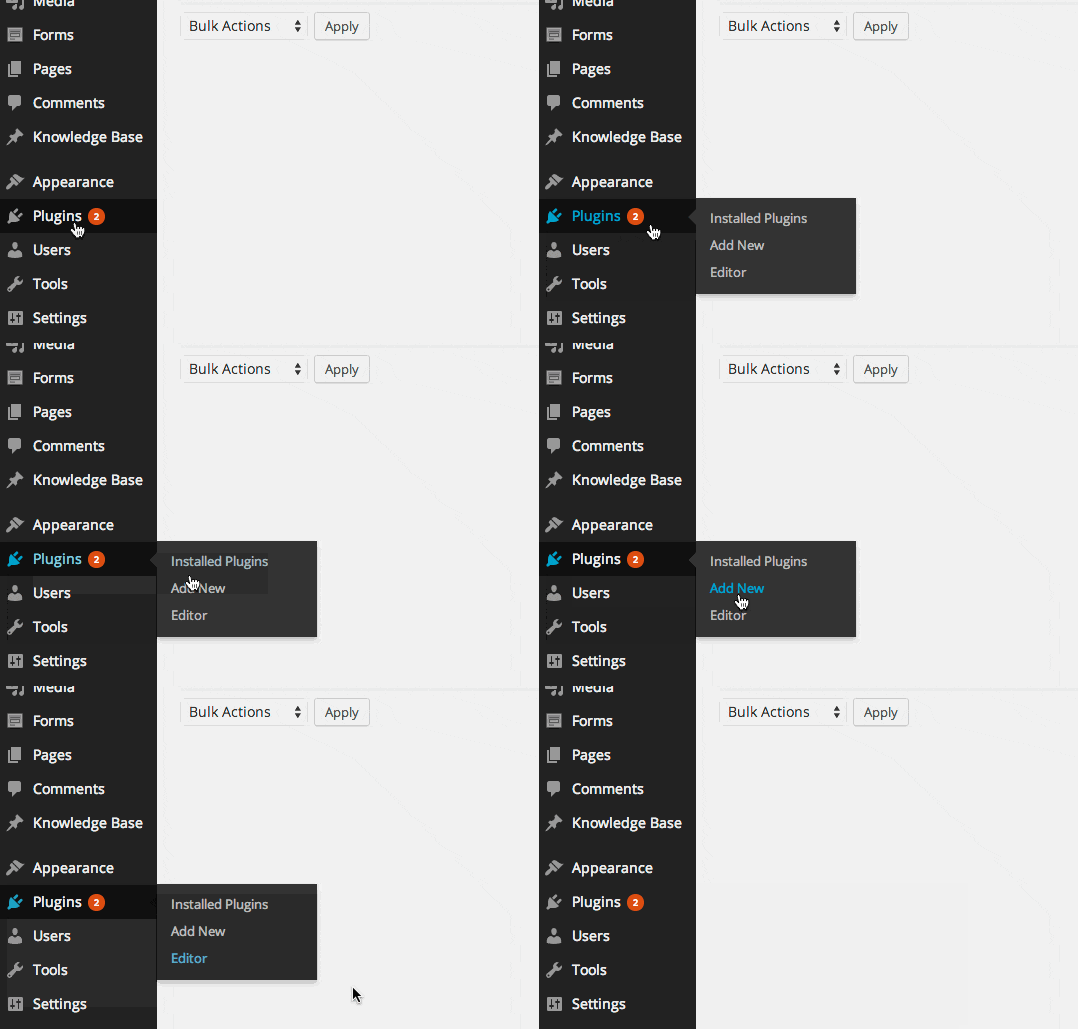
    First go to your WordPress Admin Panel and click on Plugins » Add New

    step-1 plugin-addnew

    You will see the screen like the one in above screenshot.Type in the “Vendrux”, like we did.Then you will see a search results page, like the one below, showing the Vendrux plugin.Click on the Install Now button and WordPress will download install the plugin for you. After this you will see something like this on the screen.

    Step 4 activate

    Click on the Activate button. And you’re done, the plugin is installed. Now you can proceed to configure the design and settings for your app!

  • How to install the vendrux plugin manually

    If your server allows installing plugins automatically (without FTP)This is the easiest option if you’d like to upload and install the plugin manually on your site.

    1. Download our WordPress Plugin from the directory to your desktop or Downloads folder
    2. Navigate to your WordPress dashboard
    3. Click on Plugins, then Add New
    4. Next to the page title, click on the Upload Plugin button
    5. Click on Choose file, select the file you just downloaded and then Install Now
    6. WordPress will install the plugin for you, when it’s done click on Activate
    7. You’re done!

    If your server does not permit automatic installation of plugins (FTP installation)You can manually download a copy of the Vendrux plugin from the WordPress directory and proceed to install it on your WordPress site following these simple instructions.To install the WordPress plugin manually:

    1. Download our WordPress Plugin from the directory to your desktop or Downloads folder
    2. If downloaded as a zip archive, extract the Plugin folder to your desktop.
    3. With your FTP program, upload the Plugin folder to the wp-content/plugins folder in your WordPress directory online.
    4. Go to Plugins screen and find the Vendrux plugin in the list.
    5. Click Activate to activate it.
    6. You’re done!
  • I’m an agency, can I introduce a client?

    Yes! If you’re an agency, developer or anyone interested in referring a customer, we’ll love to help your customer build their app.

    We pay out a simple one-time referral commission of $1,000 for every customer you refer.

    A customer is anyone who signs up for a custom app with us and doesn’t take a refund within 60 days from purchase.

    There’s no risk in making a referral, if for any reason things don’t work out, they have 60 days to use our money back guarantee.

    Simply introduce your client to Pietro Saccomani at Vendrux pietro@vendrux.com

    Here’s a sample intro email:

    Hi there,

    I wanted to connect you with Pietro Saccomani over at Vendrux.com. He has a great service that turns your site into custom native mobile apps. They do all the work for you, from setting up to publishing your app.

    They have a money back guarantee so even if it doesn’t work for you, there’s no risk.

    You two can take it from here and I hope this intro proves worthwhile!

    thank you,

  • How to use the Welcome Screen feature for your News app

    How to use the Welcome Screen feature for your News app

    The Welcome Screen feature was built to help with making sure your app is compliant with the latest General Data Protection Regulation (GDPR).It allows you to present more details on how your user’s data is handled and the terms that are being accepted when they use the app.Since each business has its own policies and branding we decided to provide a customizable design for this feature, so that you can have your own logo, colors, links, and content.You can download the template that we created by clicking here. Here are the steps that must be followed after downloading the template to set up your app’s welcome screen:

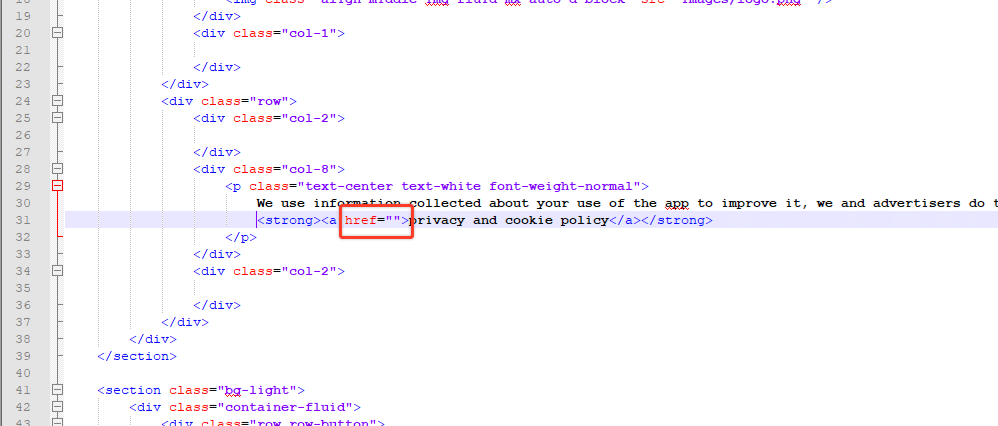
    1. Include your privacy policy URLYou must open the index.html file using a text editor and include your own privacy policy URL on line 31 between the double quotes that can be seen in the image below:
    1. Make sure to save your file afterward.
    2. Upload the vendrux-welcome-screen folder to your serverThe vendrux-welcome-screen folder needs to be uploaded to your server so that it can be accessed by the app using its own URL like this: https://yourwebsite.com/vendrux-welcome-screen (feel free to rename the folder if you prefer). For this step, we’d recommend that you contact your hosting provider for more details on how to upload files using an FTP client.
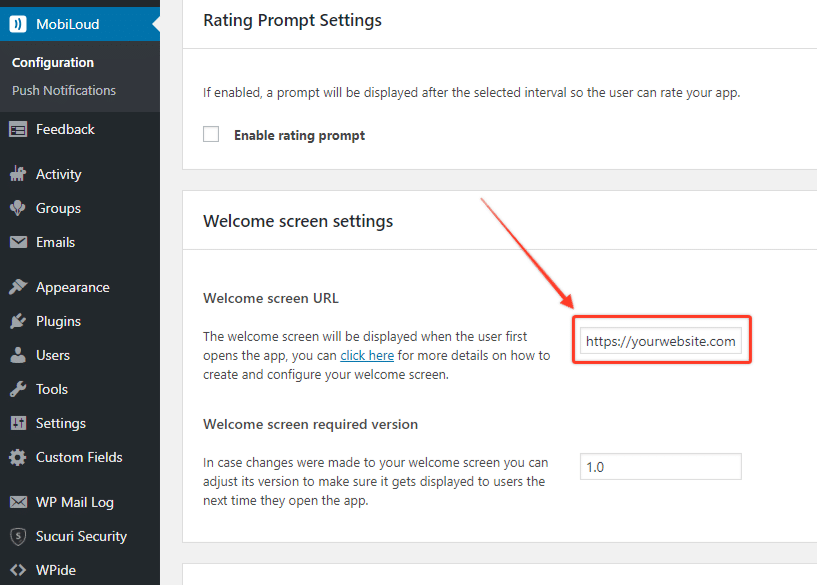
    3. Adjust your app configuration to include the new welcome screen URLNow that you have the welcome screen folder uploaded to your server you will need to go to the Vendrux News plugin “Settings” area and include the new URL under the “Welcome Screen settings” section on the “Welcome screen URL” setting, as you can see below:

    Once your welcome screen URL is in place, you should see the welcome screen is displayed once you open the app. In order to be able to view the app’s content the “I Agree” button will have to be clicked. This will ensure that all users are aware of how your app handles their data and the terms that are being agreed on when they use it.Note that the Welcome Screen will only be displayed once, if you want to display it again to all users who previously clicked the “I agree” button you can increase the “Welcome screen required version”.Don’t hesitate to get in touch with our team in case you need further assistance with your Welcome Screen!

  • How to use the Welcome Screen feature on Canvas

    How to use the Welcome Screen feature on Canvas

    The Welcome Screen feature was built to help with making sure your app is compliant with the latest General Data Protection Regulation (GDPR).It allows you to present more details on how your user’s data is handled and the terms that are being accepted when they use the app.Since each business has its own policies and branding we decided to provide a customizable design for this feature, so that you can have your own logo, colors, links, and content.You can download the template that we created by clicking here. Here are the steps that must be followed after downloading the template to set up your app’s welcome screen:

    1. Include your privacy policy URLYou must open the index.html file using a text editor and include your own privacy policy URL on line 31 between the double quotes that can be seen in the image below:
    1. Make sure to save your file afterward.
    2. Upload the vendrux-welcome-screen folder to your serverThe vendrux-welcome-screen folder needs to be uploaded to your server so that it can be accessed by the app using its own URL like this: https://yourwebsite.com/vendrux-welcome-screen (feel free to rename the folder if you prefer).For this step, we’d recommend that you contact your hosting provider for more details on how to upload files using an FTP client.
    3. Adjust your app configuration to include the new welcome screen URLNow that you have the welcome screen folder uploaded to your server you will need to go to your Canvas app configuration dashboard and include the new URL under the “Advanced” area on line 9, as you can see below:

    Once your welcome screen URL is in place, you should see the welcome screen is displayed once you open the app. In order to be able to view the app’s content the “I Agree” button will have to be clicked. This will ensure that all users are aware of how your app handles their data and the terms that are being agreed on when they use it.Note that the Welcome Screen will only be displayed once, if you want to display it again to all users who previously clicked the “I agree” button you can increase the “Welcome_Screen_Required_Version”.Don’t hesitate to get in touch with our team in case you need further assistance with your Welcome Screen!

  • Notification Tags | vendrux

    Notification Tags | vendrux

    If you would like app users to be able to select from which categories they will receive notifications for, notification tags are the solution you are looking for.

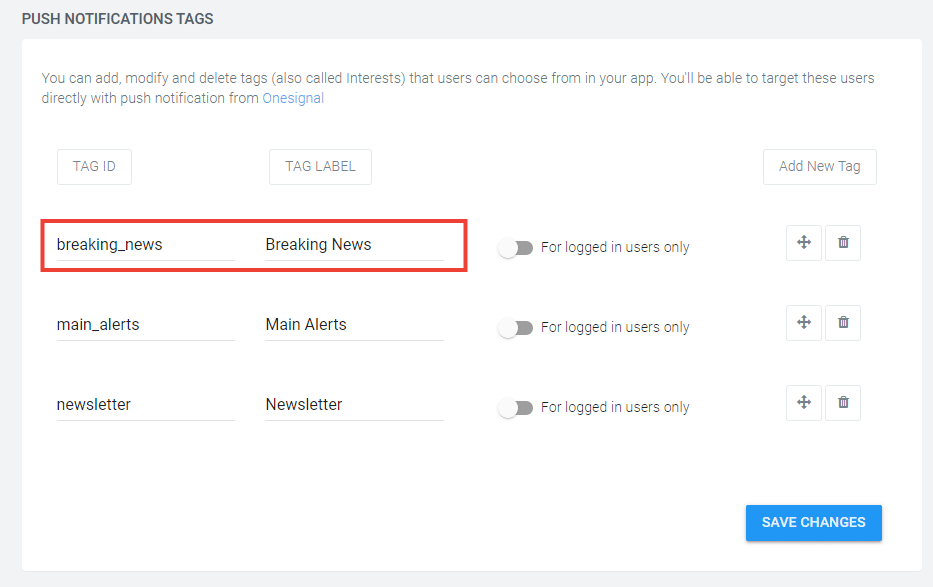
    In your Canvas Dashboard, under “Notifications” you can manage and create notification tags. For each tag, you will be able to define a label and an ID. The label will be displayed to users and can contain any sort of special characters, while the ID will be used to match the tags that are added to your push notifications and should not contain any special characters.

    For the purpose of this guide let’s create a new tag for “Breaking News” push notifications, in this case, we would have something like this:

    When sending your notifications you will now need to include the “breaking_news” tag into your notification payload. Our plugin allows you to do that in a few different ways for manual and automatic notifications.

    Manual Notifications

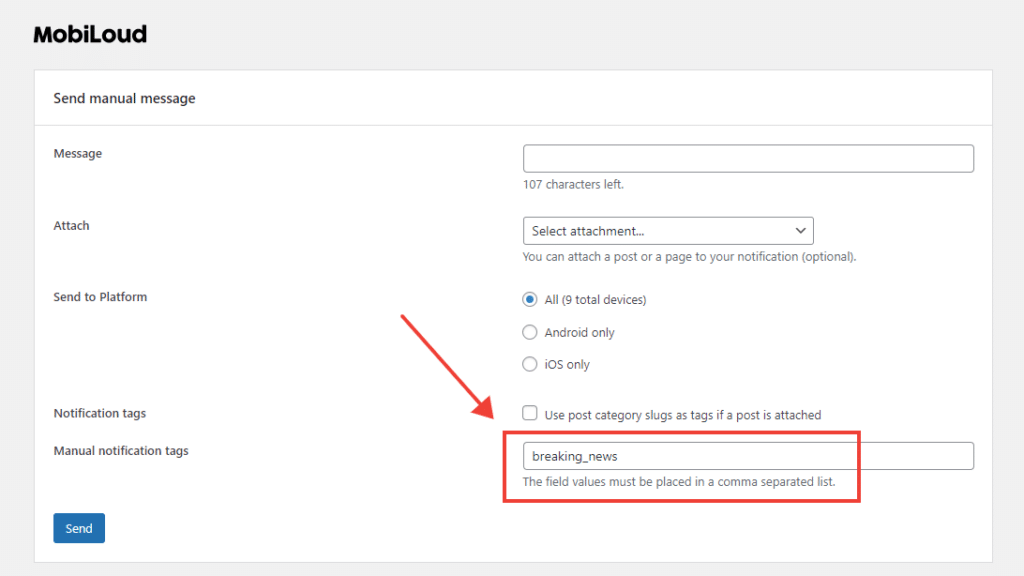
    When sending a manual notification from the plugin you will need to add your created tag into the “Manual notification tags” field, as you can see below:

    Automatic notifications

    For automatic notifications you have two settings that can be used to add tags to your notifications, see below:

    If you use category names as tags, notifications will include the “slug” of your categories as tags. In this example you will need to have a category called “Breaking News” with a slug that looks exactly like the ID you created “breaking_news”

    You can also add specific tags to always be included in your notifications, you just need to make sure they match the tags you created in your Canvas Dashboard.

  • How to use Canvas functions

    Specific features of Canvas can be triggered manually through the use of Javascript functions.

    These functions must be implemented directly on the website side, and will only work when the website is viewed inside the app.

    Below you can find a list of all the available functions:

    nativeFunctions.onesignalSendTags([$tags])
    Adds an array of tags to the user profile in OneSignal

    nativeFunctions.onesignalDeleteTags([$tags])
    Removes an array of tags from the user profile in OneSignal

    nativeFunctions.onesignalSetExternalUserId($id)
    Adds an external ID to the user profile in OneSignal

    nativeFunctions.onesignalRemoveExternalUserId()
    Removes an external ID from the user profile in OneSignal

    nativeFunctions.onesignalSetEmail($email)
    Adds an email profile to OneSignal

    nativeFunctions.onesignalLogoutEmail()
    Removes the current email profile from OneSignal

  • How to use App Pages

    How to use App Pages

    Most apps will be required to display some important details to users, such as Privacy Policy, Terms of Agreement, and Contact forms, as per the guidelines from Apple and Google.

    Those details can be added to your app in the form of pages, but instead of using the pages you already have on your website, which are cluttered with information and elements that are only relevant to mobile and desktop users, you will want to use the App Pages feature.

    App Pages will allow you to create pages that are fast to load and match your app design, without displaying them on your website. You can then use those pages across different areas of your app.

    We have included a few App Pages for you by default, but you can follow the instructions below to edit those pages or create new ones.

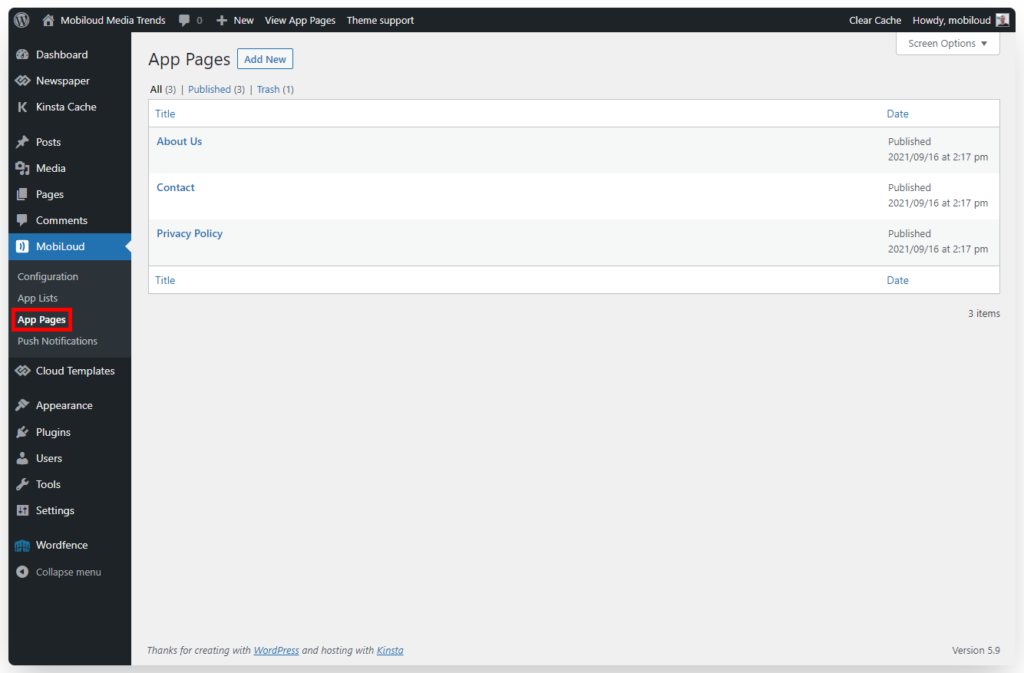
    1 – Go to “Vendrux” and then “App Pages”:

    2 – Select the App Page that you would like to edit

    3 – You can now edit the content of your App Page using the default WordPress editor

    4 – When editing your menus you will be able to select your App Page and add it just like any other link

  • How to use App Lists

    How to use App Lists

    When you open your app, the first thing you will see is a list of posts generated automatically based on the most popular categories of your WordPress website.

    If you would like to have different categories displayed or even a more unique design, you can use the App Lists feature to customize the content that will be displayed to your users when they open the app.

    App Lists use the WordPress Gutenberg Editor feature to provide you with an easy-to-use drag-and-drop interface, allowing you to easily determine the categories, headings, separators, and other design aspects of your lists.

    You can also use App Lists to create lists that can be used on other areas of your app.

    Below you can find more details about how to access and use this feature:

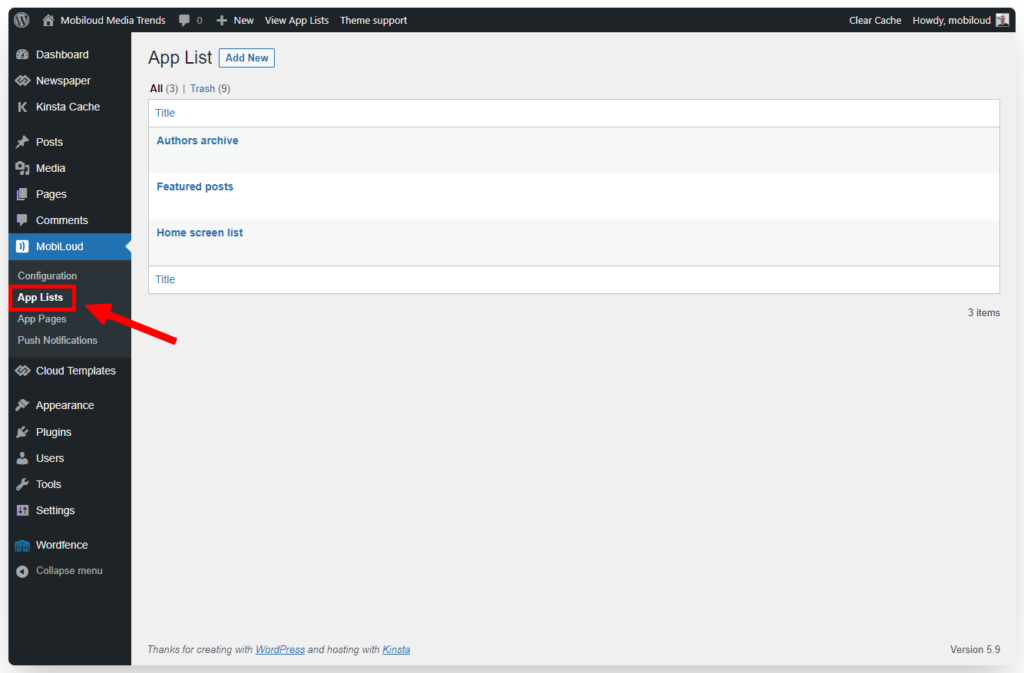
    1 – In your WordPress Dashboard, in the sidebar, click “Vendrux” and then “App Lists”

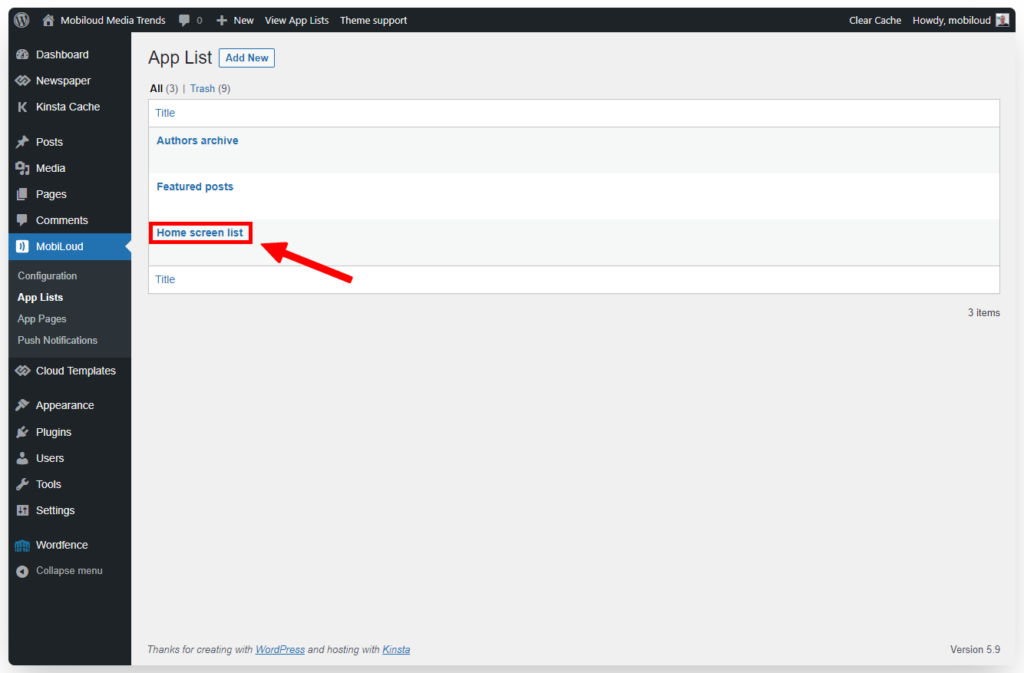
    2 – Select the list that you would like to edit

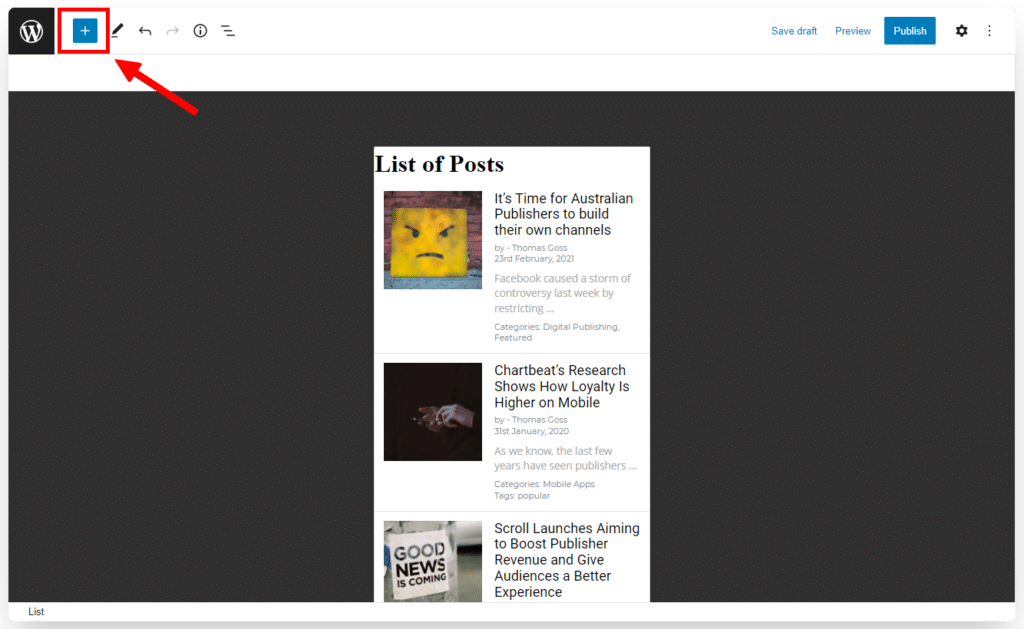
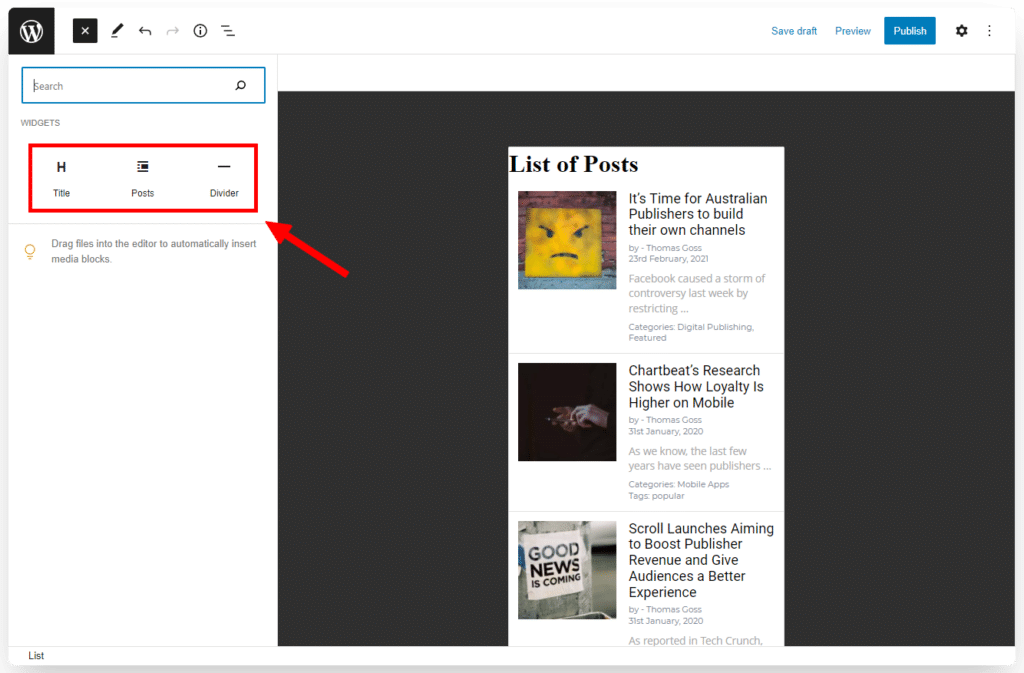
    3 – Click the “+” icon to add more blocks to your list

    4 – Select existing blocks to change their configuration

    How to apply App Lists to your app

    Once you have created and configured your app list, you can now adjust your app to display it as the app’s home screen.

    Go to “Vendrux > Configuration > Menus”:

    Scroll down a bit to the Tabbed Menu configuration and then for the first tab select “Lists” for the “Tab Type” and then pick the App List that you would like to display:

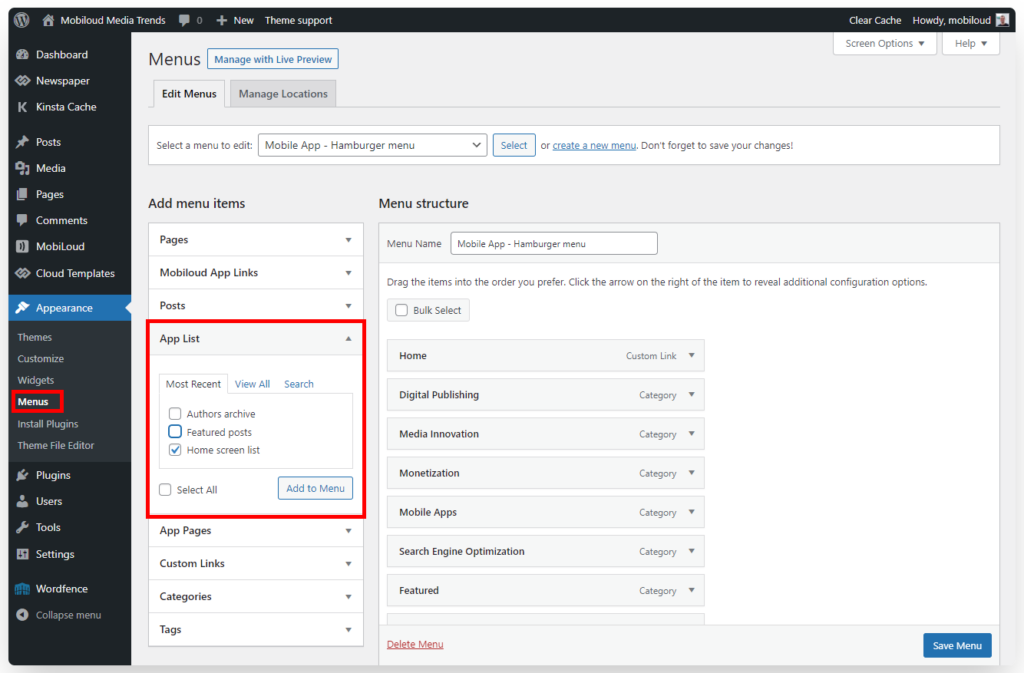
    You can also add your newly created list to the hamburger and horizontal menus, as you can see below: